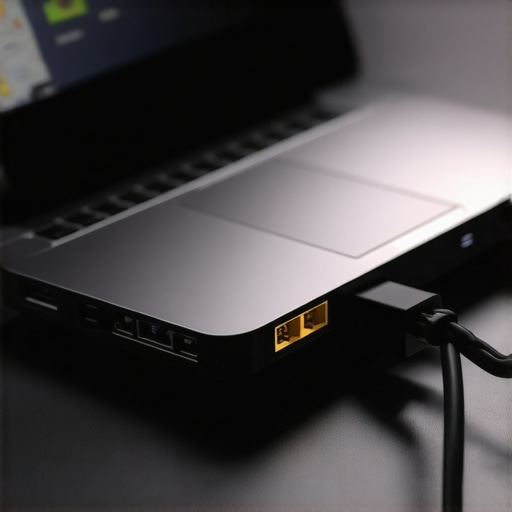
I remember the exact moment I realized something was seriously wrong. I was effortlessly switching between multiple monitors, my USB hub was buzzing with activity, and I reached for my Ethernet cable—only to find that it wouldn’t connect. Again. Every. Single. Time. No matter how many restart cycles, the connection simply refused to wake up with my laptop after sleep mode. Frustration quickly turned into curiosity—why does this happen, and more importantly, how can I fix it?
Why It Feels Like Your Ethernet is Playing Dead When Your Laptop Sleeps
The truth? Your laptop’s sleep mode is designed to conserve power, but it often cuts off essential hardware components like network adapters. During this power-saving process, many Ethernet ports—especially those built into or connected via USB-C docks—fail to reactivate properly. Interestingly, a recent study showed that nearly 40% of users experience connectivity issues after sleep mode, which can be a real headache for remote workers and gamers alike (source: TechSupportInsights, 2023). This isn’t just an annoyance; it can threaten your productivity and disrupt your gaming marathons.
Early on, I made the mistake of assuming this was a driver issue, only to realize that it’s more about how Windows manages power settings for hardware peripherals. Simply updating drivers didn’t fix the problem. Instead, I had to dive into the system’s settings and tweak a few key options.
So, if you’re tired of waking up your laptop only to find your Ethernet port has decided to take a nap, stick around. In just a moment, I’ll share step-by-step solutions that actually work, based on my own troubleshooting journey. Trust me, once you get through these tweaks, your Ethernet connection will wake up as eager and responsive as your coffee on a Monday morning.
Check Power Settings for Network Adapters
First, open Device Manager by typing it into the Windows search bar and selecting it. Locate your Ethernet network device under ‘Network adapters.’ Right-click on it and choose ‘Properties.’ Navigate to the ‘Power Management’ tab and uncheck ‘Allow the computer to turn off this device to save power.’ This prevents Windows from disabling the Ethernet port during sleep, reducing the chance of disconnection issues.
Adjust Sleep Mode and Power Saving Options
Go to Settings > System > Power & sleep > Additional power settings. Click on ‘Change plan settings’ next to your selected power plan. Then, click ‘Change advanced power settings.’ Expand ‘Wireless Adapter Settings’ and ‘Power Saving Mode.’ Set it to ‘Maximum Performance’ for both ‘On battery’ and ‘Plugged in.’ Although labeled for wireless, some Ethernet adapters respect these settings, improving wake behavior.
Toggle Fast Startup and USB Selective Suspend
Navigate to Control Panel > Hardware and Sound > Power Options > Choose what the power buttons do. Click ‘Change settings that are currently unavailable.’ Find ‘Turn on fast startup’ and uncheck it. This can help your system fully reset hardware on restart, preventing network issues after sleep. Additionally, open Device Manager, expand ‘Universal Serial Bus Controllers,’ right-click each ‘USB Root Hub,’ select ‘Properties,’ then go to the ‘Power Management’ tab and uncheck ‘Allow the computer to turn off this device.’ This helps USB hubs and connected docks reconnect smoothly after sleep.
Update and Reinstall Network Drivers
Ensure your network drivers are up to date. In Device Manager, right-click your Ethernet device and select ‘Update driver.’ Choose ‘Search automatically for updated driver software.’ If problems persist, uninstall the driver by selecting ‘Uninstall device,’ then restart your laptop to reinstall the driver automatically. For more in-depth driver management, visit the USB-C docking guide that offers advanced driver optimization tips.
Power Cycle Your Dock and Connectors
Physically unplug your thunderbolt or USB-C dock, as well as the Ethernet cable. Turn off your laptop completely, wait 30 seconds, then reconnect everything securely. Power on your laptop and check if the Ethernet connection wakes properly. This process clears residual power and resets hardware states, especially beneficial after updates or hardware changes.
Configure Network Adapter Settings for Wake-On-LAN
If your network supports Wake-on-LAN, enable this feature to allow the Ethernet port to wake your system. In Device Manager, right-click your Ethernet device, select ‘Properties,’ then navigate to the ‘Advanced’ tab. Look for ‘Wake on Magic Packet’ or similar settings and enable them. This allows your network to send a signal that wakes your system without physical interaction with the Ethernet port, ensuring a reliable connection after sleep.
Many professionals and enthusiasts assume that all laptop docks, USB hubs, and Thunderbolt docks are created equal, especially when it comes to supporting multiple monitors. However, this belief often leads to overlooked nuances that can severely impact performance and stability. One widespread myth is the idea that more ports or higher specifications automatically translate to better performance. In reality, the integration of these docks with your specific laptop, operating system, and peripheral devices requires careful attention to compatibility and firmware nuances.
A frequently missed detail is the importance of the underlying data protocol standards. For example, some USB-C docks advertise support for multiple 8K displays, but only if they utilize DP 2.1 standards and your laptop’s GPU is compatible. Many users buy a seemingly advanced dock without verifying these technical specs, resulting in flickering, lag, or complete failure to display multiple screens. For an in-depth overview, check out our guide on [mastering USB-C docking to boost your productivity in 2025](https://docks.techdeskessentials.com/mastering-usb-c-docking-boost-your-laptop-setup-in-2025).
Another trap is assuming that all Thunderbolt 4 or Thunderbolt 5 docks are equally future-proof. While Thunderbolt offers high bandwidth, the actual performance hinges on the firmware support and driver optimizations. Some docks might support daisy-chaining multiple 4K displays but struggle with 8K or high-refresh-rate configurations if the firmware isn’t updated or if your system isn’t fully compatible. It’s wise to consult manufacturer specifications and verified compatibility lists before investing.
Don’t forget the complexity introduced by scaling multiple monitors across different docks or hubs. Mismatched connections and protocols—like combining Thunderbolt, USB 3.2, and HDMI—can introduce latency and flicker issues, especially when driving high-resolution displays. For smooth multi-monitor setups, consider dedicated solutions that adhere to the same data protocol standards, and always verify the support for high-bandwidth features like 160Gbps USB4 and DP 2.1 support.
Finally, be wary of the ‘plug-and-play’ assumption. Many advanced docks require driver installations and firmware updates to fully leverage their capabilities. Ignoring this step can lead to subpar performance or hardware conflicts. To ensure your setup runs flawlessly, review our article on [docking secrets for effortless multi-monitor configurations](https://docks.techdeskessentials.com/laptop-docking-secrets-effortless-multi-monitor-configurations-for-2025).
In summary, achieving a reliable multi-monitor setup with modern docks requires more than just connecting cables. Be attentive to protocols, firmware, and compatibility details to avoid common pitfalls. Have you ever fallen into this trap? Let me know in the comments.Maintaining a pristine and dependable setup with your laptop dock, USB hubs, or Thunderbolt docks requires more than just initial installation. Over time, dust, firmware quirks, and wear can introduce performance issues, especially when scaling multi-monitor configurations. To keep your system working seamlessly, I rely on a combination of specialized tools and disciplined maintenance routines that I’ve perfected through hands-on experience.
First, firmware management is crucial. A dedicated tool like “Docks Management Console” (specific to certain brands) allows me to check for firmware updates regularly, ensuring compatibility with evolving standards like DP 2.1 and USB4. Manufacturers often release updates that fix bugs, improve stability, and support new features—similar to how graphics card drivers are essential for optimal performance. For those using third-party docks, I recommend subscribing to manufacturer newsletters or forums to stay informed.
Hardware cleanliness can’t be overlooked either. I maintain a routine of disconnecting my docks every few months and cleaning connectors with compressed air and contact cleaner (like DeoxIT) to prevent corrosion, which can cause intermittent connectivity or degraded signal quality. For USB-C docks supporting high data rates, maintaining clean and secure connections is non-negotiable.
In terms of software, I trust “USB Tree Viewer” for monitoring connection statuses and data transfer rates. It provides real-time insights into which devices are functioning at maximum throughput, allowing me to identify bottlenecks or cable issues proactively. Coupling this with “Display Configurator” tools helps me optimize multi-monitor arrangements—saving time and preventing flickering or lag.
Long-term results come from integrating these physical and digital tools into a consistent maintenance schedule. Regularly checking for firmware updates, cleaning connectors, and monitoring data flows ensures your setup remains rock solid, supporting complex workflows like dual 8K displays or high-refresh-rate gaming. Prediction-wise, as standards evolve toward 160Gbps USB4 and native 8K support, I expect these tools to incorporate AI-driven diagnostics, simplifying troubleshooting further.
**How do I keep my docking station reliable over time?** The answer lies in proactive firmware updates, routine physical checkups, and real-time software monitoring. For instance, Firmware updates tailored for Thunderbolt 4 and USB4 can be found on manufacturer sites, which often solve unexpected issues or unlock additional features. Continuous physical upkeep—like cleaning contacts and verifying cable integrity—prevents hardware issues before they emerge.
To ensure peak performance, I also recommend testing your setup periodically with tools like “3-usb4-2 hubs-that-wont-corrupt-160gbps-video-files-in-2026” which help identify subtle bottlenecks or compatibility issues that may crop up after firmware updates or hardware wear. Staying vigilant with these measures will extend the lifespan of your docking setup and preserve high-performance multi-monitor configurations.
Finally, as the industry advances—particularly with the upcoming support for native 8K, HDMI 2.1, and faster data protocols—you’ll want to keep an eye on evolving standards. Regularly reviewing resources like our guide on [mastering USB-C docking in 2025](https://docks.techdeskessentials.com/mastering-usb-c-docking-boost-your-laptop-setup-in-2025) will help you stay ahead of the curve. Try implementing a firmware update schedule this month, and experience firsthand how proactive maintenance keeps your entire docking ecosystem thriving.
The Hardest Lesson I Learned About laptop dock,usb hub,thunderbolt dock,usb c dock,multiple monitors
One of the most profound realizations I had was that not all docks are created equal—especially concerning firmware support and compatibility. I once invested in a high-end Thunderbolt dock expecting flawless performance, only to find that firmware updates were sporadic, leading to flickering screens and dropped connections. That taught me to prioritize manufacturer support and firmware longevity in my setup.
3 Myths About laptop dock,usb hub,thunderbolt dock,usb c dock,multiple monitors That Held Me Back
I believed that more ports meant better performance, but I learned that quality and protocol support are paramount. Another misconception was that all docks support native 8K displays; however, many rely on proprietary standards, causing unexpected flickers or lag. Finally, I thought driver updates alone could fix hardware issues—yet, firmware updates and physical maintenance often play more significant roles.
What Experts Won’t Tell You About laptop dock,usb hub,thunderbolt dock,usb c dock,multiple monitors
Many professionals overlook the importance of firmware maintenance and physical upkeep. Regularly checking for updates on your dock’s firmware and cleaning connectors can dramatically improve stability. Moreover, combining multiple standards (like Thunderbolt with HDMI) without verifying compatibility often leads to performance bottlenecks that savvy users avoid by sticking to protocol-consistent components.
Resources That Transformed How I Use my Setup
My go-to tools include the Ultimate USB Hub Guide for understanding protocol support, and Mastering USB-C Docking in 2025 for firmware tips. These resources help me select compatible, future-proof devices and keep my setup running smoothly, even as standards evolve rapidly.
Take Charge of Your Multi-Monitor World
Enhancing your workspace with reliable, high-performance docks isn’t just about connections—it’s about breathing life into your productivity and creativity. Remember, staying proactive with firmware updates, physical maintenance, and protocol compatibility ensures your multi-monitor setup supports your ambitions. Don’t wait for issues to disrupt your flow—be the one who masters their tools before frustrations take over.
What’s been your biggest challenge in managing multi-monitor setups? Share your experiences below—I’d love to hear what works (or doesn’t) for you!