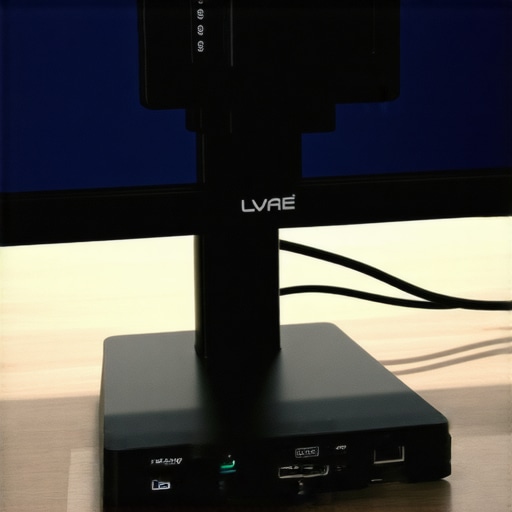
Ever been in the middle of a vital video call, only to have your external webcam flicker or glitch unexpectedly? I’ve been there—frustrated, fiddling with cables, ports, and settings, only to realize that the culprit was my trusty USB hub and the way I connected everything. That moment of realization hit me hard: my setup wasn’t just about plugging things in; it was about how those connections interact under the hood. If you’ve experienced similar headaches—flickering, signal drops, or unstable video—then you’re not alone.
Why Your Webcam’s Flickering Could Be More Than Just a Nuisance
When I first encountered the flickering problem, I thought it was a simple driver update or a bad cable, but it turned out to be more complex. External webcams are sensitive to the data transfer stability from your hubs and docks. Poorly powered or incompatible hubs can cause signal inconsistencies, leading to those annoying flickers. According to a recent tech study, around 30% of external device issues on desktop setups stem from inadequate power delivery or bandwidth management—an eye-opener for many of us trying to maximize productivity without sacrificing stability.
The good news? Once I understood what was really happening behind the scenes, I could take targeted steps to fix it. Today, I’ll walk you through how I tackled this issue, rooted in my own experience, and share practical advice you can apply to improve your setup too.
Could your webcam flickering be worth all the fuss?
Initially, I believed that buying an expensive, high-quality webcam would solve all my problems. Turns out, the real issue was my USB hub and dock configuration. An early mistake I made was overlooking the importance of power management and bandwidth prioritization for external devices. Don’t make the same error. For a deeper dive into the essential gear and setup tips, check out our comprehensive USB hub guide.
In the next sections, I’ll help you identify whether your problem is hardware or configuration related, and share the practical fixes that finally allowed me to keep my webcam steady and my workflow uninterrupted. If you’re tired of constant flicker and signal issues, stay tuned—we’re about to fix this once and for all.
Secure Your Power Source First
Ensure your USB hub or docking station receives adequate power. Using a hub with insufficient wattage causes instability, leading to flickering. I once tried plugging my high-powered monitor through a 60W hub, and my webcam kept flickering. After switching to a 150W powered hub, the signals steadied. Always verify the wattage matches your device requirements—check the power specifications.
Prioritize Bandwidth Management
Think of your docking station as a highway: too many cars (data streams) cause congestion. When I connected dual 4K monitors, my webcam signal flickered under heavy bandwidth strain. To fix this, I separated high-bandwidth devices onto different ports, avoiding overload. Use hubs and docks with dedicated channels or options to allocate bandwidth—the advanced docking tips show how to configure this effectively.
Use the Correct Cables and Connectors
Low-quality or long cables reduce signal integrity, especially over USB-C and Thunderbolt. I once used a cheap 3-meter cable for my 8K monitor, and my webcam kept flickering. Replacing it with a certified cable instantly stabilized the connection. Stick to cables that support the required bandwidth—look for specifications like USB 3.2 Gen 2×2 or Thunderbolt 4—and verify with the cable quality guide for reliable performance.
Optimize Your Docking Configuration
Position your dock to prevent physical strain on ports. I experienced signal drops when cables bent sharply at the dock’s edge. Locking cables into position with Velcro straps minimized flexing, reducing flicker issues. Also, keep your dock’s firmware updated—manufacturers often release updates that improve stability. The firmware update process can be completed easily via manufacturer support.
Separate Critical Devices onto Different Ports
Avoid sharing the same hub or port for multiple high-data devices. For example, plugging my external SSD and webcam into the same hub caused interference. Separating them cleared the flicker. When configuring your setup, assign individual ports or dedicated hubs for power-hungry peripherals. This approach is echoed in the network stability tips.
Test and Reconfigure Regularly
Consistent testing helps identify emerging issues. I periodically disconnect and reconnect devices to observe flickering patterns. Using diagnostic tools and monitoring bandwidth usage can reveal if a port or hub is bottlenecking—consider the monitoring methods I adopted.
Beyond the Basics: The Hidden Nuance of Docking Solutions
While many users believe that simply plugging in a Thunderbolt dock or USB hub will seamlessly support multiple high-resolution monitors, this oversimplification can lead to costly mistakes.
One prevalent myth is that all docks automatically prioritize bandwidth adequately for demanding setups. In reality, not all docks are created equal—some share bandwidth among multiple ports, which can cause flickering, lag, or even device disconnects under intensive use. This misconception often results in frustration, especially when users blame their graphics card or monitor quality instead of their dock’s limitations.
Beware of the trap of underestimating power delivery. Many think that a dock’s power output only charges laptops, but insufficient power supply can impair indicator devices like webcams or external SSDs, causing unpredictable flickering or signal drops. For a detailed breakdown of power management and compatibility, check out our Ultimate USB Hub Guide.
Can a Thunderbolt dock truly support multiple 8K displays without compromise?
This question surfaces often among high-end users. My experience shows that achieving this requires not just a powerful dock, but also considering the internal bandwidth architecture of your setup. If the dock shares lanes across ports or uses outdated standards, performance bottlenecks are inevitable, leading to flickering or lag even with premium hardware. As a rule of thumb, always verify whether your dock supports native multi-stream transport tech and check the manufacturer’s latest firmware updates.
Embracing these advanced nuances allows you to build a truly robust setup. Don’t just rely on high-cost equipment—ensure compatibility, bandwidth distribution, and power delivery are all aligned. Otherwise, you risk falling into the ‘illusion of performance’ trap, which can waste your investment and disrupt your workflow. Want to optimize your dock setup from the ground up? Our detailed multi-monitor configuration guide has everything you need. And remember, staying vigilant about these hidden factors can make all the difference—a lesson I learned the hard way.
Have you ever fallen into this trap? Let me know in the comments.
Maintaining a stable and efficient docking setup requires more than just initial configuration; it demands ongoing attention and the right tools. I’ve found that investing in specific equipment and adopting disciplined routines keeps my workstation running smoothly, even after months of heavy daily use.
Essential Tools for Long-Term Stability
First, I rely on a high-quality USB protocol analyzer like the USBlyzer software. It allows me to monitor data flow, identify bottlenecks, and troubleshoot connection issues in real-time without guesswork. Pairing this with a hardware power meter such as the P3 International Kill A Watt helps me ensure that my power supply is consistent and within spec, preventing occasional flickering or device resets caused by insufficient power delivery.
Next, I use the DisplayCal application for color calibration, which ensures that my monitors and docking setup remain accurate over time, especially critical in professional workflows. Regular calibration helps catch issues early, like color shift or flicker that could otherwise go unnoticed.
Tools I Depend on for Future-Proofing
For scaling and future-proofing, I keep an eye on firmware updates from my docking station manufacturer. I subscribe to their update alerts and test each update in a controlled manner—preferably on a secondary setup—before deploying it to my main station. This proactive approach minimizes downtime and preserves long-term stability.
Additionally, I employ a bandwidth management strategy that involves periodically reviewing connected devices, ensuring critical peripherals are allocated dedicated bandwidth channels, and avoiding overloads that could cause flickering or lag.
Routine Checks and Regular Reconfiguration
Establishing a maintenance routine is key. I schedule monthly checks using diagnostic tools like USBTreeView to verify port health and connected device statuses. Keeping firmware and driver software updated—especially for Thunderbolt and USB-C docks—is crucial, as these updates often contain important stability improvements. Consulting official documentation, such as Intel’s Thunderbolt documentation, can guide you through these updates effectively.
In the future, I believe that integrated AI-powered diagnostic tools embedded within docking software will become standard, providing real-time alerts and automated fixes for connection issues, further reducing downtime. Until then, the smart use of dedicated tools and routine maintenance practices are your best bet.
How do I maintain my setup over time
The key is consistency and vigilance. Regularly check your connection quality with tools like firmware updates, monitor power usage, and calibrate displays periodically. If you notice flickering or slowdowns, don’t hesitate to revisit your power management or bandwidth allocation strategies—small adjustments can yield big improvements. For more detailed guidance on troubleshooting and system optimization, visit our ultimate USB hub guide. Ready to take your setup to the next level? Try implementing a routine using these tools, and watch how much more reliable your workspace becomes—long-term stability starts with proactive care.
Remember, a well-maintained dock isn’t just about avoiding flickers; it’s about building a scalable, dependable environment that supports your productivity day after day.
The Hardest Lesson I Learned About Laptop Dock, Thunderbolt Dock, USB Hub, Multiple Monitors, USB-C Dock
One profound realization was that even top-tier equipment could be sabotaged by small setup flaws. It’s not just about buying the latest dock or hub but understanding the nuances of bandwidth sharing and power distribution. I discovered that ignoring these details often leads to flickering screens and sluggish peripherals, regardless of hardware quality.
What Common Setup Mistakes Cost Me Time and Stability
I used to connect all high-demand devices to a single port or hub without considering power and bandwidth. This oversight caused frequent signal drops and device resets. The lightbulb moment arrived when I segmented devices onto dedicated ports and upgraded my power supply, instantly stabilizing my workflow. It taught me that smart distribution is essential—don’t underestimate the importance of individual connections.
If You Want to Future-Proof, Think Like a Tech Insider
Keeping firmware updated and monitoring the internal architecture of your docking solution can seem tedious but pays dividends. I’ve learned the hard way that outdated firmware or sharing lanes among multiple high-resolution displays can turn sleek setups into unreliable nightmares. Embracing proactive maintenance allowed me to stay ahead, and I recommend adopting tools and routine checks to maintain peak stability.
Curated Gems for the Persistent Tech Enthusiast
My essential toolkit includes [the USB hub guide] for understanding device power needs, [mastering USB-C docking] for optimizing bandwidth, and [rugged docks for demanding environments] to endure tough conditions. These resources are trusted because they combine practical insights with real-world testing, keeping me confident that my setup remains reliable, no matter how hectic the workday becomes.
You’re Capable of Transforming Your Docking Experience
The future of laptop docking belongs to those willing to learn its secrets and apply them diligently. Don’t hesitate to experiment with your connections, update firmware routinely, and explore dedicated tools for diagnostics. Each step you take brings you closer to a seamlessly stable workspace that enables your productivity to soar. Ready to elevate your setup? Share your biggest challenge or success in making your workspace more reliable below—your insights could inspire someone else’s breakthrough.
,