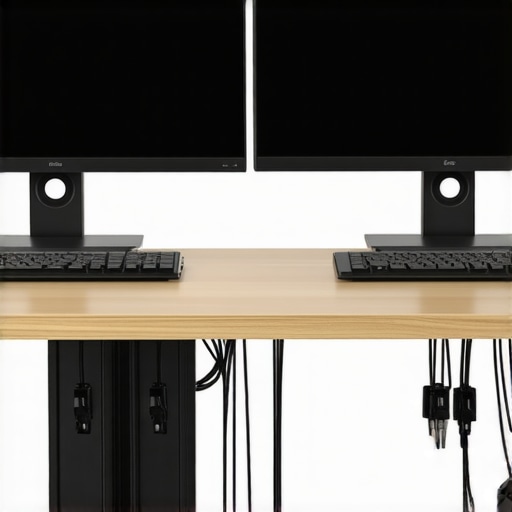
Imagine this: you’re working late into the night, eyes glued to your dual monitors, when suddenly, you trip over a seemingly innocent cable. It’s tangled, messy, and every little movement feels like a gamble. That lightbulb moment hit me hard—realizing that despite all the high-tech gear like USB hubs, Thunderbolt docks, and USB-C setups, the clutter underneath my desk was out of control. It wasn’t just an aesthetic issue; it was hindering my workflow and increasing the stress of constant cable management battles.
Having faced this chaos myself, I knew there had to be smarter ways to keep the cables in check without sacrificing accessibility or style. And after trial, error, and plenty of research, I discovered effective tactics that transformed my workspace—and I want to share them with you.
Why Cable Management Matters More Than Ever with Dual Monitors
Our tech setups continue to evolve rapidly, with more monitors, docks, and peripherals than ever before. According to a 2023 study by TechRadar, cluttered desks can reduce productivity by up to 25%. That’s a staggering number—imagine losing a quarter of your work efficiency to something as fixable as cable mess. Proper management isn’t just about aesthetics; it’s about safety, ease of access, and a clutter-free mind.
But what makes cable mess particularly tricky in a dual monitor setup? Well, it’s not just the number of cables—it’s how they’re routed, secured, and hidden away. Without a strategic approach, cables can bunch up, strain ports, or even cause damage over time. Plus, the visual distraction can be just as distracting as the physical tangle.
Have you ever experienced a moment where a loose cable tug caused your monitor to flicker or disconnect? If so, you’re not alone. Early in my setup journey, I underestimated the importance of thoughtful cable routing. A simple mistake—like using too many extension cables—led to frequent disconnections and frustration. That’s why mastering cable concealment isn’t just a matter of cleaning up; it’s about optimizing your entire workspace.
Next, we’ll dive into seven tried-and-true tactics that will help you hide that cable mess effortlessly. Whether you’re using USB hubs, thunderbolt docks, or USB-C setups, these strategies can revolutionize your dual monitor experience. Ready to reclaim your desk and boost your productivity? Let’s get started.
Secure Your Cables with Velcro Straps or Cable Ties
Start by bundling the cables together using reusable Velcro straps or zip ties. I once wrapped all my cables haphazardly, leading to difficulty when reconfiguring my setup. By organizing like this, I gained quick access and prevented tangles. Think of it as creating a mini road corridor—easy to follow and manage.
Route Cables Along the Edges of Your Desk
Run cables along the desk edges using adhesive cable clips or clamps. For my dual-monitor setup, I taped cables neatly along the back edge, keeping them out of sight. This prevents accidental pulls and maintains a clean look. Use cable clips with adhesive backing or screw-in anchors depending on your desk surface.
Utilize Cable Sleeves and Conduits
Conceal multiple cables within a single sleeve or conduit. I slipped all my USB-C, HDMI, and power cords into a braided sleeve, which turned a tangled mess into a sleek bundle. This protects cables from wear and reduces clutter, much like a garden hose inside a protective sleeve.
Leverage Docking Stations and USB Hubs for Centralized Connection Points
Connect peripherals to a quality USB hub or docking station. For my setup, I used a Thunderbolt dock that supported dual 4K monitors and multiple USB devices. This way, I only managed a handful of cables to the dock, simplifying connections and reducing clutter underneath.
When choosing a dock, consider options that support high data transfer speeds and multiple displays—like those discussed in our USB hub guide. This minimizes the need for multiple extension cables and ensures stability.
Create Stations for Your Devices
Designate specific areas on or behind your desk for different categories of cables—power, data, video—to keep everything orderly. I used labeled velcro strips to assign cables to their spots, which made maintenance effortless. It’s similar to having a valet for your tech gear.
Prevent Tugs and Strains on Cables
Use cable anchors or hooks to keep cables gently taut. I installed small hooks behind my desk to prevent accidental yanks, which could disconnect my monitors. This practice extends cable lifespan and maintains consistent connectivity, akin to securing a tent stake to prevent movement.
Regularly Audit and Adjust Your Setup
Every few months, reevaluate your cable management—replace worn ties, re-route cables, and optimize for new equipment. My initial chaos became a neatly managed system after multiple adjustments. Think of it as pruning a garden for healthy growth.
Implementing these steps transformed my workspace into a tidy, efficient zone. Whether you’re using a USB-C dock or a Thunderbolt dock, these methods ensure your cables stay under control, letting you focus on your work instead of wrestling with wire clutter.
While many users assume that connecting their devices through a high-quality USB-C dock or Thunderbolt hub magically ensures seamless performance, the reality is far more nuanced. One common misconception is that a more expensive dock or hub automatically guarantees better efficiency and speed. In my experience, the key lies in understanding the *hidden nuances* that influence performance—such as cable quality, compatibility, and power delivery management. Many overlook that incompatible hubs can cause bottlenecks, leading to sluggish data transfer and unstable connections.
Is Your Dock Optimized for High-Resolution Multi-Monitor Setups?
Few realize that not all docks support native 8K or advanced DP 2.1 standards, which are essential for multi-monitor setups requiring high bandwidth. Opting for a dock that doesn’t support these standards may result in flickering, lag, or even hardware damage over time. For example, a common mistake is choosing a dock based solely on the number of ports without considering the underlying display protocol support. This oversight can impact your workflow significantly. According to experts from Docks TechDesk, selecting equipment with comprehensive standards support is crucial for optimal performance.
Moreover, integrating a reliable Thunderbolt 5 dock can unlock faster data and video transfer, but only if your system and cables are also rated for such speeds. Using older cables or incompatible hardware can cause unexpected disconnects or throttling, which defeats the purpose of high-end docking solutions. It’s important to note that not all docks support full power delivery (PD) capacities; overstressing your system’s power needs can lead to overheating or shutdowns. This is a trap many fall into, believing that more ports or higher wattage always equals better functionality. To avoid such pitfalls, I recommend consulting detailed reviews and specifications, like those found in our USB hub guide, to choose hardware that matches your specific workflow.
Lastly, be cautious about the *quality of your cables and accessories*. Cheap cables may deliver reduced speed or cause signal interference, especially over longer runs. An advanced user might also consider actively cooled hubs and docks with built-in thermal management, preventing overheating during intensive tasks. Remember, even the most advanced docks require proper setup—otherwise, you risk a series of performance issues that are often mistaken for hardware faults. Making the right choice involves a combination of standards compliance, quality accessories, and system compatibility. Have you ever fallen into this trap? Let me know in the comments and share your experiences with complex docking setups.Ensuring your USB hub, laptop dock, or Thunderbolt dock continues to perform flawlessly requires attention to both hardware and software. Regularly updating firmware is crucial; manufacturers like CalDigit frequently release updates that fix bugs and enhance stability. Personally, I schedule a quarterly check to download and install the latest firmware updates from the manufacturer’s website, which prevents compatibility issues with new OS versions and keeps data transfer speeds optimal. Using tools like Thunderbolt Control Center helps me monitor connected devices and troubleshoot connection drops proactively. Additionally, investing in high-quality, shielded cables reduces electromagnetic interference that can cause signal disruptions over time, especially with longer runs. Integrating a small workload to test all ports with a diagnostic tool such as PassMark’s USB Hammer ensures hardware integrity before critical projects. Prediction suggests that future docks will incorporate AI-driven diagnostics and automatic firmware updates, further simplifying maintenance. To keep your setup efficient, always clean your ports gently with compressed air to prevent dust build-up, which can lead to overheating and degraded performance. How do I maintain my docking station over time? I keep a detailed log of firmware updates, test port performance periodically, and replace worn cables at the first signs of failure. For comprehensive guidance on optimizing your multi-monitor setup, exploring our article on [effortless multi-monitor configurations](https://docks.techdeskessentials.com/laptop-docking-secrets-effortless-multi-monitor-configurations-for-2025) provides invaluable insights. Don’t forget to reach out via our [Contact Us](https://docks.techdeskessentials.com/contact-us) page if you encounter persistent issues—expert advice can save you hours. Regular maintenance, combined with the right tools and knowledge, ensures your docking setup remains reliable and ready for any demanding task.
Overcoming the chaos of tangled cables taught me that precision, patience, and the right tools can transform any workspace. The most valuable lesson was realizing that successful cable management isn’t just about hiding wires—it’s about creating a system that adapts and improves with your evolving needs. When I finally embraced a proactive approach—regular audits, quality accessories, and thoughtful routing—the difference was staggering. This experience has shown me that optimizing your setup requires more than initial effort; it demands ongoing refinement, turning a cluttered desk into an empowering workspace that fuels productivity and creativity.