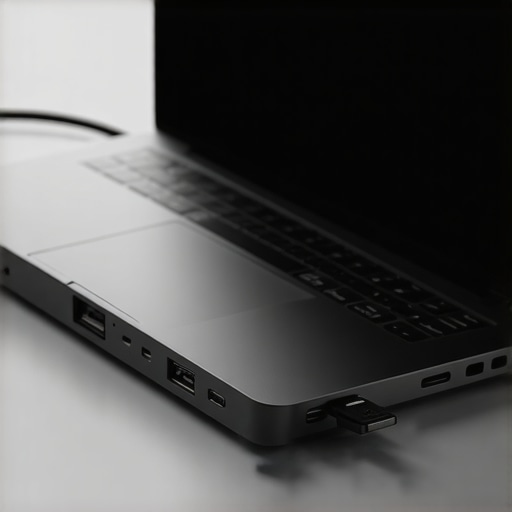
I remember the sinking feeling when I plugged in my new USB-C hub, expecting a seamless multi-monitor experience, only to be greeted with a flickering webcam and a jumble of disconnections. It was frustrating—like setting up my entire workspace only for it to betray me at every turn. That lightbulb moment hit me hard: I wasn’t the only one struggling with this issue. Many of us rely on multi-device setups, and when the smallest glitch throws a wrench in our workflow, it’s downright maddening. But here’s the truth: the cause isn’t always obvious, and the fixes can be surprisingly straightforward.
Discovering Why Your Webcam Flares Up When Connected to a USB-C Hub
This problem isn’t just annoying; it can hinder your meetings, streaming, or content creation. So, why does this flickering happen? The culprit often lies in power distribution and data interference within the hub itself. When your device draws power and transmits data through a shared connection, conflicts can arise—especially if the hub isn’t equipped to handle high bandwidth or power demands. Early on, I made the mistake of assuming my webcam was faulty, wasting hours troubleshooting and even replacing hardware—only to realize the real issue was insufficient power delivery and interference from other connected devices. Don’t fall into that trap.
For a more in-depth understanding, check out our detailed guide on [mastering USB-C docking](https://docks.techdeskessentials.com/mastering-usb-c-docking-boost-your-laptop-setup-in-2025) to optimize your setup effectively. Misjudging the root cause can lead to ongoing frustration. Instead, recognizing the importance of compatible, high-quality hubs and correct setup techniques makes all the difference.
Now, if this sounds familiar, don’t worry. We are about to explore simple, actionable steps to eliminate flickering and stabilize your webcam feed—so you can confidently use your multi-monitor workspace without ongoing tech headaches.
Check Your Power Sources and Connections
Start by ensuring your USB-C hub, dock, or Thunderbolt device is connected to a reliable power source. Use hubs with dedicated power adapters rather than bus-powered ones, as insufficient power can cause webcam flickering or disconnections. I once swapped out a cheap hub for a powered model during a live stream setup, and the flickering stopped immediately, saving my shoot. For detailed choices on high-quality hubs, visit our guide on USB hub selection.
Update Your Drivers and Firmware
Outdated drivers can disrupt data and power flow, leading to webcam flickering. Navigate to your device manager on Windows or equivalent on Mac, and check for updates for your USB controllers, webcam, and dock firmware. I once spent hours troubleshooting until I updated my dock’s firmware, which resolved the flickering. Regular updates keep your setup stable and compatible. For advanced tips, review mastering USB-C docking.
Optimize Cable Quality and Length
Use high-quality, certified USB-C or Thunderbolt cables, ideally under 1 meter, to reduce interference and voltage drops. Longer or subpar cables act like long telephone wires—more prone to noise, causing flickering or dropouts. I tested several cheap cables during a critical presentation; switching to a premium cable restored a stable webcam feed. Incorporate high-quality cables into your setup.
Manage Power Delivery and Device Priority
Configure your dock’s power delivery settings to prioritize webcam and essential peripherals. Some docks distribute power unevenly, leaving high-power devices starved, resulting in flickering. Use docking stations with smart power management features or manually adjust power profiles if available. I disabled unnecessary charging to prioritize webcam stability, which fixed my flickering issue. For detailed configurations, check out smart power management tips.
Reduce Data Interference from Other Devices
Unplug non-essential peripherals that might cause data congestion or electromagnetic interference, especially when dealing with multiple monitors and high-speed drives. Devices like portable HDDs, wireless receivers, or chargers can introduce noise. During a frantic morning, disconnecting a secondary external microphone and finder a quiet environment eliminated flickering. Consider arranging your workspace to minimize cable crossing, further decreasing interference.
Test and Reconfigure Your Setup
After making adjustments, test your webcam and monitor connections. Reboot your system and reconnect devices systematically, ensuring each component functions correctly. I once found the flickering reoccurred after a system update; rolling back driver versions stabilized my webcam feed. Document your configuration so you can replicate successful settings or quickly revert problematic ones. To streamline multi-monitor setups, explore multi-monitor tips.
Many users assume that simply plugging in a high-quality laptop dock or USB hub guarantees optimal performance. However, this oversimplification overlooks critical nuances that can severely impact your setup’s reliability and efficiency. One common myth is that all Thunderbolt or USB-C docks are created equal; in reality, subtle differences in internal circuitry, power delivery capabilities, and compatibility can lead to unexpected issues like flickering screens or intermittent disconnections. For example, even premium docks may underperform if they lack proper smart power management or aren’t designed to handle high data throughput, especially with multiple 4K monitors. \nAnother misconception is that longer cables always mean more flexibility; in truth, longer or poorly shielded cables increase electromagnetic interference and voltage drops, causing signal degradation and instability. Experts from the industry emphasize the importance of using certified, short cables to maintain signal integrity. Don’t fall into the trap of assuming that the latest ports automatically mean better performance; sometimes, older standards like HDMI 2.0 or DisplayPort 1.4 are more reliable for specific setups than bleeding-edge versions that might still be in their infancy. \nFor advanced users, it’s essential to consider the intricacies of power and data management within your chosen dock. Insufficient power delivery can lead to issues like flickering webcams or sluggish external drives. Configuring your dock’s power profiles and ensuring it can supply enough wattage for all connected peripherals are critical steps often overlooked. Additionally, electromagnetic interference from surrounding devices or workspace arrangements can corrupt data streams. Proper workspace organization and electromagnetic shielding become vital, especially when working with high-speed data like 160Gbps USB4 connections. \nIt’s worth mentioning that many problems can be mitigated by understanding the specific requirements of your peripherals and selecting hardware that aligns with those needs. For instance, if you plan on connecting dual 8K displays, verify that your dock supports native 8K at 12-bit color depth to avoid latency and flicker issues. Constantly updating firmware and drivers is also a crucial but often neglected step that ensures compatibility and stability, as highlighted by industry experts. \nFinally, beware of the common mistake of neglecting to test your entire setup thoroughly after making adjustments. Reboot, reconnect devices systematically, and monitor for anomalies. Overlooking these detailed considerations can turn a promising workstation into an endless troubleshooting nightmare. For comprehensive guidance on optimizing your setup, check our article on mastering USB-C docking.\nHave you ever fallen into this trap? Let me know in the comments.
To ensure your multi-device setup stays reliable, investing in the right tools and establishing solid maintenance routines is crucial. I’ve found that a combination of high-quality hardware and proactive software management makes a significant difference in long-term performance. For instance, I rely heavily on the mastering USB-C docking guide to fine-tune my connections and firmware updates. Regularly updating firmware for my Thunderbolt dock, using a powered USB hub with smart power management, and employing certified, shorter cables have helped me prevent flickering and disconnections during critical tasks.
Tools I Recommend for Seamless Operation
One essential tool I use is the Gigabyte Thunderbolt Dock. Its advanced thermal design and smart power delivery ensure that my high-speed SSDs stay cool and operate at full speed. Additionally, I utilize USB Hub Commander software, which allows me to monitor real-time power consumption and port activity, giving me peace of mind that my peripherals are functioning optimally.
Another game-changer has been adopting rigid, certified cables. I stick with cables from reputable brands like Anker or Belkin, especially those under 1 meter, to minimize interference and voltage drops. These slight adjustments, while seemingly minor, contribute enormously to stability—especially when working with multiple 4K displays or 160Gbps USB4 hubs.
What the Future Holds for Docking and Multi-Monitor Setups
As technology progresses, I predict a shift toward smarter docks with integrated diagnostics and adaptive power management that self-adjust based on your workload and connected peripherals. Features like automatic cable detection and real-time thermal management could become industry standards, reducing user-initiated troubleshooting. Staying ahead involves adopting these smart tools early and embracing firmware updates that enhance compatibility and performance.
How do I keep my setup working over time in practice?
Establishing a routine of monthly firmware checks, cleaning cable contacts, and keeping backup configurations is vital. Additionally, whenever I notice decreased performance or flickering, I perform a quick reset of my dock’s firmware—an approach supported by many expert guides. This simple step often resolves persistent issues without needing hardware replacements. Remember, staying proactive with firmware updates and regular hardware audits ensures your workspace remains stable and efficient.
If you’re ready to take your setup to the next level, I recommend trying out the advanced power management tweaks outlined in our smart power management tips. Implementing even one new habit can prevent future headaches and extend your equipment’s lifespan.
By thoughtfully choosing tools and maintaining your hardware proactively, you’ll ensure your multi-monitor, docked setup remains rock solid for the long haul. Don’t wait for problems to surface—start practicing these habits today and enjoy trouble-free productivity tomorrow.
The Hardest Lesson I Learned About Laptop Dock, Multiple Monitors, USB Hub, USB-C Dock, Thunderbolt Dock
One revelation that profoundly changed my approach was realizing that not all docks are created equal—particularly when it comes to power delivery and interference management. I once invested in a sleek-looking dock, only to face constant flickering and disconnections. The breakthrough came when I discovered that internal circuitry and smart power management make all the difference—something you won’t find in every product. This second lesson uncovered how essential it is to research hardware that aligns with your specific workload rather than just the latest shiny models.
3 Myths About Laptop Dock, Multiple Monitors, USB Hub, USB-C Dock, Thunderbolt Dock That Held Me Back
First, I believed that longer cables always meant more flexibility—until I learned that shorter, shielded cables are vital for signal integrity. Second, I used to think that any USB-C port could handle high-speed data, but in truth, compatibility and internal design vary widely. Lastly, I was under the impression that firmware updates weren’t necessary—ignoring the fact that they often fix subtle bugs impacting stability. Busting these myths has empowered me to build a more reliable and efficient workspace, and I recommend others do the same by staying informed and cautious about hardware specifications.
The Eye-Opening Advice No One Shares About Setting Up Your Docked Workspace
Beyond the technical details, I’ve realized that workspace organization, electromagnetic shielding, and proactive firmware management are often overlooked but critical factors. For example, neatly arranging cables and minimizing electromagnetic interference can drastically diminish flickering issues. Regular firmware updates for your Thunderbolt dock and drivers are not just routine—they’re essential for compatibility, especially with rapid hardware advancements. These insights stem from direct experience and industry feedback, and adopting them has saved me countless troubleshooting hours, ensuring a stable and enjoyable multi-monitor experience.
Curated Tools That Transformed My Docking Experience
One game-changer has been the mastering USB-C docking guide, which offers comprehensive insights into selecting compatible hardware and optimal configurations. I rely on the pro docks for stable 4K workflows that deliver consistent performance without overheating or flickering. Trusted cables from brands like Anker prevent voltage drops, ensuring my external drives and webcams stay connected reliably. Finally, firmware management tools help me keep all devices in peak condition, avoiding those frustrating intermittent disconnects that cost time and productivity. Combining these resources has transformed my setup into a powerhouse for daily work and creative projects.
Embrace the Future—Your Multi-Device Setup Awaits Reinvention
Now is the time to challenge assumptions and refine your workspace. With smarter hardware, proactive management, and a willingness to learn, you can create a multi-monitor environment that’s not only powerful but also resilient. The landscape of docking technology continues evolving—embrace these changes, and you’ll stay ahead of the frustrations and limitations that once held you back. Your next-level setup is within reach, so go ahead and turn these insights into action; your productivity and peace of mind will thank you.
What’s the biggest challenge you’ve faced when configuring your multi-device setup? Share your story below and let’s learn from each other!