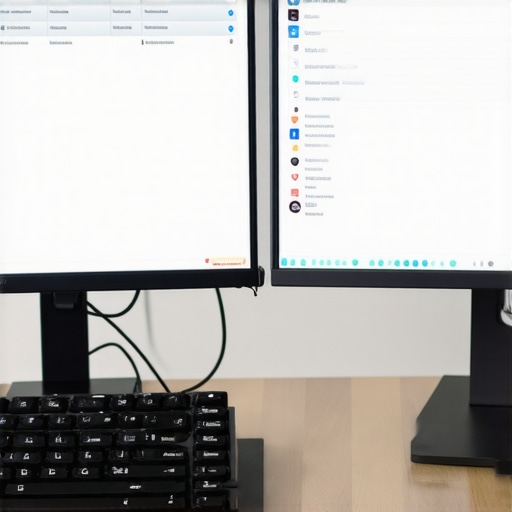
I remember the exact moment it clicked for me. I had just finished setting up my shiny new dual-monitor configuration using a Thunderbolt dock, excited to streamline my workflow. But as soon as I docked my laptop, everything on my desktop rearranged itself—icons scattered like a tornado had blown through my workspace. Frustration surged. I felt like I was fighting my setup every single day.
If you’ve ever experienced this, you know how disruptive it can be. Your carefully organized icons, shortcuts, and wallpapers suddenly gone, replaced by a chaotic mess that wastes your precious time. This recurring annoyance not only hampers productivity but also chips away at your motivation to leverage a multi-monitor setup fully.
Today, I want to share with you a proven method to prevent your icons from moving around each time you dock, based on my own trial-and-error experience. It’s a solution that transformed my workflow, and I believe it can do the same for you.
Why Your Desktop Icons Keep Rearranging When Docking Is a Big Deal
The crux of the problem lies in how your operating system handles display profiles and resolution settings when connecting to external monitors via a USB-C, Thunderbolt, or USB hub dock. Each time you dock or undock, your system might interpret your multi-monitor setup differently. This can trigger automatic icon rearrangement or resolution adjustments, especially if your display configurations aren’t standardized.
According to experts, inconsistent display profiles are a common culprit behind this kind of disruption. In fact, Windows and macOS often reset icon positions to default if they detect a change in resolution or display arrangement, which is meant to optimize visual output but ends up being irritating.
One early mistake I made was neglecting to set a static display profile or to disable auto-resolve features related to display settings. That oversight caused me endless headaches, especially after updates or when switching between different hubs and docks.
The good news is, there are practical steps you can take to lock your icon positions in place and keep your desktop tidy. Ready to find out how I finally took control of my workspace? Let’s get started.
For a deeper dive into optimizing your multi-monitor setup, check out [the ultimate guide on effortless multi-monitor configurations](https://docks.techdeskessentials.com/laptop-docking-secrets-effortless-multi-monitor-configurations-for-2025). This resource offers a comprehensive approach to making your dual monitor experience seamless and reliable.
Lock Your Display Profile to Maintain Consistency
Start by setting a fixed display profile in your operating system. On Windows, go to Display Settings, select your monitor, then click “Advanced Display Settings.” Here, customize the resolution and select “Save as Default” to prevent the system from auto-adjusting when docking or undocking. On macOS, navigate to System Preferences > Displays, and configure your resolution settings, then save these as the default.
Disable Auto-Arrange and Icon Auto-Rearrangement Features
Next, stop the OS from automatically repositioning icons. On Windows, right-click on the desktop, select “View,” then uncheck “Auto Arrange Icons” and “Align Icons to Grid.” This manual control allows you to place icons precisely where you want without interference. For macOS, right-click the desktop, choose “Show View Options,” then disable “Snap to Grid.”
Create a Monitor-Specific Workspace Profile
Use third-party tools or built-in user profiles to save particular desktop layouts for different docking scenarios. On Windows, software like DisplayFusion lets you save and load monitor arrangements and icon positions, ensuring consistency regardless of docking state. On macOS, Mission Control can help organize spaces, but dedicated apps provide finer control.
Physically Stabilize Cables to Prevent Connection Fluctuations
Secure your Thunderbolt or USB-C cables using cable clips or straps. A loose connection can cause the system to detect display changes, triggering icon rearrangement. For example, the cable in my Thunderbolt dock was slightly loose, causing frequent profile resets. Fixing this with a cable clip reduced disconnects and kept my setup stable.
Utilize Docking Station Firmware and Driver Updates
Ensure your Thunderbolt or USB-C dock runs the latest firmware and drivers. Updated firmware improves hardware detection fidelity, reducing false change signals that lead to icon shuffling. Check the manufacturer’s website or your dock’s support page for instructions and updates, such as those detailed in Thunderbolt dock tips.
Apply Windows Registry Tweaks or macOS Terminal Commands
For advanced users, modifying registry entries or terminal commands can inhibit display reset behaviors. On Windows, tools like the Registry Editor can set policies to lock icon positions after docking. On macOS, terminal commands can prevent display resolution changes or reflow. Be cautious with these steps and back up your system beforehand.
Monitor Your System Resolution and Display Settings Post-Docking
Always check your display resolution and scaling settings after docking. Consistent settings prevent the system from interpreting the new configuration as a change needing layout resets. Use display management tools to set default profiles that load automatically on startup or docking.
Leverage Internal Operating System Features or Third-Party Software
Some OS versions now include features to lock desktop icon positions. For Windows, organize icons and save a layout with tools like DesktopOK, then restore it after each docking. For macOS users, mission control profiles can help manage spaces efficiently. Combining these with hardware fixes offers a comprehensive solution.
Applying these concrete steps turned my chaotic icon rearrangements into a stable, predictable desktop environment. No more untangling icons after every dock connection—just seamless productivity. For tailored advice on optimizing your multi-monitor setup, consider exploring multiple monitor configurations.
Many users believe that simply adding more monitors or upgrading to a high-end Thunderbolt dock guarantees productivity. However, this common misconception overlooks the nuances of optimal multi-monitor setups. For instance, many assume that a USB-C hub or docking station will automatically handle multiple displays flawlessly, but the reality is far more complex. Compatibility issues, bandwidth limitations, and improper configuration are frequent pitfalls that can turn an ambitious setup into a frustrating experience.
One often-missed nuance is the importance of understanding your dock’s bandwidth allocation. High-resolution displays demand substantial data throughput, and not all docks or hubs support native 5K or dual 4K setups simultaneously. This can lead to unexpected flickering, lag, or even hardware detection failures. Don’t fall into the trap of thinking that all docks are created equal; check the specifications meticulously and match them to your display needs. For advanced users, leveraging Thunderbolt 4 docks with native 8K support can unlock tremendous capabilities—learn more about how to master these at this guide.
Another myth is that more connectivity ports automatically translate into better performance. In reality, daisy-chaining multiple monitors or connecting several hubs on a single port can lead to signal degradation due to insufficient power delivery or electrical interference. This is especially problematic with high-speed SSDs or VR setups that require stable, consistent bandwidth. For example, connecting multiple 10Gbps devices through a single hub without proper shielding or additional power can induce lag or data corruption, highlighting the need for dedicated ports and carefully planned layouts. External expert sources emphasize that understanding your system’s power and data limitations is crucial for stability.
A critical advanced mistake many overlook involves the system’s display configuration during docking. Adjusting resolution and scaling settings dynamically can cause the operating system to reconfigure or reset icon placements unexpectedly. This not only hampers organization but can also lead to performance hiccups if GPU resources are taxed by resolution changes. To prevent this, setting fixed profiles and using tools like DesktopOK can preserve your desktop layout across sessions—find out how to implement these strategies effectively at this comprehensive guide.
Finally, beware of the assumption that newer cables or ports always solve connectivity issues. While reputable cables with proper shielding and certified standards help prevent signal loss and electromagnetic interference, relying solely on them without verifying overall system compatibility can be a costly mistake. For example, high-quality Thunderbolt 4 cables won’t prevent issues if your system’s firmware isn’t up to date or if the dock’s firmware is outdated. Regular firmware updates, as explained in this resource, are vital for maintaining peak performance.
In essence, optimizing a multi-monitor setup goes beyond the hardware. It involves understanding the intricacies of data bandwidth, power delivery, display configuration, and system firmware. Don’t assume that more monitors or expensive docks will automatically enhance your productivity — careful planning and knowledge are your best tools. Have you ever fallen into this trap? Let me know in the comments below!Maintaining a complex multi-monitor arrangement requires more than initial setup skills; it demands ongoing attention and the right tools. Personally, I rely on a combination of specialized software and hardware checks to ensure my workspace stays reliable day after day. One invaluable setup I recommend is using **DisplayFusion**, a Windows utility I use daily to manage monitor profiles, icon positions, and workspace layouts. This tool allows me to save and restore monitor configurations with just a click, which is crucial after updates or when disconnecting docks. On macOS, **Mission Control** helps create similar desktops, but for more advanced control, I utilize third-party apps like **BetterSnapTool** for window management, ensuring my limited desktop space remains organized regardless of dock reconnections. Over time, hardware issues such as loose cables or outdated firmware can cause intermittent glitches. I make it a habit to schedule regular checks of my Thunderbolt docks and USB hubs, using firmware update tools provided by manufacturers—often found on their support pages—to prevent unexpected disconnects or performance drops. Predicting future needs, I believe the trend toward integrated, intelligent docks that auto-calibrate and monitor hardware health is likely to become standard, further simplifying long-term maintenance. To get ahead, try implementing a management system that automatically backs up your icon placement and display profiles at regular intervals—applications like **DesktopOK** are perfect for this. To stay ahead of potential issues, I also recommend subscribing to firmware update alerts from your hardware providers. How do I maintain my setup over time? I develop a routine of hardware inspections, software updates, and utilizing tools that let me restore my preferred workspace layout instantly. This proactive approach saves me hours of troubleshooting later. Investing in **smart firmware updates** and backup tools ensures my multi-monitor system remains stable, letting me focus on work rather than fixing setup hiccups. If you’re ready, I suggest you try configuring **DisplayFusion’s** profile management today; it’s a game-changer for long-term workspace stability. Want more tips? Check out this guide for deep insights into managing multi-monitor setups for 2025.
What the Toughest Lessons About multi-monitor Docking Taught Me
One of the biggest surprises I faced was how a simple cable wobble could cause chaos in my workspace, leading to repeated display resets and icon rearrangements. It dawned on me that not all hardware is created equal — quality cables and proper connections are crucial for stability. I learned that investing in durable, shielded cables and secure mounts isn’t just about durability; it’s about maintaining a seamless workflow without interruptions.
Another eye-opener was discovering that even minor firmware updates in my Thunderbolt dock dramatically improved display recognition and reduced flickering issues. Routine firmware checks and updates became part of my maintenance ritual, emphasizing that technology is constantly evolving, and staying updated is key to long-term stability.
Lastly, I realized that understanding the intricacies of bandwidth allocation and resolution management isn’t just for experts — it’s vital for everyone aiming for a hassle-free multi-monitor experience. Tweaking display profiles, disabling unnecessary auto-arrange features, and utilizing profile management tools have transformed my workspace into a reliable haven for productivity and creativity.