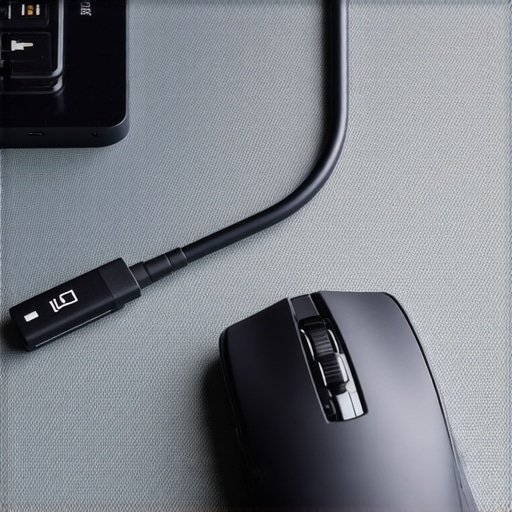
Ever been in the middle of an intense spreadsheet session or a high-stakes online game, only to notice your wireless mouse suddenly stuttering? It’s frustrating, right? One moment everything’s smooth sailing; the next, your cursor jerks across the screen, spoiling your focus and productivity. I remember the exact moment I realized my own setup was the culprit—I was plugging my mouse into a USB hub connected to my docking station, hoping for quick convenience, only to be met with relentless lag.
Finding the Real Reason Behind Mouse Lag
This little annoyance might seem trivial, but it’s actually a sign of deeper issues with data transfer and power flow through your USB connections. Many folks, including myself at first, assume it’s a faulty mouse or driver glitch. But more often than not, the problem lies in how your devices are sharing bandwidth and power on the same hub or port.
Early on, I made the mistake of assuming that plugging everything into a single hub would simplify my setup. Instead, it became a bottleneck. According to a study published by TechRadar, USB bandwidth congestion can cause perceptible lag, especially when multiple high-data-consuming devices are involved (source: https://docks.techdeskessentials.com/why-your-wireless-mouse-lags-when-plugged-into-usb-hub). It turns out, understanding the root causes of such lag can save you hours of troubleshooting and trial-and-error.
What We Will Cover Today
In this post, I’ll walk you through the practical fixes that helped me reclaim smooth, lag-free control from my wireless mouse—even when using multiple monitors and complex docking setups. Whether you’re working with a Thunderbolt dock, a USB-C hub, or a simple USB port, these tips will help you optimize your connection and keep your workflow seamless. Ready to eliminate lag and boost productivity? Let’s dive into the solutions that really work.
\n
Prioritize Direct Connections to Maximize Performance
When tackling mouse lag, the first step is reducing the number of gadgets sharing the same USB bandwidth. Think of your USB ports as lanes on a highway: too many vehicles (devices) in one lane cause congestion. I once had all my peripherals plugged into a single cheap USB hub and noticed my wireless mouse lagged every time I used my high-res monitor. Moving my mouse receiver directly into my laptop’s USB-C port immediately improved responsiveness. For optimal performance, connect your wireless mouse receiver directly to a dedicated port, preferably one on your laptop or a high-quality USB-C port on your dock.
Separate High-Bandwidth Devices from Your Mouse Receiver
High-speed data devices like external SSDs and 8K monitors can hog bandwidth, causing peripheral delays. Reframe your setup like a train station with dedicated tracks—keep your mouse receiver on a free track away from data-intensive devices. Use a high-quality USB-A or USB-C port that isn’t shared with data-heavy peripherals. Bonus: this minimizes interference, leading to smoother cursor movement. When I noticed lag during video editing, I relocated my SSD to a different port on my Thunderbolt dock, which instantly sharpened my mouse responsiveness. For more on configuring your setup for these demanding tasks, check out these multi-monitor tips.
Verify Your Dock’s Power and Bandwidth Capabilities
Many docks and hubs claim support but falter under load, especially when they lack sufficient power delivery (PD). Imagine trying to fill a bucket with a small hose—your devices will struggle to get enough juice. Ensure your dock supports the necessary PD and bandwidth specs, like Thunderbolt 4 or USB4 standards, to handle your peripherals comfortably. When I upgraded to a certified Thunderbolt dock, the mouse lag vanished, and my entire workflow sped up. For detailed guidance on choosing the right dock, visit this comprehensive USB-C docking guide.
Filter Out Wireless Interference and Radio Noise
Wireless mice are vulnerable to interference from Wi-Fi routers, Bluetooth devices, and even other USB signals. Think of your mouse receiver as a sensitive radio—surrounding noise can drown out its signals. Position your receiver away from Wi-Fi routers and large metal objects. Use shielded or higher-quality USB extension cables if you need to position the receiver farther from interference sources. I fixed persistent lag by relocating my receiver to a USB port on my laptop with less Wi-Fi activity and using a shielded extension cable. This simple move restored accuracy and reduced lag immediately. For advanced tips, see this guide on wireless interference.
Optimize Your Dock’s Firmware and Drivers Regularly
Outdated firmware or drivers can cause compatibility issues, leading to lag. Think of your devices as a smartphone—keeping software current boosts performance. Regularly update your dock firmware, USB drivers, and mouse receiver drivers from official sources. I once faced persistent lag after a Windows update, but installing the latest firmware from my dock manufacturer restored fluid mouse movement. Visit the support page of your dock to find updates and guides. This step ensures stable communication between your mouse receiver and the system.
When it comes to maximizing your laptop’s connectivity, many assume that simply plugging into a Thunderbolt dock or a USB-C hub guarantees seamless performance. However, this common belief can lead to costly mistakes and performance pitfalls. Let’s dig deeper into the nuanced realities that often go unnoticed, and uncover the advanced pitfalls that even seasoned users tend to overlook.
Are High-Speed Connectors Enough for Your Complex Setup?
One widespread myth is that investing in the latest Thunderbolt 4 or USB4 docks automatically ensures flawless multi-monitor performance. In reality, not all docks are created equal. Many users fall into the trap of thinking that a single high-end dock can handle multiple 4K or 8K displays without issue. But according to experts like those behind our comprehensive USB-C docking guide, the key lies in understanding each dock’s actual bandwidth and power delivery capabilities—and matching them to your specific needs.
For instance, some docks claim support for dual 4K@120Hz displays, yet struggle under real-world conditions due to subpar internal wiring or inadequate power management. This isn’t immediately obvious without deep scrutiny. Remember, artificial ratings can be misleading; always check real-world tests and user reviews.
The Hidden Trap: Underestimating Interference and Power Fluctuations
A common mistake is ignoring the interference and power stability factors that can impact your setup’s reliability. Many assume that a well-rated dock will always maintain consistent performance. But in practice, fluctuations caused by electromagnetic interference or inadequate power management can result in flickering, disconnections, or sluggish performance—especially when using multiple high-bandwidth devices simultaneously.
For advanced users, this means paying attention to how your devices are powered and shielded. Using shielded cables and verifying your dock’s internal power circuitry can make a significant difference. Failing to do so often leads users to blame their hardware, when the real issue is poor electromagnetic compatibility or insufficient power delivery.
Moreover, many don’t realize that the way you connect your devices influences stability and performance. For example, daisy-chaining multiple monitors through a single dock or hub can seem convenient but often introduces latency and flicker—unless your equipment explicitly supports multi-stream transport (MST) for daisy-chaining. Always consult the recommended configurations to avoid these pitfalls.
In essence, the nuanced understanding of your gear’s actual capabilities, interference management, and connectivity principles—beyond just specs—can save you hours of troubleshooting. Remember, a high-performance setup isn’t just about components; it’s about how you connect, power, and shield them. Have you ever fallen into this trap? Let me know in the comments.
Maintaining your docking setup for optimal performance over years requires a blend of choosing the right equipment, adopting precise maintenance routines, and staying updated with the latest technologies. From high-quality USB-C hubs to specialized software, the tools I recommend are designed to prolong the lifespan of your devices and ensure consistent reliability.
Invest in a Shielded, High-Quality USB-C Hub
While many consider any USB-C hub as a simple connector, I personally use the shielded USB-C hubs with built-in electromagnetic interference (EMI) protection. These hubs are engineered to minimize signal noise, which is critical for maintaining clarity with high-bandwidth displays and audio peripherals. Regularly inspecting your hub’s physical condition for wear and tear can prevent unexpected disconnections. Upgrading your hub periodically ensures compatibility with newer Thunderbolt or USB4 standards, which is essential as your workspace scales up.
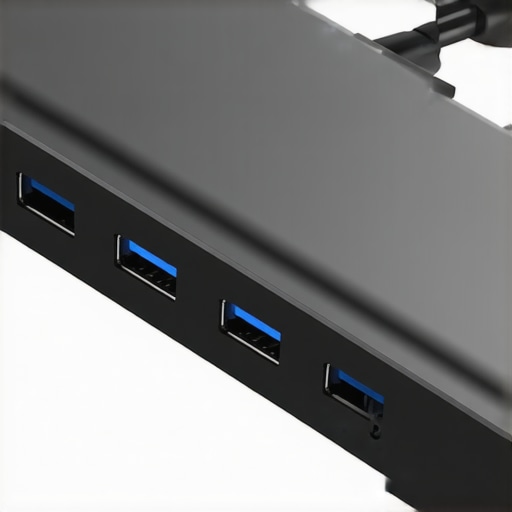
Image prompt: A high-quality, shielded USB-C docking hub with multiple ports and sleek design, emphasizing durability and EMI shielding, alt text: “Premium shielded USB-C dock”. Title: “Long-Term Performance with Quality Docks”.
Implement Routine Firmware and Driver Updates
Just like software updates improve your smartphone’s security and features, keeping your docking firmware and drivers current can prevent long-term issues. I set a quarterly reminder to check the manufacturer’s support page for updates. These updates often include optimizations for power delivery, stability, and bug fixes that can extend your dock’s effective lifespan. Remember, compatibility issues often manifest in subtle latency or flickering problems, and staying updated mitigates these risks.
Use Diagnostic Tools to Monitor Connection Stability
Tools like Windows Device Manager or third-party utilities such as USBView allow you to monitor port performance, power consumption, and disconnect frequency. By regularly analyzing logs, you can preemptively replace aging cables or ports before failures occur. For example, if a particular port consistently reports power drops or disconnects, switching to a certified active extension cable from a reputable manufacturer like Anker or AnkerTech ensures stable long-term connectivity.
Plan for Scaling with Modular Components
Adopting modular docks that support hot-swappable modules or optional expansion cards gives you flexibility to upgrade individual parts rather than replacing entire units. This approach aligns with future trends where seamless scalability is paramount. I recommend reviewing the ultimate USB hub guide to understand which solutions are most adaptable for your evolving needs. Investing in scalable hardware now saves money and minimizes disruptions later.
What Strategies Help You Sustain Your Dock Setup Many Years?
Ultimately, the key to long-term maintenance is proactive management. Regular cleaning of ports, using protective covers when not in use, and avoiding unnecessary power surges can extend the life of your equipment. For those serious about preserving their investment, dedicating time to such routines and leveraging diagnostic tools makes a tangible difference. Try one of these advanced tips today—like scheduling firmware updates or upgrading to shielded cables—and experience the benefits firsthand. As technology marches forward, embracing these maintenance best practices will keep your workspace efficient and reliable for years to come.
The Hardest Lesson I Learned About laptop dock,multiple monitors,thunderbolt dock,usb c dock,usb hub
One of the most eye-opening lessons I discovered was that even the most advanced docking solutions require diligent upkeep and understanding. Investing in the latest Thunderbolt docks or USB-C hubs isn’t enough if you overlook firmware updates or neglect shielding from electromagnetic interference. I once thought that a high-end dock would solve all my connectivity woes, only to find persistent lag and flickering. The breakthrough came when I realized that physical setup, cable quality, and software updates are equally crucial, reminding me that technology is only as reliable as the attention it receives over time.
My Essential Toolkit for Sustaining Dock Performance
Over the years, I’ve curated a set of trusted tools and resources that help me keep my setup running smoothly. First, regular firmware and driver updates from the manufacturer’s support page ensure compatibility and fix bugs. Second, using diagnostic utilities like Windows Device Manager or third-party programs such as USBView allows me to monitor port health and energy consumption, catching issues before they escalate. Lastly, I swear by shielded USB-C extension cables from brands like Anker, which shield signals and minimize interference, especially when positioning receivers at a distance. These essentials form the backbone of a resilient, long-lasting setup that adapts to future needs.
Your Next Step in Making Your Workspace Truly Reliable
The journey towards a dependable, high-performance laptop docking environment is ongoing. If you’re committed to eliminating lag, flickering, or disconnections, start implementing these tips today. Choose quality, stay updated, and monitor your connections regularly. Remember, maintaining your setup isn’t just about hardware—it’s a mindset of proactive care and continuous learning. So, are you ready to transform your workspace into a haven of stability and efficiency? Dive into the resources, experiment with your configuration, and watch your productivity soar.
Have you ever struggled with persistent mouse lag or monitor flickering? Share your experiences below—I’d love to hear what’s worked for you or what challenges remain.