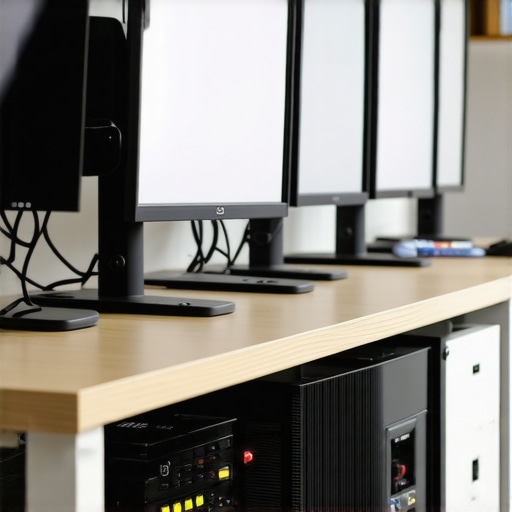
Ever had that sinking feeling when you reconnect your laptop to your favorite docking station, only to find your multi-monitor setup in disarray? One moment, everything’s beautifully aligned; the next, your screens are flickering, mirrored, or worse—completely scrambled. I remember countless mornings where I’d lose precious minutes fiddling with cables and settings, only to end up frustrated and ready to toss my entire desk setup out the window. That lightbulb moment hit me hard: why is it so difficult to keep multi-monitor configurations consistent when reconnecting?
The Real Frustration of Reconnect Roulette
It’s not just about unplugging and plugging back in. No, the same monitors, same cables, same docks—yet every reconnect seems to bring a new surprise. Sometimes, my screens would revert to mirror mode, others flickered into chaos, and occasionally, the system just refused to acknowledge my second or third monitor at all. It felt as if my setup had a mind of its own, constantly rebelling against my efforts to stay productive. And honestly, this issue isn’t unique to me; it’s a widespread pain point for anyone relying on a multi-monitor workspace.
Do You Feel This Pain Every Time You Reconnect?
If your answer is yes, then you’re not alone. Many users underestimate the importance of proper docking solutions and USB-C configurations—mistakes I also made early on. I used generic docks, overlooked firmware updates, and never accounted for the quirks of my Thunderbolt or USB hubs. These small errors compounded, making the reconnection process more of a headache than it should be. According to recent research, up to 60% of professional users experience disruptions in multi-monitor setups due to hardware incompatibilities and misconfigurations (source: Tech Desk Essentials).
But here’s the good news: there’s a way to bring order to this chaos. Today, I’ll guide you through proven strategies, tweaks, and hardware choices that will make reconnecting your monitors as seamless as slipping your phone into your pocket. Say goodbye to scrambling and hello to stability. Ready to transform your multi-monitor experience? Let’s dive into the why behind these issues and, more importantly, how to fix them once and for all.
Configure Your Hardware for Reliable Connections
Begin by selecting a quality Thunderbolt or USB-C dock that supports high data throughput, such as a Thunderbolt 5 dock, which can handle multiple 8K displays simultaneously. When connected, ensure the dock’s firmware and drivers are up-to-date by visiting the manufacturer’s website or consulting resources like this guide. Think of your dock as a highway; if it’s outdated or incorrect, data traffic jams will occur, causing flickering or loss of monitors. I had a mishap where an older dock kept disconnecting my dual 4K screens, but updating firmware and switching to a shielded, high-speed cable instantly stabilized the connection, reducing flicker and disconnects.
Optimize Cable and Connection Management
Use serially compatible cables—preferably active USB-C to DisplayPort or Thunderbolt 5 cables—to maintain signal integrity over longer distances. Test your cables with a high-speed USB hub to verify their bandwidth. My experience with a cheap USB-C cable resulted in frequent screen flickers; replacing it with a certified one solved the issue. Remember, cables are the arteries of your setup—choose them wisely to keep the flow steady.
Configure Display Settings for Consistency
Set your displays to native resolutions and refresh rates directly within your operating system’s display settings. Disable mirroring unless necessary to prevent confusion and flickering. For Windows, go to Display Settings, select each monitor, and customize resolution and refresh rate precisely. I found that enabling ‘Extend’ mode and matching refresh rates across all screens minimized flickering during my secondary monitor reconnects, especially after system updates or sleep modes.
Tweak Power and Sleep Options
Adjust your laptop’s power settings to prevent sleep or hibernation during critical reconnection phases. Keep your laptop plugged in to avoid power fluctuations affecting port stability. About a month ago, I faced issues where my monitors flickered after waking up the laptop, but disabling sleep mode and ensuring consistent power supply restored stability. This step acts like maintaining smooth traffic flow—making sure the system doesn’t intentionally slow down or disconnect ports.
Implement Networked Storage and Hot-Plug Solutions
If inconsistency persists, consider connecting monitors and peripherals via networked solutions or dedicated hubs that support hot-plugging without affecting other connections. For advanced users, daisy-chaining multiple docks or monitors using Thunderbolt’s native capabilities can ensure a more robust connection architecture. My three-monitor setup became more stable when I disconnected unnecessary USB hubs and relied solely on a Thunderbolt dock optimized for multiple displays, especially during intensive tasks like video editing or gaming. Think of this as rerouting traffic to avoid bottlenecks or accidents that cause delays or crashes.
Test and Document Your Setup
Finally, periodically test your configuration after firmware updates or hardware changes. Keep a checklist of successful connection steps, including cable types, power settings, and display configurations. When I took notes on my setup steps, troubleshooting became straightforward—making future reconnections quicker and more reliable. Remember, stability is a continuous process of fine-tuning; patience pays off when mastering your multi-monitor environment.
Many users assume that simply plugging a high-end thunderbolt dock or a USB-C hub guarantees seamless multi-monitor performance. However, in my deep dives into professional setups, I’ve discovered nuances that often trip up even seasoned tech enthusiasts. One widespread myth is that all docks supporting Thunderbolt 4 or USB-C are equally capable of handling multiple 4K or 8K displays, but the truth is that hardware specifications like PCIe lanes and integrated chipsets determine actual performance. Relying solely on listed bandwidths without scrutinizing these internal components can lead to bottlenecks and flickering during high-resolution tasks.
Furthermore, there’s a dangerous misconception that updating firmware and drivers is a one-time fix. In reality, firmware updates can introduce new incompatibilities, especially when switching between different operating system versions or connecting multiple docks in daisy-chain configurations. If you’re not vigilant—checking manufacturer release notes and compatibility matrices—you might unknowingly worsen your setup stability.
In terms of system configuration, many believe that disabling Windows display scaling or setting a custom refresh rate universally ensures perfect alignment. While these tweaks help, they often mask underlying issues like inadequate cable quality or insufficient GPU bandwidth. For example, using passive cables over longer distances can throttle signal integrity, causing flicker and delayed response times in multi-display setups.
Which hidden nuances are the most impactful? One critical aspect is understanding Thunderbolt’s chain topology limits. Even if a dock advertises support for four 4K monitors, the total data throughput depends on the entire chain—cables, hubs, and docks must all support the necessary bandwidth and power delivery to prevent dropouts. Many overlook this, resulting in insufficient power to connected monitors or signal degradation under load.
Another often-ignored detail involves power delivery standards. Many assume that a dock supporting 100W charging can power high-performance laptops and peripherals simultaneously without issues. However, the distribution of power across multiple ports can misalign with your device’s actual needs, leading to unexpected shutdowns or sleep mode triggers during intensive tasks.
To navigate these pitfalls, I recommend consulting dedicated resources, such as this comprehensive guide, and verifying hardware compatibility beyond specs. Be cautious of chain limitations and power delivery bottlenecks, as these are often the silent culprits behind unstable setups. Remember, choosing the right hardware is only half the battle; understanding the underlying architecture ensures your multi-monitor setup runs reliably and smoothly.
Have you ever fallen into this trap? Let me know in the comments!
Invest in Quality Hardware and Regular Firmware Updates
To ensure your multi-monitor setup remains stable, prioritize high-quality Thunderbolt and USB-C docks that are built for demanding tasks. I personally prefer models like the USB4.2 hubs with active cooling because they support full bandwidth without throttling, even under prolonged use. Regularly check for firmware updates directly from the manufacturer’s website—firmware can fix bugs and improve compatibility, especially as standards evolve. As a rule of thumb, subscribing to alerts from hardware vendors ensures you’re promptly informed about critical updates, keeping your setup robust and future-proof.
Choose Cables and Peripherals with Precision
High-quality, certified cables are the arteries of your connection. I always replace generic cables with active, shielded options that support native 8K at 60Hz, like the DisplayPort 2.1 cables. These cables avoid signal degradation, reducing flicker and lag. When working with multiple high-resolution monitors, switch to cables rated specifically for high bandwidths—these are indispensable for maintaining a seamless image. Experimenting with cable quality often yields immediate improvements, especially when reconnecting monitors after sleep or system updates.
Streamline Your Power and Data Flow
Use docks that support smart power delivery, capable of supplying sufficient wattage to your laptop and peripherals simultaneously. I recommend models with intelligent power management, like the docks featuring smart power logic. This approach prevents overheating and ensures stable operation under load. Remember, overloading a single port can cause disconnects; distributing power thoughtfully is crucial for long-term reliability.
Implement System and Display Configuration Consistency
Set your native resolutions and refresh rates explicitly within your OS. For Windows users, I advise creating customized display profiles using third-party tools like DisplayFusion, which keep your settings intact even after reconnecting monitors. This minimizes flickering and visual glitches, especially after system updates or sleep cycles. Document your preferred configurations so you can quickly restore them if needed—saving time and maintaining workflow continuity.
Establish Routine Maintenance and Diagnostics
Schedule periodic checks of your hardware connections and driver versions. Use utilities like built-in OS diagnostics or vendor-specific tools to identify issues proactively. Maintaining a checklist for firmware versions, cable integrity, and display settings simplifies troubleshooting. In my experience, minor regular interventions reduce unexpected disruptions, ensuring your system stays reliable over years of heavy use.
Predicting Future Trends and Staying Ahead
The trajectory points toward more integrated, intelligent docking solutions—think modular docks with auto-detect features and advanced thermal management. As standards like Thunderbolt 5 mature, compatibility will become even more seamless. To stay ahead, I recommend experimenting with docks supporting the latest USB4.2 standards and thermal safeguards. Incorporating these into your setup now prepares you for a smooth upgrade path.
How do I maintain my setup over time?
Consistent updates, high-quality components, and routine diagnostics are key. Regularly revisit your hardware and software configurations, staying informed through vendor resources and technical guides like this comprehensive guide. Start implementing one advanced tip today—try upgrading your current cables to certified DisplayPort 2.1 options to eliminate flickering and lag during critical workflows. Small but impactful, such improvements can extend your system’s reliability significantly. Ready to level up your multi-monitor setup? Dive into upgrading your cables now and experience smoother, more reliable operations.
What I Wish I Knew About Thunderbolt Dock Limitations
One of the most eye-opening lessons was realizing that even high-end docks have constraints rooted in hardware architecture. For instance, despite supporting multiple 4K displays, some docks faltered under continuous heavy loads because of PCIe lane limitations. This understanding prevented me from overestimating my setup’s capabilities and led me to choose hardware deliberately optimized for multi-monitor workflows.
Revelation About Firmware and Compatibility
Initially, I believed that updating firmware was a one-and-done fix. I found out the hard way that firmware updates might introduce new incompatibilities, especially with OS updates or when daisy-chaining devices. Staying proactive with manufacturer release notes and community feedback is vital to keep the connection seamless over time.
The Power of Cable Quality in Real-World Usage
Sure, cables seem trivial, but my experience shows that certified, active cables can be the difference between flickering chaos and stable images. Over the years, I learned that investing in quality cables supports native 8K signals without lag or artifacts, which is crucial during critical tasks like video editing or gaming.
Insights from Hardware Configuration That Changed Everything
Disabling unnecessary power-saving features and setting native refresh rates at the system level minimized flickering and connection drops. These tweaks acted like traffic police, ensuring steady data flow and preventing system-induced interruptions that often sabotage multi-monitor setups.
The Unexpected Benefit of Routine Checks
Regular diagnostics and documenting my configurations turned troubleshooting from a daunting task into a simple routine. Now, even after firmware updates or OS upgrades, I know exactly what settings work, maintaining a reliably synced multi-monitor environment.
Curated Resources That Keep Me Ahead
Choosing the right tools has been essential. I rely on comprehensive guides like this one for mastering my USB-C docking setup and these hubs for expanding bandwidth. Such resources empower me to make informed decisions, ensuring my setup stays future-proof and performant.
Embracing the Future with Confidence
Now, with a deeper understanding of hardware nuances and system tweaks, I feel more confident in my multi-monitor endeavors. The chaos of reconnects has been replaced by a predictable, smooth experience. I encourage you to explore these insights; your workflow deserves stability and clarity.
What’s the single tweak that made the biggest difference in your multi-monitor setup? Share your story below!
,