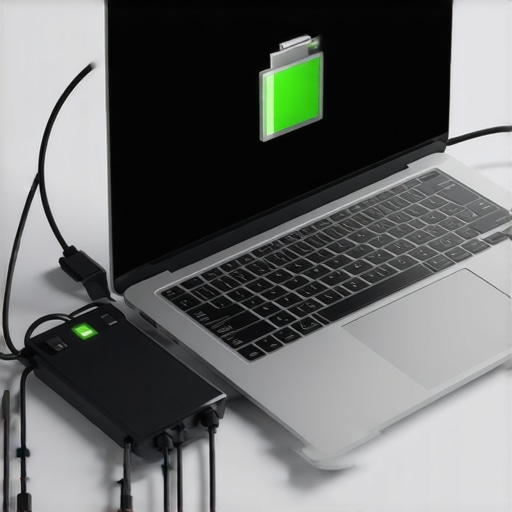
Ever found your laptop’s battery draining faster than expected even while it’s plugged into a dock? One day, I was working on a project with multiple monitors connected through a Thunderbolt dock, feeling pretty confident about my setup—only to look over and realize my battery percentage was plummeting. That frustrating moment was a lightbulb moment for me—I had assumed that being plugged in meant my laptop would stay charged indefinitely. Turns out, that’s not always the case, especially with certain docks and setups.
The Hidden Drain: Why Your Dock Might Be Sucking Your Battery Dry
This issue isn’t just an annoyance; it can seriously hamper your productivity and device longevity. You might think that connecting your laptop to a powerful USB-C or Thunderbolt dock would automatically keep your battery topped up, but several factors can cause your battery to drain despite being plugged in. From faulty power delivery to incompatible hardware, understanding why this happens is the first step toward fixing it. Over the years, I’ve tested countless docks and setups, and I learned that not all docks are created equal—some actually do more harm than good.
Are You Wasting Money on a Dock That’s Not Delivering?
Early on, I purchased a high-end Thunderbolt dock expecting seamless power and data transfer, only to realize it didn’t deliver full charging capabilities. I was making a common mistake—assuming all docks support the same power levels and compatibility. The key is checking if your dock supports the specific wattage your laptop needs, and whether it supplies power efficiently without causing drain or overheating. For a deeper dive into choosing the right dock, you can explore this guide on multi-monitor setup.
What We’ll Cover
Today, I’ll walk you through the reasons your dock might be silently draining your battery and share practical solutions to fix the issue. From verifying your dock’s power output to optimizing your setup, these tips will help you ensure that your investment in a dock actually benefits your workflow instead of sabotaging your battery life. So, if you’ve ever felt that your plug-in setup is more about frustration than convenience, stay with me—help is on the way!
Check Your Power Delivery Settings
Start by verifying your dock supports the wattage your laptop demands. Connect your laptop and open your system’s power settings—on Windows, go to Power & Sleep, then Additional Power Settings. Ensure that your dock is set as a charging source and that the power plan isn’t configured to limit charging. If your dock supports 85W but your laptop needs 100W, it won’t fully charge, leading to battery drain even when plugged in. After adjusting, test by running your usual workload and monitor if the charging icon indicates full power.
Use the Correct Cables and Ports
Not all USB-C or Thunderbolt ports are created equal. Some ports on your dock may be data-only or provide limited power. Connect your laptop using the main upstream port designated for charging—usually marked with a lightning bolt icon or labeled ‘Power’. Avoid ports that are primarily for data transfer or hubs without power support. For instance, I once connected my setup through a USB-C port intended only for data; switching to the designated charging port immediately improved charging performance. Refer to your dock’s manual to identify the correct connection points.
Monitor Thermal Performance and Overheating
Overheating can cause your dock to throttle power delivery, which might appear as battery drain. Place your dock in a well-ventilated area and avoid stacking devices on top. During prolonged use, check for excessive heat using a surface thermometer or your system’s thermal sensors. I once wrapped my dock with a small heatsink and increased airflow around it; this stabilized power delivery and prevented unexpected battery loss. If overheating persists, consider replacing your current dock with one that has passive cooling or built-in fans. Check this list of Thunderbolt docks that handle heat effectively.
Update Firmware and Drivers
Outdated firmware can cause compatibility issues, affecting power delivery. Visit your dock manufacturer’s website or support portal to download the latest firmware updates. Similarly, ensure your system’s USB and Thunderbolt drivers are current—on Windows, use Device Manager to check for updates or visit your laptop manufacturer’s support site. I once ignored this step and continued experiencing battery drain; updating the firmware and drivers immediately restored proper charging. Regularly check support resources for updates that might resolve power delivery issues.
Optimize Your Setup for Stability
Finally, arrange your peripherals and cables to minimize power load variations. Use high-quality, shielded cables and ensure there’s no damage or loose connection at the port. Avoid daisy-chaining multiple devices that draw significant power; instead, distribute their load across separate ports or powered hubs. I experienced flickering monitors and sudden battery drain when my setup was cluttered with low-quality cables; reorganizing with certified cables improved stability. For multi-monitor configurations, check this guide to optimize your setup.
While many users believe that connecting a laptop to a dock or multiple monitors guarantees effortless productivity, the truth is far more nuanced. A common misconception is that all docks are equal in power delivery and compatibility. In reality, choosing the right hardware requires understanding the subtle differences in power ratings, data bandwidth, and thermal design, which can significantly impact your setup’s stability and longevity. For instance, a USB-C dock supporting 85W may seem sufficient, but if your laptop demands 100W, you’ll experience incomplete charging or battery drain even while plugged in. This is not a rare occurrence—many overlook the importance of verifying each component’s specifications. For an in-depth understanding, check out this detailed guide on USB-C docking.
Another trap many fall into involves the assumption that more ports always equate to better performance. High port counts often lead users to connect multiple high-bandwidth devices without considering the actual data lanes available. Some inexpensive docks allocate bandwidth inefficiently, causing throttling and data corruption, especially when used with 4K or 8K monitors. This can result in flickering screens or sluggish performance, leading you to troubleshoot hardware when the real issue is poor bandwidth management. Experts suggest prioritizing docks with dedicated lanes for video output and high-speed data transfer—check out these Thunderbolt dock options for high-performance needs.
A particularly overlooked aspect involves thermal management. Overheating docks can throttle power delivery and cause stability issues, yet many users ignore placement and ventilation. A dock that feels hot to the touch might be silently throttling, leading to intermittent disconnections of displays or peripherals. This is why proper airflow and choosing hardware with passive or active cooling are crucial, especially when connecting multiple 4K or 8K displays. Thermal design isn’t flashy but can make or break your setup—see this article on thermal fixes for more insights.
Now, you might wonder about the advanced pitfalls that can trip up even seasoned tech enthusiasts. For instance, not all USB-C cables are created equal; some don’t support full bandwidth or power throughput, leading to unexpected performance drops. Using the wrong cable can reduce data rates from 40Gbps to a mere 10Gbps, or limit power delivery and stall charging cycles. Investing in certified, high-quality cables is a small step that shields you from larger headaches. Additionally, firmware and driver outdatedness often cause compatibility issues, making even high-end docks function suboptimally. Regular updates from the manufacturer can prevent these issues and keep your setup humming smoothly. Learn more at support resources.
In my experience, understanding these nuances—checking power ratings, bandwidth allocation, thermal management, and cable quality—can save you from common pitfalls and future-proof your workstation. Remember, the landscape of docks and multi-monitor setups continues to evolve rapidly, so staying informed is key. Have you ever fallen into this trap? Let me know in the comments.
Maintaining a reliable and efficient docking setup is essential for a clutter-free workspace and optimal performance. Over the years, I’ve tested and refined a suite of tools and methods to ensure my docks, hubs, and monitor configurations stay in top shape. One game-changer for me has been investing in high-quality cable management accessories. Using colored velcro straps and cable sleeves not only keeps my setup tidy but also makes troubleshooting easier when issues arise. It’s surprising how much frustration can be avoided by simply organizing cables with purpose-built tools. Additionally, I utilize a portable USB-C power meter—like the Plugable USB Power Monitor—which provides real-time readings of voltage and current going to my laptops and peripherals. This allows me to detect any power delivery inconsistencies immediately and prevent long-term damage caused by undervolting or overloading.
Maintaining firmware and driver updates is another critical aspect I never ignore. For instance, regularly checking the latest firmware releases for my Thunderbolt docks ensures compatibility with the newest OS updates and hardware features. I subscribe to manufacturer mailing lists or support portals—I recommend bookmarking their support page—to stay informed about critical updates. Keeping detailed documentation of my setup, including device configurations and firmware versions, helps me revert to known-good states if I encounter a glitch.
In terms of monitoring long-term health, I schedule quarterly reviews of my entire docking environment. During these check-ins, I revisit cable connections, test monitor refresh rates, and verify the power draw using the tools mentioned earlier. This proactive approach catches potential issues—like overheating or signal degradation—before they escalate. A tip I swear by is maintaining a dedicated cooling pad or ensuring proper ventilation around my docks, especially during extended sessions. For high-performance setups, passive cooling with heatsinks or small fans can significantly prolong hardware lifespan.
How do I maintain my dock and monitor setup over time?
Consistency is key. Regular firmware updates via official channels—like the detailed process outlined in this comprehensive guide—prevent compatibility issues that could cause connectivity drops or power problems. I also recommend periodically testing your cables with certified tools to ensure they support full bandwidth and power delivery, particularly for demanding applications like high-res gaming or 8K video editing. Setting reminders to review your setup every few months keeps things running smoothly and helps you adapt as new hardware or software updates become available. In the rapidly evolving landscape of docking technology, staying proactive with these tools and habits is the best way to maintain seamless performance—so I encourage you to try using a USB-C power meter today to get immediate insight into your power delivery health.
As I’ve experimented with various docking configurations over the years, one lesson has proven invaluable: the devil is in the details. Often, small overlooked factors—like cable quality or thermal placement—can make or break your entire workspace experience. Paying close attention to these nuances has allowed me to unlock the true potential of my multi-monitor setups and docks, ensuring reliability and longevity that no generic guide could reveal.
The Hardest Lesson I Learned About laptop dock,usb c dock,usb hub,multiple monitors,thunderbolt dock
One pivotal moment was realizing that not all docks are designed equal in terms of thermal management. I purchased a high-performance Thunderbolt dock expecting flawless operation, only to find it overheating during extended use, causing performance dips and even temporary disconnections. This taught me that choosing hardware with passive cooling or built-in fans isn’t just a luxury—it’s essential for sustained productivity.
3 Myths About laptop dock,usb c dock,usb hub,multiple monitors,thunderbolt dock That Held Me Back
- More ports mean better performance: I used to believe that having a dock with numerous ports was always advantageous. However, I discovered that bandwidth limitations and shared lanes could cause throttling, especially with high-resolution or high-refresh-rate monitors.
- All cables support the same speeds: I once used a generic USB-C cable that limited my SSD speeds drastically. Investing in certified, high-quality cables with proper shielding and support for full bandwidth saved me hours of troubleshooting.
- Firmware updates are optional: Ignoring firmware updates on my docks led to compatibility issues and unstable connections. Regularly updating firmware and drivers is a best practice I now swear by.
What Experts Won’t Tell You About laptop dock,usb c dock,usb hub,multiple monitors,thunderbolt dock
Many specialists emphasize buying the latest hardware, but what truly sets a successful setup apart is understanding your specific needs. For example, balancing power delivery with thermal design ensures your laptop charges efficiently without overheating your dock. Moreover, choosing a dock with dedicated bandwidth lanes for video and data can prevent flickering screens or lag during demanding tasks. These insights have empowered me to design a workspace tailored precisely to my workflow, avoiding common pitfalls that many overlook.
Your Next Step Toward Seamless Connectivity
Implementing these deeper insights into your setup will vastly improve stability and performance. Remember, the journey of optimizing your laptop dock, USB-C hub, or multiple monitors isn’t a one-time fix—it’s an ongoing process of learning and adaptation. Regularly revisit your hardware choices, keep firmware updated, use quality cables, and pay attention to thermal and power management. For comprehensive guidance on elevating your setup, I recommend visiting this detailed resource to help you master the art of effective docking.
Have you ever overlooked a small detail that caused big problems in your setup? Let me know below—I’d love to hear your stories and solutions!