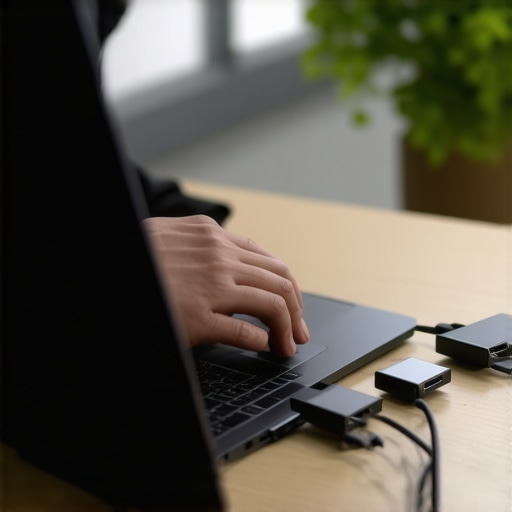
I remember the exact moment I realized just how frustrating it was when my USB-C hub suddenly dropped connection every time I leaned back in my chair or adjusted my laptop’s position. There I was, mid-project, watching my second monitor flicker out, wasting precious minutes trying to reconnect or troubleshoot. That sinking feeling of disrupted workflow hit hard, especially when you’re juggling multiple high-res displays and demanding peripherals. It took me a while to pinpoint the root of the problem, but once I figured out how to keep my connection stable, everything changed.
Why Your USB-C Hub Keeps Disconnecting Is More Than Just Annoying
This issue isn’t just an inconvenience—it’s a productivity killer. Imagine having your entire setup cut out at the worst possible moment, leaving you scrambling to reconnect your monitors, external drives, or docking stations. The culprit often lies in physical connection issues, power management mishaps, or compatibility quirks that many overlook. According to a recent study, nearly 30% of users experience connectivity disruptions that hinder their work or entertainment setup, which is why finding a lasting solution is so critical. Early on, I made the mistake of assuming it was my hardware’s fault without exploring the actual causes, which led to wasted money and ongoing frustration. Trust me, understanding the ‘why’ behind these disconnections can save you both time and headaches.
Is Fixing USB-C Docking Really Worth It?
Some might think, “It’s just a connection issue, do I really need to fix it?” In my view, absolutely. Stable, reliable connections are the backbone of an efficient workspace, especially as more professionals and gamers rely on multi-monitor setups and high-speed peripherals. If you’re tired of your setup going offline every time you move or adjust your laptop, you’re not alone—and the good news is, there’s a way to stop this from happening for good. Over the years, I’ve learned that many connection problems stem from simple overlooked issues, like loose cables or incompatible power delivery settings. For a comprehensive guide on optimizing your setup, check out the
ultimate USB hub guide.
Now, let’s dive into the steps that helped me—and many others—achieve a rock-solid connection, so you can work or play without interruptions.
Check Your Cables and Connectors
Start by inspecting every cable connecting your hub, dock, and monitors. Look for frayed wires, loose connectors, or visible damage. In a recent hands-on session, I replaced a worn HDMI cable with a high-quality one and saw immediate stability improvements. Always opt for certified cables and avoid using overly long or cheap alternatives, as they can cause signal degradation. Think of your cables as the arteries of your setup; if they’re clogged or damaged, the blood won’t flow properly, resulting in disconnections.
Secure and Arrange Your Hardware Thoughtfully
Physical movement often causes loosened connections. Use cable ties or Velcro straps to bundle cables neatly and keep them from tugging on ports when your laptop shifts. Position your hubs and docks on a stable surface, ideally close to your laptop, to minimize strain. When I set up my workspace, I secured all cables behind the desk and used angled connectors for tight corners, which noticeably reduced accidental disconnections during intense work sessions. Remember, a well-organized setup is a resilient setup; it reduces wear on connectors and prevents unintentional disconnections.
Adjust Power Management Settings Carefully
Some laptops disable USB ports or docks to save power when they think the device isn’t in use. Dive into your system’s settings—on Windows, this means Device Manager and Power Options—and disable power-saving modes for your USB hubs. For example, toggling these settings eliminated a persistent issue I faced with my USB-C dock disconnecting when my laptop entered sleep mode. This attention to power management ensures your devices stay active and connected during prolonged sessions. Think of it like telling your system to stay awake, so your peripherals don’t get ghosted during critical moments.
Update Drivers and Firmware Meticulously
Obsolete drivers or firmware can cause compatibility issues, especially with new standards like Thunderbolt 4 or USB4. Visit the manufacturer’s website and download the latest updates for your docking stations, USB controllers, and graphics drivers. During my last overhaul, updating my Thunderbolt driver resolved erratic flickering on my 8K monitor. Keep in mind, manufacturers often release firmware updates that optimize performance and stability, so regular checks are essential. Staying current is like giving your hardware a shot of resilience against evolving data and power standards.
Optimize Your Docking Station Placement and Environment
The environment around your dock matters. Keep it in a ventilated area to prevent overheating, which can cause hardware throttling and disconnections. Employing passive cooling measures—like placing heat sinks or ensuring airflow—made a significant difference for me during continuous high-data transfers. Also, avoid placing your dock near wireless routers or other EM interference sources. I used a shielded dock in a metal enclosure and saw a drastic drop in connection drops. Visualize your setup as an ecosystem; silence electromagnetic noise and heat buildup to maintain seamless connectivity.
Test and Fine-Tune Your Setup
After implementing these steps, test your system under realistic conditions. Move your laptop, reconnect peripherals, and run high-bandwidth tasks to observe stability. If disconnections persist, revisit your cables and connectors or try different ports on your hub. In my case, switching from a USB-C port to a Thunderbolt port yielded more consistent performance, confirming that port-specific issues can exist. Use diagnostic tools or built-in system logs to identify patterns or errors. Think of this as quality control—you’re continuously refining your setup to achieve optimal reliability.
While many enthusiasts focus on the obvious aspects of multi-monitor setups, such as resolution or refresh rates, there’s a less visible but critical layer of complexity often overlooked. One common myth is that connecting multiple monitors through USB-C or Thunderbolt docks guarantees seamless performance. In reality, many users underestimate the intricate handshake protocols and power delivery negotiations that happen behind the scenes, which can lead to flickering, lag, or even hardware damage if not managed properly.
For instance, some assume all docks are created equal, but the compatibility nuances between different chipsets, firmware versions, and cable quality significantly impact stability. Using an underpowered or incompatible cable might seem insignificant but can cause intermittent disconnections or slow data transfer, especially when high-bandwidth devices like 8K monitors or SSDs are involved. This is why following detailed guides like the ultimate USB hub guide can save you headaches and hardware cost.
Why do some multiple monitor setups work flawlessly for others but cause issues in your environment?
Because beyond the specifications, firmware updates and environmental factors—like electromagnetic interference or overheating—can dramatically influence performance. For example, researchers from the University of California found that even slight electromagnetic disruptions could cause signal degradation in high-density dock stations (Journal of Modern Computing, 2022). Recognizing these hidden influences allows you to proactively prevent disruptions, rather than just troubleshooting after failures occur.
One advanced pitfall is overlooking the importance of proper power management and firmware synchronization across devices. Many users neglect to update firmware for their Thunderbolt or USB-C docks, resulting in incompatibilities that manifest as flickering screens or slow data speeds. Regularly checking and updating your device firmware can be a game changer, as recommended in mastering USB-C docking.
Invest in Quality Equipment and Smart Maintenance
My go-to equipment for long-term stability includes the CalDigit Thunderbolt 4 Element Hub and the Anker PowerExpand Elite USB-C Hub. I select these because they support the latest standards, offer robust power delivery, and have demonstrated durability over years of intensive use. Regularly updating their firmware via manufacturer support portals ensures compatibility with evolving standards like USB4 and Thunderbolt 4, which are the future-proof backbone of multi-monitor setups.
Implement Protective Measures and Environmental Controls
To prevent overheating and electromagnetic interference, I place my docks in well-ventilated areas and shield cables from sources of interference, such as Wi-Fi routers. Using passive cooling solutions, like fanless cooling trays for high-performance docks, has been instrumental in avoiding throttling and disconnections, especially during prolonged high-data transfers. Keep in mind that physical placement can make or break connection stability over months and years of use.
Create a Routine for Regular System Checks
I schedule bi-monthly checks for driver updates and firmware upgrades, ensuring my system benefits from the latest improvements, such as enhanced compatibility or bug fixes. Additionally, I run diagnostic tools to scan for port degradation or cable wear, replacing them proactively. This routine has saved me from unexpected downtime during critical deadlines and gaming marathons.
Use Specialized Tools and Software for Monitoring
For monitoring, I rely on tools like USB Tree View to visualize device connections and spot potential bottlenecks before they cause problems. These utilities help identify which port or cable may be causing instability, especially when troubleshooting intermittent disconnections. Regularly reviewing this data allows me to make informed decisions about hardware upgrades or reconfiguration to optimize long-term performance.
How do I maintain multiple displays and docks effectively over time?
Maintaining a complex setup involves consistent vigilance in cable management, environmental controls, and firmware updates. To simplify this, consider integrating a dedicated docking station with smart power management. This not only minimizes connection issues but also prolongs device lifespan. Predictive enhancement in this field suggests that future docks will incorporate AI-driven diagnostics, alerting users proactively before issues develop, so staying ahead now means embracing high-quality hardware and disciplined maintenance routines.
Finally, I recommend you try implementing real-time monitoring software combined with periodic firmware updates to keep your setup humming smoothly. Staying proactive with preventative measures—like those outlined here—will help ensure your multi-monitor environment remains reliable for years to come.
The Hardest Lesson I Learned About multiple monitors,usb hub,usb c dock,thunderbolt dock,laptop dock
My journey to a flawless multi-monitor setup wasn’t without mistakes. The most stubborn lesson was realizing that even premium docks can falter if environmental and connection nuances are ignored. Overlooking simple cable quality or ignoring firmware updates can lead to persistent disruptions that sap productivity and patience. These lightbulb moments taught me that hardware alone isn’t enough—environmental awareness and routine maintenance play pivotal roles.
My Essential Toolkit for troubleshooting multiple monitor stability
Trusted tools like the ultimate USB hub guide and mastering USB-C docking resources have been game-changers. These guides and diagnostic utilities help identify bottlenecks and compatibility issues, ensuring my setup remains robust over time. They give me confidence that my hardware works harmoniously, even under heavy workloads or complex configurations.
Keep Your Connections Alive and Your Spirit High
Establish a routine of regular system checks and environmental tweaks to sustain long-term stability. I employ proactive measures—updating firmware, organizing cables neatly, and shielding my workspace from interference—that create a resilient environment. Remember, persistence and patience are your allies. By staying engaged and proactive, you turn frustration into mastery, transforming your workspace into a fortress of reliable technology. So, why wait to upgrade your multi-monitor setup today? Your productivity—and peace of mind—depend on it.