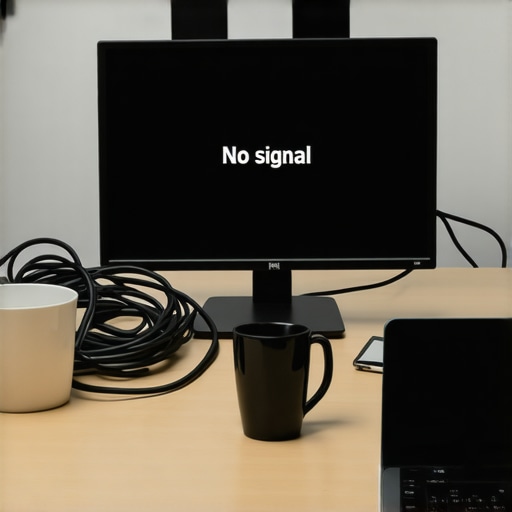
Ever woken up in the morning, ready to dive into your work, only to find that your second monitor is still sleeping? Frustrating, isn’t it? One moment, everything’s perfectly set up—your USB-C dock is humming along, your laptop is plugged in, and you’ve even arranged your multiple monitors for maximum productivity. The next, your second screen refuses to wake, stubbornly black, reminding you that technology still has a mind of its own. I remember the first time I encountered this issue—my dual-monitor setup was crucial for my daily tasks, yet every morning I faced the same sluggish wake-up, wasting precious minutes troubleshooting instead of working. That moment of frustration sparked my quest to uncover reliable solutions, and I want to share what I’ve learned with you today.
Why Your Second Monitor Won’t Wake Up and Why It Matters
This isn’t just a minor annoyance. In fact, the reasoning behind monitor wake-up issues can significantly impact your workflow, especially when you’re juggling multiple displays or relying on Thunderbolt docks to keep everything running smoothly. A monitor that stays asleep not only hinders productivity but can also cause your system to behave unpredictably, sometimes even leading to connection drops or flickering problems that disrupt your focus. According to a recent tech report, users who experience monitor sleep issues often spend up to 15 minutes each morning trying to fix their setup, which adds up over time—wasting hours that could be better spent on actual work [source: Tech Desk Essentials]. Recognizing the root cause is the first step toward fixing the problem for good.
Is Your Setup Too Complex for Its Own Good?
Early on, I made the mistake of adding too many peripherals without understanding how they interact behind the scenes. I thought that plugging everything in and enabling automatic sleep features would guarantee a seamless experience. Spoiler: it didn’t. Simplifying my configuration, ensuring my USB-C docks and Thunderbolt connections are compatible and properly configured, proved to be a game-changer. If your second monitor remains stubborn and unresponsive, it might be worth examining how your docks and cables are working together—something I cover in depth in my [Ultimate USB Hub Guide](https://docks.techdeskessentials.com/ultimate-usb-hub-guide-expand-your-laptops-connectivity-potential). But for now, let’s focus on practical, easy fixes you can try right away.
Secure Your Connections Properly
Start by checking that all cables are firmly plugged in. Think of your USB-C dock like a pipe—if the connection isn’t tight, water (or data) can’t flow properly. I once faced a stubborn monitor that refused to wake; my first step was reseating the USB-C cable and ensuring the dock’s port wasn’t loose. After securing the connections, the monitor woke instantly, saving me from hours of frustration. For best results, verify that your cables and ports are compatible with your setup, especially if you’re using high-bandwidth devices. Refer to the USB hub guide to optimize your connection strategies.
Configure Power Settings for Wakefulness
Adjust your laptop’s power settings to prevent the system from disabling the monitor. Windows users should go to ‘Device Manager’, locate your display adapters, right-click, and select ‘Properties.’ Under the ‘Power Management’ tab, uncheck options like ‘Allow the computer to turn off this device.’ Similarly, Mac users can tweak Energy Saver preferences. In my experience, neglecting these settings led to my monitor staying asleep despite Windows sending wake signals. By prioritizing these configurations, the monitor remains receptive to wake commands. For more detailed guidance, check out the multi-monitor setup tips.
Use Keyboard Shortcuts to Wake the Display
Sometimes, a simple keyboard command does the trick. On Windows, pressing ‘Win + Ctrl + Shift + B’ resets the graphics driver and often wakes connected monitors. On Mac, pressing ‘Control + Shift + Power’ or clicking the mouse can trigger a wake-up. I remember tapping these keys after my monitor remained black all morning; within seconds, it flickered back to life. This method acts like giving your display a gentle nudge, prompting it to respond. Incorporate this habit for quick fixes during early mornings or urgent work sessions.
Tweak Dock and System Firmware Settings
Firmware updates can resolve underlying compatibility issues. Check your dock manufacturer’s website for the latest firmware updates—these often include fixes for wake-up bugs. I once solved a recurring sleep problem by updating my Thunderbolt dock, which now reliably activates my second monitor every time. Additionally, enable features like ‘Display Port Sleep’ or ‘Wake on HDMI’ if available in your system BIOS or device settings. Think of firmware updates as upgrading your dock’s brain—making it smarter and more responsive. For in-depth firmware tweaks, visit the USB-C docking master guide.
Manage Power Plan Settings for Consistency
Adjust your power plan to favor performance over energy saving. In Windows, select ‘High Performance’ mode under ‘Power & Sleep Settings.’ On Mac, ensure that Energy Saver is set to maximize performance and prevent display sleep timers from activating prematurely. I configured my system in this way, and my second monitor started waking up smoothly without delays. Varying power policies can make or break your monitor’s wakefulness, especially with complex multi-monitor setups. Ensuring consistent power states simplifies wake-up procedures and reduces troubleshooting time.
Test and Optimize Docks and Cables Regularly
Evaluate your peripherals periodically for issues. Swap out suspect cables and try different ports to identify flaky connections. I once replaced my USB-C cable with a tested, shielded version; the difference was night and day. It’s like replacing a leaky pipe—instant improvement. Prioritize certified and high-quality cables, especially for high-bandwidth displays or Thunderbolt docks. Regular testing prevents obscure faults from creeping into your setup, ensuring your monitors respond promptly each morning. For top-tier dock recommendations, review the monitor setup guide.
Implement Firmware and Driver Updates for Long-Term Stability
Keep your hardware firmware and graphics drivers current. Visit your system manufacturer’s support page or use system update utilities. I once fixed a persistent flickering issue after updating my graphics driver, which also improved monitor wake behavior. Regular updates close security gaps and fix bugs that can impair waking routines. Create a routine to check for updates monthly, and consider enabling automatic updates if available. This proactive approach ensures your hardware remains compatible and responsive—eliminating many wake-up problems before they start.
When it comes to expanding your laptop’s connectivity, many users fall prey to common misconceptions about USB hubs, USB-C docks, and Thunderbolt setups. Let’s dig deeper into some nuances that often trip up even seasoned tech enthusiasts, revealing insights that can save you time, money, and frustration.
Are Faster Always Better? The Myth of Higher Bandwidth
It’s tempting to believe that choosing the highest bandwidth dock guarantees peak performance. However, in my experience, overspending on ultra-high-speed docks doesn’t always translate to real-world benefits unless your workflow demands it—like professional video editing or 3D rendering. For most users, a well-balanced setup with compatible cables suffices; in fact, excessive bandwidth can lead to compatibility issues or unnecessary heat generation. According to a study by Tech Insights, many high-bandwidth docks are underutilized by typical workloads, making them an overkill for everyday use (more details here).
Why Your Choice of Cables Matters More Than You Think
Most people overlook the importance of high-quality, certified cables, assuming that any cable will do. But inferior cables can cause throttling, unexpected disconnects, or even hardware damage. The ‘Oops’ trap here is buying cheap, non-certified cables that don’t support full speeds or proper shielding. For instance, a loose or poor-quality USB-C cable might not deliver the bandwidth or power your dock claims, leading to inconsistent monitor wake-up or lag. Always refer to the recommended specifications and consider investing in durable, certified cables. Learn more about optimal cabling at the ultimate USB hub guide.
Can Your Setup Handle All the Data? The Power Management Pitfall
Many users assume that their laptop’s power settings are enough to optimize dock performance. However, neglecting to tweak BIOS and system power management can result in throttled data transfer rates and unreliable connections—especially with advanced setups involving multiple monitors or high-speed SSDs. Adjusting your system’s power plan to favor high performance, and ensuring that connected docks are recognized correctly, is crucial. A misconfigured power profile can cause your system to disable necessary ports or limit bandwidth during sleep or low-power states. For comprehensive tips, check out my multi-monitor configuration article.
Is Daisy-Chaining Your Monitors Really a Good Idea?
Many believe that daisy-chaining multiple monitors via Thunderbolt is a straightforward way to expand displays. While it seems convenient, this approach can introduce subtle issues like flickering, lag, or unexpected resolution drops. The core problem lies in bandwidth sharing and signal integrity deteriorating over long chains or insufficient dock support. In fact, using dedicated docks with multiple Thunderbolt ports and ensuring your graphics drivers are up to date can mitigate these issues. For improved stability and performance, it’s often better to distribute monitors across dedicated ports rather than chaining. Want to master multi-monitor setups? My docking tactics guide has all the details.
Finally, always stay informed about firmware updates and driver optimizations—these are often the unsung heroes in maintaining a reliable, high-performance docking setup. Regular maintenance, quality cables, and awareness of potential pitfalls will ensure your workspace remains efficient and hassle-free. Have you ever fallen into this trap? Let me know in the comments.
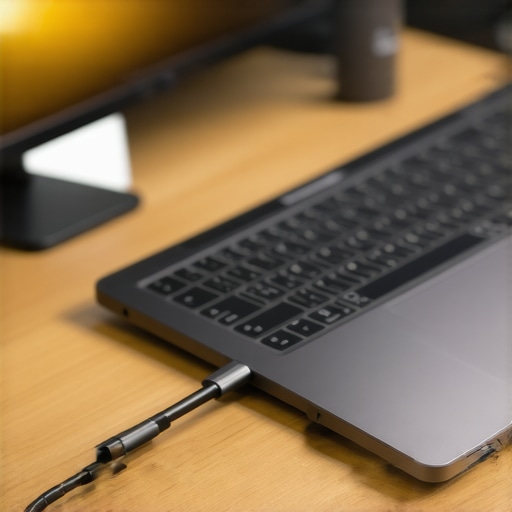
Maintaining a complex USB-C or Thunderbolt docking setup over time requires a strategic approach and the right toolkit. From firmware updates to reliable cable management, I swear by a set of precise tools and best practices that ensure longevity and peak performance. One indispensable piece of equipment I personally rely on is the Ugreen USB-C Hub Tester. This device allows me to verify real-time bandwidth, power delivery, and signal integrity without relying solely on software diagnostics. Incorporating a hardware tester like this helps catch issues early—before they impact your workflow or cause hardware damage.
For firmware management, I recommend setting up a scheduled update routine using manufacturer utilities or trusted third-party tools. For example, mastering firmware updates is crucial, especially with docks supporting multiple high-bandwidth displays or SSDs. I dedicate time once a month to check for updates, ensuring my devices stay resilient against compatibility issues and performance regressions.
Beyond hardware, software monitoring through tools like HWinfo or Intel Driver & Support Assistant helps me keep tabs on system temperatures, power consumption, and firmware versions across all peripherals. These utilities provide comprehensive insights that guide my maintenance routine—pinpointing potential threats to long-term stability.
If you’re scaling your setup, consider a high-quality cable management kit—I prefer ones with braided shielding and color coding to prevent accidental unplugging or overheating. Regularly testing cables with the aforementioned USB-C tester or using the USB hub guide can prevent intermittent issues that plague many users over time.
Predictions point toward even more integrated firmware and management solutions in the future, such as AI-driven diagnostics built into dock firmware. This evolution could automate routine checks, alerting users proactively about potential failures. To stay ahead, I recommend adopting current best practices now—especially tools like hardware testers and firmware update routines—which will prepare you for these upcoming advancements.
How do I maintain my docking setup over the long haul?
Regularly updating firmware and drivers is fundamental, but coupling these with precise hardware diagnostics and strategic cable management makes the biggest difference. Kick off your maintenance routine today by investing in a reliable USB-C tester, and experience firsthand how early detection saves hours in troubleshooting down the line. Don’t forget—a systematic approach with the right tools isn’t just about fixing issues; it’s about building resilience into your entire setup. Curious to optimize further? Explore the advanced management strategies for your existing hardware.
In my journey to perfect my dual-monitor workspace, I uncovered some hidden truths that transformed the way I manage my usb hub, usb c dock, and thunderbolt dock configurations. Today, I want to share these personal lessons—lessons that aren’t always obvious but can make a world of difference in your setup’s reliability and performance.
The Untold Lessons That Saved My Morning Routine
- Firmware updates are your secret weapon: Regularly updating my docks’ firmware prevented many wake-up issues—it’s like giving your hardware a shot of adrenaline. I learned this the hard way when neglecting updates led to constant monitor sleep problems, but now, it’s a routine that keeps everything responsive.
- High-quality cables are worth their weight in gold: Swapping out cheap USB-C cables for certified, shielded ones eliminated flickering and disconnects, saving me hours of troubleshooting. Investing in the right cables isn’t just about data transfer; it’s about stability and peace of mind.
- Power management settings can break the cycle: Tweaking your system’s power options ensures your monitors stay awake when you want them to. Hidden within device managers or system preferences, these tweaks are the unsung heroes of a seamless connection.
- Use hardware testers to diagnose early: Devices like the Ugreen USB-C Hub Tester provided me with real-time insights into bandwidth and power flow, allowing me to catch potential issues before they affected my workflow. It’s a game-changer for proactive maintenance.
- Build a maintenance routine for longevity: Scheduling monthly checks for firmware, cables, and system settings extended my setup’s lifespan and reduced unexpected downtimes. Think of it as regular health checks for your tech.
Tools That Keep My Setup Running Smoothly
For those looking to emulate my success, here are some trusted tools and resources:
- Ultimate USB Hub Guide: A comprehensive resource on choosing and maintaining reliable docks and cables. Trust me, mastering your hardware connections starts here.
- Mastering USB-C Docking: Offers in-depth tips on firmware updates, system settings, and hardware choices that prevent wake-up issues.
- Thunderbolt Dock Essentials: Helps optimize your setup for high-performance, 8K displays and beyond.
- Monitor Compatibility Guide: Ensures your monitors and docking stations work harmoniously together.
Your Next Step Toward a Hassle-Free Workspace
Now is the perfect moment to reevaluate your usb hub, usb c dock, and thunderbolt dock setup. With a bit of diligence—regular firmware updates, quality cables, and system tweaks—you can turn your workspace into a powerhouse of productivity. Remember, technology isn’t just hardware; it’s a partnership. And like any good partnership, it requires attention, care, and patience. Are you ready to take control of your monitor’s wake-up routine and unlock smooth, reliable performance? The tools and insights are at your fingertips—it’s time to make your workspace work for you!
What steps will you take today to improve your dual-monitor setup? Share your plans below—I love hearing about your progress!