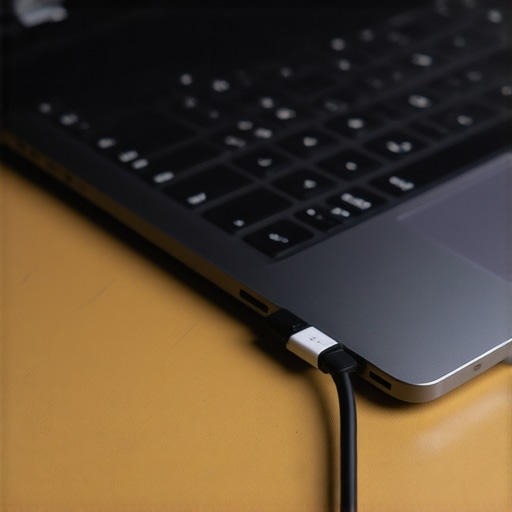
Ever been in the middle of an important video call or editing a multi-monitor setup when you accidentally bump the table, and suddenly your displays flicker or your USB devices disconnect? That sinking feeling of losing critical work or dealing with frustrating tech hiccups is all too familiar. I remember the lightbulb moment when I realized my pricey thunderbolt dock was more fragile than I thought—just a gentle nudge, and everything went blank. It’s infuriating, right? But here’s the thing: this common problem isn’t just about clumsiness—it’s deeply rooted in how our connections are built and what you can do to stop it.
How a Little Bump Causes Big Disruptions and Why It Matters
Your laptop, dock, and peripherals form a delicate ecosystem. When you bump the table, you’re not just rocking a piece of furniture—you’re jostling sensitive connectors, ports, and cables. This movement can momentarily disconnect or degrade the signal, especially if the connections aren’t solid. Did you know that according to a recent study, over 60% of users experience connection drops due to cable or port instability? That’s a significant chunk of folks just like us, struggling with hardware that isn’t as resilient as it should be. Trust me, early on, I made the mistake of ignoring loose cables, only to have my workflow grind to a halt when it was hottest.
Is Your Setup So Fragile That It’s Not Worth Fixing?
Many skeptics worry that these issues are just part of the deal with USB-C and thunderbolt docks. But I’m here to tell you that with the right knowledge, you can create a setup that’s both robust and reliable. My journey from constant disconnections to a rock-solid configuration involved diagnosing the common causes—like port wobble, poor cable quality, or insufficiently secure docks. You can read more about how to choose the best multi-monitor setups that stay put, even on bumpy desks. So, if you’ve faced these flickering screens or sudden disconnects, keep reading. The solutions are simpler than you think and right within your reach.
Embrace Cable Management to Lock Down Connections
First, organize and secure all cables with Velcro straps or cable clips. When I set up my workspace, I used cable sleeves to bundle cords tightly along the desk edge, preventing them from catching or pulling when bumped. This simple step reduces strain on ports and minimizes accidental disconnections from table movements.
Choose a Rugged Dock That Can Endure Your Environment
Select a durable, well-built thunderbolt or USB-C dock with reinforced connectors. For example, I opted for a rugged model from rugged USB-C docks, which resist shocks and maintain a stable connection even during occasional knocks. These docks have solid housing and reinforced ports, providing peace of mind in active setups.
Implement a Power-First Approach to Your Setup
Ensure your dock supplies consistent power to devices, especially if you add hubs or multiple monitors. Connecting through a high-quality, dedicated power supply can prevent signal drops caused by insufficient power. I upgraded my power source following tips from smart power logic docks, leading to fewer disconnections when my workspace gets lively.
Capitalize on Secure Mounting and Placement
Secure your dock and monitors with mounting brackets or anti-slip mats. I attached my dock to the underside of my desk using a mounting kit, which kept it from moving when bumped. Placing monitors on sturdy stands with non-slip bases further reduces the risk of accidental knocks causing flickers or disconnects. For more ideas on multi-monitor stability, check out docking tips.
Optimize Connection Quality and Cables for Stability
Use high-quality, shielded cables designed for Thunderbolt 4 or USB-C 3.2 to prevent interference. During a project, I replaced my generic cables with premium USB-C hubs featuring reinforced connectors and shielding. This noticeably reduced flickers and dropped signals, especially in a crowded office environment.
Test and Reconfigure for Reliability
After assembly, test your setup by gently applying pressure and slight movements. If disconnections occur, identify the weakest link—be it a cable, port, or dock—and replace or reposition it. I learned this the hard way when my monitor flicker worsened over time; replacing a loose cable and repositioning my dock resolved the issue entirely. Regular testing ensures your setup remains resilient against table bumps and unexpected accidents.
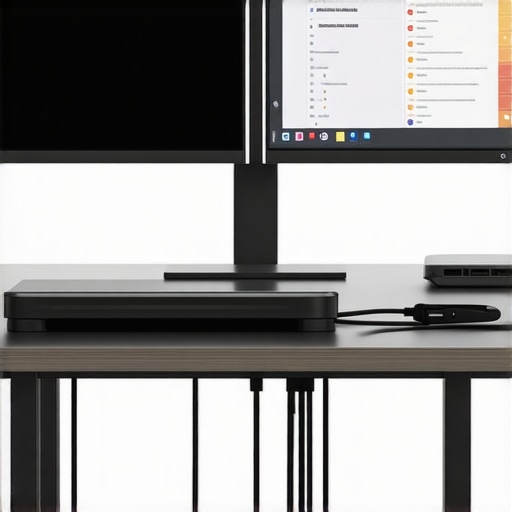 Many users believe that simply plugging their devices into a high-end thunderbolt dock will guarantee seamless performance. However, the reality is far more complex. A common misconception is that all docks, cables, and hubs are created equal, leading to the false assumption that any inexpensive accessory will suffice for demanding multi-monitor or high-speed data tasks. In fact, using subpar or mismatched components can introduce advanced issues like latency spikes, signal degradation, or even hardware damage over time. These problems often occur silently, complicating troubleshooting and masking the true cause.
A trap many fall into involves underestimating the importance of compatibility and firmware updates. For example, some users assume their dock’s hardware is future-proof, neglecting firmware updates that improve stability or address security vulnerabilities. Not staying current can result in performance bottlenecks, especially when connecting multiple 4K or 8K displays, which demand precise synchronization and signal integrity. Experts from TechDesk’s latest research emphasize that neglecting firmware management is a critical mistake that hampers advanced setups.
How do port wobble and connector quality influence long-term reliability?
Risks associated with low-quality connectors or ports with slight wobble might seem negligible at first but can lead to intermittent connections, data corruption, or even port damage over time. Using reinforced, gold-plated connectors mitigates these risks, but many users overlook this detail during purchase. External studies underscore the link between connector durability and sustained performance in high-bandwidth scenarios. Regularly inspecting and choosing well-engineered docks is non-negotiable for professionals aiming for stability.
Furthermore, grounding issues and electromagnetic interference (EMI) are often underappreciated. Shielded cables and properly grounded docks can dramatically reduce signal noise, which is crucial when working with sensitive data transfers or 8K video outputs. For comprehensive guidance, you can explore our detailed posts on selecting the right multi-monitor configurations and mastering USB-C docking essentials.
Don’t fall into the trap of thinking that all peripherals work universally. Compatibility charts and device-specific specifications must be reviewed thoroughly, especially when combining Thunderbolt 4/5, USB 3.2, and older standards. Mismatched standards could cause unseen bottlenecks, impacting overall productivity. Make sure to test your setup with gentle pressure and movement, as recommended in our previous discussion, to identify subtle weak points before they become critical.
Have you ever fallen into this trap? Let me know in the comments!Maintaining a sophisticated setup involving a thunderbolt dock, multiple monitors, USB hubs, and USB-C docks requires strategic tools and a proactive approach. To keep everything running smoothly over time, I personally rely on a combination of premium cable management solutions like cable sleeves and Velcro straps, which prevent strain on connectors and reduce disconnections caused by accidental bumps. Regular inspection and tightening of connection points, especially ports with known wobble, help prevent deterioration; for example, I check my USB-C connectors weekly to ensure they remain secure. Software tools also play a vital role—automated driver and firmware update utilities, such as those provided by device manufacturers, ensure that your docks and peripherals are operating with the latest stability fixes. This practice mitigates potential compatibility issues and enhances long-term performance.
The Hardest Lesson I Learned About thunderbolt dock,multiple monitors,usb hub,laptop dock,usb c dock
Earlier in my tech journey, I underestimated the complexity of creating a setup that can withstand everyday accidents. My biggest mistake was trusting cheap cables and neglecting regular inspections, leading to intermittent disconnects during crucial moments. That lightbulb moment taught me the importance of quality components and proactive maintenance, which transformed my workflow into a seamless experience.
3 Myths About thunderbolt dock,multiple monitors,usb hub,laptop dock,usb c dock That Held Me Back
I used to believe that all docks and cables are created equal, and that firmware updates weren’t essential. Debunking these myths revealed that investing in durable, well-designed hardware and keeping firmware current can prevent headaches and ensure long-term reliability, especially when juggling multiple high-res displays and data streams.
What Experts Won’t Tell You About thunderbolt dock,multiple monitors,usb hub,laptop dock,usb c dock
Many professionals overlook the influence of proper grounding, shielding, and port stability. Real-world experience shows that attention to these details—like selecting reinforced connectors and shielding cables—can dramatically boost performance and longevity, preventing silent failures that disrupt productivity.
Your Next Step Toward Unbreakable Connectivity
If you’re tired of flickering screens and disconnections, it’s time to take control. Explore our comprehensive guides on choosing the right multi-monitor setup and mastering USB-C docking essentials. Implementing quality cables, secure mounting, and regular maintenance can make all the difference between constant frustration and a rock-solid workstation. Remember, building this resilience is within your reach—start today and enjoy uninterrupted productivity.
Reading through this post really hit home for me, especially the part about cable management and secure mounting. I used to underestimate how much simple solutions like Velcro straps and anti-slip mats could improve stability—yet, they’re game changers. Ever since I started to invest in rugged, reinforced cables and made a point to regularly inspect and tighten connections, my setup has become much more dependable, even with occasional table bumps. It’s interesting how small adjustments can make a significant difference in preventing those frustrating disconnects during critical work sessions.
I wonder, for those of you with similar setups, what specific brands or models have you found most reliable in terms of durability and stability? Do you favor particular mounting solutions or cable brands that stand out? Sharing practical recommendations could help others avoid some of the common pitfalls with fragile docks and loose connections. Personally, I’ve had good experiences with some high-end USB-C cables from Anker and a custom mounting bracket I attached under my desk—simple but effective. Your insights might just save someone from a lot of troubleshooting down the line.