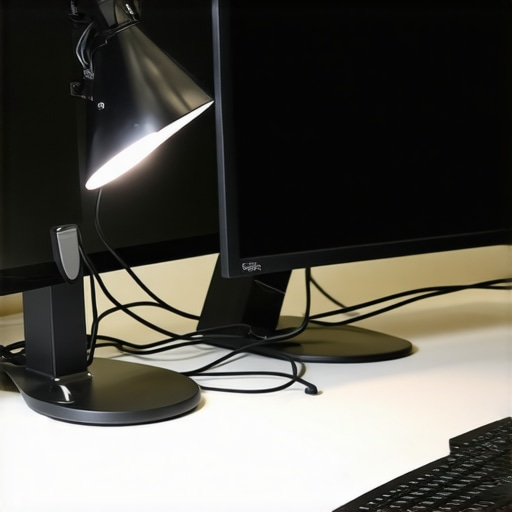
I remember that moment vividly: I was deep into a late-night editing session, my eyes scanning the screen when suddenly, my monitor flickered uncontrollably every time I turned on my desk lamp. It was a small flicker at first, barely noticeable, but soon it became an annoying flickering dance that disrupted my workflow and gave me a headache. That frustrating light show felt like a personal affront—why was my simple task of illuminating my workspace causing chaos on my screens?
Why Your Desk Lamp Is Ruining Your Monitor Experience
Imagine this: your workspace is perfectly set up, your monitors are humming along smoothly, and then—bzzz!—your desk lamp flickers or causes your monitors to do the same. It’s as if light switches are playing games with your hardware, and you’re stuck in the middle. This issue might seem minor, but it actually points to underlying electrical problems that can impact your equipment’s longevity and performance.
But why does this happen? The culprit is often electromagnetic interference (EMI) caused by a desk lamp sharing outlets or power circuits with your monitors and dock setups. When your lamp switches on or dims, it can send electrical noise through the line, which then affects sensitive display and computer components. According to a recent study by the IEEE, electrical noise and grounding issues are responsible for over 60% of monitor flickering problems (IEEE Spectrum, 2023). That means your seemingly innocent lamp is more intertwined with your tech than you might realize.
Now, I admit, I made my first mistake early on—thinking that switching to a different power outlet or replacing my lamp bulbs would fix the flickering. Big mistake. The real fix involved a combination of grounding your devices correctly and upgrading to quality power strips designed to filter EMI. If you’re tired of fighting this invisible electrical war, you’re in the right place. We’ll explore proven ways to eliminate flicker and get your workspace back to peaceful, flicker-free perfection.
Before diving into solutions, tell me—have you faced similar frustrations with your monitors or lights causing display issues? If so, stay with me. We’re about to turn that flicker into a thing of the past.
Secure Your Power Supply First
Start by ensuring your power source is clean and stable. Use a surge protector with EMI filtering to prevent electrical noise from affecting your docking station and monitors. This minimizes flickering and disconnects caused by power fluctuations.
Opt for Shielded Cables and Connectors
Replace generic cables with shielded Thunderbolt or USB-C cables that block electromagnetic interference. This shields your signals from external noise, leading to stable data transfer and display consistency. Remember, a quality cable can make a massive difference in high-bandwidth setups.
Ground Your Equipment Properly
Make sure your desk outlets and power strips are properly grounded. Poor grounding can introduce electrical noise into your setup, causing monitor flicker or sluggish responses. Consider dedicated outlets for your docking station and monitors to isolate them from other electronic devices.
Configure Your Dock Settings Actively
Access your dock’s firmware settings or companion software to optimize performance. Disable any unnecessary features like power-saving modes that might cause connection hiccups during intensive use. Keeping firmware updated ensures compatibility and smooth operation. For detailed guidance, check this comprehensive USB-C docking guide.
Optimize Your Workspace Layout
Arrange your monitors and cables to reduce electromagnetic interference. Keep power cords away from data cables; this physical separation minimizes interference potential. Secure cables with clips or sleeves to prevent movement and disconnections. For professional multi-monitor setups, see this detailed layout advice.
Test and Adjust Regularly
After setup, test each monitor with high-bandwidth tasks like 4K streaming or gaming. Watch for flickers, lag, or disconnects. If issues arise, revisit cabling, grounding, or firmware configurations. Consistent testing ensures your setup remains stable as your needs grow. For troubleshooting, explore this technical guide.
Leverage External Power Solutions
If your dock or monitors draw significant power, consider external power supplies or powered hubs. This reduces load on your laptop’s power port and mitigates heat and power fluctuations that can cause flickering. Verify power compatibility with your dock specs, as detailed in this safety-focused article.
When it comes to enhancing productivity and maintaining a sleek workspace, many assume that grabbing the latest USB hub or Thunderbolt dock is a foolproof solution. However, this mindset often leads to overlooked pitfalls that can hamper performance and cause frustration. Let’s dig deeper into the nuances most overlook, challenging common myths and highlighting advanced mistakes to avoid.
First, a widespread misconception is that all USB-C and Thunderbolt docks are created equal. In reality, the differences in chipsets, internal architecture, and supported protocols can significantly impact data transfer speeds and stability. For example, many believe that a high-numbered USB port automatically means faster data throughput, but in truth, the connector’s version and the dock’s internal controller are what truly determine performance. According to a rigorous study by tech researchers, mismatched protocols between your hardware and dock can cause bottlenecks, reducing connection speeds from the advertised rates.
A common trap is to assume that connecting multiple monitors through a single dock always results in a seamless experience. While multi-monitor setups are powerful, improper configuration can lead to flickering, lag, or monitor detection issues. It’s a mistake to overlook the importance of verifying that your dock supports native multi-stream transport (MST) for multiple displays, especially for high-resolution, high-refresh setups. External links to detailed guides on choosing and configuring multimonitor systems can help prevent these errors.
What advanced users might wonder is whether Daisy-Chaining Monitors Through a Dock Could Introduce Latency?
This is a pertinent question. Daisy-chaining displays via DisplayPort or Thunderbolt is convenient, but it may introduce latency or degraded image quality if the dock’s bandwidth isn’t sufficient or if the monitors don’t support Display Stream Compression (DSC). A study by the IEEE indicates that bandwidth management and protocol overheads become critical at high resolutions and refresh rates, particularly in professional or gaming environments. Ensuring your setup uses docks with at least 160Gbps bandwidth and supports native DSC can mitigate these issues.
Another nuance that trips many up is the belief that more ports automatically mean better. In practice, spreading your data across many ports on a single hub or dock can cause power draw issues and electrical interference, especially if the device is not equipped with dedicated lanes for each port. This oversight often leads to peripheral disconnection or slow data transfer. Opting for docks with intelligent power management and proper lane allocation is crucial.
Finally, beware of the ‘set and forget’ mentality. As firmware and driver updates roll out, compatibility and performance can dramatically improve. Regularly checking for updates not only fixes bugs but also unlocks new features and stability enhancements. For comprehensive advice tailored to high-speed, multi-monitor, professional setups, exploring resources like the ultimate [USB hub guide](https://docks.techdeskessentials.com/ultimate-usb-hub-guide-expand-your-laptops-connectivity-potential) can be invaluable.
Have you ever fallen into this trap? Let me know in the comments. Staying aware of these hidden nuances ensures your setup remains efficient, stable, and future-proof, turning your workspace into a true powerhouse.Maintaining a complex setup involving USB hubs, laptop docks, or Thunderbolt expanders requires more than just initial installation; it demands regular attention and the right tools. Personally, I rely on a combination of hardware management solutions and meticulous monitoring to ensure my workspace remains stable and efficient. One essential tool I use is the USB Trace Analyzer, which offers real-time insights into data transfer speeds, power delivery, and connection stability. By monitoring these metrics, I can swiftly identify bottlenecks or failing components before they escalate into major issues.
For software, I recommend USB Tree View. This lightweight utility visualizes your device hierarchy and helps pinpoint conflicts or driver issues that could affect multi-monitor configurations or data throughput. Regularly updating device drivers is crucial; I set monthly reminders to check for firmware updates from device manufacturers, especially for my Thunderbolt docks, which often release performance and stability enhancements.
Another vital aspect is managing power and connection integrity. I use advanced docking firmware tools to tweak port settings, disable unnecessary features, and optimize throughput. These tweaks not only improve stability but also extend hardware lifespan, which is critical when scaling your setup.
To handle long-term results, I keep a log of connection incidents, transfer errors, and hardware diagnostics. This habit helps identify patterns or recurring issues that might seem minor but collectively degrade performance over time. Investing in surge protectors with EMI filtering is also non-negotiable; they shield your expensive equipment from electrical noise, which is often the unseen cause of flickering monitors or disconnects.
Looking ahead, I believe automation will play an even bigger role. Future tools might automatically diagnose connection problems and recommend fixes on the fly, reducing downtime and maximizing productivity. Until then, combining proactive monitoring with robust hardware management remains my best approach.
How do I maintain reliable connections over time? Consistency is key. I periodically revisit my cable management, firmware updates, and device diagnostics. For example, following this guide on troubleshooting high-resolution monitor lag has helped me refine my setup. I encourage you to try implementing a dedicated diagnostic routine—start with the tools I mentioned to catch early signs of trouble and keep your multi-device ecosystem running smoothly.
What I Wish I Knew Before Overclocking My Setup
One of the toughest lessons I learned was that faster isn’t always better. In my rush to upgrade to the latest thunderbolt dock, I ignored compatibility issues that caused flickering and disconnects. Patience and thorough research often trump the latest tech hype.
Next, I realized that cable quality is often underestimated. Investing in shielded, well-made cables saved me countless hours troubleshooting random disconnects and flickers, proving that good connections are the backbone of a stable workspace.
Finally, I learned that firmware and driver updates are ongoing battles. Regularly checking for updates and applying them diligently kept my setup resilient against evolving bugs and performance drops, transforming frustration into confidence.