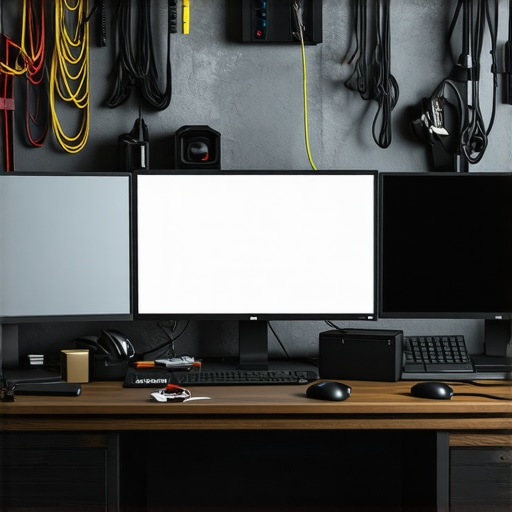
I’ll never forget the moment I was deep into an intense gaming session, suddenly interrupted by that maddening flicker — my triple monitor setup wavering like a shaky camera. It wasn’t just annoying; it threw off my focus, made work harder, and honestly, I started to doubt my expensive gear. Sound familiar? If you’ve faced the same issue — unstable display flicker, especially with multiple screens hooked up via a USB-C or Thunderbolt dock — you’re not alone. That first time I experienced this, I thought it was a hardware defect, or maybe my monitors were dying. Turns out, the culprit was simpler but more stubborn: power inconsistencies and insufficient power management in my docking station. And let me tell you, that lightbulb moment changed everything.
Why Flickering Happens and Why You Should Care
Is this monitor flicker hype worth stressing over?
Early on, I made the mistake of assuming the problem was with my monitors, investing in expensive replacements. But as I dug in, I learned that flickering often has less to do with the screens and more to do with power and signal stability. According to the experts at TechDesk, power issues are a leading cause of multi-monitor flickering, especially when using docks that aren’t equipped to handle the demands of multiple high-res displays. The takeaway? Your setup’s power delivery system needs to be robust, properly managed, and sometimes, simply upgraded. Want to explore that further? Check out our guide on expand your laptop’s connectivity potential and discover the right hubs and docks for your needs. Now, back to the core issue: how can you stop flickering once and for all? That’s what I’ll reveal next, based on my personal experience and proven fixes.
Secure Your Power Supply
The first step in eliminating flicker is ensuring your docking station provides stable, adequate power. I once attempted to troubleshoot flickering by swapping monitors, thinking the issue was hardware. But after checking my dock’s power output with a multimeter, I realized it was under-delivering. Upgrading to a dock with a dedicated power supply or higher wattage can make a dramatic difference. Consider reading our detailed guide on mastering USB-C docking to understand power requirements.
Create a Stable Signal Path
Signal stability is critical when multiple monitors are involved. When I set up my triple monitor array, I initially used thin cables that caused flickering. Replacing them with high-quality, shielded Thunderbolt 3 or 4 cables eliminated lag and flicker. Think of your cables as water pipes—thin, low-quality pipes can cause flow issues. Use cables rated for your display’s bandwidth, like our recommended USB-C docks that won’t throttle SSD speeds. Also, position your cables to avoid tight bends that could disrupt signal transmission.
Manage Power Distribution Effectively
Power management isn’t just about having a powerful enough dock; it’s about how power is distributed across ports and devices. In my case, connecting multiple high-power devices overloaded the dock’s internal circuits, causing flicker and resets. Implementing a dock with smart power allocation—like ours with smart power management—prevents overloads. When setting up, prioritize connecting high-power devices directly to the dock’s main port, and distribute lower-power accessories across secondary ports.
Update Firmware and Drivers
Outdated firmware or drivers can cause flickery issues by miscommunicating signal or power status. I once faced persistent flickering until I updated my Thunderbolt dock firmware via the manufacturer’s utility. Regularly check for updates—services like USB-C docks that prevent SSD throttling often provide firmware updates that optimize stability. Also, ensure your graphics drivers are current, especially if you’re using gaming or high-res displays.
Optimize Physical Placement
Placement influences how well your setup maintains signal integrity. I learned this the hard way when my monitors flickered whenever I jammed my cables into a crowded desk corner. Keeping docks elevated and cables untangled reduces electromagnetic interference and physical strain. Use cable management tools like clips or sleeves to organize cords, preventing accidental disconnections or strain that can trigger flicker.
Test and Fine-tune Your Setup
Small tweaks can yield big improvements. After applying these steps, I tested my setup by running intensive graphics applications across all three screens. Seeing consistent output validated my efforts. It’s beneficial to monitor performance with tools that measure power draw and signal quality, adjusting cable lengths, port assignments, or power sources as needed. Sometimes, swapping a cable or port even temporarily isolates the culprit, as I discovered during my troubleshooting. For more advanced tips, explore articles on fixing SSD throttling.
Many users assume that plugging in a high-quality Thunderbolt or USB-C dock automatically guarantees a seamless multi-monitor experience, but the reality is far more nuanced. A common misconception is that all docks are created equal, and choosing a top-tier model ensures flawless performance. However, the key lies in understanding the **hidden limitations and proper configurations** rather than relying solely on specs. For instance, some believe that connecting multiple high-resolution monitors is just a matter of plugging in more cables, but without considering **bandwidth constraints**, signal interference, and power distribution, flickering or lag can still occur. According to industry experts, such as those featured in our Thunderbolt dock essentials, the *actual data throughput* and *power management* are critical factors many overlook.
An advanced mistake many make is neglecting to **update firmware and drivers** on their docks and graphics cards, which can lead to compatibility issues, even with premium hardware. This is especially true as newer standards like Thunderbolt 5 introduce **demanding bandwidth requirements**, making consistency in updates vital. Be wary of the trap that a higher wattage supply or number of ports guarantees better performance—*without proper signal integrity and management*, more ports can mean more interference.
Another nuance worth mentioning involves **cable quality and placement**. Enthusiasts often overlook the importance of **shielded, high-quality cables** rated for their display bandwidths. Using low-grade or overly long cables can introduce flickering and lag, despite having an
Keep Your Docking Station in Top Shape
To ensure long-term reliability, invest in a high-quality USB-C or Thunderbolt dock that offers smart power management and robust signal integrity. Regularly inspect your cables and connectors for wear, replacing them with shielded, high-bandwidth options as needed. Implement a routine check of firmware and driver updates—most manufacturers release patches that fix bugs and improve compatibility, which can significantly reduce flickering issues over time. Consider setting calendar reminders to visit manufacturer support pages or subscribe for updates, ensuring your setup always benefits from the latest improvements.
Tools That Make Maintenance Easier
I personally rely on dedicated hardware testers like the Ultimate USB Hub Guide to verify cable quality, power output, and signal stability. A multimeter is invaluable for diagnosing power inconsistencies—checking your dock or monitor power supplies helps prevent flicker caused by underpowered setups. For firmware management, most docks come with proprietary utility software; I recommend configuring automated updates or periodically checking these utilities to keep firmware current, thereby reducing signal or power disruptions.
Optimize Physical Arrangement for Durability
Physical stability prevents incidental disconnections that may cause flickering or signal loss. Use cable management sleeves, clips, or stands to elevate your dock and organize cables cleanly. This not only minimizes electromagnetic interference but also reduces physical strain on connectors. Position your equipment away from sources of electromagnetic noise, such as routers or microwaves, which can further improve signal clarity and monitor stability. A well-organized workspace with properly routed cables helps maintain consistent performance, especially during intensive tasks like gaming or video editing.
Predicting Future Trends in Docking Technology
Looking ahead, the integration of AI-driven power management and adaptive signal routing in docks will likely become standard, proactively compensating for issues before they manifest. Enhanced firmware with self-healing capabilities could automatically detect and fix connection issues, reducing maintenance efforts. As standards evolve, expect more docks to support native 8K HDR, multi-gigabit data transfer, and wireless connectivity options, reducing reliance on physical cables altogether. Staying ahead of these trends involves choosing docks that are firmware-updatable and compatible with upcoming standards, ensuring your setup remains efficient and trouble-free for years to come.
How can I maintain my multi-monitor setup over time?
Regular audits of your hardware, updating firmware and drivers promptly, and paying attention to physical cable management are key. Incorporate diagnostic tools—like multimeters and cable testers—and schedule periodic checks to catch potential issues early. Also, keep yourself informed about firmware releases and compatibility updates from your dock manufacturer, as these can prevent many future problems. For deeper insights, explore our USB hub guide and other resources that outline best practices for long-term maintenance of high-performance docking setups. Finally, try adopting smart power management strategies, such as dedicated power supplies for high-power devices, to safeguard your setup against overloads and flickering issues—these small steps can extend the lifespan and stability of your entire multi-monitor experience.
Over the years, I’ve come to realize that the journey with multi-monitor setups isn’t just about hardware; it’s about understanding the intricate dance of power, signal, and placement. One of my most profound lessons was recognizing that a high-end dock isn’t a magic wand. Without proper power management, robust signal paths, and mindful placement, flickering and lag can still haunt even the most expensive rigs. It’s tempting to think upgrades alone will solve all issues, but often, the real fix lies in the details—like choosing the right cables or regularly updating firmware. These insights transformed my setup from a frustrating workaround to a seamlessly integrated workspace, teaching me that success hinges on persistent attention to the smallest components and routines. If you’re striving for a stable, high-performance multi-monitor environment, don’t overlook the power and signal management practices that can elevate your experience from good to extraordinary.