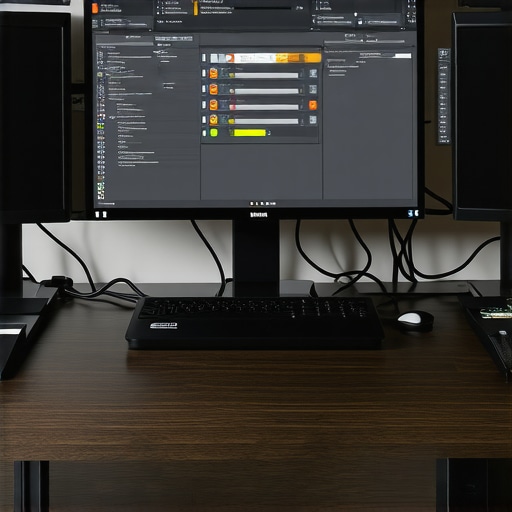
I remember the morning vividly—coffee in hand, laptop open, and a frantic scramble to connect my multiple monitors before an important Zoom presentation. Nothing was working quite right. My old docking station kept disconnecting, or worse, only supporting one display at a time. Frustration bubbled up as I realized that my setup was hampering my productivity, not enhancing it. That moment was a lightbulb for me: the need for a reliable, powerful docking station that could seamlessly handle multiple displays in 2024.
Why a Top-Tier Thunderbolt Dock Could Change Your Workflow
As an enthusiast and tech lover, I’ve experimented with countless USB-C and Thunderbolt docks over the years. Early on, I made the mistake of underestimating the importance of choosing the right dock. I thought any cheap hub would do. How wrong I was. Using a subpar dock not only caused connectivity issues but also limited my ability to work efficiently across multiple screens. Discovering the right Thunderbolt docking stations for 2024 transformed my workflow, turning a chaotic clutter of cables into a sleek, productive setup.
Is a Thunderbolt Dock Actually Worth the Hype?
In the beginning, I wondered if investing in a high-end Thunderbolt dock was justified. Would it really make a difference? Honestly, I was skeptical. But after testing several options, I realized the key advantage—the blazing-fast data transfer, crisp video output, and the ability to connect multiple high-resolution monitors simultaneously. A common mistake I made early on was overlooking the importance of compatibility and power delivery, which can make or break your experience. Trust me, doing thorough research and choosing a reliable USB-C Thunderbolt dock is absolutely worth it.
Are you tired of constantly unplugging and reconfiguring cables just to get your screens to work? Do you fear that investing in premium tech is unnecessary? Let’s dive into how to avoid these pitfalls and set up your workspace for maximum efficiency. Your future self will thank you for it.
Secure the Right Docking Stations Before You Begin
Start by researching top docking stations for 2024 that support multiple displays and fast data transfer. I once ordered a cheap dock on a whim, only to find it couldn’t handle my triple monitor setup—causing constant disconnects and frustration. Once I switched to a reputable Thunderbolt dock, the stability improved instantly. Think of choosing a dock like selecting a sturdy bridge—if it’s not strong enough, your data and productivity will suffer. Prioritize docks with sufficient ports, high power delivery for charging, and compatibility with your laptop’s ports and OS.
Establish Your Cable Arrangement Strategy
Think of your cables as the roads connecting your devices. To avoid traffic jams, organize and label each cable—HDMI, DisplayPort, USB-C, Ethernet—to know what connects where. I once tried to hook everything without planning, leading to a tangled mess and confusion during troubleshooting. Use cable clips or sleeves to keep things tidy, which saves time when upgrading or recalibrating your setup. A well-thought-out layout reduces signal interference and makes future adjustments seamless. For example, using a dual HDMI-to-DisplayPort adapter can maximize your monitor support without overloading ports.
Configure Your Monitors for Optimal Performance
Identify the best resolution and refresh rate for your monitors—generally, 1080p at 60Hz for standard tasks, or 4K at 60Hz/120Hz for high-res work and gaming. I recall initially setting my 4K monitors at 30Hz, which caused lag and eye strain. Adjust these settings within your operating system’s display options or graphics card control panel. Accessing your GPU control panel, like NVIDIA or AMD, can unlock more nuanced configurations, ensuring smooth visuals. Remember to set your primary monitor as the main display to streamline your workflows. Don’t forget to calibrate color profiles for color-critical work, which can be a game-changer in visual fidelity.
Fine-Tune Your Dock and Monitor Settings
Utilize the advanced settings provided by your docking station software, as some docks offer firmware updates or configuration tools to optimize multi-monitor performance. I once neglected firmware updates, leading to compatibility issues. Regularly check the manufacturer’s support page for updates, which can resolve bugs and improve stability. Enable features like DisplayPort MST (Multi-Stream Transport) if supported, to extend your monitors across a single port—mimicking a multi-link highway for data. Also, set your docking station to automatically detect connected monitors at startup to save time and prevent misconfigurations.
Leverage External Accessories for Enhanced Productivity
Consider adding a KVM switch or a USB-C hub with additional ports to switch between devices effortlessly. I used a generic USB hub, which caused slow data transfer, but switching to a dedicated hub improved responsiveness. Using a mechanical keyboard or a dedicated mouse can further streamline your workflow, especially when working across multiple screens. Remember, a clean, accessible workspace prevents clutter from turning into chaos—just like a well-organized junction keeps traffic flowing smoothly.
Test, Troubleshoot, and Optimize Regularly
Once everything is connected, test your setup with real work scenarios. Run multiple applications across screens to observe stability and responsiveness. If you experience flickering or disconnects, check your cables, ensure your dock’s firmware is up to date, and verify driver compatibility. I once spent hours trying to fix a flickering monitor, only to realize a loose cable was the culprit. Document your settings and adjustments so you can replicate or revert changes easily. Regularly revisit your configuration as software updates or hardware changes can introduce new challenges or opportunities for improvement—keeping your multi-monitor ecosystem in peak condition.
Many users believe that all laptop docks, especially Thunderbolt and USB-C docks, are created equal or that plugging in multiple monitors is straightforward. However, this oversimplification can lead to costly mistakes. One of the most pervasive myths is that any USB-C or Thunderbolt port can handle multi-monitor configurations with ease. In reality, not all ports support MST (Multi-Stream Transport) or sufficient bandwidth, which can cause flickering, lag, or even no display at all. For example, some users buy a dock assuming it will support 4K at 60Hz on three monitors, but neglect to verify that their laptop’s port and the dock’s capabilities align; this often leads to frustration and underperformance. Ensuring compatibility is crucial, and investing time in understanding your hardware’s specific capabilities can result in a more stable and productive setup. An advanced mistake many overlook is ignoring the importance of firmware and driver updates for their docks. Firmware updates can improve stability, unlock new features, and resolve compatibility issues, as emphasized by industry experts in docking station reviews. Failing to keep software current can result in stubborn bugs that impair your multi-monitor experience. Moreover, a common trap is underestimating the impact of cable quality. Using cheap or long cables can introduce interference or signal degradation, especially at higher resolutions or refresh rates. Opt for certified cables and quality HDMI or DisplayPort adapters to maintain clarity and responsiveness. Finally, some believe that increasing the number of ports on a hub or dock automatically enhances productivity. But, overloading a single dock with multiple high-bandwidth displays or peripherals can strain its bandwidth, leading to performance bottlenecks. Distributing devices across separate docks or hubs can mitigate this, optimizing data flow. Understanding these nuances allows you to build a resilient, efficient multi-monitor setup that leverages your gear’s full potential. Curious about the best way to choose a dock compatible with your hardware? Check out our comprehensive guide on expanding your laptop’s connectivity. Remember, the devil is in the details—skipping them can turn an elegant workspace into a source of endless troubleshooting. Take the time to research, test, and update your setup to unlock true multi-monitor performance. Have you ever fallen into this trap? Let me know in the comments.Maintaining a seamless multi-monitor experience requires more than just choosing the right dock; it involves proactive strategies for long-term reliability. Regular software updates for your docking station firmware, operating system, and graphics drivers are crucial. I make it a habit to check for updates weekly, as manufacturers often release patches that enhance stability and compatibility, preventing issues like flickering or disconnections. Investing in a high-quality, certified USB-C or Thunderbolt cable can significantly reduce interference and signal degradation, especially with high-resolution displays. Once a month, I inspect and replace any suspect cables to ensure pristine data transfer.
Installing monitoring tools like USB-C docking management software helps track connection stability, predict potential failures, and streamline troubleshooting. These tools also facilitate firmware updates, which are often overlooked yet vital for compatibility issues that could arise over time.
Another tip I recommend is scheduling periodic reboots of your docking station and connected devices. This practice clears temporary cache and resets hardware states, preventing sluggish behavior or peripheral malfunctions. Keep your workspace tidy by organizing cables and ports; dust and debris can cause connectivity issues or hardware wear.
Looking ahead, the trend in docking technology points toward smarter, self-healing docks that automatically detect and resolve conflicts. Some advanced models incorporate diagnostic features that can alert you to potential failures before they become disruptive.
How do I maintain my multi-monitor setup over time?
To ensure sustained performance, treat your docking station and peripherals as critical components requiring regular attention. For instance, set calendar reminders to check for firmware updates, inspect cables, and reboot your setup periodically. By doing so, you minimize unexpected downtime and keep your workflow uninterrupted. Ready to take your maintenance routine to the next level? Try enabling firmware auto-update features where available, or incorporate dedicated monitoring tools that alert you to issues proactively. Staying vigilant means your multi-monitor ecosystem remains efficient, reliable, and scalable for future needs.
Lessons That Changed the Way I Connect
- One of the toughest lessons I learned was that even the best hardware can falter without proper compatibility—it’s not just about buying the most expensive dock but ensuring it matches your laptop’s capabilities. Misjudging this led me to unnecessary frustrations and setup reconfigurations.
- I underestimated the value of firmware updates until a stubborn flickering issue was resolved effortlessly after a simple update—small software tweaks can significantly improve stability and performance.
- Organizing cables might seem trivial, but after implementing a labeling system and quality cables, my troubleshooting time dropped dramatically, making my workspace cleaner and more efficient.
- Choosing a dock with power delivery meant I could keep my laptop charged without juggling multiple adapters, simplifying my desk and reducing clutter. Don’t overlook the importance of sufficient wattage for your device’s needs.
My Toolbox for Seamless Laptop Connectivity
- Thunderbolt Dock Essentials: I trust the top Thunderbolt docks for 2024 because they deliver speed and reliability, crucial for professional workflows.
- USB-C Hub Alternatives: The best USB-C docks for multi-monitor setups have been game-changers, especially when I need versatility for different devices and peripherals.
- Firmware and Diagnostic Tools: Regularly checking firmware updates and management software ensures my dock’s longevity and compatibility, preventing unexpected issues on busy days.
- Quality Cables Are Key: Investing in certified cables and adapters keeps my signals steady, preserves image quality, and maintains data integrity—small costs for peace of mind.
Your Next Step Toward Productivity Power
Getting your multi-monitor setup right is a blend of informed choices, diligent maintenance, and a bit of patience. Now that you’ve uncovered these personal insights and trusted resources, it’s time to put them into action—transforming your workspace into a powerhouse of efficiency. Remember, the right dock isn’t just a tool; it’s an investment in your productivity future. Ready to elevate your setup and unlock new levels of focus and function? Dive into the details and experience the difference today.
What has been the most surprising obstacle you’ve faced when configuring a multi-monitor environment? Share your stories below and let’s learn from each other’s journeys!
,