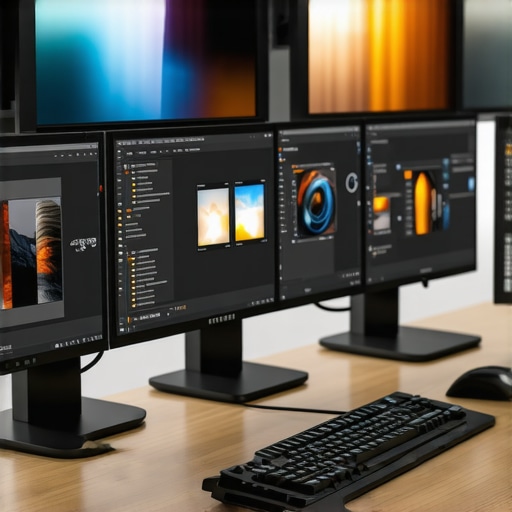
Ever had that frustrating moment where your sleek new laptop refuses to play nice with your multi-monitor setup? I remember the first time I tried to connect multiple screens to my ultra-thin ultrabook. The chaos that ensued—frozen screens, flickering displays, and endless troubleshooting—was enough to make me want to throw everything out the window. But after some trial, error, and a lot of reading, I finally cracked the code. The secret? Using the right USB C dock or Thunderbolt station that matches your needs. If you’re tired of juggling multiple adapters or dealing with unstable connections, you’re not alone. Many professionals and remote workers face the same struggle. The good news? There’s a way to streamline your workspace, boost productivity, and enjoy seamless multi-monitor setups in 2024.
Why Your Setup Might Be Holding You Back and How to Fix It
In my early days, I overlooked an essential detail—choosing the wrong dock could bottleneck my entire workflow. I thought any USB C hub would do the trick. Spoiler: it doesn’t. Not all docks are created equal, especially when it comes to supporting multiple monitors or high-speed data transfer. The key is understanding what kind of dock fits your specific hardware and usage patterns. For instance, a USB hub that only supports a single monitor might seem sufficient but quickly becomes a bottleneck if you need a sprawling desktop. This realization was a game-changer for me—and it can be for you, too.
Is All the Hype Surrounding USB C Docks Justified?
Here’s a truth I learned the hard way: not every dock lives up to its promises. I once bought a popular model that boasted support for multiple displays and fast data transfer, only to find it struggled with my setup. Turns out, I had chosen a model that wasn’t optimized for my laptop’s Thunderbolt 3 port. Don’t make my mistake—do your homework. A good rule of thumb is to check if the dock supports your device’s specifications. For example, if you have a Thunderbolt 4-compatible laptop, investing in a Thunderbolt dock designed for multiple monitors is worth it. Remember, the right equipment makes all the difference in creating a smooth, efficient workspace.
So, if you’ve ever faced the agony of unstable multi-monitor connections or felt overwhelmed by a maze of cables and adapters, this guide is for you. We’ll explore how to choose the perfect dock, set up your monitors flawlessly, and avoid common pitfalls. Ready to transform your workspace into a productivity powerhouse? Let’s dive in!
Select the Right Dock for Your Hardware
Start by assessing your laptop’s ports and capabilities. Is it equipped with Thunderbolt 3 or 4, or just USB C? Knowing this helps narrow down compatible docks. When I upgraded to a Thunderbolt 4 laptop, I realized my old USB C docks couldn’t leverage the full potential of my device. I checked the specifications and chose a Thunderbolt dock designed for multiple monitors. This step is critical to prevent bottlenecks and ensure stable connections.
Connecting Multiple Monitors Seamlessly
Once you have the right dock, connect your monitors. Use DisplayPort or HDMI outputs depending on your monitor inputs. Think of your dock as a traffic controller—routing data efficiently. When I set up my dual 4K monitors, I connected one via HDMI and the other through DisplayPort to my Thunderbolt dock. This configuration avoided flickering and lag. Refer to this multi-monitor setup guide for detailed tips.
Making Use of USB Hubs for Expandability
Beyond video, your dock should handle peripherals—keyboard, mouse, external drives. A high-quality USB hub expands your connectivity. I always connect my external SSDs and webcam through a dedicated hub to keep my workspace tidy. Think of the hub as a power strip for data—plugging multiple devices into a single port.
Optimizing Data Transfer and Video Output
High-speed data transfer is essential for large files or video editing. Opt for docks supporting Thunderbolt 4 or USB 3.2 Gen 2. During a project, I transferred 50GB of footage via my dock without issues, thanks to support for fast data protocols. Check this best docks for high-speed transfer for options.
Avoiding Common Pitfalls
Be wary of cheap docks that promise multi-monitor support but underperform. Always verify compatibility with your device’s specifications. I once bought a popular model that failed to support my dual 4K setup, causing flickering. Reading reviews and checking specifications saved me a lot of frustration. For detailed advice, visit ultimate dock selection tips.
Final Checks Before Use
After connecting, ensure your display settings are correct. On Windows, go to Display Settings and arrange your monitors. On Mac, use System Preferences > Displays. I once forgot to set the primary monitor, which led to confusion during presentations. Double-checking these settings ensures a smooth workflow.
Many users assume that all USB-C or Thunderbolt docks are created equal, but this misconception can lead to costly mistakes. The truth is, the nuances between different docks significantly impact your multi-monitor experience. For instance, a common myth is that any USB-C dock can support multiple 4K monitors seamlessly. While some inexpensive models claim this, they often fall short due to bandwidth limitations or subpar chipset architectures. These issues can cause flickering, lag, or even complete disconnects, especially when pushing the limits of high-resolution displays. To truly benefit, you need to understand the specific capabilities of your dock and how it leverages your laptop’s connection standards. For example, a Thunderbolt 4 dock designed for multi-monitor setups will outperform generic USB-C hubs by supporting higher data transfer rates and more video streams. Dive into our Thunderbolt dock guide to see what separates the good from the bad. Remember, choosing the right hardware tailored to your needs ensures a smooth, frustration-free workspace—don’t settle for less. Have you ever fallen into this trap? Let me know in the comments.
How do I maintain my multi-monitor setup over time? A practical approach
Maintaining a complex setup involving a usb c dock, thunderbolt dock, or multiple hubs requires more than just initial configuration. I personally recommend investing in high-quality, durable cables and adapters, which might seem trivial but are crucial for long-term stability. Regularly inspecting your connections for wear and tear can prevent unexpected disconnections. Additionally, keeping your device drivers and firmware updated through official manufacturer websites ensures compatibility and bug fixes. For example, I always check the latest updates from my laptop’s manufacturer before making any hardware changes, which reduces troubleshooting time later. Using dedicated software tools like USB Device Tree Viewer helps monitor connected peripherals and identify issues early. As the trend points toward even faster data protocols and more integrated hardware, staying proactive in maintenance will ensure your workspace remains reliable. I suggest setting a monthly routine to verify your connections and update software as part of your workflow. This practice not only prolongs the lifespan of your equipment but also keeps your multi-monitor experience smooth and frustration-free.
What tools do I recommend for keeping your setup working effortlessly?
Among my favorite tools is a high-quality USB hub. I personally use the Anker PowerExpand Elite because its build quality and port selection make it a reliable backbone for my peripherals. For managing firmware and driver updates, I rely on manufacturer-specific utilities like Dell Command Update or Lenovo Vantage, depending on my device. These tools simplify the process, ensuring I don’t miss critical updates that could impact performance. Additionally, I use Thunderbolt dock management software to verify that all connected displays operate at optimal settings, especially when connecting multiple 4K monitors. It’s also wise to keep a set of spare cables and adapters on hand—an often overlooked aspect of maintenance. As technology advances, I predict that future docks will incorporate more self-diagnostic features and firmware updates that can be applied seamlessly via software, reducing the need for manual intervention. Until then, routine checks and updates are your best allies. I encourage you to try automating firmware updates or setting reminders for regular hardware inspections, as these small steps can prevent major disruptions down the line.
Lessons from My Multi-Monitor Journey
One of the biggest realizations I had was that not all docks are created equal. Early on, I bought a popular USB C hub that promised multi-monitor support, but it struggled with my 4K displays, causing flickering and lag. That taught me the importance of checking specifications carefully, especially support for high resolutions and bandwidth. Another insight was how crucial cable quality is—cheap cables often lead to unstable connections, so investing in durable, high-quality cables made a significant difference. Lastly, I learned that firmware and driver updates are often overlooked but vital; regularly updating my device drivers and dock firmware has kept my setup running smoothly and prevented many headaches. These lessons are invaluable for anyone aiming to build a reliable, multi-monitor workspace in 2024.
Tools and Resources That Keep My Setup Running Smoothly
Over the years, I’ve found that certain tools and resources are essential for maintaining a high-performance multi-monitor environment. First, I rely on a quality USB hub to connect peripherals without clutter. The Thunderbolt dock guide helped me choose a model that supports multiple high-resolution displays seamlessly. For updates, I use manufacturer utilities like Dell Command Update or Lenovo Vantage to keep firmware and drivers current. Additionally, the multi-monitor setup guide from Tech Desk Essentials offers practical tips that saved me hours of frustration. These tools and resources are my trusted allies in maintaining a stable, efficient workspace.
Let Your Workspace Inspire Action and Innovation
If you’re feeling overwhelmed by multi-monitor setups or frustrated with unstable connections, remember that the right hardware and a proactive maintenance routine can transform your workspace. Invest in quality docks, keep your firmware updated, and choose cables wisely—your productivity will thank you. Don’t let technical setbacks hold you back from creating a workspace that fuels your creativity and efficiency. Take action today, explore the right tools, and enjoy the seamless multi-monitor experience you deserve. Your future self will thank you for it!
What’s been your biggest challenge when setting up multiple monitors? Share your experience below—I’d love to hear your story and help out!
This post really hits home for me, especially with the emphasis on choosing the right dock for your hardware. When I upgraded my laptop to a Thunderbolt 4 model, I initially assumed any USB-C dock would handle my dual 4K monitors just fine. Unfortunately, that wasn’t the case — I experienced flickering and occasional disconnects that drove me crazy. It was only after switching to a dedicated Thunderbolt dock that support high-bandwidth video that everything stabilized. I think one thing that often gets overlooked is the importance of matching your dock’s specifications to your device’s capabilities. Have others faced issues due to incompatible hardware or low-quality cables? I’d love to hear about your experiences and any tips you might have for managing long-term multi-monitor setups efficiently.