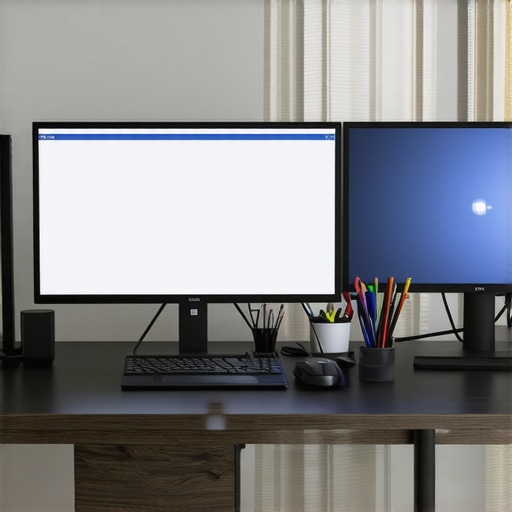
Have you ever been in the middle of a crucial project, only to be thwarted by tangled cables, blinking lights, and a stubborn monitor that refuses to cooperate? I remember the exact moment I realized my workspace had become a chaos of USB hubs, adapters, and monitor cables. Each time I tried to push productivity, I was met with frustration, lost time, and a sinking feeling that I was just throwing money at problem after problem. It was like trying to dance with too many partners—uncoordinated and exhausting.
Why Optimizing Your Multi-Monitor and Docking Setup Matters More Than Ever
The truth is, in 2024, a well-structured docking setup isn’t just a luxury—it’s a necessity. With remote work, multi-tasking, and demanding creative projects on the rise, a seamless connection between your laptop and multiple peripherals can be a game-changer. A recent study found that professional multitaskers switch between tasks approximately every 3 minutes, which significantly impacts efficiency. Without a proper setup, those constant shifts become even more cumbersome, wasting precious time and energy.
Is a Fancy USB C Dock Worth the Investment?
My early mistake was believing that low-cost hubs would do the trick. Spoiler: they don’t. They often cause conflicts, low-speed data transfer, and even hardware damage. Over time, I learned that investing in a reliable Thunderbolt or USB-C dock tailored for multi-monitor setups not only streamlined my workspace but also protected my gear. Want to avoid my costly mistake? Keep reading — I’ll guide you through choosing the right gear and configuring your workspace like a pro.
If you’ve faced the frustration of inconsistent connection drops or juggling multiple peripherals with a spaghetti of cables, you’re not alone. And there’s good news: with the right tools and setup, you can banish clutter and boost your productivity. Ready to transform your workspace? Let’s dive into the essentials that will change the way you work in 2024.
Choose the Right Docking Solution for Your Needs
Start by assessing your workflow and peripherals. Are you running multiple high-resolution monitors or using peripherals that demand fast data transfer? For seamless multi-monitor support, a Thunderbolt dock offers superior speed and multiple display outputs. If your needs are simpler, a high-quality USB-C dock might suffice. Matching your hardware with the appropriate dock prevents bottlenecks and ensures stability.
Evaluate and Connect Your Monitors Strategically
Decide Your Display Layout
Establish which monitors will serve primary tasks and which will be supplementary. Use the guideline on monitor selection to pick screens that match your workspace and workload.
Implement Organized Cabling
Use color-coded or labeled cables to easily identify connections. Connect the monitors to your dock’s dedicated video ports—preferably HDMI, DisplayPort, or Thunderbolt—depending on your dock model and monitor inputs. Do not daisy-chain monitors unless your hardware explicitly supports it; this can cause flickering or resolution issues.
Configure Your Hardware for Optimal Performance
Once connected, dive into your operating system’s display settings. Set your primary monitor, adjust resolution, and ensure scaling is appropriate. On Windows, right-click the desktop and select Many assume that simply connecting multiple monitors or upgrading to a premium docking station guarantees enhanced productivity, but the devil is in the details. A common myth is that all USB hubs and docks are created equal—yet, in practice, many users overlook critical compatibility nuances that can lead to frustrating performance issues. For instance, budget USB-C hubs often promise multi-monitor support but lack the necessary bandwidth or standardized protocols, leading to flickering screens or degraded resolution. Choosing the right hardware involves understanding the underlying technology—such as Thunderbolt versus USB-C bandwidth capabilities—and ensuring your peripherals and laptop support these standards optimally. Experts warn that mismatched cables or outdated drivers are silent killers of multi-monitor systems, causing intermittent disconnects and sluggish responsiveness. Moreover, some users mistakenly believe that daisy-chaining monitors via DisplayPort or Thunderbolt will always work seamlessly, but hardware that doesn’t explicitly support daisy-chaining can result in flickering or resolution drops. To truly maximize your multi-display setup, it’s essential to invest in certified docks and cables, stay updated with driver software, and tailor your configuration to your specific workload. For a comprehensive guide on selecting compatible docks and avoiding these traps, check out our detailed resources on monitor setup selection or USB-C docking mastery. Advanced users should consider the role of data transfer protocols and whether Thunderbolt 3 or 4 offers the bandwidth they need for high-resolution displays and fast data throughput. Misinformation about compatibility can be costly; some believe that any USB-C port supports multi-monitor setups equally, but that’s false. Confirm your port specifications or invest in docks explicitly designed for your hardware to avoid future headaches. Want to dig into the technical details? Visit top recommended docks for 2024 or best Thunderbolt docks. Remember, optimizing your setup isn’t just about hardware; understanding these nuances can save you time and money in the long run. Have you ever fallen into this trap? Let me know in the comments.Once you’ve invested in a quality docking station and optimized your monitor arrangement, the key to sustained performance lies in diligent maintenance and using the right tools. Personally, I rely on a combination of software utilities and hardware practices that keep my multi-monitor setup running smoothly over months and years. Regularly updating your device drivers is critical; I schedule monthly checks to ensure my graphics and docking drivers are current, which prevents connectivity issues and flickering. For this, I consistently use the manufacturer’s dedicated software—like Dell’s Thunderbolt Dock Utility or CalDigit’s Dock Setup—to fine-tune settings and troubleshoot.
Investing in a reliable USB-C or Thunderbolt cable tester is also a game changer. Over time, cables can degrade or become loose, causing intermittent disconnections. I personally keep a set of certified cables and a tester—such as the ideal tools recommended by industry experts—to periodically verify my cables’ integrity. This preemptive check minimizes unexpected hardware failures.
Long-term results are amplified when you incorporate a hardware management approach. Using a dedicated port management hub allows me to monitor power consumption and connect/disconnect peripherals without risking damage to ports. Additionally, a powered USB hub ensures extra stability for high-bandwidth devices, protecting me from power surges.
Looking ahead, I predict that automation tools—integrated with IoT devices—will streamline long-term maintenance even further, alerting us about driver updates or hardware irregularities proactively. As the trend moves toward smarter devices, embracing these tools now will keep your multi-monitor setup resilient and responsive.
**How do I maintain my multi-monitor system over time?** I make it a habit to keep firmware, drivers, and cables updated, conduct regular hardware checks with certified testers, and leverage dedicated management tools. For those eager to elevate their setup, I recommend trying a professional cable health check or firmware update routine to prevent future connectivity hiccups—trust me, the peace of mind is worth it. You can explore more about this approach in our comprehensive guide on long-term docking maintenance. Want to ensure your peripherals stay synchronized? Reach out via our contact page for specific hardware recommendations and personalized tips.
The Hard Truth About Multi-Monitor Optimizations I Wish I Knew Sooner
One of the most eye-opening lessons I learned was the significance of investing in certified cables and premium docks. Early on, I underestimated the impact of low-quality cables, only to face flickering screens and intermittent disconnects during crucial work sessions. Realizing that a simple, sturdy Thunderbolt or USB-C cable can prevent hours of troubleshooting was a game-changer. Additionally, understanding the importance of driver updates and firmware compatibility saved me from mysterious performance hiccups. My advice? Don’t compromise on these foundational elements—your productivity depends on it.
What Tools Have Transformed My Multi-Display Experience
Over time, I’ve curated a set of tools that keep my setup running smoothly. A certified cable tester ensures my connections remain reliable, while dedicated software utilities provided by hardware manufacturers allow me to fine-tune performance and troubleshoot swiftly. For those looking to streamline long-term maintenance, exploring resources on docking optimization can be invaluable. Trusting these tools has helped me maintain a clutter-free workspace and avoid costly hardware setbacks.
Seize the Moment and Elevate Your Workspace Today
Remember, the journey to a seamless multi-monitor setup is ongoing but immensely rewarding. As technology advances, so do the opportunities for smarter configurations. Don’t wait until frustration drives you to the brink—take action now. Dive into selecting the right dock, organize your cables, and maintain your gear diligently. Your future productivity, creativity, and peace of mind hinge on the steps you take today. Want personalized advice or tips? Reach out via our contact page and let’s get your workspace thriving.
Reading this post really hit home—I’ve been battling tangled cables and inconsistent monitor displays for months. Switching to a high-quality Thunderbolt dock was a game-changer for me. It not only streamlined my workspace but also eliminated a lot of connection issues I used to face. Something I learned along the way is the importance of using certified cables; cheap options often cause flickering or disconnections over time. I also found that regular driver updates and firmware checks help maintain stability, especially when working on tight deadlines. The part about organized cabling resonated because I’ve started labeling my cables, which makes troubleshooting much faster.
My question for the community is: how do others handle monitor calibration and resolution adjustments when scaling across different brands or models? I find that even after setting everything correctly, I sometimes need to tweak each display individually for optimal clarity. Would love to hear strategies or tools that others have found effective in maintaining a consistent, high-quality multi-monitor environment.
This post really highlights the importance of investing in quality hardware for a reliable multi-monitor workspace. I completely agree that cheap docks and cables can cause a cascade of issues—flickering, dropped connections, and even hardware damage. Over the years, I’ve found that using certified Thunderbolt cables and docks designed specifically for high-resolution display support made a huge difference in my workflow. It’s also worth noting that regular firmware updates and driver checks are often overlooked but crucial for long-term stability. I’m curious, has anyone tried integrating hardware management software that automatically notifies you of driver updates or potential issues? I’ve been exploring options that could proactively prevent hardware hiccups before they disrupt productivity. Overall, maintaining a clutter-free setup involves a combination of quality equipment and proactive maintenance, which really pays off in a busy work environment.
I completely relate to the frustration of tangled cables and inconsistent monitor performance, especially when deadlines are looming. Upgrading to a high-quality Thunderbolt dock was a decisive move for my setup; it transformed my workspace into a streamlined, efficient environment. One thing I’ve learned is that investing in certified, high-speed cables is just as crucial as choosing the right dock—cheap cables often cause flickering or disconnections after some use. Also, I’ve found that keeping my drivers and firmware regularly updated prevents many connectivity issues without much hassle. I wonder how others approach the calibration process across diverse monitors? Even with everything set up correctly, I still find myself tweaking each display slightly for clarity and color accuracy. Do you think hardware calibration tools are worth the investment or are there software solutions that work just as well? Would be great to hear some recommendations or experiences on managing multi-monitor calibration effectively.