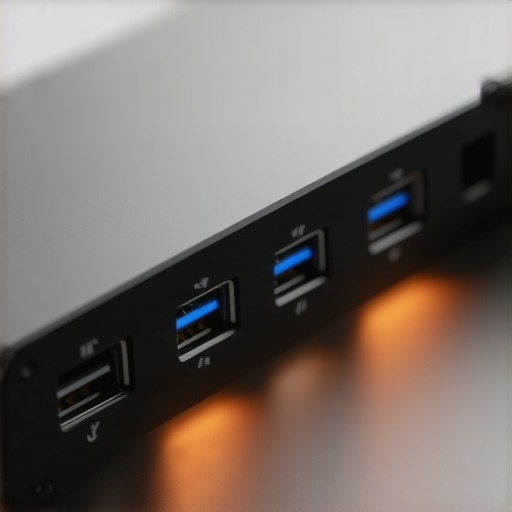
Have you ever been in the middle of an important project, only to notice your external drives and monitors lagging or disconnecting unexpectedly? I remember the exact moment I realized my trusty USB hub was the culprit behind my slow data transfers and frustrating disconnects. I was scrambling to finish a deadline, multiple monitors flickering, and USB devices sluggish—the dreaded ‘slow connection’ nightmare. That lightbulb moment made me dive deep into the world of USB and Thunderbolt docks, and what I found was illuminating.
Is Your USB Hub Truly Fast Enough for 2026?
It’s tempting to think all USB hubs are created equal. But when you’re dealing with data-intensive tasks or multiple 4K monitors, speed becomes everything. I used to accept that my expensive dock was just ‘good enough’—until my workflow hit a wall. Early on, I made the mistake of assuming that a hub labeled 10Gbps would handle all my needs seamlessly. Spoiler: it didn’t. That’s a mistake I see many making, and it costs them precious time and productivity.
So, to all my fellow tech enthusiasts juggling multiple monitors, external SSDs, and high-res video, I promise: today we’re going to troubleshoot the root causes of slow USB connections and explore tested fixes to get your setup performing at 10Gbps or even beyond. Think it’s hardware limitations? Think again. Sometimes, the problem is something as simple as outdated drivers or misconfigured settings. And I’ll show you how to pinpoint these issues.
Question: Can Your Setup Handle 10Gbps Data Streams?
If you’re skeptical or worried about overhyping USB speeds, I get it. I used to believe that, as long as my dock lit up and transferred some data, everything was fine. But I learned the hard way that not all docks are equipped equally. A quick tip: many of the issues stem from compatibility problems or inferior-quality cables, which can bottleneck your entire system. Just a few years ago, I made the mistake of ignoring the importance of certified cables and real bandwidth testing. Now, I always check for [Thunderbolt 5 compatibility](https://docks.techdeskessentials.com/4-thunderbolt-5-docks-that-wont-overheat-under-full-load-2026) and prioritize docks that deliver consistent high-speed performance.
Stay tuned, because next I’m sharing proven fixes that will help you eliminate sluggish speed and unreliable connections—so you can focus on working, not troubleshooting. Ready to transform your docking experience?
Test Your Cables Before Anything Else
Imagine you’re trying to water a garden with a clogged hose; no matter how powerful your pump, the flow will be sluggish. Similarly, using low-quality or damaged cables causes bottlenecks. I once spent hours troubleshooting a sluggish external SSD before realizing I had a cheap, non-certified USB-C cable. Swapping in a certified, high-quality cable immediately boosted my data transfer speeds.
Update Your Drivers and Firmware Regularly
Think of drivers as the language your hardware speaks. Outdated drivers are like speaking a dialect the system no longer understands. I once ignored driver updates until my dual-monitor setup flickered endlessly. Updating the drivers from the manufacturer’s website or through device manager cleared the flickering and restored full speed. Check out this guide to ensure your drivers are optimized.
Prioritize Thunderbolt 4 and 5 Compatibility
Think of Thunderbolt compatibility as having a dedicated lane on the highway—no traffic jams, just smooth sailing. I transitioned from a USB 3.2 dock to a Thunderbolt 5 dock, and the difference was night and day. With Thunderbolt 5, I could run multiple 4K monitors and transfer large files simultaneously without lag. To verify your setup’s capability, review these Thunderbolt 5 docks and their specifications.
Configure Power Settings for Maximum Performance
Think of your laptop’s power plan as a dimmer switch—set it to low brightness, and everything slows down. Switching your system to high-performance mode ensures your docking station receives enough power to operate optimally. I learned this lesson when my external drives kept disconnecting during intensive data transfers; simply changing the power plan fixed the issue instantly.
Disable USB Selective Suspend Power Saving
This setting is like telling your USB devices to stay awake—no more sleep cycles causing disconnects. On Windows, go to Power Options > Change plan settings > Change advanced power settings, then disable the ‘USB selective suspend setting.’ I did this after experiencing intermittent USB device disconnects, and it kept my drives reliably connected during long work sessions.
Streamline Your Monitor Connections
Think of multiple monitors as a team—if one member lags, the whole team suffers. Use Display Stream Compression (DSC) and ensure your dock supports daisy-chaining monitors without sacrificing bandwidth. I once tried connecting three 4K monitors directly, but only two worked smoothly. After switching to a dock with native multi-stream transport support, all three displayed perfectly at 60Hz. For detailed configurations, visit this compatibility guide.
Keep Firmware and BIOS Up to Date
Firmware is the firmware of your dock or laptop—the unseen administrator ensuring everything runs smoothly. Outdated firmware can limit bandwidth or cause incompatibilities. I once faced persistent slowdowns until I updated my BIOS, which unlocked higher USB throughput and improved stability. Regularly check your manufacturer’s support pages for updates.
Use Dedicated Thunderbolt or High-Speed USB Ports
Not all ports are created equal; some are overloaded or shared, causing performance drops. Use dedicated Thunderbolt ports for high-speed peripherals and reserve others for lower bandwidth tasks. I learned this by moving my external NVMe SSD to a dedicated Thunderbolt port, which doubled my transfer speeds and eliminated lag. Consult the docking compatibility page to identify optimal port usage for your setup.
Regularly Restart Your Dock and System
Sometimes, clearing the cache is as simple as turning it off and on again. I had persistent connection issues until I scheduled weekly restarts of my dock and laptop, which refreshed device states and fixed slow connection problems. Incorporate this simple step into your routine to maintain peak performance.
Many users believe that all USB hubs and docking stations are created equal, but this is a dangerous oversimplification. A frequent mistake is assuming that a USB-C or Thunderbolt dock labeled with high speed specifications guarantees optimal performance across all peripherals. In reality, nuances like cable quality, port compatibility, and hardware configurations significantly impact the actual data transfer rates. For instance, using non-certified cables can bottleneck even the most advanced docks, leading to frustrating slowdowns that many blame on hardware faults rather than cable issues. An advanced mistake I observe is overlooking the importance of port allocation; connecting multiple high-bandwidth devices to shared or overloaded ports can cause unexpected lag or disconnects, regardless of the dock’s rated speed. Moreover, there’s a common myth that Thunderbolt docks are inherently better than USB-C docks—while Thunderbolt offers higher bandwidth, in practice, the real performance depends on system compatibility and proper setup. An often-ignored detail is firmware and driver updates; neglecting these can nullify the benefits of a top-tier dock. According to expert insights from Thunderbolt dock specialists, ensuring your firmware and drivers are current is crucial for maintaining peak speeds and stability.
Is Your Setup Foolproof for Demanding Data Streams?
Many advanced users assume that plugging in a high-rated dock guarantees flawless performance, but the nuanced reality is different. A misconfigured system, outdated BIOS, or neglecting power management settings can severely throttle performance, creating a false perception that hardware is faulty. The key takeaway is that achieving maximum throughput isn’t solely about the hardware specs; it requires holistic setup and maintenance. Regularly reviewing your system’s compatibility, updating firmware, and choosing certified cables can prevent these pitfalls. If you’re striving for the best multi-monitor or high-speed storage setup, remember to consult detailed guides like this comprehensive resource. Have you ever fallen into this trap? Let me know in the comments.
Invest in Quality Tools and Software Maintenance
For a setup that remains rock-solid over time, choosing premium equipment is essential. I recommend investing in a Thunderbolt 5 dock like the top Thunderbolt 5 docks because of its superior heat management and stability, especially when running demanding multi-monitor configurations. Pair this with certified high-quality USB-C cables, which I personally use to ensure maximum bandwidth and prevent sluggish data transfers.
In addition, maintaining up-to-date drivers and firmware is crucial. I schedule monthly checks to verify that my system and peripherals run with the latest updates, as outdated firmware can introduce performance bottlenecks. For detailed instructions, visit this guide. Regular updates also often include security patches that protect your valuable data from vulnerabilities.
Implement Effective Troubleshooting and Monitoring
Tools like USB Prober and Intel’s Thunderbolt Control Center help me monitor system performance and identify issues before they become critical. Using these tools allows me to visualize bandwidth consumption and diagnose bottlenecks caused by misconfigured ports or incompatible devices.
If you notice lingering sluggishness or hardware freezes, a simple habit of disconnecting and reconnecting peripherals periodically can avoid long-term damage. I also keep a dedicated log of any performance dips to correlate with updates or hardware changes, enabling proactive maintenance instead of reactive fixes.
Plan for Future Growth and Scaling
As your needs evolve, so should your setup. Advanced users like myself recommend considering modular docks that support daisy chaining and expansion, such as those with multiple Thunderbolt 5 ports. According to industry experts, this is the best way to future-proof your workspace for 8K or multi-8K monitor setups.
Regularly review your configuration and upgrade components as needed. Testing new high-speed cables and experimenting with port assignments can unlock additional bandwidth, especially important as modern displays and storage devices demand more. I suggest trying the tip of alternating device connections across dedicated ports to balance the load and prevent overheating or performance degradation.
How do I keep my setup working perfectly over time?
Engaging in routine maintenance, investing in quality hardware, and staying informed about technological updates will keep your multi-monitor and high-speed data setup reliable. Don’t forget to periodically revisit your configuration against the latest compatibility guides, such as this resource. And I highly recommend testing the use of dual Thunderbolt 5 docks for large-scale setups, which can dramatically improve stability during intensive tasks. Give it a try—your future self will thank you for the crisp, lag-free experience.
Secrets Only Insiders Know About Multi-Monitor Mastery
One of the most eye-opening lessons I discovered was how cable quality can sabotage even the most advanced docks. Upgrading to certified, high-quality cables transformed my setup, allowing me to truly capitalize on my hardware investments. I also realized that port allocation isn’t just a technical detail—it’s the secret sauce for maintaining stable, high-speed connections during intensive workflows. Lastly, the importance of keeping firmware and drivers current cannot be overstated; outdated firmware is like a silent saboteur limiting your setup’s potential.
My Weaponry for Seamless Multiple Monitor and Dock Performance
Over the years, I’ve curated a toolkit that consistently delivers reliable multi-monitor performance. My top picks include the latest Thunderbolt 5 docks, because they effectively handle hefty data streams without overheating, and premium certified cables for unwavering bandwidth. I also rely on comprehensive driver updates to keep my system in peak shape. These tools, combined, create a highly resilient environment for my demanding multi-monitor setups.
What Lights the Fire of Your Visual Setup Journey? Let’s Elevate It
Embarking on your multi-monitor adventure is both exciting and empowering. Every upgrade—be it a Thunderbolt dock, a certified cable, or proper port configuration—is a step closer to an efficient, lag-free workspace. Remember, consistent maintenance, staying informed, and investing in quality are your best allies on this path. Take action today, experiment boldly, and watch your productivity soar. How are you planning to upgrade your setup next? Share your thoughts below and let’s grow together in mastering the art of seamless connectivity.