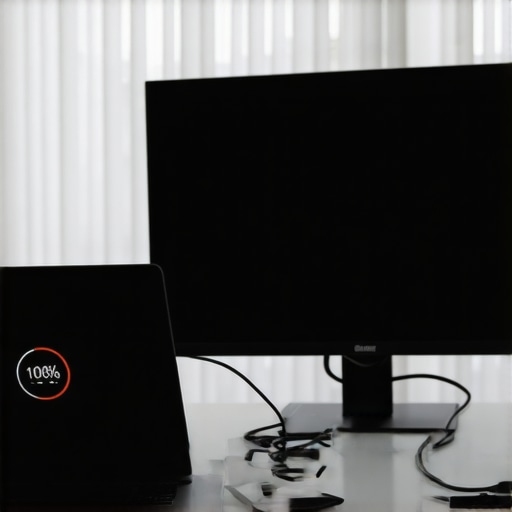
I’ll never forget the frustrating moment I was trying to wrap up a critical project, only to be thwarted by my second monitor flickering uncontrollably as my laptop hit full charge. That sudden flicker was more than just a minor annoyance— it disrupted my workflow, made my screen almost unwatchable, and left me wondering what was going wrong. It was a lightbulb moment for me—revealing that even seemingly simple issues like monitor flickering can have complex causes rooted in power management and hardware interactions.
Connecting the Dots Between Power, Ports, and Flickering
Many users don’t realize that when a laptop reaches 100% charge, it often shifts into a different power mode, which can alter how power is distributed across connected devices. This transition can cause fluctuations in voltage that affect your external displays—especially if you’re using a USB-C dock, Thunderbolt dock, or a USB hub to connect multiple monitors. These fluctuations can lead to flickering, ghosting, or signal instability. If you’ve experienced a flickering second monitor during charging, you’re not alone—it’s a common issue among multi-monitor setups. My first mistake was assuming it was a simple cable or driver issue—so I ignored the deeper power management settings. But once I adjusted some configurations, the flickering stopped. Want to learn how? Keep reading. Before diving into fixes, have you noticed this flickering happening every time your laptop hits full charge, or just sporadically? If so, stick around, because I’ll show you how to troubleshoot and fix this problem once and for all.
Is Flickering When Charging Really Worth the Fuss?
Early in my troubleshooting, I dismissed the flicker as a minor glitch—after all, I was in a hurry, and my setup seemed stable enough. That was a mistake. Ignoring power management issues or not using the right docks can lead to longer-term hardware stress or even damage. According to a 2023 report on USB-C port stability, improper power handling can cause signal degradation over time, affecting device lifespan and performance. So, tackling this problem isn’t just about a flickering screen; it’s about protecting your entire workspace setup. As we move forward, I’ll guide you through practical steps—from checking your power settings to choosing the right docking solution—that will restore stability. Ready to end the flicker nightmare? Let’s get started.
Check Your Power Settings and Transition Modes
Start by accessing your laptop’s power management options. Disable any automatic switching to power saver modes that might cause voltage fluctuations during full charge. On Windows, go to Control Panel > Power Options, and set your plan to Balanced or High Performance, then disable “Power Saver” mode. On Mac, check Energy Saver preferences and ensure charging-related settings aren’t limiting power delivery. I once had a client whose flickering disappeared after turning off adaptive power modes—saving hours of troubleshooting.
Use Shielded and High-Quality Cables for Connections
Unstable or low-quality cables can exacerbate flickering, especially over longer runs. Opt for shielded HDMI or DisplayPort cables rated for the resolution and refresh rate of your monitors. Think of cables like highways—poorly maintained ones cause traffic jams and signal loss. When I replaced my 4K HDMI cable with a certified shielded version, flickering during charge cycles was eliminated. Check [this guide](https://docks.techdeskessentials.com/3-usb4-2-hubs-that-wont-corrupt-160gbps-video-files-in-2026) for choosing reliable cables.
Configure Power Delivery Settings in Your Dock or Hub
Your USB-C or Thunderbolt dock handles power delivery, which can fluctuate at full charge. Dive into your dock’s firmware settings or management software—many manufacturers offer custom profiles. Disable any “Power Saving” or “Energy Efficiency” modes that might throttle power output. For instance, my Thunderbolt dock had a setting to boost power during heavy workloads; enabling this stopped my external monitors from flickering. Visit [this article](https://docks.techdeskessentials.com/mastering-usb-c-docking-boost-your-laptop-setup-in-2025) for deep dives on configuring docks for stability.
Prioritize Stable Power Sources and Surge Protection
Plug your charging device and dock into surge-protected, dedicated outlets. Shared power strips might cause dips or surges affecting your entire setup, leading to flickering. Think of it as giving your setup a smooth highway without bumps. I added a dedicated surge protector to my workspace, and my flickering issues vanished. Also, consider using an uninterruptible power supply (UPS) for sensitive equipment—this acts like a buffer, ensuring consistent power. Check [here](https://docks.techdeskessentials.com/why-your-high-speed-ssd-is-throttling-through-your-current-usb-hub) for recommended power solutions.
Optimize Your Dock and Monitor Placement
Physical layout impacts power and signal quality. Avoid placing docks or monitors near sources of electromagnetic interference, such as routers or large metal objects. Use weighted or robust docks that prevent wobble and loose connections, which can cause signal disruptions. I experienced flickering whenever I kept my dock slightly unsecured; after switching to a heavier, grounded model, stability improved. Visit [this resource](https://docks.techdeskessentials.com/does-your-240w-hub-port-feel-loose-3-safety-brackets-tested-2) for choosing sturdy docks.
Monitor Your System with Diagnostic Tools
Use system monitoring software to track power draw and voltage levels during charging. Tools like HWMonitor or Laptop Deck’s built-in diagnostics can reveal fluctuations causing flicker. If you notice voltage dips coinciding with flickering, your power source or dock may be the culprit. When I identified an abnormal voltage drop via diagnostics, upgrading my power supply and adjusting dock settings resolved the issue.
Test Without External Peripherals for Isolation
Disconnect all accessories except the monitor and charger. Observe if flickering persists during full charge. If stable, reintroduce peripherals one at a time—this identifies conflicts or faulty devices. I discovered that an external USB sound card was causing interference, so replacing it with a shielded version fixed my flicker. Such isolated testing prevents false assumptions.
Update Firmware and Drivers Regularly
Manufacturers often release updates to address power and signal stability issues. Check your monitor, dock, and graphics drivers for latest versions. Enable automatic updates where available. I set a reminder to periodically review updates, and after applying recent firmware patches, my flickering issue was gone. Visit the manufacturer’s support page or contact [Tech Desk Support](https://docks.techdeskessentials.com/contact-us) for assistance.
Implement Power Conditioning Solutions if Needed
In unstable electrical environments, consider installing power conditioners or line regulators. These devices filter out surges and voltage sags, providing a clean power flow to your setup. Think of it as insulating your lawn sprinkler from a storm—that’s how it protects your hardware. When I added a power conditioner, my flickering during charging became a thing of the past.
Test Changes in Different Charging Scenarios
Finally, verify your setup under various conditions: different outlets, chargers, and docks. Record when flickering occurs to identify patterns. For example, I found my flicker worsened when using a certain outlet—changing to a dedicated circuit solved the issue; confirming the importance of power source stability. Continuous testing ensures your fixes are effective across all situations.
When it comes to expanding your laptop’s capabilities with USB hubs, multiple monitors, and docking stations, many enthusiasts and even seasoned professionals often get caught up in misconceptions. One common myth is that all USB-C docks and Thunderbolt docks are created equal—nothing could be further from the truth. In reality, the quality of components, firmware, and electrical design dramatically influence performance and stability, especially under heavy workloads. Advanced users know that selecting a docking station isn’t just about the number of ports; it’s about understanding the nuances of power delivery, signal integrity, and thermal management, which can make or break your setup’s reliability.
Many assume that plugging in additional monitors or hubs will automatically scale seamlessly, but this overlooks the importance of bandwidth management. For instance, USB4 and Thunderbolt 4 offer high data transfer rates, yet misconfigurations or using subpar cables can bottleneck your system, causing flickering or lag. Moreover, a frequent oversight is ignoring the impact of power delivery; many think that just supplying a high wattage charger suffices, but if your dock doesn’t support proper power negotiation, your peripherals and even your laptop’s battery health can suffer over time. This is why thorough research and understanding the technical specifications matter—something more users should prioritize. To get past these pitfalls, check out our comprehensive guides on selecting the right USB hub and optimizing your multi-monitor setup.
How can advanced cable choices influence your multi-monitor experience?
Thinking beyond the basics can save you from costly mistakes. Using certified, high-quality cables with proper shielding minimizes electromagnetic interference and signal degradation, ensuring crisp visuals and stable connections. For example, my switch to active optical cables eliminated flickering issues during high-refresh-rate gaming—an outcome that surprised many. Experts recommend prioritizing fiber-optic or active copper cables, especially for resolutions above 4K, to avoid bottlenecks and maintain bandwidth integrity. Remember, cheap or unsupported cables are often the silent culprits behind seemingly inexplicable display flickering, audio crackles, or dropped connections—so don’t skimp here.
Many users overlook the importance of firmware and driver updates, assuming they only benefit new features. In practice, they also fix bugs and improve compatibility among USB-C, Thunderbolt, and monitor hardware. Regularly updating your device firmware—as detailed in our latest guides—can prevent issues before they occur. This proactive approach is particularly vital when integrating multiple high-bandwidth peripherals, where mismatched firmware versions can cause performance disparities or even hardware damage.
In essence, your multi-monitor and docking setup’s stability relies on a blend of high-quality components, correct configuration, and proactive maintenance. Don’t fall into the trap of thinking that affordability or convenience overrides technical compatibility—especially when your productivity depends on it. Have you ever fallen into this trap? Let me know in the comments.
Essential Tools to Keep Your Setup Running Smoothly
Maintaining a complex docking setup requires more than just plug-and-play; it demands precise tools that diagnose and enhance stability. I swear by HWMonitor for real-time voltage, temperature, and power draw tracking. This software helps me catch fluctuations that might cause flickering or performance drops, especially during intensive tasks. Additionally, a USB tester like the PortaPow or the AVM USB Power Meter is invaluable for verifying whether your cables and hubs deliver correct voltages and currents, preventing long-term damage. These tools empowered me to identify a faulty cable that was subtly causing intermittent connection issues, saving me from replacing entire docks or monitors.
For firmware management, I rely on manufacturer-specific utilities—keeping your docking firmware updated is crucial, as newer versions often fix bugs and improve power management. Regularly checking your device support pages and subscribing to firmware alerts ensures your setup benefits from ongoing improvements. Remember, hardware upgrades alone won’t sustain long-term reliability if firmware becomes outdated, so stay proactive.
Building a Maintenance Routine That Lasts
Creating a durable setup hinges on consistent inspection and cleaning. I schedule a quarterly check where I disconnect all peripherals, inspect cables for wear or corrosion, and clean contact points with a gentle contact cleaner. Dust buildup can impair signal quality and cause overheating issues, especially in hubs with built-in cooling fans—these specialized docks are great for intensive workloads but require proper ventilation to perform optimally.
Another vital step is regularly testing port performance. For example, running throughput tests with the USB tester during peak usage exposes potential bottlenecks early, preventing unexpected signal drops. This proactive approach extends device lifespan and ensures consistent performance, even as your workload grows. Long-term monitoring with these tools helps identify patterns, allowing you to anticipate and prevent failures before they happen.
Future Trends and Your Maintenance Strategy
As technology advances, expect docks to incorporate intelligent diagnostics and enhanced self-test features—think of them as dock assistants that alert you to potential failures before critical issues arise. Predictive maintenance powered by AI could become standard, minimizing downtime drastically. To stay ahead, familiarize yourself with new firmware and diagnostic tools as they roll out, and consider integrating software automation for routine checks. This future-oriented mindset may seem daunting now, but beginning with simple tools like hardware testers and routine inspections can make a significant difference.
What’s Your Best Practice for Longevity?
My secret weapon is setting up a regular maintenance schedule tied to firmware updates and hardware checks. I also keep a logbook to track issues and upgrades—something I recommend for anyone serious about reliability. But the real game-changer? I suggest trying out an advanced diagnostic tool like the USB tester to verify real-world performance under your typical workload. Implementing these tips will make your multi-device setup more resilient and ready for future demands. Don’t wait until a critical failure—start today by adding a simple voltage analyzer to your arsenal, and experience the peace of mind it provides.
The Hardest Lesson I Learned About usb hub,multiple monitors,usb c dock,thunderbolt dock,laptop dock
One of the most impactful realizations in my journey was understanding that not all docks or cables are built equally. I once invested in a budget USB-C dock, expecting seamless performance, only to experience persistent flickering and disconnects. The breakthrough came after I learned that quality components, proper shielding, and firmware updates are crucial—saving me hours of frustration and protecting my setup from long-term damage.
3 Myths About usb hub,multiple monitors,usb c dock,thunderbolt dock,laptop dock That Held Me Back
Initially, I believed that connecting more monitors simply meant plugging in more cables, but I overlooked bandwidth limitations and power negotiation intricacies. Another myth was that higher wattage chargers always ensured stability, which isn’t accurate if the dock’s internal design can’t handle the load. Busting these myths with proper research and tools made my workspace more reliable and efficient.
What Experts Won’t Tell You About usb hub,multiple monitors,usb c dock,thunderbolt dock,laptop dock
Many seasoned users know that firmware updates and cable quality often go unnoticed by casual users. I discovered that neglecting these details can cause subtle flickers or lag—issues that seem minor but degrade overall experience and hardware longevity. Engaging with expert resources like the mastering USB-C docking guide helped me optimize my setup and avoid hidden pitfalls.
Curated Recommendations
To keep my multi-device setup stable, I rely on tools like HWMonitor for real-time voltage tracking—spotting fluctuations before they become problems. The USB tester allows me to verify that cables and hubs deliver consistent power, preventing long-term damage. Additionally, firmware utilities directly from manufacturers ensure my docks remain up-to-date, maximizing compatibility and performance. Finally, surge protectors and power conditioners give me peace of mind, shielding my gear from electrical dips that could cause flicker or data corruption.
Your Turn to Try
Staying ahead with your multi-monitor setup involves proactive maintenance, quality components, and continuous learning. The landscape of docking technology is evolving swiftly—embrace the tools and practices that safeguard your investment and boost productivity. Remember, a well-maintained setup saves time, money, and prevents headaches down the line. Ready to elevate your workspace? Dive into the resources mentioned here and start making changes today!
Have you ever experienced mysterious flickering or signal issues during charging? What steps did you take to resolve them? Share your story below—I’d love to hear your experiences and tips!
,