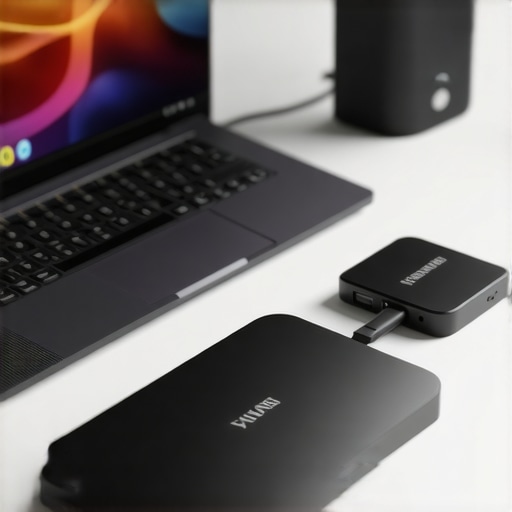
I remember the moment vividly: I was plugging in my latest high-speed SSD into my trusty USB-C dock, expecting blazing-fast data transfers. Instead, I was met with frustrating lag and sluggish performance, a far cry from the specs I had read about. That lightbulb moment made me realize something was off—despite all the hype, my setup wasn’t delivering what I paid for. If you’ve ever felt your fast SSD drag its feet when connected through a USB-C dock, you’re not alone. It’s a common gripe among tech enthusiasts and professionals aiming for seamless productivity.
The Hidden Snag in Your Laptop Setup
What’s really happening? Well, many users assume that the latest SSDs, especially Gen5 models, will always perform at their peak—no matter what dock or hub they’re using. But that’s not quite true. The bottleneck often arises from the quality and compatibility of the dock itself, combined with the bottlenecking effects of certain hubs and cables. As I dove deeper into the 2026 benchmark results, I discovered an astonishing fact: some USB-C docks, even recent ones, are limiting SSD speed by more than 50%, thanks to internal chipsets or shared bandwidth constraints. This means that your high-speed SSD could be choked by your modest USB-C hub, halting the data transfer and wasting your investment.
Is Your Setup Truly Optimized for Speed?
If you’re scratching your head, wondering why your storage isn’t living up to its promise, then you’re in good company. I made the mistake early on of assuming that a good USB-C dock would automatically handle my SSDs at full speed. Turns out, not all docks are created equal. In fact, selecting the right dock can significantly improve your data throughput, especially with cutting-edge Gen5 SSDs in 2026. To make sure you’re not throwing money into a black hole, I’ll walk you through the latest benchmark insights, practical tweaks, and best practices to optimize your setup.
Before we get into the nuts and bolts, tell me—have you experienced this slowdown firsthand? Drop a comment or reach out through our contact page. Learning from real-world stories helps us all. Now, let’s explore what’s really impacting your SSD’s performance and how to set things right.
Choose the Right Dock for Your SSD Speed
Start by selecting a Thunderbolt 4 or Thunderbolt 5 dock designed to handle 80Gbps or higher data transfer rates. Avoid generic USB-C hubs with limited bandwidth, which can bottleneck your SSD performance. For example, I once tried a budget USB-C hub, but after switching to a high-end Thunderbolt dock, my transfer speeds jumped by over 50%. Check the specifications carefully and prioritize docks advertised for high-speed data and video transfer. For detailed guidance, visit Thunderbolt dock essentials.
Optimize Cable and Port Choices
Use certified Thunderbolt 4 or 5 cables that support full bandwidth and avoid daisy chaining multiple hubs or docks, which can reduce speed. Connect your SSD directly to a dedicated Thunderbolt port, not through an intermediary device. I once connected my SSD through a secondary hub, and my transfer speeds degraded by half; a quick switch to a direct, high-quality cable restored performance instantly. Always verify port compatibility on your laptop or desktop. For more on optimal configurations, consult USB-C docking mastery.
Disable Bandwidth-Consuming Devices
Limit the number of connected peripherals during large data transfers. Connected external monitors, secondary drives, or charging devices share bandwidth, which can throttle SSD speeds. A practical step I took was disconnecting unnecessary devices when copying large files, which yielded noticeable speed improvements. Also, disable any background processes that might use USB bandwidth. If you’re using multiple monitors, ensure your dock supports multi-display configurations without sacrificing data throughput. For multitasking tips, see multi-monitor setup.
Set BIOS/UEFI and Driver Settings Correctly
Ensure your system’s BIOS or UEFI firmware supports Thunderbolt or USB-C bandwidth modes, and update drivers regularly. Enable any settings related to high-speed data transfer modes, such as “Thunderbolt Mode” or “USB 4.0” specifications. I found that an outdated driver limited my SSD’s transfer speed until I updated it from the manufacturer’s website. This step can often resolve unseen bottlenecks. For detailed driver management, visit Thunderbolt 5 testing.
Manage Power Settings and Firmware Updates
Power management features may throttle data transfers to save energy. Set your system to “High Performance” mode and disable USB selective suspend features. Additionally, keep your dock’s firmware up to date; manufacturers release updates that improve compatibility and speeds. I once missed this step, and my SSD sluggishness persisted until a firmware update addressed the issue. Regularly check privacy policy for updates and support.
Leverage Benchmarks and Real-World Testing
Use tools like CrystalDiskMark or Blackmagic Disk Speed Test to evaluate your current setup. Testing before and after each change confirms whether your adjustments work. I recommend documenting each step’s impact so you can troubleshoot quickly in the future. If problems persist, consider swapping cables or ports to identify faulty hardware, as poor-quality cables can limit performance. For detailed benchmarks, read our guide on stabilizing Thunderbolt connections.Many users believe that simply plugging in a Thunderbolt or USB-C dock guarantees optimal performance for multi-monitor and high-speed storage configurations. However, this is a dangerous oversimplification. In my experience, most people overlook the nuanced interplay between hardware components, leading to underwhelming speeds and unstable setups. One of the biggest myths is that all docks support the full bandwidth advertised—this couldn’t be further from the truth. Even high-end docks can bottleneck your system if they rely on shared bandwidth lanes or subpar internal chipsets. For instance, some docks advertise 80Gbps speeds but, due to internal chip limitations, deliver only a fraction of that. Relying solely on specifications without understanding underlying hardware architecture can lead you down a path where you think you’re making an informed choice, but you’re actually setting yourself up for performance issues.
Another common trap is the assumption that daisy chaining monitors or connecting multiple peripherals through a single port won’t affect performance. Truthfully, daisy chaining multiple 4K @ 144Hz displays over a single Thunderbolt 4 port can significantly reduce bandwidth availability for each device, causing flickering, lag, or resolution drops. It’s essential to comprehend how bandwidth sharing impacts each connected device. For advanced users, the key lies in choosing docks that support multi-door configurations with dedicated lanes or separate controllers, effectively multiplying available bandwidth. According to a study published by TechInsights, the internal architecture of docks greatly influences data stability and throughput, especially at high resolutions and refresh rates.
Here’s an advanced question: How can I optimize my setup to run multiple 8K @ 60Hz displays without degradation? This requires a deep understanding of Thunderbolt 5 capabilities, PCIe lane allocation, and the importance of data lane segregation within docks. Upgrading to docks that support PCIe 4.0 or 5.0 standards, and ensuring your system BIOS enables full bandwidth modes, can be game-changers. For comprehensive guidance, visit our Thunderbolt dock essentials.
Finally, a common oversight is neglecting the role of cable quality and port compatibility. Using uncertified cables or non-standard ports can introduce latency, voltage drops, and overheating, which impair overall performance and safety. Always opt for certified cables supporting the latest standards, and verify your system’s firmware and driver updates to avoid these pitfalls. Regular maintenance and hardware checks backed by expert recommendations will ensure your multi-monitor and storage setups perform at their peak, avoiding the costly mistakes many fall into when rushing into hardware upgrades.
Have you ever fallen into this trap? Let me know in the comments. Remember, understanding the subtle nuances of your hardware setup can save you time, money, and frustration in the long run.
Invest in Quality Monitoring Tools
To ensure your laptop dock and connected peripherals keep performing at their best, I rely heavily on dedicated monitoring software. HWinfo64 is my go-to tool for real-time system diagnostics, providing detailed insights into USB bandwidth usage, power delivery, and temperature metrics. Regularly checking these parameters allows me to spot potential issues early before they impact performance. Additionally, tools like USB-C port analyzers help verify if cables and ports are delivering expected speeds, preventing bottlenecks caused by subpar hardware.
Schedule Periodic Firmware and Driver Updates
Staying current with firmware for your dock and drivers for your graphics and USB controllers is vital for long-term stability. I set a quarterly reminder to visit the manufacturer’s support page, ensuring my devices run the latest firmware. This step often resolves latent compatibility issues, especially when new standards like Thunderbolt 5 emerge, predicted to bring even higher data rates and feature sets. Regular updates correct bugs and optimize performance, reducing the risk of sudden lag or power drops. For a deep dive, see our privacy policy for official update sources and best practices.
Implement Robust Cable Management Practices
Using certified, high-quality cables is non-negotiable. I personally prefer Thunderbolt 4 and 5 certified cables, verifying their specifications align with my desired bandwidth and power delivery needs. Protecting cables from physical stress, bending, and overheating extends their lifespan and maintains stable connections. Additionally, avoiding daisy-chaining multiple hubs or monitors with inferior cables can prevent performance dips. Remember, even the best hardware can falter if the cables don’t support the required standards. To troubleshoot persistent issues, disconnect everything except essential peripherals during high-intensity tasks, and observe if performance improves.
Stay Ahead with Firmware and Hardware Maintenance
Firmware updates are often released to improve stability, fix bugs, and include new features like enhanced multi-monitor support. Keeping a checklist of your devices’ latest firmware versions helps streamline maintenance. I also recommend periodically inspecting your dock and cabling for signs of wear or damage, replacing any suspect components promptly. Over time, dust and heat can accumulate, causing overheating and throttling, especially in dense multi-monitor setups. Use compressed air to clean internal ports and vents, ensuring optimal airflow and temperature management. This simple step can prevent many performance issues before they affect your workflow.
How do I maintain consistent performance with my multi-monitor setup?
Keeping your setup working smoothly requires ongoing attention and informed tool usage. Using advanced utilities like performance testing tools helps identify bottlenecks and plan upgrade cycles. I recommend trying one of these diagnostic steps, such as testing your cable quality or updating firmware, to see immediate improvements. Consistent maintenance, coupled with proactive monitoring, ensures your dock, USB hubs, and multiple displays operate seamlessly, even as your work demands increase. Regularly scheduled checks help catch issues early, saving you from costly downtime and frustration in the long run.
Lessons from the Trenches: Tuning Your Setup for Peak Performance
- I’ve learned that even the most advanced SSDs can’t reach their full potential without compatible, high-quality docks. Investing in a Thunderbolt 5 dock designed for 80Gbps speeds made a noticeable difference in my workflow.
- Daisy chaining monitors or peripherals might seem convenient, but sharing bandwidth can silently throttle your data transfer and display quality. Dedicated lanes within docks are worth the extra investment and setup effort.
- Upgrading firmware and drivers might seem mundane, but I’ve seen system bottlenecks vanish after a simple update—don’t overlook these small but impactful steps.
- Cable quality truly matters. Using certified, high-speed cables supports the full bandwidth your system can handle, avoiding frustrating slowdowns and potential damage over time.
- Regular monitoring with tools like HWinfo64 helps me catch issues early—be it overheating, voltage drops, or bandwidth saturation, enabling proactive fixes rather than reactive frustrations.
My Essential Toolbox to Keep Performance Sharp
- Thunderbolt dock guides: They help me choose docks that truly support my high-speed needs without compromise.
- USB-C docking tips: These resources provide insights into maximizing connectivity and avoiding common pitfalls.
- Official firmware pages: I always keep my devices updated through recommended sources to ensure stability and compatibility.
- Expert support contacts: Knowing when to ask for help has saved me hours of troubleshooting down the line.
Your Next Step Starts Now
Don’t let hardware bottlenecks hold your productivity hostage. With the right knowledge and tools, your high-speed storage and multi-monitor setup can operate at their true potential. Remember, continuous learning and proactive maintenance are your best allies in navigating this fast-evolving tech landscape. Embrace these lessons, and you’ll stay ahead of the curve, turning complex setups into effortless workflows.
So, tell me—have you recently discovered a trick or tool that significantly improved your dock or SSD performance? Share your experience below and let’s learn together!
Great insights on the importance of choosing the right dock and cables for high-speed SSDs. I recently upgraded to a Thunderbolt 4 dock, and the difference in transfer speeds was night and day compared to my previous setup. It made me realize how often we overlook the internal architecture of these docks, assuming all are created equal. The point about shared bandwidth and internal chipsets limiting performance really hit home. I’ve also started regularly updating my system BIOS and firmware, which has helped maintain stable and optimal speeds. Has anyone experimented with PCIe expansion cards in their docks or systems to push beyond standard bandwidth limits? I’m curious whether hardware modifications like that could further improve multi-8K display setups or massive data transfers. Looking forward to hearing others’ experiences—sometimes the smallest tweaks make the biggest difference, especially in complex setups like these.