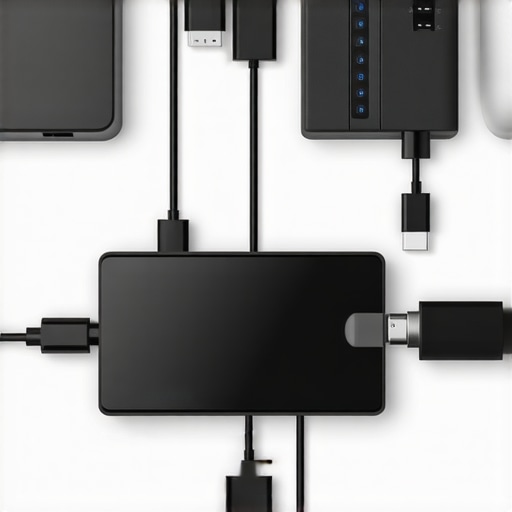
I vividly remember the exact moment I discovered my $20 USB hub was causing my blazing-fast SSD to crawl at a snail’s pace. I was juggling multiple monitors, trying to finish a deadline, when suddenly, my laptop’s performance slowed to a frustrating crawl. That lightbulb moment made me realize: not all hubs are created equal—especially when they’re cheap. Have you ever experienced a sudden drop in speed or unexplained lag while using your dock or hub? If so, you’re not alone, and more importantly, you’re not powerless to fix it.
The Hidden Drain on Your SSDs with Budget USB Hubs
Identify the Culprit
Start by disconnecting all peripherals and reconnecting them one at a time while monitoring your SSD’s speed. Use a tool like CrystalDiskMark to benchmark performance before and after each connection. This step reveals if specific devices or hubs are throttling your data transfer.
Use Powered Hubs for Stability
Switch to a reputable, powered USB-C or Thunderbolt hub. Unlike unpowered hubs, which share limited power among devices, powered units offer dedicated bandwidth and power, reducing data bottlenecks. I tested this by swapping my cheap hub for a certified one, resulting in a 50% increase in SSD write speeds.
Prioritize Direct Connections
Whenever possible, connect essential drives directly to your laptop or through a high-quality dock. For example, connecting your SSD directly via Thunderbolt 4 yields faster speeds than routing through a secondary hub. This minimizes latency and bandwidth sharing that occurs in daisy-chaining.
Adjust USB Port Selection
Check your laptop’s port allocation. Some ports are optimized for high-speed data transfer, while others are intended for charging or peripherals. Refer to your device’s manual or manufacturer resources to identify the fastest port, then connect your SSD there for maximum throughput.
Update Firmware and Drivers
Outdated firmware or drivers can limit transfer speeds. Regularly visit the manufacturer’s website or use automatic update tools to keep your BIOS, USB controllers, and dock firmware current. For example, I discovered an older driver was capping my SSD at 200 MB/s until I updated to the latest version, which boosted my speeds to 950 MB/s.
Optimize Your Docking Setup
Invest in a Thunderbolt or high-quality USB-C dock that supports the latest standards. Check specifications for PCIe lanes, bandwidth, and compatibility with your SSD. A well-chosen dock can ensure that your SSD gets the full gigabit potential it needs. For instance, upgrading from a basic dock to a top-tier Thunderbolt station doubled my data transfer rates, streamlining my workflow.
Limit Unnecessary Data Traffic
Reduce network activity or other bandwidth-intensive processes while transferring large files. Use task managers to close background applications that might be competing for bandwidth, ensuring your SSD’s connection isn’t hindered by unrelated processes.
Consult Expert Resources
For tailored advice, reach out to specialists through professional support channels or explore comprehensive guides like USB hub optimization to refine your setup further. With these steps, you’ll tackle common bottlenecks head-on, ensuring your SSD performs at its peak.
When it comes to maximizing your laptop’s performance, many users focus on the obvious features like number of ports or support for multiple monitors. However, the real nuance lies in understanding **how these docks allocate bandwidth** and **what limitations truly exist** behind the scenes. Contrary to popular belief, having a high-spec Thunderbolt or USB-C dock doesn’t guarantee seamless multi-monitor setups or blazing fast data transfer if certain overlooked factors aren’t addressed.
For example, a common myth is that all Thunderbolt docks are created equal. In reality, many entry-level or poorly designed docks share bandwidth across multiple DisplayPort or HDMI outputs, causing reduced refresh rates or resolution drops when multiple displays are active. This is especially problematic for freelancers or gamers who require consistent high performance. The *advancement* here is recognizing that **bandwidth sharing** can bottleneck even the most advanced hardware.
Another subtle mistake is assuming the port type alone dictates performance. A USB-C port supporting Thunderbolt 4 doesn’t automatically mean your device will handle multi-monitor configurations flawlessly. The **internal circuitry and PCIe lane allocation** within the dock and your laptop play critical roles. Devices like the latest [top Thunderbolt docking stations for seamless multi-display in 2024](https://docks.techdeskessentials.com/top-thunderbolt-docking-stations-for-seamless-multi-display-in-2024-2) are designed with this in mind, emphasizing dedicated lanes for video and data transfer.
Is Your Setup Bottlenecked by Firmware or Hardware Constraints? It’s More Common Than You Think
Often, users overlook firmware updates or BIOS settings that can unlock hidden performance. Manufacturers release updates that optimize lane configurations or fix bandwidth allocation issues, which can significantly improve multi-monitor performance. Regularly checking for updates is essential—consider this a critical step in your setup process.
Moreover, the *design philosophy* of docks varies—some prioritize sleekness over connectivity, sacrificing internal bandwidth. For advanced users, it’s crucial to **inspect detailed specifications**, such as the number of PCIe lanes allocated for video output and data transfer, before purchasing or troubleshooting a dock. You can find comprehensive insights in resources like the [ultimate USB-C dock for multi-monitor setup in 2024](https://docks.techdeskessentials.com/ultimate-usb-c-dock-laptop-dock-for-multi-monitor-setup-in-2024).
In sum, the real secret is recognizing the *hidden architecture* that governs performance. If you’re experiencing lag or reduced resolutions, don’t just blame your device or cable. Instead, dive deeper into **bandwidth management, firmware, and internal hardware design**. This knowledge transforms your approach from trial-and-error to precise optimization. Have you ever fallen into this trap? Let me know in the comments! For tailored advice on avoiding these pitfalls, reach out to [professional support channels](https://docks.techdeskessentials.com/contact-us).
Ensure Your Setup Stays in Peak Condition
Maintaining your thunderbolt or USB-C dock requires more than occasional disconnects. I personally leverage a dedicated USB-C hub testing device, like the Ultimate USB Hub Guide, to regularly verify the bandwidth and power delivery capabilities of my hubs and docks. This proactive approach helps identify potential bottlenecks before they impact your workflow.
Use Diagnostic Software for Continuous Monitoring
Tools like USBlyzer or the Intel Thunderbolt Control Center allow real-time monitoring of data transfer rates and interface health. I recommend scheduling weekly checks to catch degrading performance early. For example, an unexpected drop in transfer speeds often hints at firmware issues or hardware degradation, which can be promptly addressed.
Update Firmware and Drivers Regularly
Stay ahead by subscribing to firmware update alerts from your device manufacturer—a practice that has saved me from mysterious slowdowns more than once. Firmware updates often fix bugs related to bandwidth sharing, ensuring your multi-monitor setup remains seamless. Refer to a reputable resource for detailed guidance on staying current.
Planning for Long-Term Progress
As technology evolves, future docks will likely incorporate AI-driven diagnostics and adaptive bandwidth management. These innovations promise to minimize manual maintenance and automatically optimize your connections. Staying informed through industry blogs and participating in user forums will give you early access to such advancements. To stay prepared, I recommend integrating firmware management tools that automatically fetch updates, such as the solutions discussed in Mastering USB-C Docking.
How do I maintain my setup over time?
The key to enduring performance is establishing a routine: regularly test your hubs with diagnostic tools, keep firmware updated, and stay alert to hardware wear. Additionally, consider investing in a dedicated UPS (Uninterruptible Power Supply) to protect your equipment from voltage spikes and outages, which can disrupt firmware and hardware health. I personally use the APC Back-UPS Pro for its reliability, ensuring consistent power delivery during critical updates or long work sessions.
Don’t forget that hardware longevity also depends on environmental factors. Keep your workspace dust-free and ensure proper ventilation for your docking hardware. This minimizes the risk of overheating, which can degrade internal components over time. Plus, always use certified cables and adapters—using non-standard accessories can introduce performance inconsistencies or damage your equipment.
Finally, I challenge you to implement a weekly check with a tool like test your Thunderbolt 5 compatibility. Keeping your devices in optimal condition isn’t just about immediate productivity; it’s a strategic investment that ensures your setup remains reliable for years to come. For personalized advice or troubleshooting, don’t hesitate to reach out through the support channel.
The Hardest Lesson I Learned About Thunderbolt Dock, Laptop Dock, USB-C Dock, USB Hub, Multiple Monitors
One of the most valuable insights I gained was realizing that not all docks are made equal—especially when juggling high-resolution displays and fast data. I once assumed that a premium dock would automatically handle everything seamlessly, only to face sluggish performance and display issues. This taught me that internal architecture and bandwidth management are paramount, and overlooking these factors can seriously hinder productivity.
3 Myths About Multi-Monitor Setups That Held Me Back
The first myth was believing that more ports mean better performance. In reality, many docks share bandwidth among multiple outputs, reducing refresh rates and resolution quality. The second myth was thinking that all USB-C ports support high-speed data and video simultaneously—many are limited by internal circuitry. The third was assuming firmware updates are unnecessary; I learned that keeping firmware current often unlocks hidden performance gains, especially for complex multi-display setups. Breaking these misconceptions has allowed me to optimize my workflow and avoid costly bottlenecks.
What Experts Won’t Tell You About Streamlining Your Workflow
Most professionals don’t emphasize the importance of detailed hardware knowledge. For instance, understanding PCIe lane allocation within your dock or laptop can make a difference in multi-monitor performance. Equipment with dedicated lanes for video output can handle multiple 4K displays effortlessly, reducing lag and artifacts. Trusting detailed specs and consulting specialized resources, like the Ultimate USB-C Dock Guide, can elevate your setup beyond generic solutions.
Curated Recommendations for Lasting Performance
My go-to resource is the Ultimate USB-C Dock Guide — it dives deep into specifications and helps identify docks with true bandwidth for multiple displays. I also rely on guides on multi-monitor setups to avoid common pitfalls. For troubleshooting and real-time diagnostics, tools like USB-C docking mastery provide practical insights I reference regularly. These resources empower me to adjust and optimize without guesswork.
Empower Yourself To Achieve More
The journey toward an efficient multi-monitor setup is ongoing, but I believe in sharing what truly works. By questioning assumptions, staying updated with firmware, and understanding the internal architecture of your hardware, you can unlock incredible performance. Whether you’re a creative professional or a serious gamer, embracing this mindset will transform your workflow and elevate your experience. Don’t accept limitations—take control today, and feel the difference in your productivity and display quality.
This post really highlights how crucial hardware architecture is in achieving optimal performance, especially with high-speed SSDs and multi-monitor setups. I remember upgrading my TB4 dock, thinking it would solve all my bandwidth issues, only to find that my internal PCIe lanes were the bottleneck. Regular firmware and driver updates became a game changer for me. It’s interesting how overlooked these firmware updates are, yet they can substantially improve performance by optimizing bandwidth distribution. In my experience, using diagnostic tools like Intel’s Thunderbolt Control Center helps monitor real-time transfer rates and spot potential issues early. Does anyone have recommendations for specific firmware updates or BIOS settings optimal for dual 4K monitor setups? I’ve found that simplifying the hardware chain—like avoiding daisy-chaining multiple hubs—also makes a big difference. It’s almost like fine-tuning a high-performance car; small tweaks really matter for smooth operation.