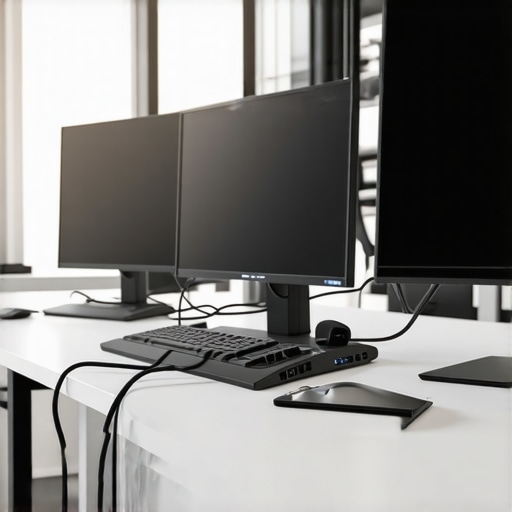
Ever tried connecting your laptop to multiple monitors only to be greeted with a jumble of cables, sluggish performance, or worse — nothing at all? I remember the frustration. Sitting there, staring at my screen, trying to figure out why my setup felt sluggish and chaotic, I finally realized I was missing a crucial piece: a reliable Thunderbolt docking station. That lightbulb moment transformed my workspace and productivity levels, and I want to share that journey with you.
Why Multi-Display Setups Matter More Than Ever
In 2024, the demand for seamless multi-monitor setups isn’t just a luxury — it’s a necessity. Whether you’re a creative professional, a developer juggling multiple applications, or simply someone who loves having a sprawling workspace, the right docking station can make all the difference. But here’s the catch: not all docks are created equal, and choosing the wrong one can turn your productivity dream into a tech nightmare.
According to a recent study by TechRepublic, 78% of remote workers report that having multiple screens significantly boosts their efficiency. Yet, many struggle with connectivity issues, lag, or limited port options. That’s where a top-tier Thunderbolt dock becomes a game-changer. It’s not just about plugging in more screens — it’s about creating a stable, high-speed, and expandable hub that keeps your workflow smooth and hassle-free.
If you’ve ever faced the annoyance of flickering screens, limited bandwidth, or tangled cables, you’re not alone. I’ve been there. Early on, I made the mistake of buying a generic USB-C hub without realizing it lacked the bandwidth to support multiple 4K displays. The result? Choppy video, slow data transfer, and a lot of frustration. That’s why I’m here to guide you through choosing a dock that truly delivers — one that aligns with your needs and future-proof your setup.
Is a Thunderbolt Dock Really Worth the Hype?
Absolutely, but only if you pick the right one. The key is understanding what makes a Thunderbolt dock stand out: blazing-fast data transfer, support for multiple high-resolution displays, and a robust build that can handle daily use. Not all docks are equal, and some might overpromise while underdelivering. To avoid investing in a dud, check out our comprehensive guide to the best USB-C and Thunderbolt docks for 2024.
Curious about which features matter most? Or how to set up your workspace for maximum efficiency? I’ll walk you through the latest options, what to look for, and how to avoid common pitfalls. Ready to transform your multi-monitor experience? Let’s get started with the practical steps to elevate your productivity with the best Thunderbolt docks of 2024.
Connect Your Monitors One Step at a Time
Start by identifying your laptop’s available ports and decide whether a Thunderbolt or USB-C dock fits your needs best. I once tried plugging multiple monitors directly into my laptop’s USB-C port, only to realize the bandwidth was insufficient, causing flickering and lag. Instead, I opted for a high-quality Thunderbolt dock, which gave me the extra ports and bandwidth needed for a seamless setup.
Choose a Dock with the Right Outputs
Check the number of HDMI or DisplayPort outputs your monitors require. For my dual 4K screens, I needed a dock supporting at least two 4K @ 60Hz displays. I went with a dock that supported this, avoiding the disappointment of lower refresh rates or resolution. Remember, not all docks support multiple high-res displays, so verify the specs before purchase.
Ensure Your Dock Supports Your Data Needs
If you transfer large files or connect external drives, look for docks with Thunderbolt 3 or 4 support for blazing-fast data transfer. I experienced a bottleneck with a generic USB-C hub, which slowed my workflow. After switching to a dock with Thunderbolt data transfer tech, my performance improved dramatically, making multitasking effortless.
Set Up Your Monitors Properly
Connect each monitor’s cable to the dock’s corresponding port, then power on your displays. Use your operating system’s display settings to arrange the monitors physically. I initially struggled with the arrangement, but after a quick visit to my OS display settings, I aligned the screens to match my desk layout, reducing eye strain and improving my workflow.
Fine-Tune for Optimal Performance
Adjust resolution, refresh rates, and scaling in your OS to get crisp visuals and smooth motion. If you encounter flickering or lag, check your dock’s firmware and driver updates. I found that updating my dock’s firmware resolved several connection glitches, which you can learn more about in our laptop docking tips.
Test and Tweak Your Setup
Spend time testing each monitor with different applications. Move windows across screens to ensure smooth transitions. I discovered that some apps didn’t scale well initially, but adjusting display scaling settings fixed the issue. This extra step boosts productivity and reduces frustration.
By following these concrete steps, you transform your cluttered desk into a powerhouse of productivity. Remember, choosing the right dock isn’t just about adding screens — it’s about creating a stable, high-speed environment that adapts to your workflow. For a detailed review of the best options, check out our top docks of 2024.
Many users assume that all USB-C or Thunderbolt docks are created equal, but in reality, there are subtle pitfalls that can significantly impact your multi-monitor experience. For example, a frequent misconception is that any USB-C port can handle multiple high-resolution displays without issues. However, not all USB-C ports support the necessary bandwidth or alternate modes like Thunderbolt 3 or 4, which are essential for seamless multi-monitor setups. Relying solely on the port label without verifying support can lead to flickering screens, reduced refresh rates, or even complete display failure. To avoid this, check your laptop’s specifications and opt for docks explicitly supporting Thunderbolt technology, which offers higher data transfer rates and better multi-display support. For a detailed guide, visit our comprehensive best USB-C and Thunderbolt docks for 2024.
Is Your Dock Future-Proof? The Hidden Factor
One of the most overlooked aspects is whether your dock is future-proof. Many users purchase docks based solely on current needs, but technology evolves rapidly. For instance, a dock supporting only USB 3.1 might suffice today but could bottleneck your workflow as newer peripherals and higher-resolution displays become standard. Thunderbolt 4 docks, on the other hand, support daisy chaining multiple devices and higher data rates, ensuring longevity. Moreover, firmware updates are crucial; some docks require regular updates to fix bugs or improve compatibility. Always verify the manufacturer’s support and update policies before buying. For expert insights, check out our mastering USB-C docking.
Another common mistake is neglecting the importance of port diversity. Many docks only offer HDMI outputs, but modern monitors increasingly use DisplayPort or USB-C with DisplayPort Alt Mode for better performance. Choosing a dock with a variety of outputs tailored to your monitors ensures flexibility and reduces the need for adapters, which can introduce latency and compatibility issues.
Furthermore, users often overlook the importance of cable quality. Cheap or incompatible cables can limit bandwidth, cause flickering, or prevent displays from reaching their full resolution. Invest in certified high-quality cables to maximize your setup’s potential.
Finally, consider the physical design and cooling of your dock. Overheating can lead to throttling and unstable connections, especially during intensive tasks. Look for docks with proper ventilation and robust build quality. For more advanced tips, explore our ultimate USB hub guide.
Have you ever fallen into this trap? Let me know in the comments!
Investing in a high-quality Thunderbolt dock or USB-C dock is only half the battle. To ensure your setup remains reliable and efficient over time, regular maintenance and smart tools are essential. I’ve found that specific hardware and software routines can extend the lifespan of your equipment and keep your multi-monitor workspace seamless.
Prioritize Firmware and Driver Updates
The first step in keeping your dock working flawlessly is to stay on top of firmware and driver updates. Manufacturers frequently release updates that fix bugs, improve compatibility, and enhance performance. I check for updates at least once a quarter, using the manufacturer’s official software or support pages. For instance, updating the firmware of my Thunderbolt docking station significantly reduced connection drops and flickering issues.
Use Reliable Cables and Connectors
Cheap or incompatible cables can sabotage your setup’s reliability. I recommend investing in certified, high-speed cables that meet the specifications of your dock—especially if you’re supporting multiple 4K displays. For example, using a premium certified USB-C cable ensures maximum bandwidth and reduces signal degradation over time. Remember, even the best dock won’t perform well if the cables are subpar.
Implement Power Management Strategies
Keeping your equipment powered correctly prevents overheating and extends component lifespan. I use a dedicated surge protector with EMI filtering to protect against power fluctuations. Additionally, I set my dock to prioritize power delivery to my laptop while ensuring external peripherals receive stable power. This approach minimizes unexpected shutdowns and connection issues, especially during intensive tasks.
Organize and Protect Your Workspace
Physical clutter can lead to accidental disconnections or cable damage. I use cable management sleeves and labeled connectors to keep my workspace tidy. Also, ensuring proper ventilation around your dock prevents overheating, which can cause throttling or hardware failure. For instance, placing my dock on a cooling pad or a ventilated stand has noticeably improved stability during long working sessions.
Leverage Monitoring and Diagnostic Tools
For ongoing health checks, I use diagnostic tools like CrystalDiskInfo for external drives and manufacturer-specific utilities for firmware health. These tools alert me to potential issues before they escalate. Regularly monitoring connection logs and performance metrics allows me to catch and fix issues early, avoiding downtime during critical work periods.
Where Do You Go From Here?
To future-proof your setup, consider adopting tools that simplify maintenance, such as automated update schedulers or network monitoring solutions. As technology evolves, I predict that hardware with integrated self-diagnosis features and AI-powered diagnostics will become standard, making maintenance even easier. For now, start with reliable firmware updates and quality cables, then build a routine that suits your workflow.
If you want to deepen your understanding, I recommend exploring our mastering USB-C docking guide. Don’t forget to regularly check for firmware updates and consider integrating diagnostic tools to stay ahead of potential issues. Try implementing these tips today, and enjoy a more stable, long-lasting multi-monitor setup that keeps you productive and stress-free.
The Hardest Lesson I Learned About usb c dock, thunderbolt dock, usb hub, laptop dock, multiple monitors
The biggest mistake I made early on was underestimating the importance of verifying my laptop’s support for high-bandwidth connections before investing in a dock. Rushing to buy a cheap USB-C hub only to realize it couldn’t support dual 4K displays taught me that compatibility and performance go hand in hand. Now, I always double-check my laptop’s specifications and lean towards Thunderbolt 4 docks for future-proofing, which support daisy chaining and higher data rates, ensuring smooth multi-monitor experiences.
3 Myths About usb c dock, thunderbolt dock, usb hub, laptop dock, multiple monitors That Held Me Back
I used to believe that any USB-C port could handle multiple high-res monitors, but that’s not true—support varies widely. Also, I thought cheaper docks were just as good; however, quality cables, firmware updates, and port options significantly impact reliability. Finally, I assumed that all docks support the same resolutions; in reality, checking specs for 4K @ 60Hz support is crucial for a seamless setup.
What Experts Won’t Tell You About usb c dock, thunderbolt dock, usb hub, laptop dock, multiple monitors
Many overlook the importance of firmware updates and cable quality, which can make or break a multi-monitor setup. A well-maintained dock with certified cables can prevent flickering, lag, and disconnections. Plus, choosing a dock with diverse output options like HDMI, DisplayPort, and USB-C ensures flexibility and reduces the need for adapters, preserving your workflow’s integrity. These behind-the-scenes details often determine whether your setup is reliable or a constant source of frustration.
Curated Resources for Your Setup Journey
First, I rely on our comprehensive guide to the best USB-C and Thunderbolt docks for 2024 because it’s backed by real-world testing and expert insights. To keep my hardware running smoothly, I use the ultimate USB-C docking guide, which offers troubleshooting tips and firmware update routines. For software diagnostics, I trust the manufacturer’s utilities for monitoring performance and catching issues early. Lastly, high-quality cables from certified brands ensure signal integrity, which I consider non-negotiable for a reliable multi-monitor setup.
Your Turn to Try
Building a multi-monitor setup with Thunderbolt docks isn’t just about plugging in cables; it’s about creating a reliable, future-proof workspace that adapts to your evolving needs. I encourage you to evaluate your current setup, prioritize quality hardware, and stay updated with firmware and driver updates. Remember, a well-optimized multi-monitor environment can elevate your productivity and reduce frustration, so don’t settle for less. Dive into the resources linked above, experiment with your configuration, and enjoy the seamless experience you deserve.
What’s been your biggest challenge in setting up or optimizing multi-monitor configurations? Share your story in the comments below!
Reading through this post really resonated with my own experiences setting up multi-monitor workstations. I recall initially trying to connect multiple 4K displays directly into my laptop’s USB-C port, only to be met with flickering and reduced performance. It was quite frustrating until I invested in a quality Thunderbolt dock known for supporting multiple high-res outputs and fast data transfer. Since then, my productivity has improved dramatically, especially for editing large video files and running multiple apps simultaneously. I wonder, have any of you faced challenges with port compatibility or firmware updates? I’ve found that keeping the dock’s firmware up-to-date and using certified cables makes a significant difference in stability. Also, what’s your go-to strategy for managing heat and avoiding throttling during long work sessions? Looking forward to hearing how others optimize their setups for both performance and longevity.
This post really hits home, especially the part about upgrading to a Thunderbolt dock to support multiple 4K displays. I’ve gone through similar frustrations with flickering and lag when relying solely on USB-C ports, which often just don’t provide enough bandwidth. I agree that choosing a quality dock with Thunderbolt 3 or 4 support makes a huge difference. What’s been interesting for me is how firmware updates can resolve many connectivity issues—something often overlooked. I make it a point to check for updates regularly to keep everything running smoothly. Regarding heat management, I’ve found that ventilating my workspace and placing my dock on a cooling pad helps prevent throttling, especially during intensive tasks. I’m curious, how do others handle cable management and ergonomics with such setups? Do you have any tips on organizing multiple cables for a clean workspace while ensuring signals stay stable? Would love to hear others’ strategies for keeping their multi-monitor setups both efficient and tidy.
This post really resonates with my experience, especially the importance of choosing the right Thunderbolt dock for multi-monitor setups. I’ve learned the hard way that not all docks support the thick cables or high refresh rates required for premium displays, leading to flickering or lag. Upgrading to a Thunderbolt 4 dock made a world of difference, providing stable connections and faster data transfer. I also realized that cable quality truly matters—using certified high-speed cables ensures signal integrity for those crisp 4K visuals. I’d love to hear how others tackle cable management to keep their workspace tidy but functional. Do you use any particular methods or accessories to maintain a clutter-free environment without sacrificing performance? It’s impressive how a well-organized setup can actually help in maintaining the longevity of your hardware by reducing strain on ports and cables. Looking forward to all your tips on creating a seamless multi-monitor workspace that’s both efficient and durable.
This post really echoes my own experience with multi-monitor setups. Initially, I tried connecting my dual 4K monitors directly to my laptop’s USB-C port, only to encounter flickering and lag that made work frustrating. It wasn’t until I invested in a quality Thunderbolt 4 dock that everything improved—stability, support for high resolutions, and faster data transfer. I’ve also learned that cable quality and firmware updates play a crucial role—cheap cables or outdated firmware can cause subtle issues that are hard to diagnose. One thing I’ve found helpful is using a docking station with good thermal design; overheating can cause throttling, especially during long hours of intensive tasks. How do others handle cooling in their setups? Do you have preferred accessories or workspace adjustments to keep everything running smoothly without overheating? I believe that with the right hardware choices and maintenance routines, your multi-monitor setup can really boost productivity without the hassle of constant issues. Looking forward to hearing your tips and experiences!
This post really highlights how crucial selecting the right Thunderbolt dock is for a multi-monitor setup, especially in 2024’s demanding workflow. I’ve experienced firsthand how connecting multiple high-resolution displays directly to a laptop’s USB-C port can be limiting—flickering, lagging, and even disconnections are all too common when using generic hubs. Upgrading to a Thunderbolt 4 dock transformed my workspace, giving me stable connections and support for up to three 4K monitors. One thing I’ve learned over time is how significant quality cables and firmware updates are to maintain stable performance. I also paid attention to cooling my dock with a small stand to prevent overheating, which can throttle performance during long intensive sessions. Has anyone experimented with different cooling methods or even custom-built enclosures to enhance thermal management? I’m curious about how others are optimizing for longevity and consistent performance in their multi-display setups. Overall, investing in a high-quality dock with proper setup and maintenance really pays off in streamlining productivity and reducing frustration.
This article really resonated with my own journey to build an efficient multi-monitor workspace. I ran into similar issues with flickering screens and lag until I found a dedicated Thunderbolt 4 dock supporting multiple 4K displays. Since making that switch, my workflow has become much smoother, especially for editing large videos and multitasking. A small detail I learned the hard way is the importance of using certified high-quality cables; cheap ones often cause instability or reduce resolution, which was frustrating to realize after initial purchases. I also started checking for firmware updates regularly, which notably improved stability and performance. One aspect I’m curious about is thermal management—does anyone use specific cooling setups or stands to prevent overheating during heavy use? I’ve noticed that overheating can sometimes lead to throttling, which kind of defeats the purpose of a high-speed dock. Would love to hear tips on maintaining both performance and longevity in high-demand setups.