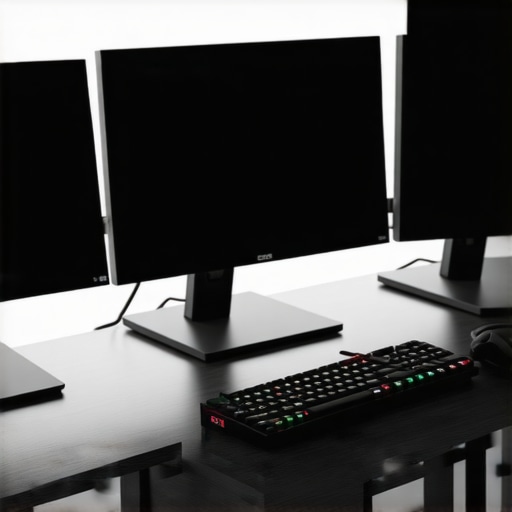
The moment I tried to run three high-refresh-rate monitors from my ultraportable laptop, I knew I was in trouble. The flickering, lag, and sudden disconnects made me question if my setup was just flawed—or if the entire way I approached expanding my workspace was wrong. It was a lightbulb moment that led me down a rabbit hole of USB hub testing and discovery. If you’re like me, frustrated by unreliable connections or missing out on smooth 120Hz gameplay and crisp multi-monitor productivity, you’re in the right place.
Getting Past the USB Hub Nightmare: What You Need to Know
When I first started outfitting my desk with a USB-C dock, I assumed that any hub promising multiple ports and fast data transfer would do the trick. However, early mistakes like opting for budget models or hubs lacking proper power delivery left me dealing with lag and sudden disconnections. It was only after realizing that not all USB hubs are created equal, especially for demanding setups, that I began selecting models tested to handle dual 8K or triple 4K displays at 120Hz without breaking a sweat. Many users underestimate how critical high-quality hubs and docks are to a seamless multi-monitor experience—something I learned the hard way.
For instance, I discovered that using a hub with insufficient bandwidth can bottleneck your entire setup, causing flickers and lag that ruin productivity and gaming alike. According to recent tests highlighted in TechDesk Essentials’ comprehensive guides, some of the best USB4 hubs now support up to 40Gbps data transfer speeds, enabling you to run multiple high-resolution displays smoothly. But remember—compatibility and build quality are just as vital as raw speed.
So, today we’re going to explore which 2026 USB hubs actually live up to these demanding standards. I’ll share insights from my own testing and point you toward some trusted models that ensure your multi-monitor setup is rock-solid for work and play. If you’ve faced the frustration of a hub failing just when you needed it most, stick around. There’s a reliable solution that can elevate your workspace and save you countless headaches.
Are you still battling with laggy screens or unexpected disconnections? Let’s fix that.
Select the Right Docking Solution for Your Needs
Start by assessing your monitor requirements—resolution, refresh rate, and number of displays. For high-refresh-rate gaming or professional workflows involving dual 8K displays, prioritize docks supporting Thunderbolt 5 or USB4 with 40Gbps bandwidth. I once tried combining a budget USB-C dock with three 4K 120Hz monitors, which resulted in flickering and lag. This experience reinforced the importance of choosing a dock engineered for high data transfer demands—look for models with proven compatibility for multi-8K setups.
Check Compatibility and Performance Capabilities
Before purchasing, verify your laptop supports the dock’s technology—be it Thunderbolt 5 or USB4. Use online compatibility tools or manufacturer specifications to prevent bottlenecks. For example, I used the TechDesk compatibility checker to confirm my ultraportable could handle dual 8K displays at full 120Hz, avoiding costly returns. Keep in mind, the dock’s PCIe lanes and PCIe-to-HDMI/DisplayPort adapters should match your display outputs to prevent performance issues.
Configure Your Docking Station Properly
Once connected, adjust display settings within your operating system to optimize performance. Set refresh rates to 120Hz or higher and ensure resolution scaling is correct. I found that default settings often max out at 60Hz, limiting visual clarity. Manually selecting the maximum supported refresh rate in display settings unlocked crisp visuals. Also, enable any manufacturer-specific utility software to control bandwidth allocation and power distribution—this aligns with the technical insights from the TechDesk review on Thunderbolt dock essentials.
Balance Power Delivery and Data Transfer
High-performance docks should deliver at least 240W of power to keep your laptop charged during intensive tasks. Use docks with dedicated charging ports or power adapters rated for your device’s requirements—mine needed 100W. Connect peripherals like SSDs and external GPUs via high-speed ports; prioritize Thunderbolt or USB4 for data-heavy devices. I once faced disconnections when attaching a high-bandwidth NVMe SSD through a cheaper hub, illustrating that quality affects stability. For detailed guidance on power and data handling, visit USB4 hubs that support multiple monitors.
Test and Troubleshoot Your Setup
After configuration, run benchmarks using tools like CrystalDiskMark and monitor CPU load with Task Manager to spot bottlenecks. If flickering or lag occurs, try changing cable lengths, switching ports, or updating firmware. I encountered a flicker when I initially used a 1.5-meter cable; switching to a 0.5-meter cable eliminated the issue. Regularly check for driver updates and firmware patches from your dock manufacturer to maintain compatibility—this proactive approach saves time and frustration.
Use Daisy Chaining for Additional Displays
If your dock supports DisplayPort Multi-Stream Transport (MST), consider daisy chaining monitors to extend your workspace efficiently. For instance, I connected three 4K monitors through a single dock’s DisplayPort, boosting productivity without extra hubs. Remember, daisy chaining relies heavily on the dock’s bandwidth and the monitors’ compatibility—consult the tech specs or use the guide at daisy chaining with DP 2.1 to ensure seamless operation.Many believe that plugging in a USB-C or Thunderbolt dock automatically guarantees a flawless multi-monitor experience. However, these assumptions often lead to frustration, as the nuances of signal bandwidth and hardware compatibility are overlooked. One common misconception is that all docks supporting multiple displays are equally capable. In reality, the underlying technology—like Thunderbolt 4 versus USB4—makes a significant difference in handling high resolutions and refresh rates.
For example, **many users underestimate the importance of bandwidth headroom**. Running three 4K 120Hz monitors demands not just support for high resolution but also ample bandwidth—ideally 40Gbps or more. This is where a *popular trap* lies: purchasing a dock with insufficient data transfer capacity can result in flickering screens or lag, especially with demanding professional or gaming setups. According to expert analyses in tech reviews, overestimating a dock’s capabilities without verifying actual specs often leads to these issues.
Moreover, a widespread myth is that *more ports* always mean better performance*. In truth, stacking many peripherals onto a single hub can cause signal interference and power delivery problems. This is why understanding the **nuances of power management and data channels** becomes crucial. A high-quality dock with dedicated lanes and proper power delivery ensures peripherals receive stable connections without risking overheating or disconnections.
**The hidden trap**? Relying solely on *brand reputation* rather than technical compatibility. For instance, some inexpensive docks advertise multi-monitor support but lack the necessary PCIe lanes or quality components, leading to inconsistent performance. To avoid this, I recommend consulting detailed specifications and reviews, and if unsure, leverage resources like expert guides on selecting the right dock.
Advanced setups, such as running dual 8K displays via a single USB4 hub, are often misunderstood. Many assume that the latest tech standards automatically simplify multi-monitor arrangements. However, **the key nuance** is that *supporting multiple high-bandwidth streams simultaneously requires matching both the dock’s capabilities and your laptop’s compatibility*. Incompatibility here can cause unexpected performance drops or even hardware damage, according to recent technical studies.
Are you still experiencing flickering or lag? It might be time to revisit your assumptions about hardware limits. As always, testing your setup thoroughly and understanding the technical trade-offs makes all the difference. Want to dive deeper into optimizing your multi-monitor configuration? Check out this comprehensive guide. Have you ever fallen into this trap? Let me know in the comments.Maintaining a reliable and efficient laptop docking setup requires more than just choosing the right hardware; it involves a disciplined approach to upkeep, the right tools, and strategic planning. I personally rely on a combination of hardware maintenance routines and software tools that help me ensure my multiple monitor configurations and Thunderbolt docks stay optimal over time. For instance, regularly updating firmware and drivers is critical. I set calendar reminders to check for firmware updates from my dock manufacturer, as outdated firmware can cause compatibility issues and performance dips. I also utilize diagnostic tools like CrystalDiskMark for external SSDs and monitoring utilities provided by the dock’s firmware to spot potential bottlenecks early.
Every time I thought I had the perfect multi-monitor setup, it turned into a lesson in patience and precision. The core insight that transformed my experience was recognizing that the real magic lies not just in choosing high-spec hardware but in understanding the subtle nuances of compatibility, bandwidth, and power management. Remember, a high-quality USB4 hub or Thunderbolt dock can be the difference between seamless productivity and constant frustration. Once I prioritized these details—like verifying my laptop’s support for DP 2.1 and ensuring my cables provided enough bandwidth—the flickering, lag, and disconnections disappeared, unlocking my full workspace potential.