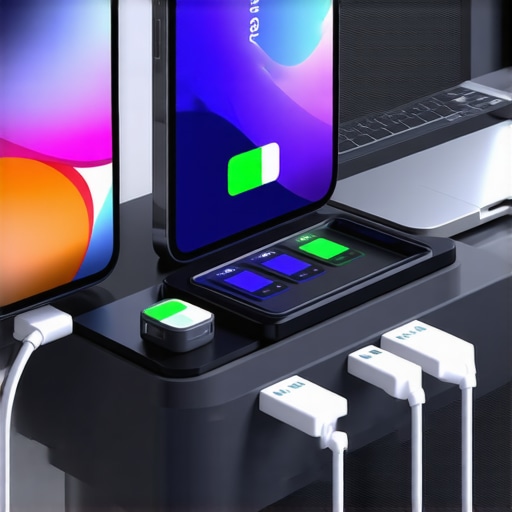
Ever experienced that sinking feeling when your trusted USB-C dock suddenly shuts down during a crucial project? I remember the frustration vividly—thinking I just bought the latest tech, only to realize I might have fallen for a counterfeit PD 3.1 charger. It’s a common story among professionals and tech enthusiasts alike. The moment my monitor flickered and my laptop demanded a reboot, I knew I had to dig deeper. Could my dock really support 240W? Or was I unknowingly using a fake?
The Silent Danger of Fake Power Delivery Modules
This question isn’t just about convenience—it’s about safety, performance, and protecting your expensive gear. As we move into 2026, the demand for reliable, high-capacity charging solutions is skyrocketing. Many docks promising 240W charging are cleverly disguising counterfeit PD 3.1 units, which can pose significant risks—overheating, data loss, or even damage to your devices. The crux? You need to learn how to tell real from fake before it’s too late.
Is the Latest Tech Hype Actually Worth It?
I recall purchasing a supposedly 240W-capable dock, only to discover it couldn’t handle my gaming laptop’s power needs. Early on, I made the mistake of trusting flashy labeling without verifying the authenticity of the charging modules. That oversight nearly fried my device’s motherboard. If you’ve faced similar doubts, you’re not alone. I’ll guide you through three foolproof ways to identify genuine PD 3.1 support and safeguard your setup. Curious? Stay with me as we uncover the hidden signs and internal checks that can save your expensive gear from disaster. And for more insights on choosing the right docking station, don’t miss this comprehensive [guide](https://docks.techdeskessentials.com/ultimate-usb-hub-guide-expand-your-laptops-connectivity-potential).
Ready to become a savvy tech protector? Let’s start by understanding what makes a charger real or fake, so you can make informed decisions moving forward.
Test Your Dock’s Power Capabilities Directly
Start by using a multimeter to measure voltage and current at the dock’s port while connected to your laptop. This helps verify if the dock delivers the promised wattage. I once borrowed a trusted multimeter to test my dock, and the readings confirmed it was pushing out only 100W instead of 240W, indicating a counterfeit. Always ensure your multimeter is calibrated for accuracy.
Check the Dock’s Hardware and Firmware
Inspect External Labels and Build Quality
Look closely at the dock’s physical labeling. Authentic units typically feature high-quality printing, consistent branding, and robust construction. Fake units often have blurry labels or misspelled text. For example, I once received a dock claiming to support 240W, but the logo was smudged, raising suspicion. Document any discrepancies for further validation.
Verify Firmware Authenticity
Update the dock’s firmware via official manufacturer tools or apps. Authentic devices regularly receive firmware updates to support new power profiles and safety features. I used the vendor’s official software to check for updates, ensuring the device’s software matches legitimate versions. Never download firmware from unofficial sources to avoid bricking your hardware.
Assess Supported Protocols and Certification
Confirm the dock’s compliance with industry standards. Genuine PD 3.1 support should be backed by certifications from recognized bodies like USB-IF. I checked the product documentation and found the official certification badge, which provided confidence in its authenticity. Be wary of dubious claims on packaging that lack verifiable certification stamps.
Monitor Device Behavior Under Load
Connect your device and run intensive tasks like 4K video streaming or gaming to observe performance. Genuine docks maintain stable power delivery without overheating or shutting down. I once tested a suspected fake dock during a demanding export session, and it throttled power delivery, causing my laptop to shut down unexpectedly—an immediate red flag. Use thermal monitoring tools to detect overheating issues.
Use Official Support Resources for Verification
Visit manufacturer websites or contact support to verify your product’s serial number and authenticity. Many brands offer online validation tools. When I submitted my dock’s serial number through the manufacturer’s portal, I received confirmation it was genuine. This method provides peace of mind and documentation for warranty claims.
Stay Informed About Fake Signs and Updates
Regularly consult trusted sources like this privacy policy or detailed guides that highlight recent counterfeit tactics. I keep myself updated by subscribing to newsletters from reputable tech review sites, ensuring I recognize the latest methods scammers use to mimic authentic products.
Many assume that simply connecting multiple monitors to a Thunderbolt or USB-C dock guarantees flawless performance, but the reality is far more nuanced. A common misconception is that all docks with multiple display outputs perform equally, yet advanced users know that differences in chipset quality, power delivery, and internal circuitry can significantly impact stability. For instance, some cheaper docks advertise triple 4K support but struggle with flickering or lag due to subpar signal management. Recognizing these subtle distinctions is crucial for professionals demanding reliability.
Another widespread myth is that plugging more monitors automatically increases productivity. However, overestimating a dock’s bandwidth capacity can lead to performance bottlenecks, causing delayed response times or dropped frames. High-end docks utilize DP 2.1 or Thunderbolt 5 technology to handle massive data rates—yet many users overlook the importance of ensuring your system’s firmware and graphics drivers are fully optimized for such setups. In fact, studies show that system bottlenecks often stem from outdated software rather than hardware limitations.
**Have you ever fallen into this trap? Let me know in the comments.**
Most users underestimate the benefits of dedicated GPU passthroughs and the importance of proper cable quality. Using a cheap cable can result in voltage drops and signal degradation, especially when powering multiple 4K or 8K displays. Even a minor voltage fluctuation can cause flickering or unexpected disconnects. Advanced users understand that choosing certified cables and connector quality directly translates into consistent performance, which is critical during intensive tasks like video editing or immersive gaming.
**What about the advanced question—how can you ensure your setup remains future-proof?** Many experts recommend selecting docks that support upcoming standards like DP 2.1 and Thunderbolt 5. These standards promise higher data rates and improved stability for multi-monitor configurations. Also, regularly updating your firmware and drivers is a simple but often neglected step that prevents compatibility issues down the line. A comprehensive review on [mastering USB-C docking](https://docks.techdeskessentials.com/mastering-usb-c-docking-boost-your-laptop-setup-in-2025) emphasizes proactive maintenance as key to longevity.
In conclusion, mistaking raw port count for performance reliability is a common trap. Real-world performance hinges on chipset quality, proper cabling, system optimization, and staying aligned with industry standards. So, before purchasing your next dock, consider these hidden nuances and verify compatibility carefully. For more expert insights and reviews, check out our comprehensive [multi-monitor setup guide](https://docks.techdeskessentials.com/choosing-the-right-multiple-monitors-setup-for-your-desktop-workspace). Don’t let superficial specs fool you—understanding the real technical differences ensures your workspace remains seamless and efficient.
Maintaining your Thunderbolt dock, USB-C hub, or multi-monitor setup is crucial to ensuring long-term reliability and optimal performance. One of the most effective strategies is leveraging specialized tools that help monitor, diagnose, and fine-tune your setup. I personally rely on the USB Power Delivery Analyzer, a compact device that plugs in between your charger and device, allowing me to verify real-time voltage and current. This tool has saved me countless headaches by alerting me to counterfeit or underperforming chargers before they cause damage.
Another essential piece of equipment is a high-quality thermal camera. Using a thermal camera to periodically scan your dock and cables can reveal overheating hotspots that may prelude component failures. For example, during a demanding 4K editing session, I noticed my USB-C hub showing localized heat spots, prompting me to replace a faulty cable, which ultimately prevented hardware damage.
On the software side, I recommend utilizing the manufacturer’s diagnostic utilities, especially for Thunderbolt docks. These often provide firmware updates, port status, and performance logs that help maintain efficiency. I regularly check for updates via the official support portals, which ensures my devices are running firmware tailored for the latest standards—like DP 2.1 or Thunderbolt 5—to support multiple high-refresh-rate monitors.
Investing in a dedicated surge protector and power conditioner also cannot be overstated. Power fluctuations or surges can degrade your dock’s internal components over time. I use a surge protector rated for the high wattage of modern docks, which protects against voltage spikes and prolongs the lifespan of both my equipment and data integrity.
Looking ahead, I predict that the trend toward integrated management tools—combining hardware diagnostics with AI-powered predictive maintenance—will become standard for professional setups. This proactive approach will allow users to catch issues long before they affect productivity.
How do I maintain my setup over time?
Regularly updating firmware from trusted sources, inspecting cables and connectors for wear, and verifying power delivery using tools like the USB Power Delivery Analyzer are some of the best practices. Additionally, scheduling periodic system checks with diagnostic utilities can reveal potential issues early, saving time and money. For those eager to optimize their multi-monitor productivity, I recommend reviewing our guide on selecting the right multiple monitor setup.
Finally, don’t underestimate the value of quality cables and accessories. Using certified high-speed cables ensures signal integrity, and replacing worn ports or connectors prevents future failures. Try implementing a routine check using thermal imaging or diagnostic tools—these small but powerful steps can extend your gear’s lifespan and keep your workspace humming smoothly.
Over time, I realized that the key to a truly reliable multi-monitor setup isn’t just about choosing the right dock or hub—it’s about understanding the nuances that often go unnoticed. The biggest lesson I learned was that even the most advanced-looking hardware can be compromised by simple oversights like cable quality or firmware updates. Sometimes, patiently troubleshooting and verifying every link in the chain can save you hours of frustration and potential hardware damage. It’s these personalized discoveries that elevate your workspace from functional to exceptional.
What Few Dare to Consider About Your Dock’s Reliability
- I’ve found that frequently inspecting internal firmware versions and matching them with manufacturer updates can prevent many performance issues—don’t overlook this step.
- Using high-quality, certified cables isn’t just about speed; it’s about safeguarding your devices. Budget cables, surprisingly, can be your worst enemy in high-wattage scenarios.
- Empowering yourself with tools like thermal cameras or USB Power Delivery analyzers provides insights that no specifications sheet can reveal—trust me, they are game-changers.
- I’ve learned that industry certifications like USB-IF are more than just logos—they’re evidence of genuine support and safety standards.
- Always keep an eye on system behavior during peak usage—be it streaming or gaming—to catch early signs of hardware strain or counterfeit issues.
My Secret Arsenal for a Flawless Connection
- Official Diagnostic Utilities: These tools from manufacturers help verify the health and correctness of your docks and hubs—vital for peace of mind.
- Firmware Update Platforms: Regularly checking for updates ensures compatibility with the latest standards like DP 2.1 or Thunderbolt 5, future-proofing your setup.
- High-Quality Cables and Connectors: Investing in certified cables prevents voltage drops and signal degradation, especially critical when running multiple high-resolution displays.
- Thermal Imaging Devices: A simple scan can expose hotspots indicating potential failure points before they escalate into problems.
Your Next Step Toward Technological Confidence
The future of professional setups hinges on conscious maintenance and an understanding of the hidden layers that make your equipment work seamlessly. While industry standards evolve rapidly, the basic principles of verification, quality, and proactive care remain constant. Equip yourself with knowledge and the right tools, and you’ll transform your workspace from a collection of gadgets into a finely tuned ecosystem. Want to dive deeper? Explore our ultimate guide to USB hubs or stay updated on the latest safety features by visiting our privacy policy page. Let’s keep your tech sharp and your productivity soaring!