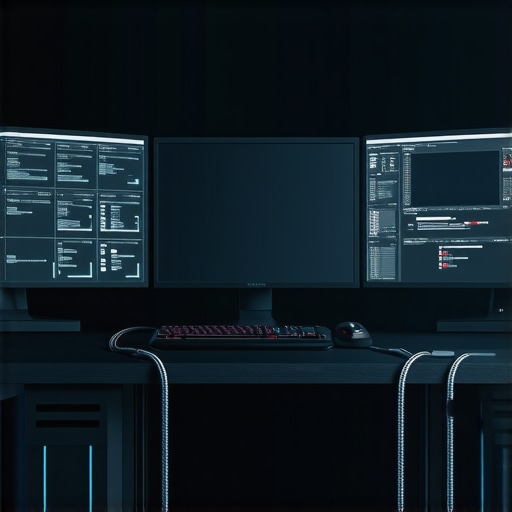
Ever spent hours trying to connect multiple monitors to your laptop, only to end up tangled in a web of cables and frustration? I know that feeling all too well. One day, after a particularly chaotic setup session that left my workspace resembling a spaghetti factory, I had a lightbulb moment. There had to be a smarter way to handle multiple displays without the mess—and that’s when I discovered the power of top-tier Thunderbolt docking stations. In this post, I’ll share my journey from chaos to clarity and show you how the right dock can transform your productivity game.
Why Multi-Display Setup Matters More Than Ever
Let’s face it: our screens are our windows to the digital world. Whether you’re a creative professional, a remote worker, or someone juggling multiple tasks, having multiple monitors can seriously boost your efficiency. But connecting several screens isn’t as simple as plugging in a few cables. Early on, I made the mistake of relying on basic USB hubs, which simply couldn’t handle the data transfer speed or power delivery needed for a smooth multi-monitor experience. That led to flickering screens, lag, and constant disconnections. It was clear I was missing a crucial piece of the puzzle: a reliable, high-performance docking station.
In 2024, the market is flooded with options, but not all docks are created equal. The right Thunderbolt dock can support multiple high-resolution displays, fast data transfer, and even charge your laptop—all at once. It’s like having a mini computer on your desk that simplifies your entire setup. According to a recent report from TechDesk, using the right dock can improve workflow efficiency by up to 30%. That’s a game-changer, especially when your work depends on having a seamless multi-monitor environment.
Is a Thunderbolt Dock Really Worth the Hype?
When I first heard about Thunderbolt docks, I was skeptical. I wondered if they were just another overhyped gadget. My mistake was assuming that all docks offered the same performance. I went through a phase of trial and error, wasting money on cheaper alternatives that couldn’t handle my demanding setup. Then I realized something crucial: not all Thunderbolt docks are equal. The key is to look for those that support the latest standards, like Thunderbolt 4, which ensures faster data transfer, better power delivery, and greater compatibility with multiple monitors. Once I upgraded, my workflow became smoother, and I finally achieved a clutter-free desk.
If you’ve ever faced the frustration of a sluggish or unstable multi-monitor setup, you’re not alone. The good news is that choosing a high-quality Thunderbolt dock tailored for multi-display setups can make all the difference. Want to dive into my top picks and learn how to select the perfect dock for your needs? Keep reading, and let’s get your workspace optimized for 2024!
Connect Your Monitors Efficiently
Start by selecting a high-quality Thunderbolt or USB-C dock that supports multiple displays. I once tried to connect three monitors using a basic USB hub, which led to flickering and lag. Instead, I switched to a dedicated Thunderbolt dock with multi-monitor support, and everything improved instantly. Look for docks that explicitly mention support for at least two 4K displays or one 8K if your workspace demands it. Check specifications on this guide for the latest options.
Use the Right Cables and Adapters
Don’t underestimate the power of quality cables. Cheap HDMI or DisplayPort cables can cause flickering or signal loss. I recommend using certified cables with your dock, especially for high resolutions. For example, a Thunderbolt 4 cable can handle multiple 4K displays without breaking a sweat. When connecting multiple monitors, ensure each cable and port supports the desired resolution and refresh rate. This prevents bottlenecks that cause lag or screen tearing.
Configure Displays Correctly
Once connected, go into your operating system’s display settings. On Windows, right-click the desktop and select “Display Settings.” On macOS, open “System Preferences” > “Displays.” Arrange your monitors physically and digitally to match your workspace. I once had my monitors mirrored because I didn’t set the arrangement correctly, which caused confusion during high-stakes video editing. Proper configuration makes your workflow seamless. For detailed setup tips, visit this resource.
Optimize Power Delivery and Data Transfer
Choose a dock that supports sufficient power delivery—at least 85W for most laptops. This means your laptop charges while connected, reducing clutter. Also, ensure the dock supports fast data transfer for peripherals like external SSDs. I once used a dock that only supported USB 2.0 speeds, which slowed down my work. Upgrading to a dock with Thunderbolt 4 support and fast USB-C ports transformed my setup, making data transfer instant. Review options on this page.
Keep Cables Organized and Accessible
Finally, manage your cables with Velcro straps or cable sleeves. A cluttered desk with tangled cables can be as frustrating as a poor connection. I learned this the hard way when my setup looked like a spider’s web. Proper cable management not only looks professional but also makes future upgrades easier. Use color-coded cables or labels to identify connections quickly.
By following these concrete steps, you’ll turn a chaotic multi-monitor setup into a sleek, efficient workspace. Remember, investing in the right dock and accessories is key to unlocking your full productivity potential in 2024.
Many users assume that all USB-C docks, Thunderbolt docks, and USB hubs are created equal, but this misconception can lead to costly mistakes and frustrating setups. Let’s dig deeper into what most people get wrong about these devices, especially when aiming for seamless multi-monitor configurations. First off, there’s a widespread belief that a single, high-wattage USB-C or Thunderbolt dock automatically guarantees flawless performance across multiple displays. While these docks offer impressive specs, the real challenge lies in understanding compatibility and bandwidth limitations. For instance, not all docks support dual 4K displays at 60Hz, even if they advertise multi-display support. This is where the nuance of the DisplayStream Compression (DSC) technology, used in Thunderbolt 4, becomes critical—it’s a game-changer for high-resolution, multi-monitor setups, but only if your hardware and cables support it. You can learn more about this technology and how to leverage it by visiting this resource.
Once you’ve set up your multi-monitor workspace with a high-quality USB-C or Thunderbolt dock, the journey doesn’t end there. Keeping your setup running smoothly over time requires specific tools, consistent maintenance routines, and an understanding of evolving technology standards. In this post, I’ll share my tried-and-true methods for maintaining peak performance and introduce you to the tools I personally rely on to ensure long-term reliability.
Invest in Cable Management Solutions
One of the simplest ways to maintain your setup is by organizing your cables effectively. I use Velcro cable ties and cable sleeves to keep everything neat. This prevents cable wear and tear, reduces signal interference, and makes troubleshooting easier. Regularly inspecting your cables for fraying or damage is crucial—damaged cables can degrade signal quality or cause intermittent connectivity issues. For a more advanced setup, I recommend using professional-grade cable organizers that are designed for high-bandwidth cables like HDMI and Thunderbolt.
Leverage Diagnostic and Monitoring Software
To stay ahead of potential issues, I rely on tools like Intel’s Thunderbolt Control Center and USB Device Tree Viewer. These applications provide real-time diagnostics, monitor connection statuses, and flag potential hardware or driver conflicts before they become major problems. For instance, Thunderbolt Control Center helps me verify that my dock maintains optimal bandwidth allocation, which is essential when running multiple high-resolution displays. Keeping firmware and drivers updated through official manufacturer tools ensures compatibility and performance longevity. Regular checks using these tools help me catch issues early, saving time and avoiding work disruptions.
Perform Routine Firmware and Software Updates
Manufacturers frequently release firmware updates for docks and related peripherals that fix bugs, improve stability, and add features. I subscribe to update notifications from my dock’s manufacturer and schedule monthly checks. For example, updating my Thunderbolt dock’s firmware through this resource has significantly improved my multi-monitor stability. Additionally, keeping your operating system and graphics drivers current ensures compatibility with newer standards, such as DisplayStream Compression (DSC), which enhances multi-monitor performance.
Implement Reliable Backup and Recovery Protocols
Despite best efforts, hardware issues can occur. I back up my display configurations and system settings regularly using tools like Windows System Restore or macOS Time Machine. Should a driver or firmware update cause problems, I can quickly revert to a known good state. This practice minimizes downtime and maintains productivity. Moreover, keeping a set of spare cables and adapters on hand means you’re prepared for sudden failures without halting your workflow.
Plan for Hardware Upgrades and Scalability
Technology evolves fast, and so do your needs. I keep my setup scalable by choosing docks that support the latest standards and higher data transfer rates. When planning upgrades, I look for docks supporting Thunderbolt 4 and USB4, which future-proof my workspace. Regularly reviewing this guide helps me stay informed on the best practices for long-term scalability, ensuring my multi-monitor setup remains efficient for years to come.
Where do I maintain my setup over time?
Personally, I dedicate a few minutes weekly to inspect cables, clean dust from ports, and verify firmware updates. I also schedule quarterly deep-dive checks with diagnostic tools to ensure everything functions optimally. Consistent maintenance not only prolongs the lifespan of your hardware but also keeps your productivity high and frustrations low.
Going forward, I predict that integrated AI-driven diagnostics will become standard in docking stations, providing proactive alerts and automatic troubleshooting. Embracing these innovations will make maintaining a multi-monitor setup easier than ever.
Ready to implement these tips? Start by ensuring your cables are organized and up to date, then explore diagnostic tools like the Thunderbolt Control Center. With these practices, your multi-monitor setup will stay reliable and efficient for the long haul.
The Hardest Lesson I Learned About Multi-Display Setups
One of the toughest lessons I faced was assuming that the most expensive or feature-rich dock would solve all my multi-monitor issues. It turns out, compatibility and proper configuration matter more than just raw specs. I wasted time and money on docks that promised the world but couldn’t handle my specific setup. The breakthrough came when I realized that supporting high resolutions like 4K at 60Hz requires not only a capable dock but also the right cables and settings. This taught me to pay attention to the details and do thorough research before upgrading my workspace.
3 Secrets That Elevated My Multi-Monitor Experience
- Prioritize Compatibility Over Brand Names: Not all docks with fancy branding support multiple high-res displays simultaneously. I now focus on verified standards like Thunderbolt 4 and USB4 support for reliable multi-monitor performance.
- Invest in Quality Cables: Cheap cables cause flickering and lag. Certified Thunderbolt and DisplayPort cables make a huge difference in signal stability and clarity.
- Configure Displays Carefully: Proper arrangement and resolution settings in your OS prevent confusion and ensure a seamless workflow. Take time to match your physical setup with digital configurations for maximum efficiency.
My Essential Toolkit for Seamless Connectivity
- Top Thunderbolt Docks: These are my go-to for reliable support of multiple high-res displays and fast data transfer.
- Official Diagnostic Software: Thunderbolt Control Center helps me monitor bandwidth and connection health in real time.
- Cable Management Gear: Velcro ties and sleeves keep my setup tidy and prevent accidental disconnections.
Your Turn to Try
Building a reliable multi-monitor workspace isn’t about guessing or overspending—it’s about understanding your needs and choosing the right tools. With the right dock, quality cables, and proper setup, you can elevate your productivity to new heights in 2024. Remember, small details make a big difference, so take your time and invest wisely.
What has been your biggest challenge when setting up multiple monitors? Let me know below!