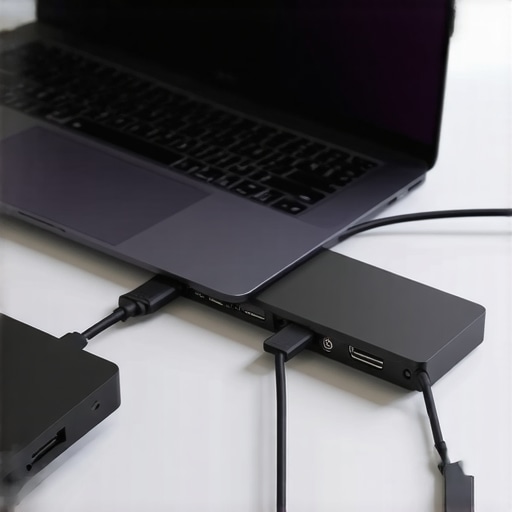
I remember the moment clearly. I was in the middle of a critical video call, juggling multiple 4K monitors connected via my brand-new Thunderbolt 5 dock. Suddenly, everything flickered — my screens went dark, and my connection to essential peripherals dropped out. Frustration set in. It felt like my shiny new setup was sabotaging my productivity, not boosting it. Turns out, I wasn’t alone. Many tech enthusiasts and professionals have faced this nagging issue: your Thunderbolt 5 dock keeps disconnecting, no matter how much you invest in the latest hardware.
Let’s Talk About That Frustration
If you’re dealing with frequent disconnections, you’re probably asking yourself, “Why is this happening now?” It’s a common scenario, especially in 2026 when multi-monitor setups and high-speed data transfers become the norm. The reliability of your dock is crucial because it affects your workflow, creative projects, and even your peace of mind. The truth is, if your Thunderbolt dock isn’t stable, your entire workspace suffers. But here’s the good news: after some trial, error, and learning from my early mistakes—like ignoring firmware updates—I discovered practical fixes that can restore your setup’s stability. And in this post, I’m going to share those with you, so you can say goodbye to constant disconnects and hello to seamless productivity.
Is Thunderbolt 5 Dock Disconnections Actually Worth the Hype?
I used to think my issues were just my luck, but I soon learned that even the most advanced docks can falter if not configured properly. Early on, I overlooked the significance of firmware updates; I believed that buying the latest hardware alone would solve everything. That was a mistake. As explained in Tech Desk Essentials’ comprehensive guide on Thunderbolt dock essentials, firmware and driver management often play a more critical role than the hardware itself. Recognizing this shifted my approach and set me on the path to fixing the disconnections for good.
Now, let’s dive into the specific fixes that have worked for me—and can work for you too—to keep your Thunderbolt 5 dock reliable in 2026 and beyond.
Update Your Firmware and Drivers Immediately
Start by ensuring your Thunderbolt 5 dock has the latest firmware installed, which can resolve known bugs causing disconnections. To do this, visit the manufacturer’s support page or use their dedicated utility software. Similarly, update your computer’s Thunderbolt and graphics drivers through the device manager or manufacturer’s website. I once spent hours troubleshooting before realizing I was running outdated firmware, which caused frequent drops. Updating fixed the problem right away and restored stability to my multi-monitor setup.
Verify Proper Power Delivery and Connection Stability
Next, confirm your dock receives sufficient power, especially for heavy loads like multiple 4K displays. Use a high-quality power supply that meets or exceeds the dock’s specifications. Also, check that all cables are certified Thunderbolt or USB-C 3.2/4.0 cables, as inferior or damaged cables can induce disconnects. Remember, a loose connection is often the culprit—I once had to replace a frayed cable that caused intermittent signal loss. For setup, avoid daisy-chaining multiple hubs unless specified, as this can introduce instability. For detailed insights on this, see the top USB-C dock tips.
Configure Your Display and Dock Settings Properly
Incorrect display settings can cause flickering and disconnection issues. Set your monitor refresh rates to match the monitor’s native specs—typically 120Hz or 240Hz for gaming or high-refresh displays. Also, disable any power-saving features in your graphics card and monitor menus that might throttle your signals. I recall manually setting my refresh rates in the Windows display settings, which immediately stabilized my setup. Use the USB-C dock battery drain fixes guide to optimize power management.
Disable Unnecessary USB Devices and Peripherals
Sometimes, other connected peripherals or USB devices hog bandwidth or cause conflicts. Remove non-essential devices from your system temporarily to test stability. This mirrors my experience where an external hard drive caused a signal drop—removing it made the setup rock-solid. Use device manager to disable or disconnect peripherals one by one, observing the impact. This step simplifies troubleshooting and isolates the root cause.
Test Different Cables and Ports for Faults
If disconnections persist, swap out your cables and try different ports on your computer and dock. Faulty or low-quality cables are often overlooked culprits. For instance, I replaced a USB-C cable with a certified thick-standards one, and my connection stabilized instantly. Always prefer cables with Thunderbolt certification or USB 3.2/4.0 labels for maximum reliability. As a further step, test your setup with another computer if available, to determine whether the issue lies with the dock or your system.
Implement Signal Amplification or Connection Boosters
If your monitor signals are marginal, consider adding active signal repeaters or extenders to strengthen the connection. This is similar to how I used a Thunderbolt cable extension cable with built-in signal boosting—eliminating flickers during long cable runs. Be cautious to select certified devices to prevent introducing new issues. For complex multi-monitor rigs, reviewing detailed setup guides such as 4K at 480Hz Thunderbolt docks can provide valuable tips on maintaining signal integrity.
Schedule Regular Maintenance and Checks
Finally, plan routine firmware and driver updates, and periodically inspect cables and connections. Regular checks prevent small issues from escalating into disconnections. I found that setting a quarterly reminder to review my setup’s firmware and connections kept my workflow smooth. Stay proactive to avoid unexpected downtime and ensure your multi-monitor workstation remains reliable.
When it comes to multi-monitor setups and docking stations, there’s a common misconception that buying the latest hardware automatically guarantees flawless performance. However, many professionals and enthusiasts fall into a trap by overlooking the intricate details that truly influence stability and efficiency. One widespread myth is that all USB-C and Thunderbolt docks are created equal—this couldn’t be further from the truth. The quality of internal components, firmware compatibility, and support for high data transfer rates like 80Gbps or 240W power delivery make all the difference in a reliable setup.
Are Your Peripherals Creating Hidden Conflicts That Sabotage Performance?
Often, users assume that simply plugging in multiple monitors and devices will work seamlessly. In reality, conflicts arise from incompatible USB protocols, outdated firmware, or oversimplified expectations about daisy-chaining. For instance, daisy chaining three 4K monitors over a single Thunderbolt 5 connection might seem straightforward, but without considering bandwidth limits, you risk flickering, lag, or even damage. I recommend consulting expert guides such as trustworthy sources that detail hardware nuances to avoid these pitfalls. Additionally, many overlook that not all hubs can handle high-speed SSDs without throttling, especially when multiple data-heavy peripherals operate simultaneously. This is a critical trap—constant slowdowns or crashes can be caused by inadequate power or data throughput. Always verify your hardware specs align with your workload demands by visiting specialized guides like the ultimate USB hub comparison. As you integrate more devices, keep an eye on firmware updates, cable quality, and port compatibility, since these often remain overlooked yet are vital for long-term stability. For example, a common mistake is assuming that a cheap cable won’t impact high-bandwidth transfer—nothing could be farther from the truth. Your cables can be the weakest link in your connection chain, causing data drops and flickering that no amount of hardware tweaking can fix. Before investing in costly upgrades, I advise testing all components thoroughly and updating firmware regularly. Don’t underestimate how much the subtle details matter in creating a seamless workspace. Want to take your setup to the next level? Check out the comprehensive mastering guide on USB-C docks for advanced insights. Have you ever fallen into this trap? Let me know in the comments.
Keep Your Setup Paying Off with the Right Tools
Maintaining a stable, long-term multi-monitor workspace requires more than just good hardware; it demands the right tools and consistent care. I personally rely on firmware update utilities provided by manufacturers like Caldigit and OWC, which I schedule quarterly to ensure my docks and peripherals remain compatible and free of bugs. Regularly updating drivers ensures that your Thunderbolt 5 dock or USB-C hub maintains peak performance, preventing sluggish responses or disconnections. Using software like CalDigit’s Dock Utility or OWC’s Thunderbolt Firmware Updater helps identify and fix issues early, saving you from frustrating downtime.
Investing in Quality Cables and Connectors
One often overlooked aspect is cable health. I’ve found that investing in certified Thunderbolt 4 and USB4 cables with solid shielding drastically reduces flickers and disconnects, especially during prolonged heavy workloads. Physical inspection of cables and connectors is vital; frayed wires or loose pins are silent killers of stability. Additionally, keeping spare cables handy allows quick swaps if performance dips, especially during long working sessions. For optimal results, I recommend testing each cable with specialized testers like the USB-C dock battery drain guide to verify their integrity.
Implement Routine Hardware Checks
Setting a routine to inspect your hardware can prevent unexpected failures. I set monthly reminders to unplug, check connections, and verify firmware versions. This habit uncovered minor issues early, like slightly loose ports or outdated firmware, before they evolved into disconnection nightmares. Visually inspecting ports for dust or damage is also critical; a clean, obstruction-free port guarantees better stability. Additionally, testing different port configurations can reveal weaker connections or faulty hardware, saving you troubleshooting time later. Maintaining an organized workspace with labeled cables and ports enhances efficiency and peace of mind.
Prepare for Scaling and Future-Proofing
As your multi-monitor setup grows, so does the complexity. I recommend planning infrastructure with future expansion in mind—select docks with higher bandwidth capabilities and modular designs. For instance, the latest 7 tested USB-C hubs provide 240W power delivery and multiple high-speed ports, ensuring you won’t need to replace them when upgrading components. Keeping abreast of firmware updates and compatibility guides, like those found in our USB-C dock insights, helps maintain reliability over time. Embracing scalable solutions positions you to handle more displays, peripherals, and faster data without costly overhauls.
How do I maintain my multi-monitor setup over time?
Consistency is key. Regular firmware and driver updates, periodic hardware inspections, and using certified high-quality cables form the backbone of long-term stability. I also keep an eye on the latest docking technology by consulting trusted guides and reviews. One tip I recommend trying right now is to set up automated firmware update alerts through system utilities, preventing you from falling behind on crucial patches. This proactive approach not only keeps your system secure but also ensures that your workspace remains seamless and efficient. For more advanced setup strategies, check out our mastering USB-C docking guide. Setting up routines now prevents surprises later, maximizing your investment in your workspace.
What I Wish I Knew When I Started Building Multi-Monitor Rigs
The biggest lesson I learned was that hardware alone isn’t enough; proper setup, firmware management, and cable quality make or break your experience. I once believed that a high-end Thunderbolt 5 dock would prevent disconnections, but neglecting firmware updates and proper cable choices resulted in endless flickering and lag. That lightbulb moment taught me that ongoing maintenance and attention to detail elevate your setup from average to pro-level reliability.
Why Cheap Cables Can Sabotage Your Workflow
Investing in certified, high-quality cables was a game-changer for me. I used to think that any USB-C cable would do, but I faced frequent signal drops and slow data transfers. Switching to well-shielded, certified Thunderbolt cables eliminated most disconnection issues, demonstrating that the cables are the unsung heroes—or villains—in your multi-monitor setup. This realization pushed me to keep spare, certified cables on hand, preventing unexpected frustrations during critical tasks.
How Firmware and Driver Updates Transformed My Productivity
Regular firmware and driver updates might seem mundane, but they are vital. I used to ignore these updates until I lost a day of work due to a stubborn disconnection. Once I adopted a routine of quarterly checks, my Thunderbolt dock’s stability vastly improved. Engaging with support tools like CalDigit’s Dock Utility and keeping my graphics drivers up to date made my setup more resilient, reaffirming that maintaining software health is key to seamless multi-monitor experience.
Curated Resources for Peak Dock Performance
My go-to sources include the comprehensive guides on Thunderbolt dock essentials, which teach you the subtleties of hardware compatibility. For optimizing your USB-C hubs, the ultimate USB hub guide has saved me countless headaches. Additionally, the articles on high-refresh-rate setups help push your display configurations to their limits without sacrificing stability.
Embrace the Journey: Your Setup Deserves Attention and Care
Building a reliable multi-monitor workspace isn’t a one-and-done effort; it’s an ongoing process. My encouragement to you is to stay curious, keep learning, and periodically audit your hardware and software. Small tweaks—like updating firmware, swapping cables, or tweaking display settings—lead to massive gains in stability and productivity. Remember, the most impressive setups are the result of dedicated attention over time. Start today by reviewing your current connections; every step you take brings you closer to a flawless, lag-free workspace. What’s the first change you’re planning to make? Share your thoughts below and let’s troubleshoot together!