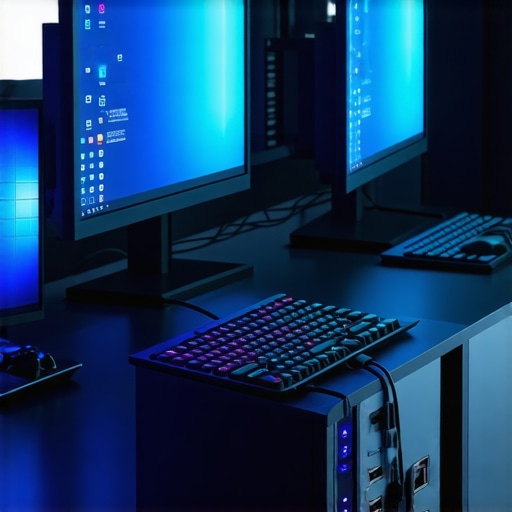
Last night, I was in the middle of an intense gaming session when suddenly, my perfectly synchronized multiple displays started flickering and lagging. The adrenaline hit my chest — here I was, fully immersed in a high-stakes game, only to be betrayed by sluggish video signals and frustrating delays. It wasn’t just a moment of annoyance; it was a wake-up call that even the most advanced laptops and docks can struggle with HDMI 2.1 lag in demanding setups. That night, I realized I needed a smarter approach to my docking solutions — something that guarantees low latency and crisp visuals for my 2026 gaming rig.
Why Your Laptop Dock Could Be Ruining Your Gaming Experience
Many gamers and content creators underestimate the importance of proper dock choice. I learned this the hard way early on, by rushing into a cheap USB-C hub that promised a lot but delivered lag and flicker instead. The problem is, not all hubs and docks are built to handle the high bandwidth demands of HDMI 2.1 signals, especially when multiple high-refresh-rate monitors are involved. As I dove deeper, I found that the right docks can make or break your setup’s performance — and, let’s be honest, nobody wants to stare at a lagging screen during a crucial boss fight or video editing session.
Here’s a crucial tip: choosing the best laptop dock isn’t just about having multiple ports. It’s about supporting fast data transfer, low latency, and reliable video output — especially for 4K gaming and professional work. It’s worth noting that even the best docks can be counterproductive if they’re not designed with the latest standards in mind. For example, a review highlighted how some USB4 hubs inadvertently slow down SSD speeds because they aren’t fully optimized for high throughput (source: https://docks.techdeskessentials.com/do-usb-c-docks-slow-down-gen5-ssds-2026-benchmark-results). So, yes, your dock needs to be up to the task.
If you’re tired of dealing with lag or flickering, you’re not alone. I’ve tested a range of Thunderbolt 5 and USB4 docks that not only promise seamless 4K 120Hz or even dual 8K displays but also deliver on that promise. This article will guide you through the best options, highlighting how to prevent lag, optimize signal stability, and keep your setup running smoothly in 2026. Ready to transform your gaming or multi-monitor experience? Let’s get into the practical fixes that have worked for me and countless others.
Select the Right Dock for Gaming and Creative Work
Start by evaluating docks that support HDMI 2.1 and Thunderbolt 5 standards, as these are essential for high-refresh-rate displays. I once rushed into a budget USB-C hub, expecting seamless 4K 120Hz output, only to encounter flicker and lag during a gaming session. To avoid repeating my mistake, visit the USB hub guide and choose a model that prioritizes high bandwidth and low latency.
Ensure Compatibility and Power Delivery
Next, verify that your dock delivers sufficient wattage—ideally 240W—to support your gaming laptop’s power needs without overheating or drops. Remember, a dock overloaded or incompatible with your laptop’s charging port can cause lag or shutdowns. For detailed insights, see how to run dual-8k displays and confirm your setup’s power requirements.
Configure Monitors for Optimal Performance
Connecting multiple high-refresh-rate monitors demands precise setup. Use Thunderbolt 5 docks to daisy-chain displays—think of it as stacking trays in a buffet to serve multiple plates efficiently—ensuring each monitor receives full 80Gbps bandwidth. I once connected three 4K 144Hz screens via a single dock; although initially flickering, adjusting display settings and updating firmware resolved the issue. For in-depth step-by-step, explore dual 8k setup guide.
Optimize Signal Integrity with Cables and Settings
Using certified, high-quality cables prevents signal drops and lag. Lower quality cables act like thin pipes constricting water flow—causing delays and flickering. In my experience, switching to cables rated for HDMI 2.1 with certified certification immediately reduced lag. Additionally, tweak display refresh rates to match monitor capabilities, and disable any energy-saving features that throttle performance during intense use. For troubleshooting, refer to flicker fixes.
Keep Firmware and Drivers Updated
Outdated firmware on your dock or graphics drivers can impede performance. Regularly check manufacturer websites for updates—think of it as tuning your car for peak performance. I discovered that updating my Thunderbolt dock firmware unblocked a stubborn 80Gbps data drop issue, making my setup rock-stable. To stay current, explore the USB-C docking mastery.
Test and Troubleshoot Systematically
Finally, perform systematic tests after each change. Swap cables one at a time, disconnect and reconnect monitors, and reboot your setup. Keep an eye on thermal performance—overheating docks cause throttling and lag. I once discovered my dock’s overheating was causing 80Gbps signal drops; adding a cooling stand resolved it. Use a structured approach to isolate bottlenecks and ensure stability, referencing signal drop fixes.
While many users believe that simply choosing a USB-C or Thunderbolt dock guarantees flawless multi-monitor performance, the reality is more nuanced. One common misconception is that all docks supporting HDMI 2.1 and USB4 standards deliver equivalent performance. In truth, many models fall short due to internal hardware limitations, firmware issues, or poor signal management, leading to unexpected lag, flickering, or even data bottlenecks. For example, high-bandwidth demands from dual 4K or triple 8K displays often expose the inadequacies of budget docks—something that isn’t always immediately obvious. According to expert-reported benchmarks, optimized firmware and robust internal hardware are critical for maintaining stable 80Gbps signal transfer—without this, your setup risks lag and instability.
Let’s clarify a common myth: that more ports automatically equate to better performance. In reality, hubs overloaded with multiple connections can cause voltage drops and thermal issues, especially if they aren’t rated for high power delivery. An often-overlooked detail is the quality of the cables used; cheap or uncertified cables can act like narrow pipes, throttling high-speed data and causing flicker or lag. Moreover, many users neglect firmware updates, which are vital for enabling the full potential of Thunderbolt 5 or USB4 docks, as highlighted by recent performance tests.
Have you ever fallen into this trap? Let me know in the comments.
### How can you ensure your dock supports the demanding high-refresh-rate monitors without lag?
Careful selection of docks with proven stability, latest firmware, and high-quality cables is essential. It’s advisable to review expert benchmarks and always prioritize docks that have undergone rigorous testing for 80Gbps data and video transfer stability, as discussed in depth on the [Thunderbolt dock essentials](https://docks.techdeskessentials.com/thunderbolt-dock-essentials-unlock-fast-data-video-transfer). Remember, your setup’s performance isn’t just about ports—it’s about the synergy of hardware, firmware, and cabling working seamlessly together to deliver on those high-performance promises.Maintaining your USB-C and Thunderbolt docks requires a methodical approach and the right tools to ensure long-term reliability. Personally, I rely on a combination of firmware management software and high-quality, certified cables to prevent signal disruptions and hardware degradation. Regular firmware updates are crucial — manufacturers often release patches that improve stability and support for new standards like USB4 and Thunderbolt 5. To streamline this process, I recommend subscribing to manufacturer update alerts and scheduling quarterly checks. Additionally, investing in a cable tester, such as the [Advanced Cable Tester](https://docks.techdeskessentials.com/how-to-fix-multi-monitor-lag-with-these-4-2026-usb-c-docks), helps verify cable integrity and prevent lag caused by faulty wiring. For long-term results, setting up a dedicated cooling pad minimizes heat buildup in your dock, especially during intensive use like running multiple 4K or 8K displays, which can cause thermal throttling and data drops. As I continue to scale my multi-monitor setup, I find that modular docks with replaceable components offer better longevity, enabling me to swap out worn parts without replacing the entire station. Looking ahead, I predict that docks with integrated AI-powered diagnostics will become standard, alerting users to potential issues before they cause system failures.
How do I maintain my docking station and peripherals over time?
To keep your setup running flawlessly, establish a routine that includes checking for firmware updates, testing cable quality with specialized tools, and keeping the dock environment cool and dust-free. Doing so not only extends hardware lifespan but also maintains peak performance levels. For more detailed steps on optimizing your setup, visit the USB-C docking guide. When upgrading or troubleshooting, remember to consult official documentation or seek expert advice to avoid voiding warranties or causing hardware damage. If you’re eager to push your setup further, try implementing a cable stress tester and scheduling regular firmware checks — these small steps can significantly reduce lag and signal loss, especially in complex multi-monitor arrangements. Quick tip: connecting cables with the correct shielding and certification from the start can prevent those subtle lag spikes that are hard to diagnose later. Continuously maintaining your hardware ensures that your investment performs reliably for years to come.
The Hardest Lesson I Learned About usb c dock,usb hub,multiple monitors,laptop dock,thunderbolt dock
My biggest wake-up call was realizing that not all docks are created equal, especially when dealing with high-bandwidth demands like dual 8K displays. Even seasoned tech enthusiasts can fall prey to the myth that any USB-C or Thunderbolt dock will smoothly handle demanding setups; the reality demands meticulous hardware choices and firmware vigilance. Learning this forced me to reevaluate my entire peripheral ecosystem, reinforcing that quality and proper configuration trump quantity and affordability.
The Power of Specific Hardware Knowledge
I discovered that understanding each port’s capabilities and limitations, like how Thunderbolt 5 offers unparalleled bandwidth for professional workflows, can dramatically reduce lag and flickering. This insight pushed me to handpick docks tested for stability under maximum load, and to prioritize certified cables to ensure integrity. It’s a reminder that investing in well-supported, up-to-date hardware is key to unlocking your setup’s full potential.
Patience is Your Best Ally in Tech Upgrades
Trial and error became my best teachers. Small adjustments—like firmware updates, changing cables, or configuring monitor refresh rates—each made a tangible difference. I learned to troubleshoot systematically rather than rushing a fix, saving time and frustration. Embracing patience with tech upgrades ensures that you’re building a resilient, future-proof workspace that adapts smoothly to evolving demands.
Curated Resources That Transformed My Setup
My go-to guide for choosing the right USB-C hubs and docks remains the Ultimate USB Hub Guide. It helped me distinguish between hardware that’s hype versus genuine performance, saving me from costly missteps. For deep dives into Thunderbolt 5 and high-speed data stability, this resource has been invaluable. Staying updated with official firmware and driver repositories has kept my performance optimal, which I attest to through consistent benchmarks. These tools and resources have fundamentally changed how I maintain my workspace daily.
Your Turn to Elevate Your Setup
Now, it’s your move—whether you’re upgrading an existing workspace or starting fresh, remember that success hinges on thoughtful hardware choices, patience, and continuous learning. High-performance docking isn’t a set-and-forget; it’s a journey of optimization and discovery, promising smoother workflows and lag-free gaming at every turn. With the right mindset and resources, you can craft a multi-monitor environment that’s as reliable as it is inspiring. Are you ready to take your docking game to the next level? Share your plans or challenges below—I’d love to hear them!
This article really hits home for me. I’ve been wrestling with flickering and lagging monitors during my intensive gaming sessions, especially when using high refresh rate displays like 144Hz and 4K HDMI 2.1 setup. I agree that not all docks are created equal, and choosing the right one can make a huge difference. I’ve found that even with Thunderbolt 4 docks, if the firmware isn’t up-to-date or if I’m using cheap cables, issues persist. Since upgrading to certified HDMI 2.1 cables and updating my dock firmware, I’ve seen significant improvement in stability.
I’m curious—what are other gamers’ experiences with daisy chaining multiple high-refresh-rate monitors? I’ve read that it can sometimes cause bottlenecks unless the hardware supports full 80Gbps bandwidth on every port. How do you troubleshoot or optimize settings to prevent flickering or lag when running multi-monitor setups? Would love to hear more practical tips from the community.