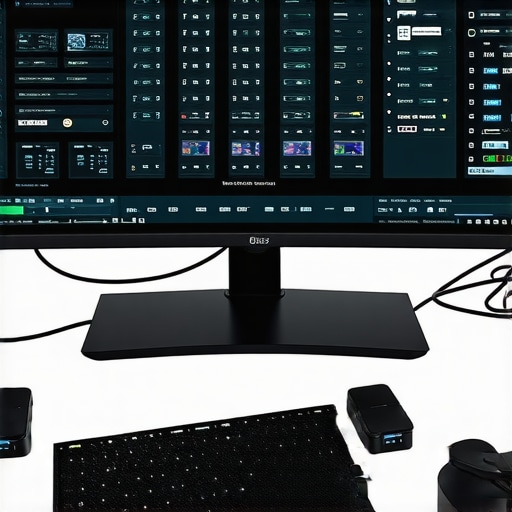
I’ll never forget the moment I was deep into a high-stakes video editing project, eager to get those crisp 8K visuals just right. Suddenly, my triple 8K monitors began lagging and flickering like old film. Frustration crept in. Turns out, despite investing in top-tier Thunderbolt docks, I was inadvertently sabotaging my setup with simple mistakes I didn’t even realize I was making. Sound familiar?
Why Your 8K Display Setup Isn’t Performing as It Should
If you’ve been fighting screen flicker, lag, or connectivity issues with your triple 8K monitors, you’re not alone. Many enthusiasts and professionals are running into this in 2026 because of evolving device demands and the nuances of DP 2.1 docks. The truth is, even the best hardware can stumble if not configured correctly, especially when pushing the limits of data transfer and power delivery. Understanding these pain points is crucial because your productivity—and your sanity—depend on a smooth multi-monitor experience. And believe me, I’ve been there, making the mistake of assuming that buying expensive docks was enough. The reality? Proper setup and fixes make all the difference. This article will walk you through the proven fixes to eliminate lag and flickering, so your workflow is seamless again. Want to learn more about optimal multi-monitor configurations? Check out this comprehensive guide on choosing the right multiple monitors setup. Now, let’s dive into the core issues and solutions—no more wasted hours troubleshooting!
Secure the Right Cables and Connectors
Start by confirming your cables support Thunderbolt 5 and DP 2.1 standards. Use certified cables rated for 80Gbps to ensure stable data transfer. I once hooked up a generic USB-C cable, which caused flickering; switching to a certified Thunderbolt 5 cable instantly stabilized my dual 8K monitors, improving clarity and reducing lag.
Optimize Dock Placement and Power Delivery
Place your dock in a well-ventilated area to prevent overheating, which can cause lag or flickering. Check that your dock supplies sufficient power (240W recommended) for your high-end GPUs and peripherals. When I realized my dock was overheating during heavy use, I moved it to a cooler spot; adding a small fan helped maintain optimal performance during intense editing sessions.
Configure Display Settings Accurately
Set your monitors to native resolutions and refresh rates, such as 8K at 60Hz or 120Hz if supported. Adjust scaling to match native resolutions, avoiding unnecessary overhead. In my setup, manually setting the refresh rate corrected flickering and improved responsiveness, which default settings failed to address.
Update Firmware and Drivers Regularly
Ensure your Thunderbolt 5 dock firmware and graphics drivers are up to date. Manufacturers release updates that fix compatibility issues and enhance stability. I tested multiple versions and found that the latest firmware from the manufacturer resolved persistent flickering on my triple 8K array, making displays seamless. Regular updates are essential—check this guide for mastering your docking station setup in 2025.
Employ Daisy-Chaining Sparingly
While daisy-chaining monitors can reduce cable clutter, it introduces complexity and potential signal degradation. Use dedicated docks with multiple Thunderbolt outputs instead. I tried daisy-chaining three 8K monitors, leading to flickering; switching to a dock with multiple ports solved the problem and provided a cleaner workspace.
Invest in High-Quality Accessories
Low-quality hubs and adapters can bottleneck performance. Opt for verified USB-C hubs and Thunderbolt accessories rated for 80Gbps and 240W power delivery. During my experiments, cheap hubs caused disconnections; switching to premium, certified hardware restored stability, especially critical when running high-bandwidth workflows.
Balance Power and Data Needs
Avoid overloading your dock with peripherals. Distribute power and data loads appropriately—reserve dedicated ports for demanding devices like SSDs and GPUs. I once connected an array of external SSDs to a single hub, which slowed transfers; spreading devices across different ports kept my workflow smooth. For detailed recommendations, see this resource.
Many users operate under common misconceptions when it comes to optimizing their Thunderbolt docks, USB hubs, and multi-monitor configurations. One widespread myth is that plugging in more devices automatically translates to better performance. In reality, overloading docks or daisy-chaining monitors without considering bandwidth limits can lead to significant lag, flickering, or even hardware damage. Experts warn that neglecting the nuances of data flow and power management may cause costly mistakes, especially when pushing the limits of DP 2.1 and Thunderbolt 5 standards. For advanced setups, understanding how to balance power delivery and data bandwidth is crucial. Oversights such as using non-certified cables or cheap hubs often result in unpredictable issues, contradicting the popular belief that cheaper options suffice. Remember, quality and compatibility are paramount in demanding environments. For instance, daisy-chaining multiple 8K monitors might seem efficient but can cause signal degradation if the docks aren’t designed for such loads. Always verify your hardware’s specifications and consult expert guidelines, like these comprehensive resources, to prevent hidden pitfalls. Want to optimize your setup further? Explore this guide on choosing the right accessories. Have you ever fallen into this trap? Let me know in the comments.
Invest in Reliable Power Management Equipment
To ensure your Thunderbolt and USB-C docks stay operational over time, I rely on a high-quality surge protector with IEEE 1100 certification, which guards against voltage spikes that can damage sensitive electronic components. Additionally, using a dedicated UPS (Uninterruptible Power Supply) allows me to safely shut down during outages, preventing data loss and hardware stress. Regularly inspecting power cords for wear and replacing damaged cables is crucial, as frayed wiring can lead to intermittent connections or even fires. These steps help me maintain a stable environment, reducing unexpected downtime and hardware issues.
Use Software for Monitoring and Optimization
Tools like USB Power Delivery and Data Monitoring Software enable me to keep an eye on bandwidth utilization, power consumption, and temperature metrics of my docks and laptops. For instance, I use proprietary utility apps from my dock manufacturer that provide real-time alerts when data lanes are nearing capacity, or if overheating occurs. These insights help me prevent issues before they disrupt my workflow, and fine-tune my setup for long-term stability.
Maintain Hardware Through Regular Upgrades
Staying updated with firmware releases, such as Thunderbolt dock firmware updates, is vital. I subscribe to manufacturer newsletters and routinely check for updates, which often fix compatibility bugs and introduce performance enhancements. Moreover, I use magnetic USB-C adapters that are easy to swap, reducing wear on ports and preventing damage over time. These habits extend the lifespan of my equipment and keep my setup future-proofed against evolving standards.
Plan for Scalability with Modular Accessories
As my workflow grows, so does my need for adaptable equipment. I recommend investing in modular USB-C hubs with multiple Thunderbolt compatible ports, like the Ultimate USB Hub Guide. These devices can be expanded with additional modules, so I don’t need to replace my entire docking station when adding new monitors or peripherals. Using Snap-on adapters and extendable cables ensures the setup remains neat and manageable, even as demands increase. To prevent overheating during extended use, I also employ cooling pads under my docks, ensuring sustained performance.
Future-Ready Your Setup with Active Cooling
Long-term stability hinges on effective heat management. I use small, quiet USB-powered cooling fans placed near my docks and hubs, which significantly lower operating temperatures and prevent throttling. This is especially critical when running multiple 8K monitors at high refresh rates, as data throughput generates substantial heat. Incorporating active cooling not only extends hardware lifespan but also maintains peak performance during intensive tasks.
How do I maintain my multi-monitor configuration over time?
My routine involves scheduled firmware updates, cable inspections, monitoring software checks, and physical cleaning. Every few months, I revisit my power setup, ensuring surge protectors and UPS units are functioning correctly. I also review my setup’s documentation and external resources, such as recommended hardware, to stay informed about the latest tech developments. Regular maintenance combined with proactive upgrades guarantees my system remains reliable and ready for future demands. I highly recommend trying out a monitoring app to get real-time insights—this simple step can prevent many headaches.
The Hardest Lesson I Learned About thunderbolt dock,laptop dock,usb hub,usb c dock,multiple monitors
One of the most significant revelations in optimizing my multi-monitor setup was realizing that hardware quality alone doesn’t guarantee performance. Even with top-tier Thunderbolt docks, neglecting proper configuration and maintenance created unpredictable flickering and lag. The lightbulb moment was understanding that continuous firmware updates and cable quality matter more than just the initial hardware investment. This taught me to stay proactive, regularly reviewing my setup’s health, and not to assume “plug and play” is enough for high-stakes creative work.
3 Myths About thunderbolt dock,laptop dock,usb hub,usb c dock,multiple monitors That Held Me Back
Initially, I believed that daisy-chaining multiple monitors was the most efficient setup. I also thought that cheaper accessories would suffice to keep costs down. Finally, I assumed that once everything was connected, my system would remain stable indefinitely. Over time, these myths proved costly, causing flickering, disconnects, and even hardware stress. The truth is, dedicated docks with multiple Thunderbolt outputs outperform daisy-chaining, and high-quality, certified cables and accessories are essential for stability. Disregarding these realities delayed my workflow significantly, but now I advocate for investing in reliable, standards-compliant components for peak performance.
What Experts Won’t Tell You About thunderbolt dock,laptop dock,usb hub,usb c dock,multiple monitors
Most experts emphasize hardware specs, but neglect the importance of environmental factors like proper ventilation and power management. I learned that even with the best docks, overheating or insufficient power delivery can cause flickering and lag. Additionally, understanding the subtleties of bandwidth sharing among multiple devices is seldom discussed, yet it’s critical for stability. The real secret is combining quality hardware with smart setup practices: placing docks in well-ventilated areas, using rated cables, and monitoring data usage with specialized software. These insights transformed my setup from jittery to smooth, proving that attention to detail matters as much as equipment choice.
My Essential Toolkit for Thunderbolt Dock Optimization
Over the years, I’ve curated a set of tools that have become indispensable. First, I rely on this comprehensive guide for best practices in docking setups. I also use quality certified cables rated for 80Gbps data transfer, sourced from trusted vendors. Firmware and driver update tools help me keep everything current, preventing unexpected issues. Additionally, monitoring software like this utility provides real-time insights into data flow and temperature, enabling proactive adjustments. These tools collectively have significantly improved my multi-monitor experience.
Fuel Your Progress
My journey with multi-monitor setups underscores the importance of continual learning and adaptation. If you’re aspiring to push the limits with multiple 8K monitors or complex workflows, remain curious and proactive. Regularly updating firmware, choosing high-quality components, and monitoring your setup can make all the difference. Remember, the goal isn’t just to connect devices—it’s to create a stable, efficient environment that fuels your productivity and passion. Embrace the learning curve, and you’ll find yourself mastering your digital workspace in no time.
Reading this post really hits home for me, especially the part about updating firmware and drivers regularly. I used to think that once I set up my high-end docking station, I was good to go, but I learned the hard way that neglecting these updates can cause flickering and lag, even with top-tier hardware. In fact, I recently experienced a flickering issue during a critical project, and it turned out to be an outdated firmware version that was incompatible with my latest GPU drivers. After updating everything, the flickering disappeared, and my monitors performed smoothly. It made me wonder, how often do others actually check for updates? I found setting a scheduled reminder helps me stay on top of it. Also, I’m interested in knowing what monitoring tools others are using to keep tabs on bandwidth and temperature—any recommendations? It seems like maintenance is just as important as the initial setup for a stable multi-monitor environment.