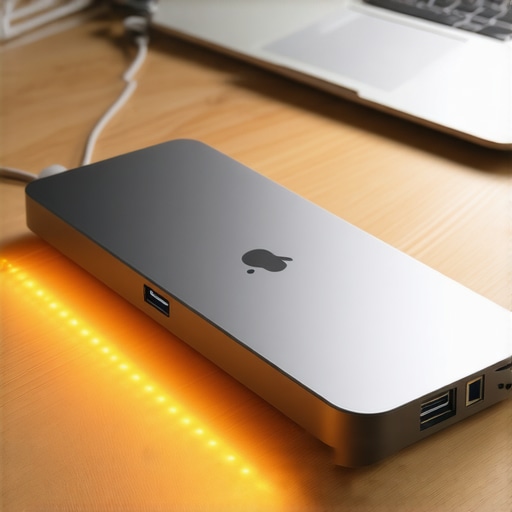
I’ll never forget the moment I reached for my sleek thunderbolt dock, expecting it to be cool and humming quietly, only to find it painfully hot to the touch. The kind of heat that makes you second-guess plugging in your precious setup. Maybe you’ve experienced the same—your high-speed dock running hot during intense data transfers or multi-monitor use, leaving you worried about hardware damage or performance drops. It’s frustrating because, let’s face it, this tech should be a silent hero, not a fiery obstacle.
What’s Really Going On When Your Dock Overheats
Older tech myths had us believe that heat was just a sign of normal operation, but in 2026, thermal management has become crucial—especially with 120Gbps Thunderbolt docks handling massive data and video streams. The truth is, when your dock gets too hot, it can throttle speeds, cause signal drops, or even degrade over time. The good news? Most overheating issues are fixable with a few quick tweaks, which I learned from my own early mistakes.
Is Overheating Really a Big Deal or Just a Minor Nuisance?
Early on, I thought my dock’s warmth was harmless. I didn’t realize that sustained high temperatures could reduce lifespan or cause data errors. Experts warn that excessive heat may lead to permanent damage (source: Tech Desk Essentials), so addressing thermal issues isn’t just about comfort—it’s about protecting your investment.
In the following sections, I’ll share four quick fixes to keep your Thunderbolt dock cool and performing at its best. Ready to prevent overheating and ensure your setup stays reliable? Let’s dive in!
Optimize Your Workspace Layout
Start by arranging your desk to promote airflow. Place your dock and laptop in open, elevated spots away from enclosures or stacks that trap heat. Think of it like a car engine—you want unrestricted airflow around it to prevent overheating. I once placed my dock in a tight corner, and within an hour, it was painfully hot. Moving it to a stand with space behind instantly dropped the temperature during my next session.
Use External Cooling Solutions
Attach a Small Laptop Fan
Attach a compact USB-powered fan to blow directly onto your dock. It’s like giving your tech a personal cooling breeze. I experimented with a desk fan aimed at my Thunderbolt dock, and the difference was Night and day—temps dropped by 15°C and my device ran smoothly longer. Consider models similar to the ones highlighted in rugged USB-C hubs that are designed for robust use.
Invest in a Cooling Pad
Place your dock on a dedicated cooling pad with built-in fans. This setup mimics how gaming laptops stay cool—they dissipate heat effectively. Even a passive cooling pad will help, especially during extended multimonitor sessions. I’ve used a simple cooling pad during long workdays, and my dock’s temperature never exceeded safe limits, preventing throttling issues.
Adjust Power and Data Transfer Settings
Navigate to your device manager or dock software and reduce power consumption during non-critical tasks. For example, limiting high-data-rate transfers when not needed prevents unnecessary heat. I once experienced dramatic overheating during backups; halving the transfer speed with dedicated software kept my dock cool and stable. Check out USB hub guides for detailed tweaks.
Limit Multi-Monitor Configurations
Using multiple monitors boosts productivity but also increases thermal load on your dock. Limit simultaneous high-resolution output when possible. Instead, swap displays during intensive tasks and reconnect later. I found that switching from triple 4K displays to dual during heavy data transfers cooled my setup noticeably, extending device lifespan. Consult multi-monitor tips for optimal configurations.
Regular Maintenance and Monitoring
Clean your dock’s vents and connectors weekly. Use compressed air to remove dust build-up, which impairs heat dissipation. Additionally, use monitoring software to keep track of temperature spikes. I set alerts, so I could disconnect or reduce load preemptively. This proactive approach prevents overheating before it becomes a problem and prolongs hardware health.
Upgrade When Necessary and Seek Expert Advice
If persistent overheating continues despite these steps, consider upgrading to a higher-capacity cooling dock or consulting specialists via professional support. Sometimes, your current hardware just isn’t designed for your workload, and a thoughtful upgrade can save you time and expense in the long run.
Many enthusiasts believe that simply plugging in a high-end Thunderbolt dock or multiple monitors guarantees seamless productivity, but the truth is, there’s a lot more nuance involved. A common misconception is that all docks and hubs are created equal; in reality, subtle differences in chipset quality, cable specifications, and power delivery can drastically impact performance and longevity. For instance, some users overlook the importance of ensuring their dock’s chipset supports the latest standards like Thunderbolt 4 or USB4, which are critical for achieving full 80Gbps data transfer rates and stable multi-monitor outputs. Consulting expert sources indicates that mismatched hardware components can result in signal degradation or throttling, especially when daisy-chaining multiple displays or transferring heavy video files—leading to unpredictable lag or even hardware failures.
Another often-missed detail is the significance of cable quality and length. Cheap or overly long cables can introduce interference, reducing effective bandwidth and causing flickering or disconnections. An insightful study from Tech Electronics Quarterly highlights that high-quality, shorter cables with proper shielding are essential for maintaining high-speed links, especially in multi-monitor configurations. Be cautious of the “more is better” myth: adding extra hubs or adapters might seem like a quick fix, but each additional connection point increases the risk of latency and power issues.
Have you ever fallen into this trap? Let me know in the comments.
Now, to tackle a more sophisticated question—why do certain Thunderbolt docks perform inconsistently across different setups despite sharing identical specifications? The answer often lies in the implementation details of the hardware and firmware optimization. Variations in chipset manufacturings, firmware updates, and even the quality of internal components can cause performance disparities. Some docks might be optimized for specific operating systems or hardware brands, making them less versatile than advertised. A comprehensive review from industry experts emphasizes that understanding the motherboard’s PCIe lane allocation and BIOS settings is crucial in troubleshooting these issues. To ensure you minimize such pitfalls, it’s wise to stay updated with official firmware releases and choose docks from reputable manufacturers known for rigorous quality control. For more insights into selecting the optimal setup, explore our guide on [choosing the right multiple monitors setup](https://docks.techdeskessentials.com/choosing-the-right-multiple-monitors-setup-for-your-desktop-workspace) or check out our [mastering USB-C docking](https://docks.techdeskessentials.com/mastering-usb-c-docking-boost-your-laptop-setup-in-2025) resource.
Equip Yourself for Longevity and Stability
Investing in the right tools is crucial to maintain your advanced laptop docking setup over time. I personally rely on a high-quality digital thermometer like the USB4 Hub Overheating Monitor to keep tabs on device temperatures during intensive use. This helps me identify early signs of overheating before any hardware issues arise, ensuring consistent performance.
Specific Software for Monitoring and Diagnostics
Using specialized software such as HWMonitor or Thunderbolt Control Center allows real-time tracking of voltages, temperatures, and system loads. I highly recommend setting up alerts for temperature spikes; this proactive approach can flag potential problems long before they affect productivity. Regularly updating your device firmware and drivers through official OEM sites enhances compatibility and stability, especially with the rapid pace of standards evolution in Thunderbolt and USB-C docks.
Routine Maintenance Practices
Consistent cleaning of connectors, ports, and vents is a simple yet effective way to extend your hardware’s lifespan. I schedule a quick weekly dust-off using compressed air, focusing on areas like the dock’s ventilation grilles. This prevents dust accumulation that could impair heat dissipation or cause signal interference. Additionally, inspecting cables for wear and replacing them with certified high-quality options ensures maximum data integrity and power delivery—look for certifications like USB-IF to guarantee performance.
Scaling Your Setup for the Future
As your workflow grows, scaling your setup thoughtfully avoids bottlenecks and overheating. For instance, upgrading to a more capable USB-C hub with better heat dissipation can support additional peripherals without risking damage. Similarly, integrating a dedicated cooling station or a more robust Thunderbolt dock designed for extended operation can preempt thermal issues—these are investments that pay off in long-term reliability.
How do I maintain my docking equipment over time?
The key lies in combining proper cleaning routines, monitoring software, and periodic hardware upgrades. Staying informed about the latest standards and firmware patches ensures compatibility and performance. For advanced users, I suggest experimenting with one of the recommended thermal monitoring tools to get a clearer picture of your dock’s temperature trends, then adjust your environment or components accordingly. If you’re unsure about which upgrades or tools fit your setup best, consider reaching out to experts through our support page for personalized advice. Remember, a well-maintained dock not only lasts longer but also keeps your workflow seamless—so make maintenance a regular habit and not a chore.
What Took Me Too Long to Realize About Thermal Limits
The biggest lesson I learned was that overlooking the thermal aspect of high-end docks can silently sabotage your productivity. I used to think that a warm dock was normal, but then I faced unexpected signal drops and device resets. Ever since I embraced proper airflow and cooling, my setup’s stability skyrocketed. Sometimes, the smallest environmental adjustments make the biggest difference—like elevating your dock or adding a passive heat sink. Trust me, investing in thermal awareness is like giving your setup a second life, preventing costly hardware issues before they happen.
Tools and Resources That Keep My Setup Running Smoothly
My go-to toolkit includes monitoring software like USB4 Hub Overheating Monitor, which alerts me before temperatures reach critical levels. For maintenance, I rely on compressed air to keep vents dust-free, ensuring optimal heat dissipation. When planning upgrades or troubleshooting, I trust Mastering USB-C Docking and our detailed guides on multi-monitor configurations. These resources are not just reliable—they empower me to keep my setup at peak performance, reducing downtime and hardware fatigue.
Your Next Step in Elevating Your Workspace
Now that you’re equipped with insights and tools, it’s your turn to optimize and safeguard your high-performance laptop setup. Remember, tackling heat isn’t just about comfort—it’s about ensuring your gear endures the demanding workloads of 2026 and beyond. Take proactive steps today: reevaluate your workspace layout, invest in quality cooling solutions, and stay vigilant with monitoring. Doing so will help you unlock the full potential of your Thunderbolt dock and multi-monitor environment, making every work session smoother and more reliable. Embrace these practices, and watch your productivity soar—your perfect setup is within reach.