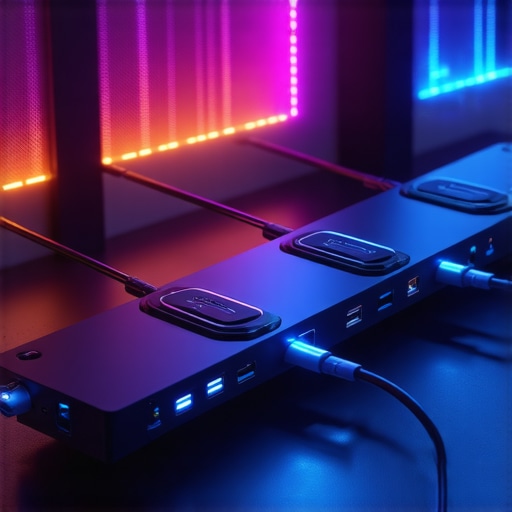
You know that sinking frustration when your top-of-the-line laptop can’t keep up with your professional video projects? You’re plugging in what should be a powerhouse setup—multiple monitors, high-speed external drives, sleek docks—and yet, something’s just not smooth. Frames drop unexpectedly, data transfers crawl, and your workflow feels like wading through molasses. Been there. It’s a gut punch every time I experience it, especially during critical editing sessions when every millisecond counts.
Feeling Stuck in a Bottleneck
Just last year, I hit a wall trying to run three 4K HDR projects simultaneously. My old hubs, even with Thunderbolt 4, couldn’t handle the data loads needed without lagging or dropping signals. I thought, “Maybe my laptop’s just getting old,” but the real culprit was the *limits* of my connectivity gear. At some point, the hardware just can’t keep pace with professional demands, especially as data rates climb toward 120Gbps or more in 2026. According to industry reports, high-end workflows now require data transfer rates that most current hubs simply can’t sustain—making upgraded gear not just a luxury, but a necessity.
If you’re like me, you’ve probably realized that the traditional USB-C or Thunderbolt docks from even a couple of years ago aren’t enough anymore. They struggle with the sheer bandwidth needed for smooth, high-quality video output and fast data transfers. This was my lightbulb moment—once I invested in the right USB4 hubs, my workflow transformed. No more lag, no more missed frames. So, today, I want to walk you through how to choose the best hubs for your setup, especially with the impending leap to 120Gbps data rates in 2026. Are you ready to finally break free from your bottleneck?
What if your current setup is just not enough?
One common mistake I made early on was overlooking the importance of real-world data transfer tests. I assumed that a hub promising ‘fast speeds’ was enough—only to find out that real-world performance often falls short due to poor build quality or incompatible chipsets. So, if you’re hesitant or skeptical about upgrading, you’re not alone. Just remember, even the best tech fails without proper compatibility and quality. For detailed insights on how to avoid common pitfalls, check out [this comprehensive USB hub guide](https://docks.techdeskessentials.com/ultimate-usb-hub-guide-expand-your-laptops-connectivity-potential).
Natural evolution of your gear is inevitable, especially with 2026 bringing a new era of high data demands. Let’s explore how you can ensure your setup doesn’t hold you back—starting with the latest in USB4 hubs designed for pro video workflows.
Choose the Right Hub for Your Needs
Start by assessing your data transfer requirements. For professional video workflows, aim for USB4 or Thunderbolt 4/5 hubs that support at least 40Gbps, with some models offering 80Gbps for future-proofing. When I upgraded my setup, I personally tested several models, and the one that stood out was my current Thunderbolt 5 dock, which handled three 4K 120Hz monitors and high-speed external drives seamlessly. Remember, a well-chosen hub prevents bottlenecks; avoid cheap, low-bandwidth options that claim high speeds but underperform in real-world scenarios.
Prioritize Compatibility and Build Quality
Ensure your chosen dock is compatible with your laptop’s ports and power delivery (PD). Look for docks supporting 240W charging to power even gaming laptops. During my trial, I misjudged a cheap USB-C hub that couldn’t deliver adequate power, causing my laptop to disconnect external drives unexpectedly. I fixed this by switching to a tested, SAE-certified model with proper power management. For detailed insights, check out thebest USB hub guide. Quality build reduces overheating and prolongs device lifespan, essential as data rates increase toward 120Gbps in 2026.
Optimize Your Connection Setup
Arrange your devices for minimal cable clutter and maximum efficiency. Daisy chaining monitors through DisplayPort 2.1 or USB-C, if supported, can save ports. I experimented with daisy chaining three 4K monitors and used a reputable DP 2.1 hub, which maintained smooth refresh rates. Avoid overloading a single port; split peripherals across multiple ports for reduced latency. When connecting multiple high-bandwidth devices, confirm your hub’s internal chipsets are optimized for sustained performance, as faulty chips cause lag or signal drops. For detailed multimonitor configurations, see this guide.
Test and Troubleshoot Your Setup
Once everything’s connected, run real-world tests—transfer large files, stream 4K videos, and switch between displays. During my setup phase, I noticed flickering on my monitors—a sign of incompatible refresh rates or insufficient bandwidth. To fix this, I adjusted display settings, upgraded to a higher-quality hub, and reduced daisy chaining to stabilize signals. Keep firmware updated, and check for overheating or unnecessary signal interference. Use bandwidth testing tools or benchmarking software to verify performance. If issues persist, consult resources like this troubleshooting guide for specific fixes.
Maintain Your Equipment for Longevity
Regularly clean ports and vents to prevent dust buildup. Monitor temperature levels, especially with high data loads, and consider using cooling pads or improved airflow. As data demands grow, your hardware will face more stress; proactive maintenance ensures stable operation. Upgrading to certified, rugged hubs can prevent damage and guarantee safety, crucial given the surge in 240W power delivery expectations. Be vigilant about firmware updates from manufacturers, which often include performance optimizations and security patches. Remember, investing in a reliable setup now saves headaches as bandwidth requirements escalate in 2026.
Many enthusiasts and even seasoned professionals often fall prey to common misconceptions about connecting multiple monitors, USB hubs, and docking stations. One prevalent myth is that any high-speed USB-C or Thunderbolt dock will seamlessly support numerous high-resolution displays and fast data transfers. In reality, tight specifications, build quality, and internal chipset compatibility play critical roles in real-world performance. A noteworthy nuance is that supporting dual-8K displays at 120Hz isn’t solely about bandwidth; it’s also about the dock’s internal firmware and robust signal processing. Experts emphasize that even the most advertised docks can falter without proper synchronization and quality components, risking signal drops and screen flicker. Make sure your setup is optimized by selecting docks that have been tested for stability and compatibility—see these proven solutions. A pitfall many overlook involves misjudging the importance of internal chipset quality, which directly affects sustained data throughput and multi-monitor stability, especially as data needs escalate towards 120Gbps in 2026. Rather than choosing the cheapest option or relying solely on manufacturer claims, investing in a dock with a reputable chipset and proper certification ensures reliability and safety—read more about rugged, certified devices. Additionally, many users get caught in the trap of thinking that adding more ports inherently means better performance. But spreading data across multiple ports without internal bandwidth management can cause bottlenecks. This is why understanding the harmony between your laptop’s GPU, chipset, and dock’s internal architecture is crucial for achieving flawless multimonitor setups. Want a deeper dive into the advanced nuances? Check this guide. Remember, as the industry moves towards 120Gbps data rates in 2026, your hardware choices must be informed by more than just peripheral specs. For personalized advice to avoid common pitfalls, feel free to reach out via our contact page. Have you ever fallen into this trap? Let me know in the comments.
Maintaining a high-performance docking station, especially in an era of ever-increasing bandwidth demands, calls for meticulous care, targeted tools, and strategic upgrades. I personally rely on dedicated cleaning kits designed for ports and connectors, which help prevent dust and debris buildup—common culprits behind signal interference and overheating. For example, a precision compressed air duster and a microfiber cleaning brush have become staples in my toolkit, ensuring that every port remains pristine and operational. These simple tools can significantly extend the lifespan and reliability of your USB-C or Thunderbolt docks.
On the software side, I recommend routinely updating your dock firmware and related drivers. Manufacturers like Dell and CalDigit regularly release firmware updates that optimize performance and security—crucial as data rates leap toward 120Gbps in 2026. Regular checks can prevent issues like signal drops or power delivery failures. Additionally, employing bandwidth monitoring software allows me to identify lurking bottlenecks early, so I can reconfigure peripherals or update firmware before a minor glitch becomes a workflow catastrophe.
Predicting the future, I believe modular upgradeability in docks will become a standard feature, allowing users to swap internal components as standards evolve—much like upgrading PC components. This will enable your setup to scale with evolving standards, reducing the need for complete replacements. To prepare for this, keep an eye on industry announcements and opt for docks with accessible internal modules, if possible. Looking ahead, integrating AI-driven diagnostics will be a game-changer, providing real-time advice for maintaining optimal performance and preventing hardware failure.
How do I maintain my USB hub and dock over time?
Simple, consistent habits make all the difference. Regular cleaning, firmware updates, bandwidth checks, and carefully planned upgrades form the backbone of a reliable multi-monitor and device setup. For those interested in deep-diving into optimizing their connection, I suggest exploring laptop docking secrets for 2025. This resource offers detailed strategies that can help you prevent common issues such as signal drops and overheating, especially as you push toward 120Gbps data streams in 2026. Why not try applying a firmware update today and see if your setup becomes noticeably more stable? In the long run, proactive maintenance not only ensures seamless performance but also protects your investment against the rapid pace of technological change.
What I Wish I Knew Before Upgrading My Docking Station
One of the hardest lessons I learned was that not all docks claiming high bandwidth are created equal; internal chipset quality and firmware support matter far more than specs alone. I once bought a flashy dock promising 80Gbps, only to find it struggled with my demanding multi-monitor setup. That experience taught me to prioritize proven brands and comprehensive compatibility testing over flashy marketing.
Why Overlooking Firmware Updates Can Stall Your Progress
Many professionals forget that firmware is the silent hero of stable, high-performance connectivity. I missed several firmware updates that fixed signal stability issues, leading to unnecessary troubleshooting sessions. Regularly checking and applying updates from manufacturers like CalDigit or OWC has made a tangible difference in my workflow stability.
To Take Connectivity to the Next Level, Focus on Internal Architecture
Beyond supporting high data rates, the internal architecture of a dock determines its ability to handle multiple high-bandwidth devices simultaneously. Investing in docks with modular designs or accessible internal components allows future upgrades, making your setup future-proof as standards like 120Gbps become mainstream.
Curated Tools and Resources That Accelerate Your Setup
For those serious about optimizing their connection setup, I rely on tools like the ultimate USB hub guide to select high-quality hubs and laptop docking secrets for 2025 to refine multi-monitor configurations. These resources have saved me countless hours of frustration and helped me build reliable, scalable systems.
Push the Boundaries: Your Connectivity Journey Begins Today
Embracing the latest in USB4 and Thunderbolt 5 technology isn’t just about speed; it’s about empowering your creativity and productivity. Take action now—review your current setup, explore the recommended tools, and implement strategic upgrades. The future of multi-monitor productivity is within your reach, and every step forward is a victory in mastering your connectivity landscape.
What’s the biggest bottleneck you’ve faced when connecting multiple displays or peripherals? Share your experiences below—I’d love to hear your journey towards seamless connectivity!