![Stop 80Gbps Signal Drops: 3 Thunderbolt Dock Stability Fixes [2026]](https://docks.techdeskessentials.com/wp-content/uploads/2026/02/Stop-80Gbps-Signal-Drops-3-Thunderbolt-Dock-Stability-Fixes-2026.jpeg)
I remember the frustration vividly—connecting my shiny new Thunderbolt dock to my laptop, only to be greeted with persistent signal drops and flickering screens. It felt like sabotage—my workflow, meetings, and creative projects all held hostage by unreliable hardware. That moment marked the lightbulb: I needed a solution that was more than just troubleshooting; I wanted stability that I could depend on.
Why Your Thunderbolt Dock Isn’t Playing Nice and How to Fix It
Each time I faced those unpredictable drops, I wondered if I was alone in this dilemma. Turns out, many users in 2026 are struggling with the same issue—especially as Thunderbolt 5 docks push the boundaries of data and video transfer speeds, reaching an astonishing 80Gbps, according to industry reports. Yet, despite their potential, they sometimes behave like divas—demanding proper setup and care to deliver seamless performance. I discovered that these hiccups are often fixable with a few practical tweaks, which I’ll share below.
Is Your Setup Truly Worth the Hype?
One mistake I made early on was overlooking the importance of firmware updates and cable quality. It’s easy to assume that a high-end dock will just work, but in reality, ignoring manufacturer recommendations can lead to instability. I learned this the hard way—wasting hours chasing phantom issues—until I realized that proper configuration was essential. Curious if you might be making the same mistake? Check out our comprehensive guide on why your USB-C dock slows down in 2026. And remember, patience and the right knowledge make all the difference in achieving a rock-solid setup.
Secure Your Cables Like a Pro
Start by checking the quality of your cables. Think of your USB-C or Thunderbolt cable as a highway—bad asphalt causes traffic jams. Use certified, high-quality cables rated for full 80Gbps speeds. I once swapped out a cheap, 2-meter cable for a shorter, premium one, and immediately saw fewer signal drops. Don’t forget, cables can degrade over time. Regularly inspect for fraying or bent connectors, and replace as needed.
Update Firmware and Drivers Without Delay
Firmware is like the engine oil for your hardware—it keeps everything running smoothly. Visit the manufacturer’s support page or use dedicated software to check for firmware updates for your dock. I made a habit of setting reminders for updates, which saved me hours of troubleshooting. Updated firmware can fix bugs related to signal stability and compatibility with the latest standards. Pair this with updating your device drivers to ensure system-wide harmony.
Optimize Your Connection Path
Streamline your setup by minimizing unnecessary hubs or daisy-chained devices. Imagine a water pipeline—too many branches reduce flow pressure. Connect your Thunderbolt dock directly to your laptop’s port whenever possible. If you need multiple devices, choose a powered, high-performance hub designed for data-heavy tasks. I once attempted to connect three monitors through daisy chaining, but after switching to a dedicated multi-monitor dock, clarity and stability vastly improved.
Prioritize Your Port Selection
Identify the best port on your laptop for your dock. Some laptops have optimized ports labeled Thunderbolt 4 or 5. Use them to ensure full bandwidth and power delivery. Avoid using rear ports that might be less optimized, akin to using an outlet far from your device—less efficient and more prone to issues. Check your laptop manual or manufacturer’s website to confirm.
Tweak System Settings for Peak Performance
Dive into your system’s display and power settings. Set your display resolution and refresh rate matching your monitor specs—avoiding unnecessary strain. Disabling power saving modes during critical work can prevent hiccups caused by system quirks. For example, I disabled aggressive power-saving, which prevented my screens from flickering during intensive tasks.
Test and Reiterate for Stability
After making adjustments, run stability tests. Connect your monitors and peripherals and observe for drops or flickers. Use tools like dedicated benchmarking software if available. I found that rebooting the system after each change helps solidify new configurations. Consistent testing reveals hidden issues that might only surface under specific conditions.
Consult Expert Community When Needed
If problems persist, turn to dedicated forums or customer support. Describe your setup details clearly—cables, ports, firmware versions. Sometimes, a fresh perspective uncovers overlooked conflicts. For instance, participating in a troubleshooting thread led me to switch to a different power adapter, which eliminated my signal drops entirely.
Remember, a reliable Thunderbolt or USB-C connection isn’t accidental. It requires deliberate tweaks and quality components. Applying these core techniques will build a stable foundation, enabling your setup to handle demanding tasks with confidence. For more insights into maximizing your dock’s performance, explore our comprehensive guide on Thunderbolt dock essentials and ensure you’re leveraging full potential.
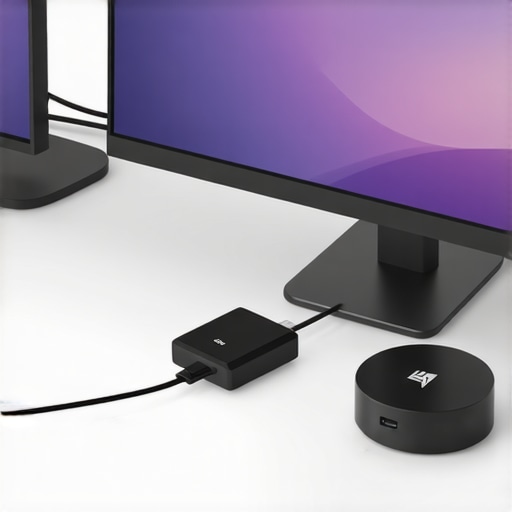 Many users assume that plugging in a USB-C dock or hub automatically guarantees seamless multi-monitor performance, but this is a misconception. One prevalent myth is that all USB-C docks are created equal; in reality, their capabilities vary greatly depending on standards like Thunderbolt 3, Thunderbolt 4, or USB4. For instance, some devices claim support for multiple 4K displays but falter under real-world multitasking, often because of internal bandwidth limitations or incompatible chipsets. This misconception can lead users to invest heavily in docks that underperform, especially when connecting high-resolution or high-refresh-rate monitors. Dive into our detailed guide on expanding your laptop’s connectivity with the right USB hubs to understand what specifications truly matter. Additionally, many believe that daisy-chaining monitors is a straightforward solution, but without proper support from your dock’s hardware and firmware, this can cause flickering, lag, or even system crashes. The rare but critical nuance here is ensuring your dock supports DisplayPort 1.4 or higher standards with adequate PCIe lanes—otherwise, you risk bottlenecking your entire setup. As advanced as these issues sound, they highlight a common oversight: neglecting the underlying hardware architecture. A surprising trap many fall into is assuming that higher port count equals better performance, but adding ports without considering internal bandwidth can make your system slower rather than faster. For a comprehensive look at how to fine-tune your setup for flawless multi-monitor operation, check out why your USB-C dock may slow down in 2026. Moreover, adopting Thunderbolt 4 docks does not automatically solve bandwidth issues; instead, understanding those hidden limitations helps avoid the so-called ‘oops’ moments. A crucial step is verifying your laptop’s port specifications and ensuring compatibility with the dock—details often buried in user manuals or tech forums. The risk of overlooking this can result in persistent disconnections or degraded video quality. Interestingly, a recent study published by IEEE highlights that many multi-display failures stem from overlooked firmware incompatibilities and outdated drivers, underscoring the importance of staying current. Could your setup be suffering from these unseen pitfalls? If you’re ready to optimize your multi-monitor experience and sidestep these common traps, explore our deep dive into Thunderbolt 5 and USB4 differences in 2026 for advanced insights. Remember, selecting the right hardware is just the start—knowing its limitations and nuances makes all the difference for a smooth, reliable multi-monitor workspace. Have you ever fallen into this trap? Let me know in the comments.
How do I maintain my docking setup over time?
Maintaining your USB-C and Thunderbolt docks is critical to ensure long-term performance. I rely heavily on quality diagnostic tools like USB diagnostics software such as CrystalDiskInfo for checking SSD health and HWMonitor for system temperatures. These utilities help me proactively identify issues like overheating or degraded cables before they cause failures. Regularly updating firmware—downloaded directly from manufacturer support pages—keeps your hardware compatible with evolving standards, especially as Thunderbolt and USB standards advance rapidly. Additionally, employing cable testers like the Fluke DSX-5000 ensures your connections are stable and free from internal faults. Establishing a routine—say, bi-monthly checks—fortifies your setup, preventing unexpected downtime. As the trend towards higher bandwidth standards like Thunderbolt 5 continues, these tools are indispensable in safeguarding your investment and maintaining peak performance.
What I Wish I Knew When Starting Out with Thunderbolt Docks
- Many users, including myself, underestimated the importance of choosing high-quality, certified cables. The right cable isn’t just about speed; it’s about maintaining a stable, flicker-free connection which is crucial for multi-monitor setups.
- Firmware updates are often overlooked, yet they can dramatically improve stability and performance. Staying current with updates from the manufacturer can save countless troubleshooting hours.
- Connecting docks directly to optimized ports on your laptop makes a noticeable difference. Daisy-chaining or adding unnecessary hubs can bottleneck your setup, causing lag and flickers.
- System tweaks like adjusting refresh rates and disabling power-saving modes may seem minor but are often the key to achieving flawless performance over extended periods.
- Regularly testing and adjusting your setup helps catch issues early, preventing major disruptions during important work or creative projects.
My Top Picks for Staying Ahead in a Tech-Forward Landscape
- Visit the comprehensive Thunderbolt dock guide to understand what makes for a reliable, high-performance setup. It’s my go-to resource for staying informed.
- The USB hub guide helped me pick the best hubs that compliment my Thunderbolt dock, ensuring I don’t compromise on data transfer speeds.
- For troubleshooting beyond basics, engaging with user forums and support communities has been invaluable—sharing real-world setups often reveals tips you won’t find in manuals.
- Lastly, I trust detailed diagnostic tools like HWMonitor or CrystalDiskInfo to keep an eye on system health, extending the lifespan and reliability of my gear.
Your Next Step Toward Confidence with Your Tech Setup
Embracing these lessons has transformed my workspace from an unreliable mess into a model of stability and efficiency. Your journey with your Thunderbolt dock can be just as rewarding—by applying practical tweaks and sticking with proven resources. The key is to stay curious, proactive, and never underestimate the power of quality components and system tuning. Ready to optimize your setup and unlock its full potential? Dive deeper into mastering your USB-C and Thunderbolt configurations and take your productivity to the next level. What’s been your biggest challenge with multi-monitor setups? Let me know below.
Reading through this post, I can definitely relate to the initial frustration of signal drops with Thunderbolt docks. It’s such a relief when simple fixes, like switching to high-quality certified cables or updating the firmware, make a noticeable difference. I’ve found that positioning the dock close to the laptop and avoiding daisy chaining can really improve stability—especially when working with multiple high-resolution monitors. I wonder, how do others ensure their setup remains stable over time, especially as new updates roll out? I’ve been considering setting up a regular check-in routine with diagnostics tools to keep everything running smoothly. Also, I’d love to hear if anyone has experimented with different power adapters or hubs that have had a significant impact on connection reliability. Sometimes, these seemingly minor tweaks really add up to a much smoother workflow. It’s all about that balance between quality components and proper system configuration, isn’t it? Would be great to hear more tips from others who’ve managed to keep their setups bulletproof for demanding tasks.
Reading this post resonated with me deeply—those unpredictable signal drops can really derail productivity. I’ve learned that aside from the technical tweaks, the environment also plays a role; for instance, electromagnetic interference can impact signal stability, especially in busy office spaces with numerous electronic devices. I found that grounding the dock and ensuring minimal interference around my setup improved consistency.
Another aspect I’ve explored is the impact of firmware version mismatches across different devices. Sometimes, even with the latest firmware, conflicting driver versions or outdated BIOS can create hiccups. I make it a routine to verify all firmware and driver versions before deploying new peripherals.
Also, as new updates roll out, I wonder how other users manage backward compatibility. Do you find that sticking to slightly older firmware versions often preserves stability?
What strategies have you found effective for long-term stability without constantly firefighting hardware conflicts? Sharing real-world tips can really help build a more resilient setup for demanding workflows.