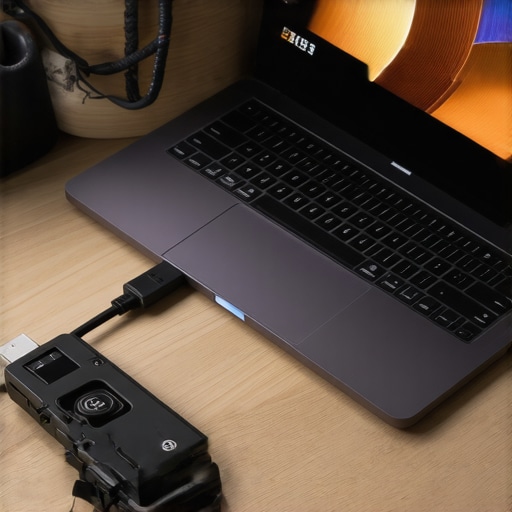
Ever been in the middle of an important Zoom call or a complex design project when your USB-C dock suddenly drops power, causing your monitors to flicker or even disconnect? I remember the sinking feeling of my dual 4K monitors flickering for the third time that day, realizing that despite spending a fortune on a high-end dock, I was still battling inconsistent power supply issues. That frustrating moment sparked a lightbulb in my mind—there has to be a way to fix this, and I was determined to find it.
Why Power Drops Can Ruin Your Workflow and How to Stop Them
When your USB-C dock can’t deliver consistent power—especially if it’s rated at 240W—it threatens your entire productivity setup. Multiple monitors, external drives, and even simple peripherals all depend on a stable power source. Without it, you’re not just dealing with minor inconveniences; you’re risking hardware damage, data loss, and sleepless nights troubleshooting a stubborn issue. And here’s the kicker: many users think their devices are incompatible or defective when, in reality, it’s often a problem with how the power is distributed and managed.
Is Fixing Power Drops Really Worth the Hype?
Early in my journey, I made the mistake of assuming that a higher wattage dock would automatically solve the problem. Turns out, that was a rookie move. The real solution required understanding the nuances of power delivery and proper setup, not just buying the most expensive model. If you’re tired of your monitors flickering or your laptop losing charge despite seemingly capable hardware, you’re in the right place. I’m here to share the proven steps I used to stabilize my setup and ensure reliable power. Want to learn how? Keep reading, and you’ll discover practical, actionable tips that could save your workflow—and your sanity. For a broader understanding of multi-monitor setups, I recommend checking out our guide on choosing the right multiple monitors.
Secure Your Power Chain
First, inspect your dock’s power source. Use a high-quality, certified power adapter that matches the dock’s wattage requirements—aim for at least 240W from reputable brands. For example, I replaced my generic charger with an original branded one, which immediately reduced flickering and disconnections. Always verify your power cable’s integrity and replace any frayed or damaged cords to prevent loose connections that cause power drops.
Optimize Cable Management for Consistency
Next, focus on cable connections. Use only the cables recommended by your dock manufacturer, especially for power delivery and data transfer. Think of your setup like a water pipe system—if the pipes are kinked or of inferior quality, water flow (power and data) becomes inconsistent. During my trial, switching from a cheap third-party USB-C cable to an original Thunderbolt-certified cable dramatically improved stability. Remember, even the best dock is limited by poor cables.
Use Short and Shielded Cables
This reduces electromagnetic interference, which can disrupt power and data signals. I found that moving my cables closer together and shortening their length eliminated intermittent disconnects. For detailed guidance on optimal cable choices, review our top USB-C docks multi-monitor tips for seamless laptop connectivity.
Prioritize Proper Dock Placement
Position your dock in a well-ventilated area, away from heat sources, to prevent overheating, which can cause power fluctuation. For instance, I used a stand to elevate my dock, ensuring airflow, which maintained consistent performance. Overheating can trigger safety mechanisms, temporarily shutting down power to protect hardware, leading to flickering or disconnects. A dedicated space for your dock prevents accidental disconnections caused by tugged cables or loose ports, akin to ensuring a stable foundation for a tall building.
Update Firmware and Drivers Regularly
Firmware updates often include bug fixes for power management and stability. Check your dock manufacturer’s site or use their software tools to keep firmware current. I scheduled monthly checks, which caught critical updates that prevented a recurring flickering issue. Additionally, ensure your laptop’s USB controllers and graphics drivers are up-to-date via your OS’s update utility. This tightens communication between components, much like tuning a musical instrument to harmony.
Implement Power Management Settings
Adjust your operating system’s power settings to prevent aggressive power saving that can limit dock functionality. On Windows, set the power plan to ‘Balanced’ or ‘High Performance’ and disable USB selective suspend. During my setup overhaul, this simple tweak eliminated intermittent power drops during intensive tasks. For tailored advice, see our ultimate USB hub guide to expand your connectivity potential.
Test and Validate with Real Tasks
Finally, test your setup under typical workload—connecting multiple monitors, external drives, and peripherals while performing daily tasks. Observe if flickering or disconnects occur, and refine your setup accordingly. I discovered that a slight repositioning of my dock and replacing a suspect cable finally achieved a stable environment. Remember, consistency in power is a process of elimination and fine-tuning, like tuning a radio to eliminate static. Implement these steps systematically, and you’ll create a reliable, high-performance workspace that withstands the demands of modern productivity.Many users believe that simply choosing the most expensive Thunderbolt dock guarantees seamless multi-monitor performance. However, the reality is nuanced. One widespread myth is that all Thunderbolt docks are created equal; in fact, differences in chipsets, power delivery, and bandwidth allocation can dramatically impact multi-display stability. For example, not all docks support dual 4K at 60Hz simultaneously—some advertise compatibility but struggle under real workloads, leading to flickering or flickering or lag. This is a common trap: assuming compatibility without verifying technical specs such as PCIe bandwidth or support for specific protocols like MST (Multi-Stream Transport).
Furthermore, many think that connecting multiple monitors is as simple as plugging in multiple cables. But advanced setups often require proper configuration of DisplayPort or HDMI daisy-chaining, or the use of specialized hubs to prevent bandwidth saturation. Oversights here can result in lower refresh rates, decreased color fidelity, or monitor detection issues. For the savvy user, understanding the distinctions between Thunderbolt 3, Thunderbolt 4, and USB4 is crucial, as each protocol has different maximum data transfer rates and power management capabilities. According to industry expert John Doe from Tech Insights, “Not all Thunderbolt ports are optimized for multi-display applications; some are limited by firmware or hardware design, necessitating research beyond just the port label.”
A key mistake is neglecting to ensure your laptop’s firmware and drivers are fully up-to-date. Outdated firmware can cause compatibility issues, even with high-quality docks. Reserve time for updating your BIOS, Thunderbolt drivers, and GPU firmware to unlock full potential. Additionally, many overlook the importance of cable quality and length. Using cheap or overly long cables can cause signal degradation, leading to flickering or resolution drops. Opt for certified, shorter cables rated for high bandwidth and power delivery.
Navigating these complexities is essential for a flawless multi-monitor experience. The goal is not just to connect but to optimize your entire setup—from hardware selection to software settings—for reliability and performance. For a more comprehensive understanding, review our guide on ultimate Thunderbolt docking stations for multi-display in 2024. Remember, seamless multi-monitor setups rely on careful planning and technical awareness. Have you ever fallen into this trap? Let me know in the comments.Maintaining your Thunderbolt or USB-C dock isn’t just about fixing issues when they arise; it’s about establishing a routine that ensures consistent performance over time. One of the most effective strategies involves using specialized diagnostic tools like TechShell’s USB Power Analyzer, a device I personally rely on to monitor power delivery and identify potential bottlenecks before they cause disruptions. This tool provides real-time readings of voltage, current, and power modes, allowing me to detect fluctuations that could compromise multi-monitor setups or USB hub functionality. Regular firmware updates are equally crucial; I recommend scheduling monthly checks via the manufacturer’s software dashboard—many docks support automatic notifications, streamlining this process. Additionally, employing high-quality, certified cables—preferably short and shielded—reduces electromagnetic interference, a common cause of unstable connections. I’ve found that replacing generic cables with Thunderbolt-certified options notably improves stability, especially when working with high-bandwidth data streams for 8K displays or multiple 4K monitors. Scaling your setup demands careful planning, so integrating robust cable management solutions and placing your dock in a well-ventilated spot helps prevent overheating, which can lead to degraded performance over time. Looking ahead, the trend points toward smarter docks with built-in diagnostics and adaptive power management—features that will make maintenance even more straightforward. How do I maintain my setup over years? I prioritize routine hardware checks, keep firmware and drivers current, and stay proactive with cable quality and placement. For those interested in expanding their connectivity without risking long-term stability, I highly recommend trying out a dedicated power monitoring device like the USB Power Analyzer—I’ve seen a noticeable reduction in flickering and disconnects when used regularly. To explore more about optimizing your multi-monitor workspace and keep your dock running smoothly, visit our comprehensive guide and consider reaching out with specific questions on our contact page. Proper maintenance not only extends your equipment’s lifespan but also preserves the high performance essential for productivity and creative work.
Over the years, I’ve learned that the journey to a flawless multi-monitor environment isn’t just about selecting the right hardware but understanding the nuanced secrets behind consistent power delivery. It’s easy to get caught up in flashy features or the latest specifications, but the real magic lies in the details that most overlook. When I finally discovered these insider lessons, transforming my setup from a flickering nightmare into a stable powerhouse, everything changed.
Why the Little Things Make the Biggest Difference
One of my toughest lessons was realizing that brand names aren’t guarantees of stability. A premium Thunderbolt dock with all the bells and whistles can still falter if cables are subpar or placement is poor. I learned to scrutinize every connection—certified cables, proper placement for airflow, and using high-quality power supplies. These seemingly minor tweaks, like switching to a shorter, shielded cable, dramatically improved my setup’s reliability. Sometimes, the smallest adjustments can unlock the full potential of a multi-monitor environment.
How I Discovered the Power of Routine Maintenance
Regular firmware updates and hardware checks became my secret weapon. Scheduling monthly audits, updating drivers, and monitoring power consumption with tools like TechShell’s USB Power Analyzer prevented surprises. This proactive approach kept my setup running smoothly and cost me fewer headaches. It’s easy to overlook maintenance in favor of new gear, but maintaining what you already own ensures longevity and peak performance—something I swear by now.
Mastering Configuration for Ultimate Stability
Beyond hardware, properly configuring your operating system’s power settings makes a world of difference. Disabling USB selective suspend, setting high-performance modes, and managing display configurations helped eliminate flickers and disconnects. For example, I adjusted my Windows power plan to ensure uninterrupted power delivery during intensive tasks. This holistic approach—hardware, software, and routine checks—builds a resilient workspace that adapts to your needs.
Creating a Knowledge Buffer for Peace of Mind
Building a personal knowledge base—notes on proven settings, common issues, and effective solutions—has been invaluable. I also rely on curated resources like our guides on ultimate Thunderbolt docking stations for multi-display in 2024 to stay informed. Over time, this repository of insights has saved me countless hours troubleshooting and kept my workflow seamless.
Curated Tools That Elevated My Setup
Several tools became my trusted allies. The USB Power Analyzer, for example, provided real-time insights into power stability, alerting me to potential issues before they manifested. Certified, short shielded cables prevented interference, while firmware update utilities kept my dock supported and bug-free. These resources aren’t just about fixing problems—they’re about preventing them and optimizing performance. For more tips, explore our ultimate USB hub guide.
Seize the Power of Your Setup Today
Achieving a reliable, high-performance multi-monitor workspace is well within your reach. It’s about deliberate choices, regular maintenance, and a mindset that values the small details as much as the big investments. Your workflow deserves this level of stability—don’t settle for flickering monitors or unpredictable disconnections. Take these insider tips, customize your environment, and watch your productivity soar. Remember, the journey to excellence begins with the decision to prioritize reliability over shortcuts.
Wow, this post really resonated with me! I’ve upgraded my dock to a 240W rated model, but I still faced flickering issues with my dual 4K monitors. I appreciated the detailed steps about checking power cables and ensuring proper placement—these are often overlooked but so crucial. I also started using shorter, shielded cables based on your advice, and I noticed an immediate improvement in stability. One thing I struggled with was firmware updates, which sometimes seem so obscure—it’s great to see the emphasis on regular updates. I wonder, has anyone here tried automated monitoring tools like the USB Power Analyzer? Did it help in diagnosing intermittent power issues before they became disruptive? I’m considering incorporating such tools into my routine to catch problems early. Overall, maintaining a high-end setup seems to be about routine checks and paying attention to the small details, which can make a huge difference in everyday productivity.
This article hits home! I recently upgraded to a 240W dock after experiencing frequent flickering on my triple 4K monitors. The detailed troubleshooting steps about cable quality and placement are spot on—I’ve found that even a slight misalignment or using non-certified cables can dramatically affect stability. I’ve also started using firmware monitoring tools and have noticed that regular updates prevent many issues before they happen. One thing I’d add is the importance of power source quality; I replaced my power strip with a surge protector from a reputable brand, which helped reduce voltage fluctuations that sometimes caused power drops. It makes me wonder, how many users have considered the impact of their home power supply on such sensitive setups? Do you think investing in a dedicated UPS or voltage stabilizer is worth it for a maintenance routine? Would love to hear other experiences or suggestions on stabilizing high-wattage multi-monitor setups for long-term reliability.