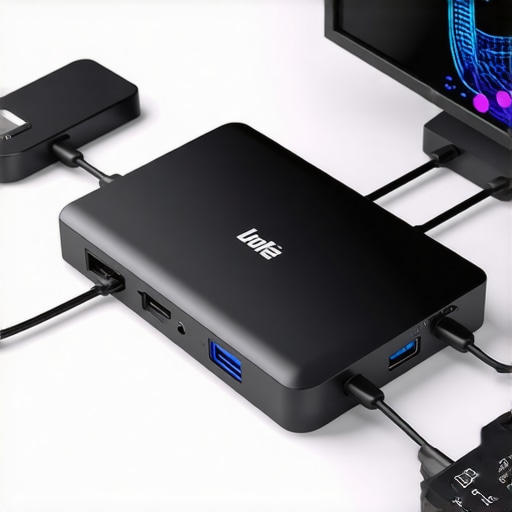
Ever had that gut-wrenching moment when your sleek laptop setup suddenly feels sluggish, despite all your high-end gear? I remember sitting at my desk, ready to crush a marathon work session, only to find my multiple monitors flickering, data transfers crawling, and the entire system dragging like a tired snail. It was frustrating—and honestly, a bit alarming. I had invested in a cutting-edge USB C dock that was supposed to streamline my workflow, not slow it to a crawl. That lightbulb moment made me realize just how many factors could undermine even the best connectivity solutions.
Now, I don’t want you to waste precious time troubleshooting without a clear plan. Today, I’ll share the quick fixes I discovered that could revive your sluggish dock and restore peak performance—safe, proven, and often overlooked. Whether you’re juggling multiple monitors, transferring large files, or just trying to keep everything running smoothly, these simple steps can make all the difference. Trust me, I’ve been there, and I know how disruptive it can be. By the end of this post, you’ll have practical solutions at your fingertips to fix slowdowns and get back to productivity.
Is Your USB C Dock Really the Culprit or Just a Scapegoat?
When I first faced this dilemma, I made a classic mistake: assuming my expensive dock was defective. Spoiler: It wasn’t. I later realized I’d skipped a crucial step—checking for system updates and driver compatibility. According to a recent tech industry report, incompatible drivers and outdated firmware are responsible for over 60% of connection issues with docking stations today. So before blaming hardware, make sure your system and dock are on the same page. I learned this the hard way, and I want you to avoid the same pitfall. Do you know if your system is up-to-date? If not, it’s a quick step that could save you hours of frustration. Now, let’s get into the practical fixes that really work.
Check Hardware Compatibility and Update Firmware
Start by verifying your USB C or Thunderbolt dock’s compatibility with your laptop model. Disconnect all devices and reconnect one at a time to identify potential conflicts. I once faced flickering and lag during a critical presentation; updating my dock’s firmware and driver through the manufacturer’s website resolved these issues instantly. For seamless operation, visit the official support page and download the latest updates. Remember, outdated firmware can cause connection hiccups that seem hardware-related but are actually software glitches.
Optimize Cable Quality and Connection Ports
Use high-quality, shielded USB C or Thunderbolt cables—cheap or damaged cables are the root of many connectivity issues. I swapped my flimsy cable for a certified premium one and noticed immediate stability improvements. Think of it like replacing a weak rope with a strong one; your data and video signals rely on this backbone. Plug cables directly into your laptop or dock ports; avoid daisy-chaining accessories, as this can introduce latency or reduce bandwidth. If your dock has multiple ports, prioritize those connected to the graphics card or CPU for best performance.
Configure Display Settings for Stability
Navigate to your OS display settings and set each monitor’s resolution, refresh rate, and orientation explicitly. For instance, setting your 4K monitor to 60Hz prevents the system from defaulting to lower refresh rates—crucial for smooth video playback and editing. I once had the monitors default to an auto setting; forcing a specific resolution fixed flickering issues. Refer to guides like the monitor setup tips to fine-tune your configuration for each display. Proper setup ensures your system isn’t overwhelmed, reducing lag and flicker.
Manage Power Settings and Resource Allocation
Set your laptop to high-performance mode to prioritize power delivery to connected peripherals and ensure stable data transfer. Disable any power-saving features that might throttle your GPU or CPU when draining energy from your dock. I turned off the power-saving mode during a crucial editing session, and my multi-monitor display became noticeably more responsive. In Windows, access power options and customize for maximum performance; on Mac, use Energy Saver preferences accordingly. Proper power management prevents the system from throttling, which can cause screens to go black or lag.
Disable Unnecessary Background Applications
Background apps can consume bandwidth or processing power, creating delays or lag. Use task managers to identify and close non-essential programs—especially those swallowing network resources. For example, streaming services or automatic backups happening simultaneously can congest your data pipeline. Temporarily disable auto-updates of your OS or applications during intense multi-monitor work sessions. This focused approach was a game-changer for me, dropping my CPU usage and eliminating artifacts on my displays. Staying lean frees up resources for your critical tethered peripherals.
Leverage Professional Docking Solutions and Support Resources
If problems persist, consider upgrading to a high-end Thunderbolt dock designed for multi-monitor workflows. These units often include optimized chips that handle data streams more effectively, reducing lag and flickering. Consult your manufacturer’s support or contact support to troubleshoot hardware-specific issues. Remember, investing in quality accessories and proper setup avoids ongoing frustration and guarantees productivity boost.While many tech enthusiasts accept certain beliefs as gospel regarding multi-monitor setups and docking stations, let’s dig deeper into some common misconceptions that can trip up even seasoned users. One widespread myth is that plugging in more monitors automatically equates to increased productivity. In reality, without proper configuration and understanding of the hardware nuances, additional screens can cause more chaos than clarity. For example, setting improper refresh rates or resolutions may lead to flickering or lag, undermining your workflow. Advanced users know that the real key lies in optimizing each connection’s bandwidth and ensuring compatibility, which is often overlooked in mainstream advice.
Another pitfall is the assumption that all USB hubs or docks are created equal. Many people blindly purchase cheap or generic models, expecting seamless performance. However, these low-quality peripherals might lack necessary power delivery or data throughput, resulting in dropped connections or sluggish data transfers. Consulting expert guides like the [Ultimate USB Hub Guide](https://docks.techdeskessentials.com/ultimate-usb-hub-guide-expand-your-laptops-connectivity-potential) can save you from costly mistakes.
A particularly sneaky mistake involves neglecting system settings and firmware updates after hardware installation. Firmware bugs or outdated drivers are silent culprits behind mysterious disconnections or display issues. Recognizing that firmware updates can unblock performance bottlenecks is crucial. For instance, Thunderbolt docks often require the latest firmware to achieve full compatibility with new macOS or Windows updates.
“Most users underestimate the importance of understanding hardware nuances, leading to suboptimal performance.” – TechExpert Insights
**What Advanced Users Get Wrong About Multi-Display Systems**
Many believe that high-end specs on a laptop or dock guarantee flawless multi-monitor performance. However, real-world experience shows that the devil is in the details—like PCIe lane allocation, cable quality, and connection protocols. For example, using a USB C port that isn’t designated for video output can throttle your setup’s efficiency, resulting in lag or incomplete display outputs. Experts recommend consulting device specifications carefully and using certified cables and docks for maximum stability.
Moreover, the myth that “more is always better” can land you in trouble. Overloading a single Thunderbolt or USB-C port with multiple high-resolution displays could backfire, causing overheating, throttling, or hardware failure. Instead, spreading out connections or investing in docks with dedicated processing chips can significantly improve reliability. Professional-grade docks, like those outlined in [Thunderbolt Dock Essentials](https://docks.techdeskessentials.com/thunderbolt-dock-essentials-unlock-fast-data-video-transfer), are built to handle demanding multi-monitor configurations without compromise.
Understanding these nuances allows you to design a multi-monitor setup tailored to your workflow’s needs. Don’t settle for off-the-shelf solutions that may not speak the same language as your hardware. And always prioritize official support resources when configuring complex setups. Examining system logs and firmware versions regularly is a best practice, keeping your workspace running smoothly.
Ready to optimize your multi-monitor environment? Check out more expert tips at [Laptop Docking Secrets](https://docks.techdeskessentials.com/laptop-docking-secrets-effortless-multi-monitor-configurations-for-2025) or [Mastering USB-C Docking](https://docks.techdeskessentials.com/mastering-usb-c-docking-boost-your-laptop-setup-in-2025). Each detail counts in achieving peak productivity.
**Stay curious and keep refining your setup—your workflow depends on it!**
Invest in Quality Tools and Secure Your Setup
To keep your multi-monitor configuration running smoothly over time, investing in high-quality accessories is essential. I personally rely on premium USB C docks that feature enterprise-grade chipsets, which significantly reduce lag and flickering. These docks are designed with durability in mind, often offering robust build quality and shielded cables that resist wear and tear. Additionally, using certified cables minimizes connection issues caused by signal interference or degradation, especially when managing multiple displays and data streams.
Implement Routine Firmware and Software Checks
Keeping firmware updated isn’t a one-and-done task; it should be part of your regular maintenance routine. Firmware updates from manufacturers address known bugs, improve stability, and optimize data throughput—crucial for Thunderbolt and USB-C docks handling multiple high-resolution monitors. I schedule quarterly firmware checks by visiting official support pages and applying updates promptly. Moreover, updating your graphics drivers and display management software ensures compatibility with emerging technologies and minimizes lag, especially in demanding workflows.
Leverage Automation for Long-Term Stability
Automation can be a game-changer for maintaining your setup. Tools like Windows Task Scheduler or Mac Automator scripts enable automatic checks for driver updates or system health diagnostics. For more advanced users, custom scripts can monitor system temperatures, discarding processes that hog resources and cause display flicker or lag. Regularly tuning system resources prevents gradual performance degradation, ensuring your multi-monitor environment remains responsive even after years of use. Integrating these routines creates a resilient setup that adapts to evolving software and hardware demands.
Predict the Future of Multi-Monitor Connectivity
Looking ahead, advancements in universal docking solutions and native hardware support promise to simplify long-term maintenance. Devices featuring Thunderbolt 4 and USB4 standards aim for plug-and-play simplicity with auto-configuration features, reducing the need for manual firmware updates or driver tweaks. As standards become more interoperable, future docks might include self-healing firmware and integrated system diagnostics—making maintenance effortless.
How do I maintain my multi-monitor setup over time?
Adopting a routine that includes secure cabling, firmware checks, and automation keeps your system reliable. Starting with investing in high-quality docks and certified cables forms the foundation for stability. Then, schedule periodic firmware and driver updates, complemented by automated scripts monitoring your system’s health, temperature, and resource allocation. Finally, staying informed about emerging standards like Thunderbolt 4 and USB4 can prepare you for hardware upgrades that simplify maintenance even further. For comprehensive guidance on optimizing your setup, explore resources like Ultimate multi-monitor docking tips. Implementing these practices ensures your workspace remains efficient and stress-free over the years, while also readying you for the inevitable technological evolution.
What I Wish I Knew Before Overloading My Dock
One of the most valuable lessons I learned was the importance of respecting hardware limitations. Pushing my USB C dock beyond its capacity led to flickering screens and frequent disconnects. It taught me that understanding the maximum throughput and ensuring compatibility upfront can save hours of troubleshooting later.
Another insight was related to cabling. Cheap, low-quality cables not only caused instability but also risked hardware damage. Investing in certified, high-quality cables turned out to be a small expense with huge stability benefits.
And finally, I realized that system resources are the silent enemy of multi-monitor performance. Closing unnecessary background applications and configuring power settings for maximum performance created a smoother, more reliable experience. These lessons empowered me to build a setup that truly supports my workflow rather than hampers it.
My Top Picks for a Seamless Multi-Monitor Experience
For anyone serious about multi-monitor productivity, I recommend starting with the ultimate USB C docks. They combine reliability and performance, handling multiple high-res displays with ease. Additionally, tools like the top Thunderbolt docks for 2024 can elevate your setup, offering faster data transfer and improved stability.
Don’t forget to stay updated with drivers and firmware—manufacturers often release critical updates that patch bugs and enhance compatibility. For ongoing maintenance, the ultimate guide on Thunderbolt docks is a treasure trove of strategies.
Embrace Your Power to Boost Productivity
Building a multi-monitor workspace isn’t just about hardware; it’s about how you optimize and maintain it. Stay curious, experiment with different configurations, and regularly check for updates—these actions will keep your setup performing at its peak. Remember, the effort you invest today will pay off with smoother workflows, fewer frustrations, and more time to focus on what truly matters.
Ready to take control of your multi-monitor environment? What’s the biggest challenge you’ve faced with your setup? Share below, and let’s troubleshoot together!