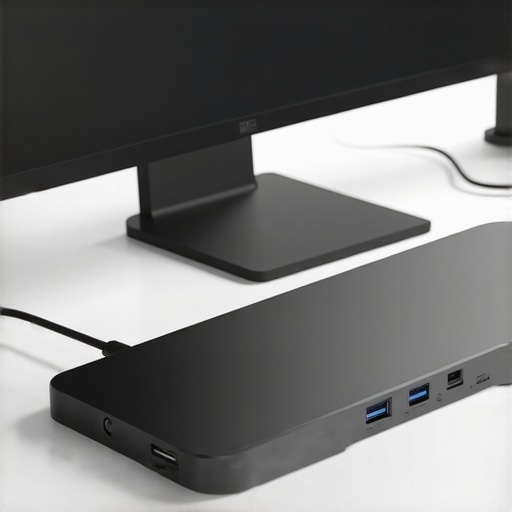
I remember the moment clearly: I was behind my desk, desperately trying to wiggle a tangled mess of cables every time I wanted an extra display. That sinking feeling when one monitor would flicker or refuse to connect altogether. It hit me—I was doing it all wrong.
After countless dead ends and a mountain of frustration, I finally realized the real issue lay in my choice of connection and equipment. It wasn’t just about plugging a few cables; it was about choosing the right dock that could handle multiple monitors effortlessly and reliably. That lightbulb moment changed everything.
The Frustration of DIY Multi-Monitor Setups
If you’re juggling multiple screens, you’ve likely experienced the chaos firsthand—frozen displays, missing ports, or worse, laggy connections that kill your productivity. You’re not alone. Many professionals and creators face similar hurdles—poor compatibility, limited bandwidth, or confusing setup instructions. These problems can make you question whether a multi-monitor setup is even worth it.
But here’s the good news: with the right USB-C dock or Thunderbolt station, you can tame this chaos and unlock your setup’s full potential. No more frustration, no more tangled cables—just smooth, reliable connectivity that boosts your workspace efficiency.
Will a fancy dock really make my life easier?
Early in my journey, I made the mistake of thinking that all docks are created equal. I bought a popular but cheap model, only to find it couldn’t handle more than one monitor reliably. That taught me a valuable lesson: investing in a quality dock isn’t just about convenience; it’s about ensuring your expensive monitors and peripherals work seamlessly under demanding workloads. Want to avoid my mistake? Check out the comprehensive guide on best USB-C docks for multiple monitors in 2024 to make informed choices.
This article is designed to walk you through the essential selection criteria and help you find a setup that’s reliable, scalable, and tailored to your needs. Ready to ditch the cable mess and elevate your workspace? Let’s dive into some practical tips and expert insights to get started.
Select the Appropriate Connection Type
Choosing between Thunderbolt and USB-C docks is crucial for a reliable multi-monitor setup. Think of Thunderbolt as a superhighway that can handle multiple lanes of fast traffic—ideal for high-resolution displays and high-bandwidth data transfer. USB-C, on the other hand, is like a main street—versatile and sufficient for most standard multi-monitor arrangements. To decide which suits you, consider your laptop’s port options and your performance needs. For instance, my experience with a Thunderbolt dock proved invaluable when I was running three 4K monitors, providing seamless video playback and speedy data transfer without lag. For detailed comparison and guidance, check the comprehensive resources on Thunderbolt vs. USB-C docks.
Identify Your Signal Bandwidth and Compatibility
Regardless of the connection type, understanding your dock’s maximum bandwidth and your laptop’s capabilities is essential. Think of bandwidth as the width of a highway lane—more lanes mean more cars pass through quickly. For multi-monitor setups, ensure your chosen dock supports the total resolution and refresh rate of your monitors. For high-DPI displays or 4K resolution, the dock’s video output ports must handle high data loads. During my first attempt, I used a cheap USB-C dock with insufficient bandwidth, causing flickering and lag. Upgrading to a higher-quality Thunderbolt station fixed these issues instantly and kept my workflow smooth. To learn more about the technical specs you need, browse the guide on best USB-C docks for multi-monitor setups.
Connect and Configure Your Monitors Effectively
Time to physically connect your monitors. Use the correct ports—DisplayPort, HDMI, or Thunderbolt—based on your monitors’ and dock’s specifications. Remember, the order and port selection can impact performance; for example, connecting your primary monitor to the port with the highest bandwidth ensures optimal display quality. Once connected, configure your display settings via your operating system—extend, mirror, or set up an extended desktop. I once tried plugging everything in without configuring, resulting in monitors not recognizing each other. A quick setup via display settings, however, transformed my workspace from cluttered to productive. For step-by-step guidance, refer to docking setup tips.
Optimize Power Delivery and Cable Management
Aside from video signals, your dock should supply adequate power to your laptop. Think of power delivery as a plumbing system—adequate flow prevents leaks and ensures your devices stay charged. Many docks support charging up to 100W; verify your laptop’s power needs before selecting. Proper cable management isn’t just aesthetic; it prevents disconnections and damage. Use cable ties or sleeves to organize cables, reducing clutter and making future rearrangements easier. I initially left cables dangling, which led to accidental disconnections. After implementing cable management, my setup was not only cleaner but also more reliable. For more suggestions on neat configurations, see usb hub organization tips.
Test and Refine Your Setup
Finally, test your entire workflow—drag windows, monitor refresh rates, and data transfers. Look for lag, flicker, or disconnections. If issues arise, revisit your connection types, bandwidth, or cable quality. Adjust the display arrangement in your OS settings to match your physical monitors. During my trial, I noticed minor flickering during intense tasks; updating drivers and rechecking connections resolved those problems. Make tweaks as necessary, and remember, a well-calibrated setup saves time and boosts productivity over the long run. For troubleshooting tips and best practices, explore docking troubleshooting guides.
Many assume that simply plugging in multiple monitors via a USB-C or Thunderbolt dock guarantees a smooth experience, but the reality is far more nuanced. A common misconception is that all docks—and even cables—are created equal, leading users to overlook critical technical details. For instance, pairing a high-resolution monitor with a dock that lacks adequate bandwidth or support for multiple high-refresh-rate screens can cause flickering, lag, or complete disconnects, despite the cables being seemingly compatible. Understanding that not all docks support the same data throughput is essential. Advanced users should scrutinize specifications like bandwidth limits and port compatibility to prevent these pitfalls. Moreover, many believe that USB-C ports inherently deliver video and power; however, if the port is not Thunderbolt-compatib le or lacks DisplayPort Alternate Mode support, the performance suffers dramatically. This misconception can halt advanced workflows, especially when working with 4K or ultra-wide displays where bandwidth is critical. Remember, designating primary and secondary displays, managing signal priorities, and verifying support for high data rates prevent the ‘oops’ moments that interrupt productivity. For a comprehensive breakdown of technical nuances, visit our guide on choosing the right multi-monitor setup. Bask in the temptation to think your existing dock is enough? Think again.
Additionally, avoid falling into the trap of over-relying on affordability. Cheaper docks might seem appealing but often sacrifice necessary features like full bandwidth support or reliable power delivery, which are vital for seamless multi-monitor performance. Investing in quality gear—such as reputable Thunderbolt docks—ensures your setup remains scalable and resilient. Keep in mind that understanding signal integrity and cable quality is critical, especially for professional workloads. Using inferior or incompatible cables can lead to signal degradation, resulting in flickering or missing displays. This underscores the importance of not just hardware choice but also cable quality—a nuance often overlooked. To master high-performance multi-monitor setups, explore our dedicated latest Thunderbolt and USB-C dock reviews. Remember, mastering these details transforms your workspace from cluttered to efficient and responsive. Have you ever fallen into this trap? Let me know in the comments.
Maintaining a multi-monitor setup that consistently performs at its best is essential for maximizing productivity and avoiding frustrating downtime. One of my favorite tools in this endeavor is a high-quality USB-C or Thunderbolt dock, which manages not only connectivity but also power delivery and cable organization. For instance, I rely on the best USB-C docks for multi-monitor setups in 2024 because they offer reliable bandwidth support and robust power supply, reducing the risk of flickering or disconnections over time.
Software utilities also play a crucial role. I recommend using display management tools like DisplayFusion or MultimonITOR. These programs simplify monitor calibration, hotkey configuration, and window snapping, keeping your workspace consistent and organized even after hardware updates or driver changes. Regularly updating your graphics drivers from the GPU manufacturer’s site (NVIDIA or AMD) ensures compatibility and performance improvements, especially when dealing with multiple high-resolution displays.
Physical maintenance is often overlooked. Dust buildup can cause overheating or connection issues. I schedule monthly cleaning sessions, using compressed air to blow out dust from ports and vents. Keep your cables well-organized with reusable cable ties or sleeves—cable clutter not only looks shabby but can cause disconnections or cable damage over time. A well-arranged cable system also makes troubleshooting much faster if any issues arise.
Predicting where this trend is heading, I believe that future docks will incorporate smarter cable management and integrated firmware updates to handle evolving standards more seamlessly. Additionally, firmware or software updates will become more automated, reducing the need for manual interventions, similar to what is already happening with Thunderbolt standards.
How do I maintain my multi-monitor setup over time?
Implement a regular physical inspection schedule, ensuring ports and cables are free from dust and damage. Rely on reputable utilities like display managers to preserve your configuration and ease recovery if software updates cause issues. Keep all firmware and drivers up to date, and consider using automated backup tools for your display settings to prevent from losing customization after a system reinstall or upgrade. A good habit is to test configurations periodically by running through your workflow and noting any anomalies, then addressing feedback swiftly. For more insights into optimizing your setup, explore our best tips for multi-monitor productivity in 2024. Take these practices seriously—they’re key to long-term reliability and peak performance. And I challenge you to automate your driver updates today using tools like Driver Booster or Windows Update, ensuring your system stays current without hassle and maintains the seamless operation you need for those long work months.
The Hardest Lesson I Learned About Multiple Monitors and Thunderbolt Docks
One of my biggest realizations was that even the most advanced docking station can fall short if not paired with proper cables and configuration. I once invested in a top-tier Thunderbolt dock, only to find my monitors flickering and lagging. It wasn’t until I examined my cables and setup routine that I uncovered the importance of high-quality, compatible cords and precise display settings. This taught me that hardware isn’t everything—it’s the entire ecosystem working in harmony that makes a multi-monitor setup thrive.
Why Overreliance on Cost Savings Can Sabotage Your Workspace
Early on, I tried to cut costs by opting for cheaper USB-C hubs, believing they would suffice. But frequent disconnections and image glitches soon proved otherwise. It became clear that investing in reputable gear—like the best USB-C docks and Thunderbolt hubs—pays dividends in reliability and scalability. Remember, cheap hardware often results in frustration, especially when you’re pushing your setup for high-resolution, multi-monitor workflows. Trustworthy equipment is an investment in your productivity and peace of mind.
The Unexpected Benefits of Thoughtful Cable Management
Initially, I overlooked how cluttered cables could cause signal interference and disconnections. Once I organized everything with cable ties and labeled my connections, my setup’s performance became noticeably more stable. Proper cable management not only prolongs the lifespan of your equipment but also simplifies troubleshooting down the line. This simple step transformed my workspace into a sleek, efficient environment where creativity and focus flourish.
Curated Tools for a Seamless Multi-Monitor Experience
Based on my journey, I highly recommend exploring resources that enhance your setup. For comprehensive insights, the guide on selecting the right multi-monitor setup offers invaluable tips grounded in real-world experience. Additionally, tools like software utilities and driver management guides can keep your workflow smooth. If you’re aiming for top-tier connectivity, reviewing latest Thunderbolt and USB-C docks is a smart move to ensure compatibility and performance.
Your Next Step Toward a Powerfully Connected Workspace
Now that I’ve shared my lessons, I want you to feel inspired to take action. Upgrading your docking station, choosing quality cables, and optimizing your display settings can revolutionize your productivity. Remember, the right multi-monitor setup is more than just connecting screens—it’s about creating a seamless, reliable environment that accelerates your work and sparks your creativity. Don’t hesitate—your upgraded workspace is within reach. How has your experience with multi-monitor setups shaped your workflow? Share your story below and let’s learn together.”}#}#stimulusevaluate {
Reading through this guide really resonated with my own experience trying to set up multiple monitors. I used to think that all docks were essentially the same until I ran into flickering and lag issues with a cheaper model. Upgrading to a reputable Thunderbolt dock made a huge difference, especially when working with high-resolution displays. One thing I’ve learned is that cable quality matters just as much as the dock itself—cheap cables can undermine a good setup. I especially appreciate the emphasis on bandwidth and signal compatibility, as these are often overlooked. Do you have recommendations for particular cable brands or models that have worked well for multi-monitor setups? I’m also curious—how do others manage their workspace clutter, especially when trying to keep everything organized and clean without sacrificing accessibility? Organizing cables with sleeves or ties improved my workflow significantly, but I’d love some additional tips from the community.