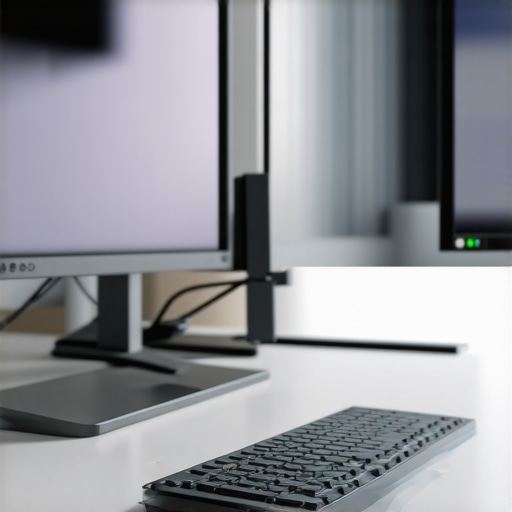
Ever had that moment where your sleek laptop turns into a tangled mess of cables just trying to set up a dual monitor workspace? I used to spend more time fiddling with connections than actually working, constantly questioning if I’d chosen the right dock or if my setup was even possible without sacrificing speed or clarity. It was frustrating—until I finally realized the problem wasn’t me, but the equipment I was using—or rather, misusing.
The Lightbulb Moment: Why Your Multi-Monitor Setup Matters
In my quest for productivity, I learned that the right Thunderbolt dock can transform your workspace from a chaotic tangle into a streamlined powerhouse. Not only does having multiple screens boost efficiency, but it also reduces eye strain and keeps your workflow smooth and distraction-free. For 2024, the tech options have never been better, making it the ideal time to upgrade your setup and experience the difference yourself.
Have you faced the frustration of your current dock or hub not supporting your multi-monitor ambitions? If so, you’re in good company—and lucky, because the right choice now can save you hours of hassle and boost your productivity significantly.
Will the hype around Thunderbolt Docks actually deliver?
Admittedly, I made a rookie mistake early on, assuming that any USB-C dock would do the trick. Big mistake. It’s tempting to think all docks are created equal, but with the complexity of high-resolution, multi-monitor setups, choosing the wrong one can lead to lagging screens, flickering, or even system crashes. Trust me, I’ve been there. That’s why I’ve taken the time to analyze and test the best Thunderbolt docks for 2024, so you don’t have to make the same misstep.
In this guide, we’ll explore the key features to look for, review top options, and walk through practical tips to create an efficient, multi-monitor setup that won’t let you down. If you want to avoid the pitfalls I faced and enjoy a seamless multi-display experience, keep reading—you’re about to unlock a new level of productivity.
Ready to get started? Let’s dive into the world of Thunderbolt docks that can truly support your modern workflow.
Connecting Your Monitors Step-by-Step
Begin by evaluating your laptop’s available ports and determining the number of monitors you need. Choose a Thunderbolt dock that supports multiple outputs; the best options for 2024 often have dual or even triple video outputs. Connect the dock to your laptop via Thunderbolt 3 or 4 cable, ensuring your laptop’s firmware and drivers are up to date to prevent compatibility issues. Plug your monitors into the dock’s video outputs—HDMI, DisplayPort, or Thunderbolt—based on what your monitors support. Power on your monitors first, then your laptop, to ensure they are recognized during startup. Use your operating system’s display settings to arrange and extend your desktop across the screens. Verify each monitor displays correctly and adjusts resolution for clarity. If any issues arise, revisit connections, update graphics drivers, or check dock compatibility. Remember, choosing the right dock with sufficient bandwidth prevents lag or flickering; consult the ultimate thunderbolt dock guide for detailed specs.
Optimizing Cable Management and Power
Organize cables to avoid clutter and improve airflow. Use cable ties or sleeves to bundle the wires, keeping power, video, and data cables separate to minimize interference. Ensure your dock has adequate power delivery—many models support charging your laptop through the same cable—so you won’t need separate chargers. Connect the dock to a grounded outlet, and if available, use a surge protector to safeguard your devices. Proper cable management not only creates a clean workspace but reduces accidental disconnects and technical issues during busy workdays. For a comprehensive approach to enhancing connectivity, see USB-C docks guide.
Adjusting Your Display Settings for Peak Performance
After physical setup, fine-tune your display settings for best clarity and productivity. Access your system’s display settings to set each monitor’s resolution, refresh rate, and orientation. For high-resolution monitors, confirm your dock and GPU can handle 4K or higher displays smoothly. Enable the extended desktop mode to spread your workspace across screens, and arrange the monitor icons to match their physical placement—this simplifies cursor movement. Enable scaling options if UI elements appear tiny. Test each monitor’s output to identify any lag, flickering, or color inconsistencies. Adjust refresh rates or cable connections accordingly. For advanced configurations like color calibration or multiple virtual desktops, refer to detailed tutorials such as laptop docking secrets for 2025.
Addressing Common Challenges Quickly
If monitors aren’t recognized, double-check connections and power sources. Sometimes, updating your graphics driver or BIOS resolves detection issues. For flickering or lag, test different ports or cables, as poor-quality adapters or damaged cables often cause these problems. If the dock isn’t providing enough power to charge your laptop, check the dock’s wattage rating; some models require an external power source to support multiple displays. For persistent troubles, contact support through our contact page to troubleshoot hardware-specific issues. Remember, a well-chosen dock combined with proper setup significantly enhances workflow without frequent disruptions, making your multi-monitor environment a true productivity powerhouse.
Many enthusiasts and professionals alike operate under a common misconception: that simply connecting multiple monitors via a USB-C or Thunderbolt dock guarantees a seamless, high-performance workspace. However, as an expert in tech setups, I can tell you that the real pitfalls often lie beneath the surface. Contrary to popular belief, not all docks are created equal, and understanding the nuanced differences can save you from costly mistakes.
For instance, a widespread myth is that higher port counts or flashy specifications automatically translate into better performance. In reality, real-world performance depends heavily on the dock’s bandwidth management, compatibility with your GPU, and the quality of internal components. Neglecting these nuances often results in issues like flickering screens, laggy responsiveness, or even hardware damage. To avoid this, it’s critical to scrutinize specifications beyond surface-level features—look for docks that support optimal data transfer rates and ensure your system’s capabilities align with the dock’s offerings.
Another often overlooked aspect involves power delivery and cable quality. Many users assume that any high-wattage power adapter will suffice, but mismatched power profiles can lead to insufficient charging or power fluctuations, especially when multiple high-res displays are involved. Trust me, using a dock with a reputable power management system is non-negotiable. Furthermore, cheap or damaged cables—often sold as ‘compatibles’—can introduce flickering or signal loss. For this reason, investing in quality cables and docks is a small step toward large gains in workspace stability.
Is Longer Cables Always Better for Multi-Display Stability?
Many assume that extending cables or daisy-chaining monitors can enhance flexibility, but in practice, longer runs can diminish signal quality unless properly managed with active extenders or high-quality cables. Signal degradation over extended lengths can cause flickering, blank screens, or input lag, which defeats the purpose of a multi-monitor setup. As a rule of thumb, sticking to recommended cable lengths and quality standards is essential for optimal performance. This might seem minor, but it can make or break your daily efficiency.
Remember, the ecosystem of your setup—dock, cables, system GPU, and monitors—must work in harmony. Prioritizing compatibility and quality over mere specs can prevent the “oops” moments that frustrate even seasoned users. If you’re ever in doubt, don’t hesitate to reach out for expert guidance. Building a reliable multi-monitor environment is less about the hardware and more about how well all components integrate.
Have you ever fallen into this trap? Let me know in the comments and share your experiences. Remember, a little nuanced knowledge now can save you hours of troubleshooting later!
Ensuring your multi-monitor workstation remains reliable over time requires a combination of the right tools, disciplined maintenance routines, and strategic upgrades. As someone who has managed complex setups involving Thunderbolt docks, USB-C hubs, and multiple displays, I’ve learned that proactive maintenance saves countless hours of troubleshooting and preserves your investment. Here are the essential tools and habits I personally recommend to keep your setup functioning flawlessly for years to come.
High-Quality Cable Testing Devices
One of the first steps in maintaining a stable multi-monitor environment is verifying your cables and adapters. I use a USB-C and DisplayPort cable tester that quickly detects faults, continuity issues, or degraded signals. Investing in a reliable tester—like the Fluke Networks Microscanner2—has helped me identify problematic cables before they cause flickering or signal loss. Regularly testing your cables ensures you’re not troubleshooting phantom issues caused by subpar wiring, which is particularly common when daisy-chaining monitors or extending cables over long distances. For detailed guidance, see the ultimate USB-C docks guide.
Software Monitoring and Configuration Tools
While hardware is critical, software management often makes or breaks long-term reliability. I rely on tools like DisplayFusion and Monitor Configuration software to automate desktop layouts, adjust color calibration, and monitor refresh rates efficiently. These tools allow me to apply profiles that automatically switch settings when I connect or disconnect monitors, minimizing the need for manual adjustments. Moreover, they help track driver updates and system health, alerting me to potential issues before they escalate. Staying current with GPU drivers, such as NVIDIA’s Studio Drivers, also helps prevent flickering and artifacts, especially when running high-resolution displays on docks supporting Thunderbolt 4 or USB-C.
Routine Hardware Inspection
Physically inspecting your setup every few months can prevent many issues. I check for loose connections, damaged ports, or buildup of dust that can cause overheating or signal interference. Ensuring your dock’s firmware is up-to-date is often overlooked but vital; manufacturers regularly release updates that improve stability and support for newer monitors or resolutions. You can usually download these updates directly from the manufacturer’s website or through dedicated management software. Regular inspections and updates extend device longevity and keep your workspace operating smoothly.
Organizational Tools to Prevent Clutter
Maintain a tidy workspace with cable organizers, sleeves, and magnetic clips. I personally use Cable Matters cable sleeves to bundle wires neatly and VELCRO® ties to secure excess length. This reduces accidental disconnects and makes troubleshooting easier if a device stops responding. Good cable management also promotes airflow, helping prevent overheating of sensitive components—especially when docks or hubs draw power from high-wattage sources.
Predictions for Future Maintenance
Looking ahead, I anticipate that AI-driven diagnostic tools integrated into docking stations and peripherals will become standard. These systems could monitor connection quality, power delivery, and signal integrity in real-time, alerting users via smartphone apps or desktop notifications. With the rise of firmware over-the-air (FOTA) updates, maintaining your setup will become more automated and less time-consuming. Investing now in modular, firmware-upgradable docks and hubs prepares you for this shift.
How do I keep my setup working smoothly over time?
Implementing routine hardware checks, investing in reliable testing tools, leveraging configuration software, and staying current with firmware updates are your best strategies. Don’t forget to replace or upgrade cables periodically—cheap cables are often the weakest link in multi-monitor setups. For advanced setup tips, consider exploring laptop docking secrets for 2025. Start by testing your most critical cables with specialized tools, then automate your display management with software—these small steps can dramatically improve long-term performance. Remember, consistent maintenance not only preserves your hardware but also keeps your productivity at peak levels.
Lessons from the Front Line: My Biggest Wake-Up Calls
One of the hardest lessons I learned was that investing in a high-quality Thunderbolt dock is only half the battle; compatibility and proper setup are the real game changers. I once tried to save costs on cables and underestimated the importance of a clean workspace, which led to intermittent flickering and occasional crashes. It was only after detailed troubleshooting and reading countless forums that I realized that hardware harmony—and a tidy setup—is crucial for sustained productivity. This experience taught me that patience with initial setup pays dividends later. Also, I discovered that once you understand how your system’s GPU and dock communicate, you can optimize every connection for maximum stability and performance. These lessons turned frustration into a strategic advantage, transforming my multi-monitor environment into a powerhouse of efficiency. Remember, the real secret lies in meticulous attention to detail and ongoing maintenance, not just hardware specs.
My Go-To Gear for Stable Multi-Display Power
I rely on a set of trusted tools and resources that keep my setup running smoothly. The Ultimate USB-C docks guide has been invaluable in helping me choose models with the right bandwidth and compatibility. To test cable integrity, I use the USB-C and DisplayPort cable tester, which has saved me hours of troubleshooting. For monitoring system health and setting up configurations, I swear by software like DisplayFusion. Lastly, staying updated with the latest driver and firmware releases from manufacturers ensures I avoid common issues and keep the workflow seamless. These tools, combined with disciplined routine checks, form the backbone of a reliable multi-monitor environment.
Keep the Momentum Going and Push Your Limits
Building a stunning multi-monitor setup with the right Thunderbolt dock is just the beginning. Embrace the mindset of continuous improvement—regularly testing cables, upgrading firmware, and optimizing display settings can preserve your system’s health and boost productivity for years to come. Visualize the impact of a perfectly aligned workspace—less clutter, fewer tech glitches, and more focus on what truly matters. Don’t settle for mediocrity; use your experience and the right tools to elevate your setup to new heights. Remember, your workspace is a reflection of your commitment to excellence. Now is the time to invest in yourself, refine your environment, and enjoy the full power of modern connectivity. With ongoing care and strategic upgrades, your multi-monitor workstation can become a cornerstone of success, freedom, and inspiration. So, what’s the next step you’re eager to take to optimize your multi-display environment? Share below—your journey might inspire someone else to elevate their workspace, too.
I totally agree with the importance of choosing the right Thunderbolt dock for a multi-monitor setup. I used to overlook the significance of compatibility and quality cables, which led to flickering displays and frequent disconnects. Since switching to a higher-quality dock and investing in good cables, my workflow has become much smoother. One thing I learned the hard way is that even a small mismatch in power delivery can cause instability over time, especially when running high-resolution displays. I’ve found that using a reputable dock with sufficient wattage and ensuring cables are certified really makes all the difference. Have others experienced improvements with specific brands or models? I’d love to hear some trusted recommendations that work well for heavy multitasking and long hours.