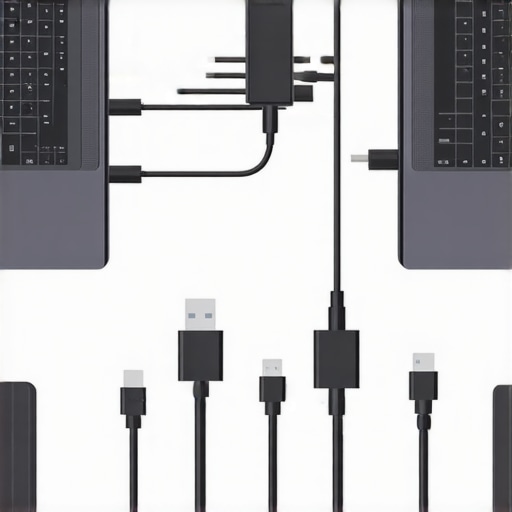
I remember the moment clearly—my laptop froze for the third time during an important presentation, a tangled chaos of cables and dead ports sprawled across my desk. It hit me hard: my setup was a mess, and I was paying the price—lost time, stress, and a dash of embarrassment. That lightbulb moment pushed me to finally dive deep into finding reliable solutions that could turn my connectivity nightmare into a seamless experience.
Why Your Laptop’s Connectivity Might Be Holding You Back
In today’s fast-paced work environments and creative hubs, we rely heavily on the ability to connect multiple monitors, peripherals, and data devices effortlessly. Yet, many of us struggle with incompatible ports, slow transfers, or cluttered desks. A good USB-C dock or Thunderbolt hub isn’t just a convenience; it’s become a necessity. If you’re tired of plugging and unplugging cables every day, then you’ve come to the right place. I’ll share my personal journey and tips that transformed my workspace—and can do the same for yours.
What Makes a USB-C Dock Worth Your Attention?
Initially, I made the mistake of thinking all hubs and docks were created equal. Spoiler: They aren’t. I bought a cheap one that promised the world but couldn’t handle my dual monitors or fast data transfer. It was frustrating, and I wasted money. After years of trial, error, and research (and plenty of docs like this resource), I finally understood what features matter—like power delivery, DisplayPort support, and bandwidth capacity. Choosing the right USB-C or Thunderbolt dock goes beyond brand names; it’s about matching your specific needs. Want to learn how to pick the best one? Keep reading, because I’ll help you cut through the noise.
Now, let’s get practical. Before you buy your next dock, I recommend assessing your setup and identifying the exact ports and features you need. Visit this guide for detailed tips on boosting your laptop’s connectivity in 2025. Trust me, a well-chosen dock can save you hours each week and make your workspace feel like a pro studio.
Ready to ditch the clutter and master your multi-monitor setup? Let’s dive into the next steps to optimize your setup with the best hardware and configurations.
,
Assess Your Needs Precisely
Start by identifying your current setup and future requirements. For example, recall the time I realized that my dual-monitor setup was hampered by a single HDMI port. I listed the monitors’ resolution, connection types, and power demands to ensure compatibility. Use tools like this guide to match your monitors with a suitable dock.
Choose Between USB-C and Thunderbolt
Matching Hardware to Your Laptop
Think of USB-C as a versatile extension cord—it’s widely compatible but varies in power and data capacity. Thunderbolt, on the other hand, resembles a supercharged power line designed for high-speed data and multiple displays. To avoid bottlenecks, identify your laptop’s port type and capabilities. My mistake was opting for a cheap USB-C hub when my laptop supported Thunderbolt, causing sluggish performance. Upgrading to a dedicated Thunderbolt dock, detailed in this resource, unlocked smoother multitasking.
Focus on Power Delivery and Bandwidth
Think of bandwidth like a highway—more lanes mean faster traffic. Select a dock that supports sufficient bandwidth for your monitors and data devices. I once connected two 4K monitors using a dock that only had enough bandwidth for 1080p, resulting in flickering screens and lag. After switching to a dock with ≥40 Gbps throughput, my setup became much more stable. Resources like this guide can help to identify the ideal specifications.
Match the Hardware to Your Workflow
Sketch out which peripherals you’ll connect—external drives, audio interfaces, or webcams—and verify the dock’s ports. For instance, I needed USB-A, USB-C, DisplayPort, and Ethernet. I once purchased a dock with plenty of USB-C ports but lacked an Ethernet port, which tangled my network setup. Using a dock with versatile port options from top picks for 2024 ensured all my devices connected seamlessly.
Test and Optimize Your Setup
Connect everything step-by-step, and double-check display resolutions, audio, and data speeds. I remember spending hours troubleshooting my monitor flickering until I realized that my cable quality was the culprit. Upgrading to certified DisplayPort cables cleared up the issue immediately. Don’t hesitate to experiment with cable lengths and port arrangements to find the configuration that delivers maximum stability. For more complex setups, this resource offers advanced tips for fine-tuning your multi-monitor experience.
Many enthusiasts and even seasoned professionals mistakenly assume that all USB-C and Thunderbolt docks are created equal or that the primary feature—fast data transfer—is the only thing that matters. However, this oversimplification can lead to costly mistakes and frustration. Let’s explore some overlooked nuances that can make or break your multi-monitor setup.
Boosting Performance Isn’t Just About Speed But Compatibility
Everyone clamors for high data transfer rates, but few grasp how compatibility intricacies impact performance. For instance, a Thunderbolt dock promises blazing speeds, yet if your laptop’s port doesn’t fully support Thunderbolt 3 or 4, you’re essentiallylimited to USB-C speeds. Relying solely on labels like “Thunderbolt” without verifying your device’s specs can result in underwhelming performance. Consulting authoritative sources, such as this guide, can help clarify what your system truly supports.
Furthermore, many users overlook the significance of firmware updates and driver compatibility, which are crucial for unlocking full potential—particularly with complex setups involving multiple displays and data streams.
Beware of the Myth That More Ports Always Equal Better Performance
It’s tempting to go for docks boasting maximum port counts. However, more isn’t always merrier. Overloading a dock with multiple high-bandwidth outputs can lead to bandwidth bottlenecks, causing flickering displays or sluggish transfers. For example, connecting dual 4K monitors to a dock that shares bandwidth among all ports can reduce each display’s resolution or introduce lag.
Advanced users should focus on bandwidth allocation—prefer docks that support at least 40 Gbps throughput when dealing with multiple 4K displays and high-speed data devices. Resources like this resource can guide you in selecting hardware that handles your workload efficiently.
How Do Power Delivery Limits Affect Your Daily Workflow?
Many believe that any PD (Power Delivery) support is functional across all docks. The reality is different: docks designed for charging do not necessarily deliver enough power for high-performance laptops or daisy-chaining peripherals and displays. Insufficient power delivery can cause your laptop to underperform or even shut down under load. Therefore, matching your dock’s PD output to your laptop’s requirements—often specified in the manufacturer’s documentation—is essential. Checking this against your device’s power input specifications ensures you’re not falling prey to the common misconception that all PD-supported docks provide what’s needed.
Also, consider whether the dock supports *charging while multi-tasking.* Some low-power docks might only provide data connectivity, forcing you to choose between power and performance, which hampers productivity. For deeper insights, visit this guide.
Lastly, take note of the impact of cable quality and length. Using subpar or overly long cables can introduce signal degradation, leading to degraded display quality or data errors. Prioritize certified cables—especially for 4K or higher resolutions—to maintain stable, high-quality connections.
Understanding these nuances allows you to avoid typical pitfalls that hinder your setup’s performance. It’s not just about choosing a dock with high specs but ensuring it aligns with your device’s capabilities and your workflow needs. Want to get ahead? Check out this comprehensive guide for more expert insights.
Have you ever fallen into this trap? Let me know in the comments.
Maintain Your Hardware and Software
To ensure your USB-C or Thunderbolt dock remains reliable over time, regular maintenance is crucial. Personally, I dedicate a few minutes weekly to inspecting and cleaning my connectors with a soft, lint-free cloth and compressed air to prevent dust accumulation that can cause connection issues. Additionally, keeping firmware and driver software updated is vital; manufacturers often release critical updates that optimize compatibility and fix bugs. I subscribe to manufacturer newsletters to stay informed about the latest releases, which I deploy promptly using the provided update tools, ensuring my setup functions at peak efficiency. For Thunderbolt docks, I verify firmware using the official guide. Regularly checking for updates prevents performance degradation and prolongs hardware lifespan.
Invest in Quality Tools and Accessories
Using quality tools makes a noticeable difference in maintenance. I swear by a good set of high-quality cable management clips and a small set of precision screwdrivers to handle occasional hardware adjustments. For cleaning, I prefer isopropyl alcohol wipes and compressed air cans specially designed for electronics—both help remove dust without risking damage. Choosing certified cables and connectors is equally important; cheap, non-certified cables can introduce signal degradation over time. I personally use cables from reputable brands, which have lasted years without issues. Having the right tools and accessories on hand simplifies ongoing maintenance and minimizes downtime.
Practice Systematic Troubleshooting and Monitoring
To catch potential issues early, I monitor connection stability using specialized diagnostic software. For Windows, tools like Thunderbolt™ Control Center help verify device communication. I also keep a log of when problems occur, such as flickering monitors or slow data transfer, which often point to either hardware degradation or outdated drivers. Troubleshooting systematically—checking cables, ports, firmware, and software—saves time and prevents small issues from turning into major failures. This approach ensures my multi-monitor setup remains efficient and reliable, even after years of use.
Envision Expansion with Future-Ready Gear
Looking ahead, I predict the trend will shift towards more integrated, self-updating docks with built-in diagnostic capabilities. This could mean docks that alert you proactively about potential issues before they cause disruptions, or even self-repair features. Investing now in high-quality hardware is a step toward future-proofing your work environment. I recommend trying advanced features like firmware auto-updates and network monitoring tools to keep your setup ahead of the curve. For example, regularly revisiting resources like this guide can inspire innovative maintenance techniques. Embracing these tools today will streamline your workflow tomorrow and beyond.
How do I keep my setup performing at its best over time
Consistent maintenance, high-quality tools, and proactive monitoring are the keys to long-term reliability. As you expand your workspace, invest in versatile, upgradeable hardware and stay informed about firmware and driver updates. Remember, a well-maintained docking station is not just about convenience; it’s about enabling your productivity today and in the future. Begin integrating these habits now, and you’ll thank yourself during those critical work moments when your setup performs flawlessly. Ready to take it to the next level? Implement one advanced tip—like scheduling monthly firmware checks—and experience immediate improvements. If you’re curious about specific maintenance routines tailored to your equipment, visit our contact page for expert advice.
What I Wish I Knew Before Picking My First Dock
One of the most pivotal lessons I learned was to never settle for a one-size-fits-all hub. I once bought a generic USB-C dock, only to discover it couldn’t handle my dual 4K monitors or fast data transfers, leading to lag and frustration. The key takeaway? Always match your dock’s capabilities precisely to your workflow needs, and don’t be swayed by flashy marketing alone.
My Secret Weapon for Seamless Connectivity
After countless experiments, I found that a combination of firmware updates, high-quality cables, and dedicated tools like the ultimate USB-C dock guide transformed my setup. Using reputable brands for cables and verifying your hardware’s firmware ensures stability and longevity—invest in your workflow, and it pays dividends.
The Momentum That Drives Me to Keep Improving
It’s inspiring how the right hardware can elevate your productivity from cluttered chaos to streamlined efficiency. I challenge you to think beyond just buying the most ports; consider bandwidth, power delivery, and future compatibility. Embrace a mentality of continuous improvement, and you’ll find that your multi-monitor setup doesn’t just meet today’s demands but adapts effortlessly to tomorrow’s challenges. Ready to upgrade your workspace? Dive into this guide to start your journey.