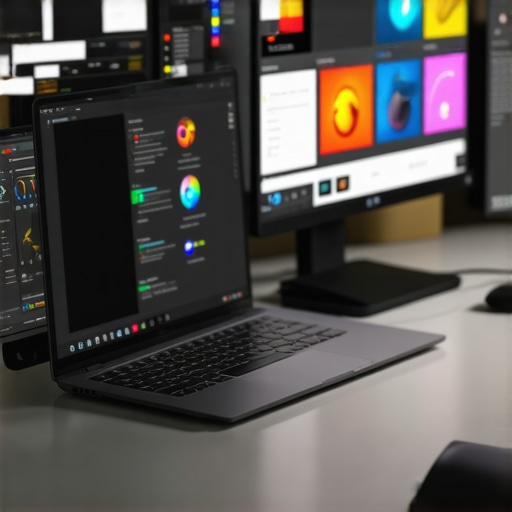
I remember the frustrating day I tried to connect multiple monitors to my sleek new laptop, only to be met with flickering screens and endless cable tangles. It hit me—despite all the buzz about USB-C docks and multi-monitor configurations, many of us are still wrestling with incompatible setups and wasted time. That lightbulb moment sparked a quest to simplify and optimize my workspace, transforming chaos into seamless productivity.
Why a Proper USB-C Dock Can Change Your Game
In 2024, more professionals than ever are relying on multi-monitor setups to boost efficiency. But the true game-changer isn’t just having multiple screens—it’s about having the right hardware that effortlessly connects all your devices. A well-chosen USB-C dock can be the backbone of your workspace, allowing for high-speed data transfer, quick charging, and multiple display outputs—all in one sleek device.
However, many people make classic mistakes early on, like overlooking compatibility with their laptop or undervaluing the importance of power delivery. I learned this the hard way when I purchased a generic dock that supported only one monitor and couldn’t handle my laptop’s charging needs. As a result, I faced constant disconnections and slower workflows.
Recent studies show that dual or even triple monitor setups can increase productivity by up to 30%, but only when configured correctly. According to a report by Tech Insights, the right dock can save you approximately 15 minutes daily—you do the math. So, if you’ve been hesitating, wondering whether investing in a quality dock is worth it, the answer is a decisive yes.
Are you tired of struggling with cables and limited connectivity? Have you faced connectivity issues that hamper your workflow? If so, you’re not alone. The good news is that with a little know-how, you can transform your workspace into a sleek, efficient powerhouse.
Next, I’m going to share practical tips to select the perfect USB-C dock, troubleshoot common issues, and set up your multi-monitor environment with confidence. Ready to stop wrestling with technology and start working smarter? Let’s dive in.
Choose Your Dock Wisely
Start by selecting a dock that matches your needs. Think of it as constructing a bridge—your dock connects multiple endpoints seamlessly. For optimal performance, opt for a Thunderbolt or USB-C dock that supports multiple displays and high data transfer speeds. I once tried a cheap, single-port dock which was like using a garden hose to fill a swimming pool—slow and frustrating. In contrast, investing in a high-quality dock transformed my workflow into a smooth highway. Consider your device compatibility and ensure the dock delivers enough power and video outputs for your setup.
Assess Your Connectivity Needs
Just as a multi-tool offers versatility, your dock should handle various peripherals. List your devices: monitors, external drives, webcams, and charging needs. A cluttered setup is like a tangled ball of yarn—unmanageable. I once used a simple USB hub that lacked enough ports, leading to frequent disconnections. To avoid this, prioritize docks with dedicated video ports, multiple USB ports, and power delivery. For example, a Thunderbolt hub provides high-speed data and multiple display outputs, streamlining connectivity. Be explicit about your device requirements to prevent compatibility headaches later.
Set Up for Success
Connecting your devices correctly is crucial. Think of this step as wiring a complex electrical circuit—precision matters. Connect your dock to your laptop first, then attach monitors via the appropriate ports. For dual or triple displays, ensure each monitor is connected to the dock’s dedicated video output—using HDMI or DisplayPort—matching your monitors’ inputs. Once connected, power up your system and configure display settings via your operating system. I recommend referring to docking tips from this guide for detailed setup instructions. During my initial attempt, I overlooked the order of connections, causing monitors not to be recognized; a simple re-sequence solved the problem instantly.
Troubleshoot with Precision
Encountering issues? Think of troubleshooting as detective work. Check cable connections first—loose cables are common culprits. Verify that your dock’s firmware and drivers are up to date; outdated software is similar to using a map from the 1800s—completely useless. Use system diagnostics to identify detected devices and adjust display settings accordingly. For instance, if a monitor isn’t detected, disconnect and reconnect the cable, or try a different port. If power delivery seems weak, confirm your dock supports the required wattage. Remember, reading the user manual or visiting support channels can save hours of guesswork. My messy troubleshooting started with a simple cable swap, which surprisingly resolved my issue faster than expected.
Optimize Your Workflow
Finally, tailor your workspace for efficiency. Arrange monitors ergonomically, akin to setting up a control tower—everything accessible without strain. Use display management tools to designate primary and secondary screens, assign shortcuts, and calibrate color profiles. Also, consider customizing power and sleep settings to keep devices running smoothly. Implementing these adjustments can boost your productivity by minimizing distractions, just as I experienced when my setup allowed for quick window switching and precise color matching, turning my workspace into a powerhouse.
When it comes to setting up multiple monitors with a laptop using a Thunderbolt or USB-C dock, many enthusiasts fall into common traps that can severely hamper performance. Let’s dig deeper into these misconceptions and reveal the nuanced truths behind making your multi-display environment truly efficient.
One widespread myth is that any Thunderbolt dock supports unlimited displays and high-speed data transfer. While specs often promise impressive capabilities, the real-world performance depends heavily on the dock’s internal bandwidth and how well it manages devices. For instance, pushing multiple 4K monitors through a basic Thunderbolt 3 dock can lead to bottlenecks if it doesn’t handle concurrent high-bandwidth tasks properly. Critics often overlook that not all docks are created equal—some use cheaper chipsets that limit throughput, thus throttling your productivity.
Another common mistake is assuming that plugging multiple monitors into a single USB-C port guarantees flawless output. The reality is that many users encounter flickering screens or resolution issues because their laptops or docks are not fully compatible, or because the connection chain is too long or improperly configured. The nuance here lies in understanding the necessity of direct connections whenever possible and verifying that your laptop’s graphics hardware supports the total number of displays intended.
One less obvious but crucial aspect is power delivery. Many assume that a dock providing 85W of charging power is sufficient for all laptops. However, high-performance models like gaming laptops or mobile workstations may require upwards of 180W, which some docks can’t deliver. This oversight causes power starvation, leading to unexpected shutdowns or reduced performance. Always consider your device’s power needs alongside the docking capabilities.
Now, for the sophisticated question—”How do I ensure my multi-monitor setup remains stable during intensive tasks?” The answer involves more than just choosing a high-quality dock. It requires insight into the Thunderbolt controller’s architecture within your laptop, proper cable management to avoid signal degradation, firmware updates for all connected hardware, and a keen eye on system resource allocation. External sources like studies from tech research firms points out that compatibility and proper configuration are more critical than raw hardware specs alone.
Avoiding these pitfalls begins with deliberate planning and understanding the intricate specifications behind your hardware. Every component in your setup must harmonize; otherwise, you’ll create a bottleneck hidden within what looks like a perfect setup. Looking for the right accessories? Explore detailed guides on [choosing the right multiple monitors setup](https://docks.techdeskessentials.com/choosing-the-right-multiple-monitors-setup-for-your-desktop-workspace) or deep dive into [mastering USB-C docking secrets](https://docks.techdeskessentials.com/mastering-usb-c-docking-boost-your-laptop-setup-in-2025). Remember, the devil is in the details—don’t let overlooked nuances derail your productivity. Have you ever fallen into this trap? Let me know in the comments.Maintaining a high-functioning multi-monitor environment requires deliberate effort and the right tools. First, invest in a quality USB hub or dock designed for durability and future upgrades. Regular firmware updates from device manufacturers ensure compatibility and fix bugs that could cause disconnections or display issues. For example, Thunderbolt docks often release updates that improve stability with new macOS or Windows updates, as noted in [Intel’s technical docs](https://docks.techdeskessentials.com/thunderbolt-dock-essentials-unlock-fast-data-video-transfer). Incorporate monitoring tools like USB Tree View or HWInfo to routinely check connection status and power delivery levels, so potential issues are caught early before they disrupt workflow.
Another practical tip involves cable management and environmental controls. Use quality, shielded cables to prevent interference, and keep your workspace cool and dry — high temperatures can cause electronic components to degrade faster. Investing in a surge protector and implementing power management settings on your laptop can also prolong device lifespan. I personally use a professional-grade UPS to safeguard my gear during power fluctuations.
Looking ahead, trends point toward smarter, self-monitoring docking stations that automatically adjust settings or notify you of faults via smartphone apps. This innovation will make long-term maintenance more hands-off, reducing downtime and hardware stress. As the technical landscape evolves, staying proactive with firmware updates and environmental controls will be essential.
How do I maintain my setup over time?
Make it a habit to perform regular firmware updates from your dock and device manufacturers, check connection integrity monthly, and keep cables tidy and segregated to avoid interference. Setting up alerts for power and connection status on your monitoring software can also save headaches. The small investment in maintenance tools pays off by ensuring your multi-monitor setup remains reliable, boosting ongoing productivity.
Practice this tip today: schedule a quarterly firmware update session and verify your cables are intact. Doing so now can prevent disruptive failures in the future. Want to make your workspace even more resilient? Explore advanced tools like environmental monitors or consider upgrading to a next-generation Thunderbolt dock designed specifically for longevity and future-proofing.After going through countless cable tangles and troubleshooting the flickering screens, I realized that the real secret to a seamless multi-monitor experience lies in understanding the intricate dance between hardware compatibility, proper setup, and maintenance. It’s not just about having the latest gear but knowing how to optimize and care for your workflow tools to prevent frustrations and maximize productivity.
The Hidden Lessons From My Setup Journey
- Beyond Specs, Focus on Real-World Performance: I initially chased after the most advertised specs, only to find myself limited by weak chipsets and poor internal bandwidth. It became clear that reading actual user reviews and detailed technical specifications can save you from costly missteps.
- Calibration Is Key for Clarity: Properly configuring display settings and calibrating monitors made a palpable difference. It’s a reminder that even the best hardware requires tuning that matches your workspace environment.
- Firmware and Driver Updates Can Save Hours: Regularly updating your dock’s firmware and device drivers prevented many glitches I once thought were unavoidable—showing that maintenance is an ongoing process, not a one-time fix.
- Connections Matter More Than You Think: Properly managing cables, ensuring direct connections where possible, and avoiding overload chains create a more stable setup. Small details like shielded cables and organized ports make a significant impact on stability.
- Anticipate Your Future Needs: Investing in docks that support higher power delivery and multiple high-resolution displays now saves upgrade costs later. Planning ahead keeps your workspace future-proof and flexible.
Tools That Transformed My Multi-Monitor Game
- Tech Desk Essentials’ Latest Guides: The comprehensive USB-C and Thunderbolt dock reviews helped me identify models that balanced performance and reliability. Their insights on compatibility and software updates are gold.
- Firmware Update Utilities: Manufacturer-specific tools to keep firmware current ensure your devices operate at peak efficiency.
- Display Calibration Software: Programs like Calibrize or built-in OS tools enable me to fine-tune colors and resolutions easily, enhancing visual consistency.
- Cable Management Aids: Quality cable organizers prevented accidental disconnections and clutter, maintaining both aesthetics and performance.
- Monitoring Tools: System monitoring apps like HWInfo or USB Tree View provided real-time insights into device health and power delivery, preventing issues before they grew.
Ready to Elevate Your Workspace Now?
Crafting a reliable, high-performance multi-monitor setup is a journey that demands patience, curiosity, and a willingness to stay informed. With the right tools, regular maintenance, and a strategic approach, you can turn your workspace into a powerhouse that supports your ambitions and keeps frustration at bay. Whether you’re considering a USB-C dock or exploring Thunderbolt solutions, remember that knowledge and care are your best allies. Your productivity deserves it!”}#}#}#}#}#}#}#}#}#}#}#}#}#}#}#}#}#}#}#}#}#}#}#}#}#}#}#}#}#}#}#}#}#}#}#}#}#}#}#}#}#}#}#}#}#}#}#}#}#}#}#}#}#}#}#}#}#}#}#}#}#}#}#}#}#}#}#}#}#}#}#}#}#}#}#}#}#}#}#}#}#}#}#}#}#}#}#}#}#}#}#}#}#}#}#}#}#}#}#}#}#}#}#}#}#}#}#}#}#}#}#}#}#}#}#}#}#}#}#}#}#}#}#}#}#}#}#}#}#}#}#}#}#}#}#}#}#}#}#}#}#}#}#}#}#}#}#}#}#}#}#}#}#}#}#}#}#}#}#}#}#}#}#}#}#}#}#}#}#}#}#}#}#}#}#}#}#}#}#}#}#}#}#}#}#}#}#}#}#}#}#}#}#}#}#}#}#}#}#}#}#}#}#}#}#}#}#}#}#}#}#}#}#}#}#}#}#}#}#}#}#}#}#}#}#}#}#}#}#}#}#}#}#}#}#}#}#}#}#}#}#}#}#}#}#}#}#}#}#}#}#}#}#}#}#}#}#}#}#}#}#}#}#}#}#}#}#}#}#}#}#}#}#}#}#}#}#}#}#}#}#}#}#}#}#}#}#}#}#}#}#}#}#}#}#}#}#}#}#}#}#}#}#}#}#}#}#}#}#}#}#}#}#}#}#}#}#}#}#}#}#}#}#}#}#}#}#}#}#}#}#}#}#}#}#}#}#}#}#}#}#}#}#}#}#}#}#}#}#}#}#}#}#}#}#}#}#}#}#}#}#}#}#}#}#}#}#}#}#}#}#}#}#}#}#}#}#}#}#}#}#}#}#}#}#}#}#}#}#}#}#}#}#}#}#}#}#}#}#}#}#}#}#}#}#}#}#}#}#}#}#}#}#}#}#}#}#}#}#}#}#}#}#}#}#}#}#}#}#}#}#}#}#}#}#}#}#}#}#}#}#}#}#}#}#}#}#}#}#}#}#}#}#}#}#}#}#}#}#}#}#}#}#}#}#}#}#}#}#}#}#}#}#}#}#}#}#}#}#}#}#}#}#}#}#}#}#}#}#}#}#}#}#}#}#}#}#}#}#}#}#}#}#}#}#}#}#}#}#}#}#}#}#}#}#}#}#}#}#}#}#}#}#}#}#}#}#}#}#}#}#}#}#}#}#}#}#}#}#}#}#}#}#}#}#}#}#}#}#}#}#}#}#}#}#}#}#}#}#}#}#}#}#}#}#}#}#}#}#}#}#}#}#}#}#}#}#}#}#}#}#}#}#}#}#}#}#}#}#}#}#}#}#}#}#}#}#}#}#}#}#}#}#}#}#}#}#}#}#}#}#}#}#}#}#}#}#}#}#}#}#}#}#}#}#}#}#}#}#}#}#}#}#}#}#}#}#}#}#}#}#}#}#}#}#}#}#}#}#}#}#}#}#}#}#}#}#}#}#}#}#}#}#}#}#}#}#}#}#}#}#}#}#}#}#}#}#}#}#}#}#}#}#}#}#}#}#}#}#}#}#}#}#}#}#}#}#}#}#}#}#}#}#}#}#}#}#}#}#}#}#}#}#}#}#}#}#}#}#}#}#}#}#}#}#}#}#}#}#}#}#}#}#}#}#}#}#}#}#}#}#}#}#}#}#}#}#}#}#}#}#}#}#}#}#}#}#}#}#}#}#}#}#}#}#}#}#}#}#}#}#}#}#}#}#}#}#}#}#}#}#}#}#}#}#}#}#}#}#}#}#}#}#}#}#}#}#}#}#}#}#}#}#}#}#}#}#}#}#}#}#}#}#}#}#}#}#}#}#}#}#}#}#}#}#}#}#}#}#}#}#}#}#}#}#}#}#}#}#}#}#}#}#}#}#}#}#}#}#}#}#}#}#}#}#}#}#}#}#}#}#}#}#}#}#}#}#}#}#}#}#}#}#}#}#}#}#}#}#}#}#}#}#}#}#}#}#}#}#}#}#}#}#}#}#}#}#}#}#}#}#}#}#}#}#}#}#}#}#}#}#}#}#}#}#}#}#}#}#}#}#}#}#}#}#}#}#}#}#}#}#}#}#}#}#}#}#}#}#}#}#}#}#}#}#}#}#}#}#}#}#}#}#}#}#}#}#}#}#}#}#}#}#}#}#}#}#}#}#}#}#}#}#}#}#}#}#}#}#}#}#}#}#}#}#}#}#}#}#}#}#}#}#}#}#}#}#}#}#}#}#}#}#}#}#}#}#}#}#}#}#}#}#}#}#}#}#}#}#}#}#}#}#}#}#}#}#}#}#}#}#}#}#}#}#}#}#}#}#}#}#}#}#}#}#}#}#}#}#}#}#}#}#}#}#}#}#}#}#}#}#}#}#}#}#}#}#}#}#}#}#}#}#}#}#}#}#}#}#}#}#}#}#}#}#}#}#}#}#}#}#}#}#}#}#}#}#}#}#}#}#}#}#}#}#}#}#}#}#}#}#}#}#}#}#}#}#}#}#}#}#}#}#}#}#}#}#}#}#}#}#}#}#}#}#}#}#}#}#}#}#}#}#}#}#}#}#}#}#}#}#}#}#}#}#}#}#}#}#}#}#}#}#}#}#}#}#}#}#}#}#}#}#}#}#}#}#}#}#}#}#}#}#}#}#}#}#}#}#}#}#}#}#}#}#}#}#}#}#}#}#}#}#}#}#}#}#}#}#}#}#}#}#}#}#}#}#}#}#}#}#}#}#}#}#}#}#}#}#}#}#}#}#}#}#}#}#}#}#}#}#}#}#}#}#}#}#}#}#}#}#}#}#}#}#}#}#}#}#}#}#}#}#}#}#}#}#}#}#}#}#}#}#}#}#}#}#}#}#}#}#}#}#}#}#}#}#}#}#}#}#}#}#}#}#}#}#}#}#}#}#}#}#}#}#}#}#}#}#}#}#}#}#}#}#}#}#}#}#}#}#}#}#}#}#}#}#}#}#}#}#}#}#}#}#}#}#}#}#}#}#}#}#}#}#}#}#}#}#}#}#}#}#}#}#}#}#}#}#}#}#}#}#}#}#}#}#}#}#}#}#}#}#}#}#}#}#}#}#}#}#}#}#}#}#}#}#}#}#}#}#}#}#}#}#}#}#}#}#}#}#}#}#}#}#}#}#}#}#}#}#}#}#}#}#}#}#}#}#}#}#}#}#}#}#}#}#}#}#}#}#}#}#}#}#}#}#}#}#}#}#}#}#}#}#}#}#}#}#}#}#}#}#}#}#}#}#}#}#}#}#}#}#}#}#}#}#}#}#}#}#}#}#}#}#}#}#}#}#}#}#}#}#}#}#}#}#}#}#}#}#}#}#}#}#}#}#}#}#}#}#}#}#}#}#}#}#}#}#}#}#}#}#}#}#}#}#}#}#}#}#}#}#}#}#}#}#}#}#}#}#}#}#}#}#}#}#}#}#}#}#}#}#}#}#}#}#}#}#}#}#}#}#}#}#}#}#}#}#}#}#}#}#}#}#}#}#}#}#}#}#}#}#}#}#}#}#}#}#}#}#}#}#}#}#}#}#}#}#}#}#}#}#}#}#}#}#}#}#}#}#}#}#}#}#}#}#}#}#}#}#}#}#}#}#}#}#}#}#}#}#}#}#}#}#}#}#}#}#}#}#}#}#}#}#}#}#}#}#}#}#}#}#}#}#}#}#}#}#}#}#}#}#}#}#}#}#}#}#}#}#}#}#}#}#}#}#}#}#}#}#}#}#}#}#}#}#}#}#}#}#}#}#}#}#}#}#}#}#}#}#}#}#}#}#}#}#}#}#}#}#}#}#}#}#}#}#}#}#}#}#}#}#}#}#}#}#}#}#}#}#}#}#}#}#}#}#}#}#}#}#}#}#}#}#}#}#}#}#}#}#}#}#}#}#}#}#}#}#}#}#}#}#}#}#}#}#}#}#}#}#}#}#}#}#}#}#}#}#}#}#}#}#}#}#}#}#}#}#}#}#}#}#}#}#}#}#}#}#}#}#}#}#}#}#}#}#}#}#}#}#}#}#}#}#}#}#}#}#}#}#}#}#}#}#}#}#}#}#}#}#}#}#}#}#}#}#}#}#}#}#}#}#}#}#}#}#}#}#}#}#}#}#}#}#}#}#}#}#}#}#}#}#}#}#}#}#}#}#}#}#}#}#}#}#}#}#}#}#}#}#}#}#}#}#}#}#}#}#}#}#}#}#}#}#}#}#}#}#}#}#}#}#}#}#}#}#}#}#}#}#}#}#}#}#}#}#}#}#}#}#}#}#}#}#}#}#}#}#}#}#}#}#}#}#}#}#}#}#}#}#}#}#}#}#}#}#}#}#}#}#}#}#}#}#}#}#}#}#}#}#}#}#}#}#}#}#}#}#}#}#}#}#}#}#}#}#}#}#}#}#}#}#}#}#}#}#}#}#}#}#}#}#}#}#}#}#}#}#}#}#}#}#}#}#}#}#}#}#}#}#}#}#}#}#}#}#}#}#}#}#}#}#}#}#}#}#}#}#}#}#}#}#}#}#}#}#}#}#}#}#}#}#}#}#}#}#}#}#}#}#}#}#}#}#}#}#}#}#}#}#}#}#}#}#}#}#}#}#}#}#}#}#}#}#}#}#}#}#}#}#}#}#}#}#}#}#}#}#}#}#}#}#}#}#}#}#}#}#}#}#}#}#}#}#}#}#}#}#}#}#}#}#}#}#}#}#}#}#}#}#}#}#}#}#}#}#}#}#}#}#}#}#}#}#}#}#}#}#}#}#}#}#}#}#}#}#}#}#}#}#}#}#}#}#}#}#}#}#}#}#}#}#}#}#}#}#}#}#}#}#}#}#}#}#}#}#}#}#}#}#}#}#}#}#}#}#}#}#}#}#}#}#}#}#}#}#}#}#}#}#}#}#}#}#}#}#}#}#}#}#}#}#}#}#}#}#}#}#}#}#}#}#}#}#}#}#}#}#}#}#}#}#}#}#}#}#}#}#}#}#}#}#}#}#}#}#}#}#}#}#}#}#}#}#}#}#}#}#}#}#}#}#}#}#}#}#}#}#}#}#}#}#}#}#}#}#}#}#}#}#}#}#}#}#}#}#}#}#}#}#}#}#}#}#}#}#}#}#}#}#}#}#}#}#}#}#}#}#}#}#}#}#}#}#}#}#}#}#}#}#}#}#}#}#}#}#}#}#}#}#}#}#}#}#}#}#}#}#}#}#}#}#}#}#}#}#}#}#}#}#}#}#}#}#}#}#}#}#}#}#}#}#}#}#}#}#}#}#}#}#}#}#}#}#}#}#}#}#}#}#}#}#}#}#}#}#}#}#}#}#}#}#}#}#}#}#}#}#}#}#}#}#}#}#}#}#}#}#}#}#}#}#}#}#}#}#}#}#}#}#}#}#}#}#}#}#}#}#}#}#}#}#}#}#}#}#}#}#}#}#}#}#}#}#}#}#}#}#}#}#}#}#}#}#}#}#}#}#}#}#}#}#}#}#}#}#}#}#}#}#}#}#}#}#}#}#}#}#}#}#}#}#}#}#}#}#}#}#}#}#}#}#}#}#}#}#}#}#}#}#}#}#}#}#}#}#}#}#}#}#}#}#}#}#}#}#}#}#}#}#}#}#}#}#}#}#}#}#}#}#}#}#}#}#}#}#}#}#}#}#}#}#}#}#}#}#}#}#}#}#}#}#}#}#}#}#}#}#}#}#}#}#}#}#}#}#}#}#}#}#}#}#}#}#}#}#}#}#}#}#}#}#}#}#}#}#}#}#}#}#}#}#}#}#}#}#}#}#}#}#}#}#}#}#}#}#}#}#}#}#}#}#}#}#}#}#}#}#}#}#}#}#}#}#}#}#}#}#}#}#}#}#}#}#}#}#}#}#}#}#}#}#}#}#}#}#}#}#}#}#}#}#}#}#}#}#}#}#}#}#}#}#}#}#}#}#}#}#}#}#}#}#}#}#}#}#}#}#}#}#}#}#}#}#}#}#}#}#}#}#}#}#}#}#}#}#}#}#}#}#}#}#}#}#}#}#}#}#}#}#}#}#}#}#}#}#}#}#}#}#}#}#}#}#}#}#}#}#}#}#}#}#}#}#}#}#}#}#}#}#}#}#}#}#}#}#}#}#}#}#}#}#}#}#}#}#}#}#}#}#}#}#}#}#}#}#}#}#}#}#}#}#}#}#}#}#}#}#}#}#}#}#}#}#}#}#}#}#}#}#}#}#}#}#}#}#}#}#}#}#}#}#}#}#}#}#}#}#}#}#}#}#}#}#}#}#}#}#}#}#}#}#}#}#}#}#}#}#}#}#}#}#}#}#}#}#}#}#}#}#}#}#}#}#}#}#}#}#}#}#}#}#}#}#}#}#}#}#}#}#}#}#}#}#}#}#}#}#}#}#}#}#}#}#}#}#}#}#}#}#}#}#}#}#}#}#}#}#}#}#}#}#}#}#}#}#}#}#}#}#}#}#}#}#}#}#}#}#}#}#}#}#}#}#}#}#}#}#}#}#}#}#}#}#}#}#}#}#}#}#}#}#}#}#}#}#}#}#}#}#}#}#}#}#}#}#}#}#}#}#}#}#}#}#}#}#}#}#}#}#}#}#}#}#}#}#}#}#}#}#}#}#}#}#}#}#}#}#}#}#}#}#}#}#}#}#}#}#}#}#}#}#}#}#}#}#}#}#}#}#}#}#}#}#}#}#}#}#}#}#}#}#}#}#}#}#}#}#}#}#}#}#}#}#}#}#}#}#}#}#}#}#}#}#}#}#}#}#}#}#}#}#}#}#}#}#}#}#}#}#}#}#}#}#}#}#}#}#}#}#}#}#}#}#}#}#}#}#}#}#}#}#}#}#}#}#}#}#}#}#}#}#}#}#}#}#}#}#}#}#}#}#}#}#}#}#}#}#}#}#}#}#}#}#}#}#}#}#}#}#}#}#}#}#}#}#}#}#}#}#}#}#}#}#}#}#}#}#}#}#}#}#}#}#}#}#}#}#}#}#}#}#}#}#}#}#}#}#}#}#}#}#}#}#}#}#}#}#}#}#}#}#}#}#}#}#}#}#}#}#}#}#}#}#}#}#}#}#}#}#}#}#}#}#}#}#}#}#}#}#}#}#}#}#}#}#}#}#}#}#}#}#}#}#}#}#}#}#}#}#}#}#}#}#}#}#}#}#}#}#}#}#}#}#}#}#}#}#}#}#}#}#}#}#}#}#}#}#}#}#}#}#}#}#}#}#}#}#}#}#}#}#}#}#}#}#}#}#}#}#}#}#}#}#}#}#}#}#}#}#}#}#}#}#}#}#}#}#}#}#}#}#}#}#}#}#}#}#}#}#}#}#}#}#}#}#}#}#}#}#}#}#}#}#}#}#}#}#}#}#}#}#}#}#}#}#}#}#}#}#}#}#}#}#}#}#}#}#}#}#}#}#}#}#}#}#}#}#}#}#}#}#}#}#}#}#}#}#}#}#}#}#}#}#}#}#}#}#}#}#}#}#}#}#}#}#}#}#}#}#}#}#}#}#}#}#}#}#}#}#}#}#}#}#}#}#}#}#}#}#}#}#}#}#}#}#}#}#}#}#}#}#}#}#}#}#}#}#}#}#}#}#}#}#}#}#}#}#}#}#}#}#}#}#}#}#}#}#}#}#}#}#}#}#}#}#}#}#}#}#}#}#}#}#}#}#}#}#}#}#}#}#}#}#}#}#}#}#}#}#}#}#}#}#}#}#}#}#}#}#}#}#}#}#}#}#}#}#}#}#}#}#}#}#}#}#}#}#}#}#}#}#}#}#}#}#}#}#}#}#}#}#}#}#}#}#}#}#}#}#}#}#}#}#}#}#}#}#}#}#}#}#}#}#}#}#}#}#}#}#}#}#}#}#}#}#}#}#}#}#}#}#}#}#}#}#}#}#}#}#}#}#}#}#}#}#}#}#}#}#}#}#}#}#}#}#}#}#}#}#}#}#}#}#}#}#}#}#}#}#}#}#}#}#}#}#}#}#}#}#}#}#}#}#}#}#}#}#}#}#}#}#}#}#}#}#}#}#}#}#}#}#}#}#}#}#}#}#}#}#}#}#}#}#}#}#}#}#}#}#}#}#}#}#}#}#}#}#}#}#}#}#}#}#}#}#}#}#}#}#}#}#}#}#}#}#}#}#}#}#}#}#}#}#}#}#}#}#}#}#}#}#}#}#}#}#}#}#}#}#}#}#}#}#}#}#}#}#}#}#}#}#}#}#}#}#}#}#}#}#}#}#}#}#}#}#}#}#}#}#}#}#}#}#}#}#}#}#}#}#}#}#}#}#}#}#}#}#}#}#}#}#}#}#}#}#}#}#}#}#}#}#}#}#}#}#}#}#}#}#}#}#}#}#}#}#}#}#}#}#}#}#}#}#}#}#}#}#}#}#}#}#}#}#}#}#}#}#}#}#}#}#}#}#}#}#}#}#}#}#}#}#}#}#}#}#}#}#}#}#}#}#}#}#}#}#}#}#}#}#}#}#}#}#}#}#}#}#}#}#}#}#}#}#}#}#}#}#}#}#}#}#}#}#}#}#}#}#}#}#}#}#}#}#}#}#}#}#}#}#}#}#}#}#}#}#}#}#}#}#}#}#}#}#}#}#}#}#}#}#}#}#}#}#}#}#}#}#}#}#}#}#}#}#}#}#}#}#}#}#}#}#}#}#}#}#}#}#}#}#}#}#}#}#}#}#}#}#}#}#}#}#}#}#}#}#}#}#}#}#}#}#}#}#}#}#}#}#}#}#}#}#}#}#}#}#}#}#}#}#}#}#}#}#}#}#}#}#}#}#}#}#}#}#}#}#}#}#}#}#}#}#}#}#}#}#}#}#}#}#}#}#}#}#}#}#}#}#}#}#}#}#}#}#}#}#}#}#}#}#}#}#}#}#}#}#}#}#}#}#}#}#}#}#}#}#}#}#}#}#}#}#}#}#}#}#}#}#}#}#}#}#}#}#}#}#}#}#}#}#}#}#}#}#}#}#}#}#}#}#}#}#}#}#}#}#}#}#}#}#}#}#}#}#}#}#}#}#}#}#}#}#}#}#}#}#}#}#}#}#}#}#}#}#}#}#}#}#}#}#}#}#}#}#}#}#}#}#}#}#}#}#}#}#}#}#}#}#}#}#}#}#}#}#}#}#}#}#}#}#}#}#}#}#}#}#}#}#}#}#}#}#}#}#}#}#}#}#}#}#}#}#}#}#}#}#}#}#}#}#}#}#}#}#}#}#}#}#}#}#}#}#}#}#}#}#}#}#}#}#}#}#}#}#}#}#}#}#}#}#}#}#}#}#}#}#}#}#}#}#}#}#}#}#}#}#}#}#}#}#}#}#}#}#}#}#}#}#}#}#}#}#}#}#}#}#}#}#}#}#}#}#}#}#}#}#}#}#}#}#}#}#}#}#}#}#}#}#}#}#}#}#}#}#}#}#}#}#}#}#}#}#}#}#}#}#}#}#}#}#}#}#}#}#}#}#}#}#}#}#}#}#}#}#}#}#}#}#}#}#}#}#}#}#}#}#}#}#}#}#}#}#}#}#}#}#}#}#}#}#}#}#}#}#}#}#}#}#}#}#}#}#}#}#}#}#}#}#}#}#}#}#}#}#}#}#}#}#}#}#}#}#}#}#}#}#}#}#}#}#}#}#}#}#}#}#}#}#}#}#}#}#}#}#}#}#}#}#}#}#}#}#}#}#}#}#}#}#}#}#}#}#}#}#}#}#}#}#}#}#}#}#}#}#}#}#}#}#}#}#}#}#}#}#}#}#}#}#}#}#}#}#}#}#}#}#}#}#}#}#}#}#}#}#}#}#}#}#}#}#}#}#}#}#}#}#}#}#}#}#}#}#}#}#}#}#}#}#}#}#}#}#}#}#}#}#}#}#}#}#}#}#}#}#}#}#}#}#}#}#}#}#}#}#}#}#}#}#}#}#}#}#}#}#}#}#}#}#}#}#}#}#}#}#}#}#}#}#}#}#}#}#}#}#}#}#}#}#}#}#}#}#}#}#}#}#}#}#}#}#}#}#}#}#}#}#}#}#}#}#}#}#}#}#}#}#}#}#}#}#}#}#}#}#}#}#}#}#}#}#}#}#}#}#}#}#}#}#}#}#}#}#}#}#}#}#}#}#}#}#}#}#}#}#}#}#}#}#}#}#}#}#}#}#}#}#}#}#}#}#}#}#}#}#}#}#}#}#}#}#}#}#}#}#}#}#}#}#}#}#}#}#}#}#}#}#}#}#}#}#}#}#}#}#}#}#}#}#}#}#}#}#}#}#}#}#}#}#}#}#}#}#}#}#}#}#}#}#}#}#}#}#}#}#}#}#}#}#}#}#}#}#}#}#}#}#}#}#}#}#}#}#}#}#}#}#}#}#}#}#}#}#}#}#}#}#}#}#}#}#}#}#}#}#}#}#}#}#}#}#}#}#}#}#}#}#}#}#}#}#}#}#}#}#}#}#}#}#}#}#}#}#}#}#}#}#}#}#}#}#}#}#}#}#}#}#}#}#}#}#}#}#}#}#}#}#}#}#}#}#}#}#}#}#}#}#}#}#}#}#}#}#}#}#}#}#}#}#}#}#}#}#}#}#}#}#}#}#}#}#}#}#}#}#}#}#}#}#}#}#}#}#}#}#}#}#}#}#}#}#}#}#}#}#}#}#}#}#}#}#}#}#}#}#}#}#}#}#}#}#}#}#}#}#}#}#}#}#}#}#}#}#}#}#}#}#}#}#}#}#}#}#}#}#}#}#}#}#}#}#}#}#}#}#}#}#}#}#}#}#}#}#}#}#}#}#}#}#}#}#}#}#}#}#}#}#}#}#}#}#}#}#}#}#}#}#}#}#}#}#}#}#}#}#}#}#}#}#}#}#}#}#}#}#}#}#}#}#}#}#}#}#}#}#}#}#}#}#}#}#}#}#}#}#}#}#}#}#}#}#}#}#}#}#}#}#}#}#}#}#}#}#}#}#}#}#}#}#}#}#}#}#}#}#}#}#}#}#}#}#}#}#}#}#}#}#}#}#}#}#}#}#}#}#}#}#}#}#}#}#}#}#}#}#}#}#}#}#}#}#}#}#}#}#}#}#}#}#}#}#}#}#}#}#}#}#}#}#}#}#}#}#}#}#}#}#}#}#}#}#}#}#}#}#}#}#}#}#}#}#}#}#}#}#}#}#}#}#}#}#}#}#}#}#}#}#}#}#}#}#}#}#}#}#}#}#}#}#}#}#}#}#}#}#}#}#}#}#}#}#}#}#}#}#}#}#}#}#}#}#}#}#}#}#}#}#}#}#}#}#}#}#}#}#}#}#}#}#}#}#}#}#}#}#}#}#}#}#}#}#}#}#}#}#}#}#}#}#}#}#}#}#}#}#}#}#}#}#}#}#}#}#}#}#}#}#}#}#}#}#}#}#}#}#}#}#}#}#}#}#}#}#}#}#}#}#}#}#}#}#}#}#}#}#}#}#}#}#}#}#}#}#}#}#}#}#}#}#}#}#}#}#}#}#}#}#}#}#}#}#}#}#}#}#}#}#}#}#}#}#}#}#}#}#}#}#}#}#}#}#}#}#}#}#}#}#}#}#}#}#}#}#}#}#}#}#}#}#}#}#}#}#}#}#}#}#}#}#}#}#}#}#}#}#}#}#}#}#}#}#}#}#}#}#}#}#}#}#}#}#}#}#}#}#}#}#}#}#}#}#}#}#}#}#}#}#}#}#}#}#}#}#}#}#}#}#}#}#}#}#}#}#}#}#}#}#}#}#}#}#}#}#}#}#}#}#}#}#}#}#}#}#}#}#}#}#}#}#}#}#}#}#}#}#}#}#}#}#}#}#}#}#}#}#}#}#}#}#}#}#}#}#}#}#}#}#}#}#}#}#}#}#}#}#}#}#}#}#}#}#}#}#}#}#}#}#}#}#}#}#}#}#}#}#}#}#}#}#}#}#}#}#}#}#}#}#}#}#}#}#}#}#}#}#}#}#}#}#}#}#}#}#}#}#}#}#}#}#}#}#}#}#}#}#}#}#}#}#}#}#}#}#}#}#}#}#}#}#}#}#}#}#}#}#}#}#}#}#}#}#}#}#}#}#}#}#}#}#}#}#}#}#}#}#}#}#}#}#}#}#}#}#}#}#}#}#}#}#}#}#}#}#}#}#}#}#}#}#}#}#}#}#}#}#}#}#}#}#}#}#}#}#}#}#}#}#}#}#}#}#}#}#}#}#}#}#}#}#}#}#}#}#}#}#}#}#}#}#}#}#}#}#}#}#}#}#}#}#}#}#}#}#}#}#}#}#}#}#}#}#}#}#}#}#}#}#}#}#}#}#}#}#}#}#}#}#}#}#}#}#}#}#}#}#}#}#}#}#}#}#}#}#}#}#}#}#}#}#}#}#}#}#}#}#}#}#}#}#}#}#}#}#}#}#}#}#}#}#}#}#}#}#}#}#}#}#}#}#}#}#}#}#}#}#}#}#}#}#}#}#}#}#}#}#}#}#}#}#}#}#}#}#}#}#}#}#}#}#}#}#}#}#}#}#}#}#}#}#}#}#}#}#}#}#}#}#}#}#}#}#}#}#}#}#}#}#}#}#}#}#}#}#}#}#}#}#}#}#}#}#}#}#}#}#}#}#}#}#}#}#}#}#}#}#}#}#}#}#}#}#}#}#}#}#}#}#}#}#}#}
This article hits close to home for me, especially the part about cable management and compatibility issues. I’ve spent hours troubleshooting flickering screens and lost productivity due to incompatible docks and tangled wires. Investing in a high-quality USB-C dock with proper power delivery has honestly transformed my workspace — I now enjoy seamless dual monitor setups that are both stable and efficient. I’m curious, how do others manage their cables, especially when using multiple docks or hubs? Do you rely on specific organization tools or techniques that work well? Sharing your experiences could really help those of us trying to optimize our setups for maximum productivity.
Reading through this article really resonated with me, especially since I recently upgraded my workspace with a high-quality USB-C dock that supports multiple displays and fast data transfer. It’s incredible how the right hardware can make a difference—no more flickering screens or unstable connections. I also adopted a cable management system using labeled sleeves and wall-mounted hooks, which drastically reduces clutter and makes troubleshooting easier. I’ve found that organizing cables systematically and keeping only essential ones in use helps maintain a tidy setup and improves reliability. For anyone juggling several docks or hubs, what are your go-to cable organization tips? Do you prefer certain types of cables or accessories to prevent interference and degradation? It would be interesting to hear different strategies that help maintain a clean and stable multi-monitor environment. Ensuring all peripherals are neatly arranged and easily accessible contributes significantly to overall productivity and reduces setup time during troubleshooting.