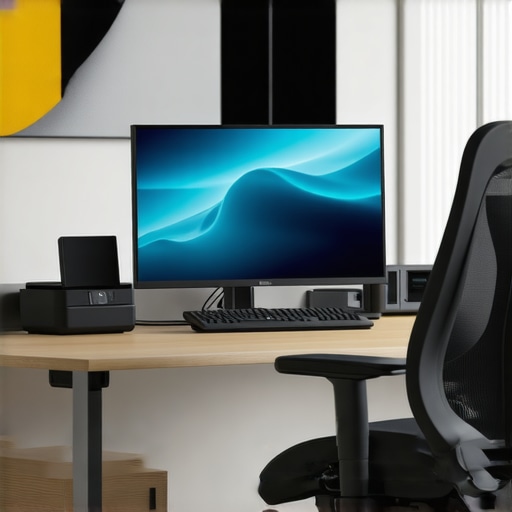
Have you ever sat at your desk, staring at a cluttered screen filled with tabs, files, and endless tabs open, feeling that sinking frustration? That moment when your laptop’s single display just isn’t enough anymore—when you realize that your productivity is hitting a wall because of limited connectivity options or a chaotic workspace? I’ve been there. I remember plugging and unplugging multiple devices, trying to juggle everything, only to end up tangled in a mess of cables and missing deadlines. That was my lightbulb moment—when I realized that the right USB C dock and a well-planned multi-monitor setup could transform my workflow.
Why Investing in a Good Dock and Multi-Monitor Setup Matters in 2024
In today’s fast-paced world, your workspace needs to be more than just a desk—you need a seamless, reliable connection hub that boosts your efficiency. A high-quality USB C dock or Thunderbolt dock isn’t just a luxury anymore; it’s essential. These devices allow you to connect multiple monitors, external drives, and peripherals with a single cable—cutting down on clutter and making your setup more adaptable. According to a recent study, multitasking with multiple screens can increase productivity by up to 42%, which is a game-changer for remote workers, creatives, and professionals alike.
But here’s the thing—choosing the right dock and setting up your monitors properly isn’t always straightforward. I made the mistake early on of buying a cheap hub that couldn’t handle high-resolution displays or data transfer speeds needed for my work. It was a frustrating experience, to say the least. That’s why I want to share what I’ve learned so you can avoid those pitfalls and create a setup that actually works for you.
Is All USB C Docking Technology Created Equal? The Skeptic’s Dilemma
If you’ve been researching, you’ve probably seen a flood of options claiming to be the best. It’s easy to get overwhelmed, and I used to wonder—are these really worth the investment? My advice: don’t fall for the hype without doing your homework. Not all docks are built to handle multiple high-res monitors or fast data transfer. I initially bought a generic USB C hub, thinking any connection would do. Turns out, it couldn’t support dual 4K displays without lagging or dropping signals. That mistake taught me the importance of looking into specific features like Thunderbolt 3 or 4 compatibility, power delivery, and the number of video outputs. Want a comprehensive guide? Check out our detailed overview of the best USB-C docks for 2024.
So, if you’ve ever wondered whether investing in a good dock and multi-monitor setup is truly worth it, I’ll tell you—absolutely. It’s about working smarter, not harder. And with the right tools, you’ll find your workspace transforming from chaos into clarity. Ready to learn how to get there? Let’s dive into the practical steps that will change how you work in 2024 and beyond.
Choose the Right Dock for Your Needs
Start by assessing your workspace and device compatibility. If your laptop supports Thunderbolt 3 or 4, investing in a Thunderbolt dock will give you faster data transfer and support for multiple high-resolution monitors. For older laptops or those without Thunderbolt, a high-quality USB C dock can still deliver excellent performance. Remember, not all hubs are created equal — some are merely USB hubs, incapable of handling multiple 4K displays or high-speed data. To make an informed decision, check the dock’s specifications against your workflow requirements. Want a detailed comparison? Explore our comprehensive guide to USB-C docks that can elevate your setup.
Connect Your Monitors Effectively
Before plugging everything in, plan your monitor arrangement. Use the monitor selection guide to decide whether you need dual 4K displays or a single ultrawide. Once chosen, connect your monitors to the dock’s video outputs—HDMI, DisplayPort, or Thunderbolt. Think of the dock as a hub of a railway station—each port is a track leading to your destination. If you encounter issues like flickering or no signal, verify that your dock supports multiple high-resolution outputs, and update your graphics drivers. I once struggled setting up dual 4K monitors with a generic dock, but switching to a dedicated Thunderbolt station solved my problem instantly. For multi-monitor tips, check out our multi-monitor setup guide.
Optimize Data and Power Delivery
Ensure your dock provides enough power. A dock with 85W or higher power delivery (PD) can charge your laptop while connected, keeping your workspace tidy without a separate charger. For data transfer, prioritize docks supporting Thunderbolt 4 or USB 3.2 Gen 2 for blazing-fast speeds—this is critical when transferring large files or working with external drives. Remember, a dock is like an electrical outlet for your laptop—choose one that can handle your power and data needs simultaneously without bottlenecks. I once bought a dock that lacked sufficient power delivery, forcing me to keep my charger plugged in separately. That inconvenience taught me to always check dock specs before purchase. For more insights, visit our ultimate USB hub guide.
Manage Cable Clutter and Positioning
Position your dock close to your workspace and route cables neatly to avoid a tangled mess. Use cable organizers or sleeves to keep things tidy. Remember, a cluttered desk hampers productivity—think of your workspace as a control tower that needs clear pathways. I once had a setup where cables kept slipping off my desk, causing disconnections. Installing a dock with a dedicated cable management system made a huge difference. Proper positioning also maximizes airflow and reduces wear on cables and ports. For ergonomic tips, see our docking secrets article.
Test and Tweak Your Setup
Once everything is connected, test your monitors and peripherals. Adjust display settings via your operating system to optimize resolution and layout. If you notice lag or flickering, revisit your dock’s specifications and update drivers. Fine-tuning might take some trial and error, but the result will be a seamless workspace. I once spent hours tweaking my monitor arrangement before finally achieving a perfect dual-screen setup. Document your configuration so you can replicate or modify it easily later. For troubleshooting advice, visit our multi-monitor troubleshooting guide.
Many users assume that all USB-C docks, Thunderbolt docks, and USB hubs are created equal, leading to costly mistakes and subpar performance. Let’s dig deeper into what most people get wrong about these devices, especially when it comes to multi-monitor setups. Understanding these nuances can save you time, money, and frustration in your workspace.
Why Size and Port Count Can Be Deceiving
It’s tempting to go for the biggest dock with the most ports, but more isn’t always better. Many high-port-count docks are built with cheaper components that can’t handle high-resolution displays or fast data transfer simultaneously. For example, a 12-port USB-C hub might look impressive, but if it’s a generic model, it could bottleneck your data or struggle with dual 4K monitors. Always verify the specs—look for support for at least 4K @60Hz, Thunderbolt 4 compatibility, and fast data protocols like USB 3.2 Gen 2×2. Remember, a well-designed smaller dock can outperform a bloated, low-quality one.
The Hidden Trap of Power Delivery
Many users overlook the importance of adequate power delivery (PD). A common misconception is that any dock providing 60W PD will be enough for most laptops. However, high-performance laptops often require 85W or more for optimal operation. Using a dock with insufficient PD can result in your laptop charging slowly or not at all, especially during intensive tasks. Moreover, some docks claim high PD but cannot sustain it when multiple peripherals draw power or data. Check the dock’s specifications carefully, and don’t forget to verify if it truly supports the power needs of your specific device. For detailed recommendations, visit our laptop docking guide.
Beware of Compatibility and Signal Quality
Compatibility issues are a frequent source of frustration. Not all docks work seamlessly with every laptop brand or operating system. For example, some Thunderbolt docks perform flawlessly on MacBooks but face issues on Windows machines, and vice versa. Additionally, the quality of the video outputs matters—cheaper docks might only support HDMI 1.4 or DisplayPort 1.2, limiting resolutions or causing flickering. To avoid these pitfalls, invest in reputable brands and double-check compatibility lists. Also, keep your firmware and drivers up to date to ensure stable connections. For insights into compatibility, see our Thunderbolt dock reviews.
Advanced Question: Are Thunderbolt Docks Always Better Than USB-C?
Contrary to popular belief, Thunderbolt docks aren’t always the best choice for every user. While they offer faster data transfer and support for multiple high-resolution displays, they can be overkill for casual users or those with less demanding workflows. The key is matching the dock’s capabilities with your actual needs. For instance, if you only need to connect a single 1080p monitor and external drives, a high-quality USB-C dock might suffice and be more cost-effective. However, if you’re working with professional-grade video editing or 3D rendering, investing in a Thunderbolt dock could be worthwhile. Always consider your specific use case and device compatibility before making a decision. For detailed comparisons, check out our comprehensive guide.
Have you ever fallen into this trap? Let me know in the comments how you navigated your multi-monitor setup challenges. By understanding these hidden nuances, you can optimize your workspace for maximum productivity and reliability.
Keeping your multi-monitor workspace running smoothly over time requires more than just initial setup. It involves regular maintenance, smart tool choices, and awareness of future trends. As someone who has dedicated years to optimizing multi-monitor setups with usb c docks, thunderbolt docks, and USB hubs, I can share proven strategies that will help you sustain peak performance and easily scale your system as your needs grow.
Use Diagnostic and Monitoring Software for Real-Time Insights
One of my favorite tools is monitoring software that provides real-time data on connection stability, power delivery, and data transfer speeds. These programs alert me immediately if a device drops signal or if my dock’s power output dips below optimal levels, allowing quick troubleshooting before issues escalate. I’ve found that setting up automated alerts for temperature and connection status helps prevent hardware failures and prolongs device lifespan.
Keep Firmware and Drivers Up to Date
Hardware updates are often overlooked but are crucial for seamless operation. Regularly check for firmware updates for your Thunderbolt or USB C docks, which often include bug fixes and compatibility improvements. Similarly, updating graphics and chipset drivers ensures your monitors display correctly and prevents flickering or lag. I schedule monthly checks—like clockwork—to keep everything current, reducing the risk of sudden failures or degraded performance. For detailed updates, visit our USB-C dock guide.
Implement Physical Maintenance and Cable Management
Physical upkeep is just as important. Clean dust from ports and cables at least quarterly to prevent overheating and corrosion. Use cable organizers or velcro straps to keep cords tidy, reducing wear and tear on ports. I also recommend inspecting cables for frays or bends and replacing any that show signs of damage. Proper positioning of your dock and monitors not only prevents accidental disconnections but also maintains airflow, which is essential for hardware longevity. For ergonomic tips, see our docking secrets article.
Long-Term Scalability Plans
As your workflow evolves, so should your setup. Think ahead by choosing docks and monitors with modular features—such as additional USB ports or higher resolution support—to avoid frequent replacements. Investing in a dock with Thunderbolt 4 support ensures compatibility with future devices and faster data transfer, making upgrades smoother. I predict that in the coming years, docks will incorporate AI-driven diagnostics and automatic firmware updates, simplifying maintenance even further. To prepare, keep an eye on emerging standards by following reputable tech news sources and manufacturer updates.
How do I maintain my multi-monitor system over time?
The key is regular software updates, physical cleaning, and proactive planning. Schedule routine checks, keep firmware and drivers current, and adopt good cable management practices. Don’t forget to back up your monitor configurations and dock settings—many systems allow saving profiles that make future adjustments hassle-free. By integrating these habits, you’ll extend the life of your hardware and ensure a reliable, high-performance workspace for years to come. I encourage you to try setting automated alerts for connection stability—it’s a game-changer for hassle-free maintenance.
What I Learned the Hard Way About Docking Solutions
The biggest lesson I learned was to never overlook the importance of compatibility and quality over sheer port numbers. I once bought a massive 12-port hub that looked impressive but failed to support dual 4K displays reliably. That costly mistake pushed me to focus on docks that support at least 4K @60Hz and Thunderbolt 4 when possible. It taught me that a smaller, well-supported dock often outperforms a bulky, low-quality one.
My Go-To Tools for Seamless Connectivity
Over the years, I’ve relied on a few trusted resources. The Ultimate USB Hub Guide helped me understand the difference between cheap and premium hubs. The Monitor Setup Guide provided clarity on choosing the right displays for my needs. For device-specific advice, I always check the Thunderbolt dock reviews. These resources have saved me countless hours and headaches.
Take Action and Elevate Your Workspace Today
Now is the perfect time to optimize your multi-monitor setup with the right USB C or Thunderbolt dock. Your productivity and comfort will thank you. Remember, investing in quality and compatibility pays off in the long run. So, why wait? Upgrade your workspace now and experience the difference firsthand.
What’s been your biggest challenge in setting up multiple monitors? Share your experience below—I’d love to hear your story!