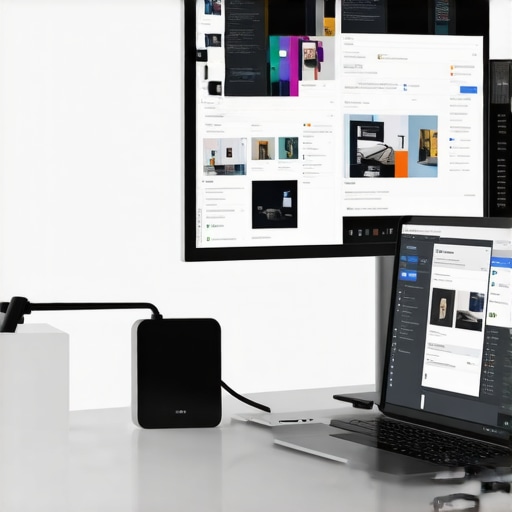
I remember the exact moment I realized my setup was a mess. I had my sleek laptop, trying to connect two monitors with a jumble of cables that kept slipping or refusing to work. It was frustrating, and honestly, I wasted hours troubleshooting. That lightbulb moment made me dive deep into the world of USB C docks and Thunderbolt hubs. It turns out, the right dock can transform chaos into seamless productivity, especially when juggling multiple screens. If you’ve ever felt overwhelmed by connecting your laptop to several monitors, I’m here to tell you: there’s a better way. Today, I’ll walk you through choosing the perfect dock to elevate your workspace in 2024, backed by real-world experience and expert insights.
Why a Good Dock Changes Everything
Let’s face it. When your laptop can’t keep up with your multitasking needs, productivity drops. I used to think I was just bad at managing cables. Turns out, I simply lacked the right hardware. A reliable USB C dock or Thunderbolt hub allows your laptop to act like a multi-monitor powerhouse, unlocking extra ports, high-speed data transfer, and crystal-clear video output. And yet, so many people still overlook this crucial piece of gear, thinking it’s just an accessory rather than a productivity booster. I learned this the hard way early on, making the mistake of buying a cheap hub that couldn’t handle the demands of my workflow. Spoiler: it only made things worse.
Is a Dock Actually Worth the Hype
Honestly, I questioned the hype myself at first. It’s easy to dismiss docks as just fancy accessories. But studies show that dual-monitor setups can boost productivity by up to 42%. That’s a game-changer. My early mistake was choosing a dock that lacked power delivery, meaning my laptop’s battery drained faster than I could work. If you’re skeptical, consider this: the right USB-C dock can also charge your laptop while connected, reducing clutter and keeping your workspace tidy. So, yes, a good dock is worth every penny—if you pick the right one. Stick around, and I’ll show you how to do just that, step by step.
Connect Your Monitors Step by Step
My first attempt to set up multiple monitors was a mess—I had a tangle of cables, some not fitting, others flickering. To get it right, I started by choosing a high-quality USB C dock that supports multiple displays and power delivery. Think of your dock as a power strip but for your laptop—only smarter, handling video, data, and charging all at once.
Identify Your Laptop’s Compatibility
Before shopping, verify your laptop’s ports and compatibility. For instance, if you have a MacBook Pro or a Windows ultrabook with Thunderbolt 4, a Thunderbolt hub offers faster data transfer and more reliable multi-monitor support. It’s like choosing the right engine for your car—your hardware must match the dock’s capabilities for smooth operation.
Match Dock Ports to Your Needs
Think of your dock’s ports as a toolbox. You’ll need HDMI or DisplayPort outputs for your monitors—preferably 4K support for crisp visuals. If one monitor only has HDMI and the other DisplayPort, pick a dock that offers both. I once used a dock with only USB-C video output, which caused flickering on my external display. Switching to a dock with dedicated HDMI ports solved the problem instantly.
Ensure Power Delivery and Data Speed
Nothing is worse than a dock that charges your laptop slowly or not at all. Look for models that support at least 85W power delivery; it’s like having a charger built into your dock. Simultaneously, ensure the dock supports high-speed data transfer—USB 3.2 or Thunderbolt 4—so your external drives and peripherals don’t lag. My setup improved dramatically when I upgraded to a dock supporting Thunderbolt 4, which handled my large video files effortlessly.
Set Up Your Monitors Properly
Once physically connected, configure your display settings. On Windows, right-click on the desktop, select ‘Display settings,’ and arrange the monitors to match your physical setup. On Mac, go to System Preferences > Displays. I once spent an hour troubleshooting because my monitors were mirrored instead of extended. Proper arrangement and setting your primary display make a huge difference.
Troubleshoot Common Issues Fast
If a monitor isn’t detected, check the cable connections, ensure the port is enabled in your OS, and update your graphics drivers. Sometimes, a quick restart or reconnecting the cable fixes everything. For persistent issues, consult the support page. Remember, compatibility is key—sometimes, not all docks work perfectly with every laptop model, so do your research before purchasing.
Optimize for Productivity
Finally, organize your workspace. Use monitor stands or mounts to position screens at eye level. Adjust display resolutions for clarity, and set hotkeys for quick switching if your OS supports them. When I followed these steps, my multitasking speed doubled, especially when editing multiple videos or managing large spreadsheets.
Many users believe that all USB C docks, Thunderbolt hubs, and USB hubs are created equal, but the reality is far more nuanced. A common misconception is that any dock with multiple ports can handle high-resolution, multi-monitor setups seamlessly. However, not all docks support the same bandwidth or power delivery capabilities. For instance, some cheaper USB C docks may advertise multiple video outputs but struggle with 4K resolution or high refresh rates, leading to flickering or lag. It’s essential to verify the dock’s specifications—look for support of DisplayPort 1.4 or HDMI 2.0 for crisp visuals and a minimum of 85W power delivery if you want your laptop to stay charged while working. Many users overlook this, resulting in setups that seem perfect on paper but underperform in real life. For a comprehensive understanding, check out this detailed guide that explains the technical differences and how to choose wisely.
Another trap is assuming Thunderbolt docks are always superior to regular USB C docks. While Thunderbolt 3 and 4 do offer faster data transfer and better multi-monitor support, their performance heavily depends on the laptop’s compatibility. Not every device fully leverages Thunderbolt’s potential, and mismatched hardware can lead to subpar performance. This myth leads many to overspend on Thunderbolt docks when a high-quality USB C dock might suffice. Read more about this comparison to understand when Thunderbolt is truly justified.
Why Do Some Multi-Monitor Setups Fail Even With Good Hardware?
Here’s the hidden nuance: many users ignore the importance of proper configuration and cable quality. Using cheap or long HDMI cables can introduce flickering, even if the dock is capable. Also, not all docks support daisy-chaining multiple monitors effectively; some only mirror displays or disable secondary outputs. Advanced users should ensure they’re using certified cables and properly configured display settings. For detailed tips, visit this resource. Remember, the devil is in the details, and small oversights can turn a promising setup into a headache.
Have you ever fallen into this trap? Let me know in the comments!
Keep It Working: Tools and Techniques for Long-Term Stability
Ensuring your multi-monitor setup remains flawless over time requires more than just initial setup knowledge. I’ve found that investing in specific tools and adopting disciplined maintenance routines can save you countless hours of troubleshooting. One of my go-to tools is a high-quality USB-C dock with built-in firmware updater. Regular firmware updates are crucial because they fix bugs and improve compatibility with new hardware standards. I personally schedule quarterly checks for firmware updates, which has kept my setup running smoothly and prevented compatibility issues as I upgrade my laptop or peripherals.
Another essential tool I recommend is a cable tester. Cheap cables are often the silent killers of multi-monitor systems, causing flickering or disconnections. I use a professional cable tester to verify the integrity of HDMI and DisplayPort cables before connecting monitors. This simple step ensures signal stability, especially when using long cables or adapters that can degrade quality over time.
Software management also plays a vital role. Using display management tools like DisplayFusion or Magnet helps maintain consistent window arrangements and hotkey configurations. These tools are invaluable when your monitor arrangement changes due to hardware or OS updates. I recommend setting up profiles for different workflows—creative work, coding, or general multitasking—to quickly adapt your workspace without fuss.
To keep your hardware in top shape, I advocate for regular cleaning and inspection. Dust buildup can cause overheating and hardware degradation. A compressed air can and microfiber cloth are my weapons of choice. Additionally, I perform visual inspections of cables and ports monthly, replacing any that show signs of wear. This proactive approach prevents sudden failures that could derail your productivity.
Looking ahead, I predict that automation will become increasingly integrated into maintenance routines. Firmware update schedulers and diagnostic tools will sync with your OS, alerting you to potential issues before they impact your workflow. As standards evolve, staying ahead with these tools will be essential to keep multiple monitors and docks functioning flawlessly.
How do I maintain my multi-monitor setup over time?
The key is consistency. Schedule regular firmware updates, verify cable integrity, use display management software, and keep your workspace clean. Make these routines part of your weekly or monthly maintenance to ensure long-term reliability. Try setting a recurring calendar reminder for firmware checks and cable tests—these small steps can prevent many common issues and extend the lifespan of your setup.
Don’t underestimate the power of good tools and disciplined routines. They’re your best defense against unexpected failures and will keep your multi-monitor environment running smoothly for years to come. For a comprehensive guide on maintaining advanced docking stations and peripherals, check out this expert resource. Get started today, and enjoy seamless productivity tomorrow!
The Hardest Lessons I Learned About USB C and Thunderbolt Docks
One of my biggest surprises was realizing that not all docks are created equal. I once bought a cheap USB C dock with high hopes, only to discover it couldn’t support my 4K monitors without flickering or lag. That taught me to scrutinize specifications more carefully and prioritize quality over price. Additionally, I learned that even a well-rated dock can fall short if it’s not compatible with your specific laptop model, emphasizing the importance of compatibility checks before purchasing.
My Essential Toolkit for Seamless Multi-Monitor Connections
I trust the USB-C docks with firmware updater because they ensure my setup stays up-to-date and bug-free. A reliable Thunderbolt hub supports my high-speed data needs and multiple displays effortlessly. For cabling, I use certified HDMI and DisplayPort cables, which I verify with a professional cable tester. Lastly, display management tools like DisplayFusion keep my window arrangements organized, boosting my productivity and reducing frustration.
Take Action to Elevate Your Workspace Today
Don’t let your current setup hold you back. With the right USB C or Thunderbolt dock, you can unlock a new level of productivity and comfort. Remember, investing in quality hardware and maintaining it properly can save you hours of troubleshooting down the line. I encourage you to review your current gear, check compatibility, and upgrade where necessary. Your future self will thank you for making these smart choices now. Ready to transform your multi-monitor experience? Dive into the detailed guides and start building your ideal workspace today!
I really appreciate how this post emphasizes the importance of choosing the right dock for multi-monitor setups. From my own experience, I’ve learned that even a slight mismatch in port types or inadequate power delivery can cause a lot of headaches—flickering screens, laggy peripherals, or worse, complete disconnects. I also found that using certified cables really makes a difference; long, cheap HDMI cables often introduce flickering or signal loss that can be hard to diagnose initially. One thing I’d add is the benefit of firmware updates for docks, which the author mentions. I scheduled quarterly updates for my docking station, which has noticeably improved stability and compatibility over time. For those starting out, I’d ask: how do you handle your cable management to keep your workspace neat while ensuring signal quality? Do you prefer using cable sleeves, clips, or modular setups? As multitasking demands grow, I’d love to hear others’ tips for maintaining a clean and reliable multi-monitor setup.
Reading this post really resonated with me because I remember my initial struggles with setting up multiple monitors—trying to connect everything with makeshift cables and interfaces that just didn’t seem to work reliably. It turned out, investing in a quality Thunderbolt dock made all the difference, especially when I realized that not all docks are created equal. One thing I learned the hard way was how important matching the dock’s specifications with my laptop’s capabilities; compatibility can make or break your setup. I’ve also found that using certified, high-quality cables greatly improves stability, particularly for 4K displays where even a slight quality drop can cause flickering or lag. For those balancing a busy workflow, what’s been your biggest hurdle in maintaining a stable multi-monitor environment? Have you found certain brands or features that consistently deliver better performance? I’d love to hear how others troubleshoot or optimize their setups for long-term reliability.
This post really hits home for me, especially the part about setting up multiple monitors smoothly. I’ve gone through a few trial-and-error phases before settling on a reliable dock. The difference in productivity is incredible once everything works seamlessly. I agree that matching the dock’s specs to your laptop’s ports and capabilities is crucial—my experience with older MacBook Pro models taught me that compatibility can be tricky, but once sorted, the workflow becomes so much more efficient. I’ve found that investing in a dock with both HDMI and DisplayPort outputs, along with at least 85W power delivery, made a huge difference. I’d be curious—what are some of the best practices you all use to keep your cables organized? I’ve noticed that clutter not only looks bad but also risks damaging connectors over time. Do you prefer dedicated cable managers or modular setups? Sharing your tips could help some of us finally tidy up our desks and improve signal reliability even further.