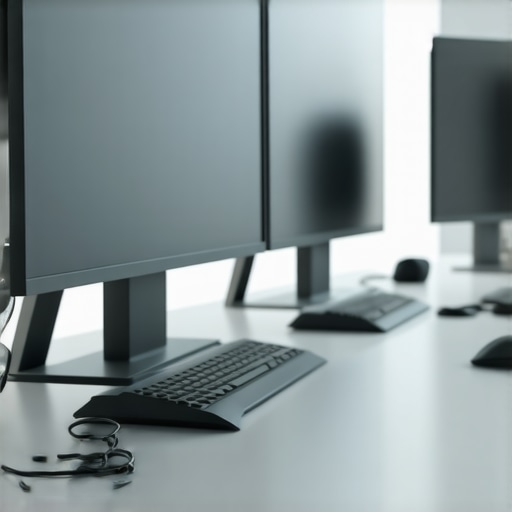
I remember the moment vividly. I had just invested in a sleek new laptop, ready to supercharge my productivity. But as I plugged in my first monitor, then a second, then a third, my workspace turned into a tangled mess of cables. Devices kept disconnecting. My workflow was interrupted more often than I cared to admit. That was my lightbulb moment—realizing that a proper multi-monitor setup isn’t just about buying the right monitors but about the right docking solutions.
Why setting up multiple monitors feels like a tech maze—and how to fix it
If you’ve ever stared at a cluttered desk, frustrated because your laptop can’t keep up with your multitasking needs, you’re not alone. The good news? There’s a straightforward way to turn that chaos into a seamless, efficient workspace. And it all starts with understanding the power of Thunderbolt and USB C docks. These devices can dramatically simplify your connectivity, boost your productivity, and make your multi-monitor setup as smooth as butter.
But let’s be honest—navigating the world of docks can be intimidating. There are so many options, and the specs can be overwhelming. I once wasted hours on a cheap hub that kept dropping my display signals. The mistake? Not choosing a dock designed specifically for multi-monitor setups or one that matches my laptop’s ports. That’s why I want to share my experience and help you avoid the pitfalls I fell into.
Have you faced this exact problem—cables, disconnects, or limited ports? If so, keep reading. I’m about to show you how to build a reliable, high-performance multi-monitor setup in 2024 that works for you, not against you.
To get there, we’ll explore the essentials of Thunderbolt and USB C docks, how to pick the right one for your needs, and practical tips for setting everything up effortlessly. Ready to transform your workspace? Let’s dive in and make your multi-monitor dream a seamless reality. Want personalized advice? Feel free to reach out. Now, let’s get started with the core concepts that will revolutionize your setup.
Connect Your Monitors Efficiently Without the Cables Tangling
The first step to a clean, functional multi-monitor setup is choosing the right docking station. Think of a dock as a powerful hub that acts like a central station for all your devices. When I upgraded my workspace, I initially used a generic USB hub, but it kept disconnecting my monitors during critical tasks. That frustration pushed me to research USB C and Thunderbolt docks designed for multi-monitor setups. These docks offer dedicated video outputs, high data transfer speeds, and reliable connections, transforming my workspace into a smooth operation. When selecting a dock, look for one that supports multiple video outputs like HDMI, DisplayPort, or Thunderbolt, matching your monitor inputs. Avoid docks with limited ports or those that only support single-display connections, as they will bottleneck your productivity.
Match Your Dock to Your Laptop’s Ports
Before purchasing, verify your laptop’s available ports. For example, if your laptop features Thunderbolt 4 or USB C with DisplayPort support, opt for a dock that leverages these standards. I made the mistake of buying a basic USB hub, which lacked video output support, leading to constant disconnections. Instead, I now use a Thunderbolt dock optimized for multiple monitors, which delivers reliable performance and high-speed data transfer. This step is crucial because mismatched ports can cause compatibility issues, resulting in flickering or no signal to your monitors.
Hook Up Your Monitors Correctly for Flawless Display
Connecting your monitors properly is key. Use the correct cables— HDMI, DisplayPort, or Thunderbolt—based on what your dock and monitors support. For my setup, I connected my monitors via DisplayPort and HDMI, ensuring the dock supported dual outputs. I initially tried daisy-chaining monitors, but that caused flickering and signal loss. A better approach is to connect each monitor directly to a dedicated port on the dock. This configuration minimizes signal interference and maximizes refresh rates, giving you a crisp display with minimal lag. If your dock supports daisy-chaining, ensure your monitors are compatible, but for most setups, direct connections are more stable.
Configure Display Settings for Optimal Workflow
Once physically connected, configure your display settings. On Windows, right-click on the desktop, select Display Settings, and arrange the monitors to match their physical layout. I once had my screens mirrored accidentally, causing confusion when moving windows. Properly setting the extended display mode enhances productivity. Adjust resolution and scaling settings to match each monitor’s native resolution. For high-res monitors, set the refresh rate to 60Hz or higher if supported. This fine-tuning ensures everything looks sharp and performs smoothly, making multitasking a breeze.
Manage Power and Data with a Single Dock
Modern docks can supply power, data, and video through a single cable, reducing clutter. For example, a USB C dock with power delivery can charge your laptop while supporting multiple monitors and peripherals. This setup simplifies your workspace and keeps your laptop charged without extra cables. When I switched to a dock with Power Delivery, I no longer needed separate chargers, and my desk looked cleaner. Confirm that your dock provides enough wattage to charge your laptop efficiently, typically 85W or more for high-performance models.
Test Everything and Fine-Tune for Reliability
Finally, test your setup thoroughly. Watch for flickering, signal loss, or performance lag. If issues occur, check your cables, update your graphics drivers, and ensure your dock’s firmware is current. I experienced intermittent disconnects until I updated my dock firmware and replaced a faulty HDMI cable. Regular testing and adjustments will keep your multi-monitor setup running seamlessly, boosting your productivity without frustration.
Many users fall into misconceptions when choosing and configuring their USB C, Thunderbolt docks, or multi-monitor setups. Let’s dig deeper into what most people get wrong, often unknowingly sabotaging their own productivity. Understanding these nuances can save you hours of frustration and ensure a reliable, high-performance workspace.
Assuming All Docks Are Created Equal
One of the biggest myths is believing that any USB C or Thunderbolt dock will suffice for multi-monitor setups. In reality, docks vary significantly in quality and capabilities. Cheap or generic hubs often lack dedicated video outputs or sufficient power delivery, leading to signal drops or lag. For reliable multi-monitor performance, you should prioritize docks specifically designed for this purpose, such as those supported by Thunderbolt docks optimized for multi-monitor setups. These devices incorporate high-quality chips and dedicated ports to handle multiple streams smoothly.
The Hidden Trap of Compatibility
Many users overlook the importance of matching their dock’s standards with their laptop’s ports. For example, connecting a Thunderbolt 4 dock to a laptop that only supports USB C with DisplayPort without Thunderbolt support can cause compatibility issues, including flickering or no signal. Confirm your laptop’s port standards before purchasing. For example, if you have a Thunderbolt 4 port, a Thunderbolt dock will unlock maximum performance and stability. Mismatched hardware often leads to the so-called ‘oops’ moments where everything seems fine until you start multitasking with multiple high-resolution monitors.
Ignoring Power Delivery and Data Transfer Limits
Another common mistake is neglecting power delivery (PD) and data bandwidth. A dock that doesn’t supply enough wattage can cause your laptop to charge slowly or not at all while connected. Similarly, insufficient data bandwidth can bottleneck file transfers or cause signal degradation. For high-performance setups, look for docks with at least 85W PD support and robust data transfer capabilities, as explained in these guidelines. Remember, a dock isn’t just about connecting multiple screens—it’s about creating a seamless ecosystem that powers and synchronizes all your peripherals reliably.
Overlooking Firmware and Driver Updates
Many users set up their hardware and forget that firmware and driver updates are crucial for stability. Outdated firmware can cause compatibility issues, flickering, or disconnects. Regularly check for updates, especially for your dock’s firmware, to keep everything running smoothly. This step is often overlooked, but according to experts, it is essential for maintaining peak performance over time. Keep in mind, a well-maintained system reduces troubleshooting headaches and maximizes your investment.
Have you ever fallen into this trap? Let me know in the comments and share your experiences or questions. Proper knowledge and careful setup are the keys to unlocking your multi-monitor workspace’s full potential. For personalized advice or to explore the best solutions, feel free to reach out.How do I maintain my multi-monitor setup over time
Long-term reliability in your multi-monitor workspace hinges on proactive maintenance and the right tools. Personally, I rely on a combination of firmware updates, quality cables, and diagnostic software to ensure everything runs smoothly. Regularly visiting our support page keeps me informed about firmware releases for my Thunderbolt dock, which often include stability patches and performance improvements.
For physical maintenance, I recommend inspecting and replacing cables that show signs of wear. Even high-quality cables can degrade over time, causing flickering or disconnections. I’ve found that using certified cables from reputable brands minimizes these issues. Additionally, keeping your workspace clean and dust-free prevents overheating and hardware failure, especially for docks with multiple ports.
Software-wise, I use diagnostic tools that monitor connection stability and data transfer speeds. For example, the USB-C and Thunderbolt dock management software helps identify potential issues early. These tools can alert you when a port is underperforming or when firmware updates are available, ensuring you don’t encounter unexpected disruptions.
Invest in quality hardware and keep firmware updated
Choosing high-quality docks designed explicitly for multi-monitor setups is essential for long-term performance. I personally prefer models supported by reliable manufacturers with frequent firmware updates. Firmware updates often include bug fixes and compatibility improvements, which are crucial as standards evolve.
For example, updating my Thunderbolt dock’s firmware regularly has fixed signal flickering issues that appeared after a few months of use. The process is straightforward—most manufacturers provide step-by-step guides. Make it a habit to check for updates every few months, especially after major OS updates, to prevent compatibility hiccups.
How to optimize your setup for longevity and performance
Additionally, consider using dedicated power supplies for your docks if available. This prevents power fluctuations that can cause disconnections or hardware stress. I also suggest organizing cables with Velcro straps or cable management sleeves to avoid strain on connectors, which can lead to hardware failure over time.
Finally, test your setup periodically by connecting all peripherals and monitors. Run performance tests with tools like speed and stability diagnostic software. This helps catch potential issues early, saving you from costly repairs or replacements.
Looking ahead, I believe the trend will move toward smarter docks with built-in diagnostics and automatic firmware updates, much like modern smartphones. This will make maintenance even easier and more reliable. Until then, following these maintenance practices and leveraging the right tools will keep your multi-monitor setup performing at its best for years to come.
Ready to take your setup to the next level? Try implementing a regular firmware update schedule and monitor connection stability with dedicated software. Your workspace—and your productivity—will thank you.
Lessons from My Multi-Monitor Journey That Changed Everything
One of the most valuable lessons I learned was the importance of investing in a high-quality dock designed specifically for multi-monitor setups. Initially, I bought a budget USB hub, expecting it to handle multiple displays, but the constant disconnects and flickering taught me that not all docks are created equal. Now, I understand that choosing a Thunderbolt dock with dedicated video outputs and robust power delivery can make or break your workspace’s reliability.
Another insight was realizing the significance of matching your dock’s standards with your laptop’s ports. For example, connecting a Thunderbolt 4 dock to a USB C port without Thunderbolt support led to performance issues I wish I had foreseen. Doing thorough research on my laptop’s specifications saved me from future headaches and ensured seamless performance.
Finally, I discovered that firmware updates and cable quality are often overlooked but critical. Regularly updating my dock’s firmware and replacing worn cables drastically improved stability. These small steps create a long-term foundation for a consistent, frustration-free multi-monitor experience.
Tools and Resources That Elevated My Workspace
For anyone serious about optimizing their multi-monitor setup, I recommend checking out Thunderbolt docks tailored for multiple monitors. They offer high-speed data transfer and dedicated video outputs, which are essential for stability. Additionally, this guide on choosing monitors helped me match my screens perfectly. For ongoing maintenance and firmware updates, I rely on regular firmware updates from trusted manufacturers. Lastly, an excellent USB hub guide expanded my peripheral options without sacrificing stability.
Take Action and Transform Your Workspace Today
Building a reliable multi-monitor setup is within your reach. By selecting the right dock, matching it to your laptop’s ports, and maintaining your hardware, you can achieve a workspace that boosts productivity and reduces frustration. Remember, the key is to think long-term and invest in quality tools that evolve with your needs. Your future self will thank you for making the effort now. Ready to elevate your multi-monitor experience? Start today, and watch your workflow transform.
Reading this guide really resonates with my experience setting up my multi-monitor workstation. I initially underestimated the importance of matching my dock’s capabilities with my laptop’s ports, which led to some frustrating flickering and signal drops. Upgrading to a Thunderbolt 4 dock with dedicated video outputs and proper power delivery made a huge difference. I also learned the hard way that investing in quality cables cannot be overstated—I’ve replaced several over time, which eliminated many connection issues. The part about firmware updates struck a chord; I’ve found that keeping firmware current frequently resolves compatibility jitters that pop up after OS updates. For anyone embarking on a similar journey, what has been your biggest challenge in maintaining long-term stability? Do you prefer daisy-chaining monitors or connecting each directly? I’d love to hear different setups and troubleshooting tips from the community.
This post hit close to home for me because I’ve gone through a similar experience trying to set up my multi-monitor workspace. Initially, I underestimated the importance of matching the dock with my laptop’s port standards, which caused inconsistent display issues. Once I upgraded to a high-quality Thunderbolt 4 dock with multiple video outputs and sufficient power delivery, everything became much more stable and seamless. I’ve found that investing in good cables also makes a significant difference—cheap cables seem to cause more disconnections than anything else. It’s interesting that firmware updates are often overlooked, but I’ve learned that keeping firmware current really helps eliminate compatibility hiccups, especially after OS updates.
For others trying to build a reliable multi-monitor setup, would you recommend daisy-chaining your monitors if supported, or is connecting each monitor directly to the dock a better approach for stability? I’m curious about the pros and cons other users have experienced. Personally, I prefer direct connections because I’ve had fewer signal issues, but I’d love to hear other opinions or tips for maintaining long-term stability without then having to constantly troubleshoot.
This post really hits home for me because I recently switched to a Thunderbolt 4 dock for my multi-monitor setup, and honestly, the difference in stability and performance is impressive. I used to struggle with flickering, signal drops, and slow data transfers with cheaper docks and cables, which was so frustrating during my intensive work sessions. Upgrading to a dedicated dock designed specifically for multiple displays and matching my laptop’s Thunderbolt port has made a huge difference—it’s like night and day. I also learned that regularly updating the dock’s firmware is essential because manufacturers often release patches that improve compatibility with new OS versions.
One thing I’d add for others is to consider how you connect your monitors—whether daisy-chaining or direct connection makes more sense for your hardware. In my experience, direct connections to the dock are more stable, especially for high-res and high-refresh-rate monitors. Has anyone noticed significant differences in stability depending on how they connect multiple monitors? I’d love to hear how others handle this aspect and any tips they might have for long-term maintenance.