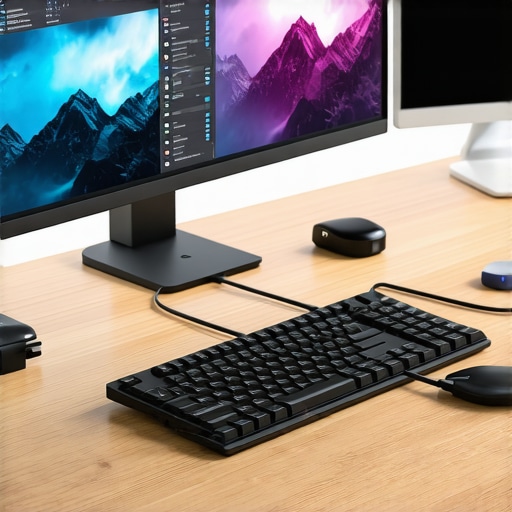
Ever sat at your desk, frustrated because your laptop just can’t seem to keep up with your multi-monitor dreams? I’ve been there—trying to connect multiple screens with a jumble of cables, only to find my setup lagging, flickering, or simply refusing to cooperate. That lightbulb moment hit me hard: the right docking station isn’t just a luxury; it’s a game-changer. But with so many options out there, how do you pick the perfect one for your needs?
Why Multi-Monitor Setups Can Be a Headache
When I first tried to expand my workspace, I underestimated the complexity of connecting multiple monitors efficiently. My initial mistake was relying on a basic USB hub, thinking it would handle everything smoothly. Spoiler: it didn’t. These hubs were designed for simple peripherals, not high-res displays or fast data transfer. I ended up with flickering screens, laggy video, and a lot of frustration. It was a clear sign that I needed a dedicated solution—something purpose-built for multi-monitor productivity.
Thankfully, understanding the importance of proper docking stations changed everything. Today, I want to help you avoid the pitfalls I fell into and show you how to choose a dock that turns your laptop into a powerhouse for multi-monitor setups. Whether you’re a creative professional, a gamer, or simply someone who loves having multiple screens, the right dock can make all the difference. Want to learn how to make this happen effortlessly? Keep reading, because I’ll guide you through the best options and what to look for.
Is a Thunderbolt or USB C Dock Really Necessary?
One of the biggest questions I faced early on was whether investing in a Thunderbolt dock was worth it. The hype seemed justified—faster data transfer, better video support, and a more seamless experience. But I was skeptical. I wondered if I really needed that extra investment or if a standard USB C dock would suffice. Turns out, the answer depends on your needs. For high-resolution displays and fast data transfer, a Thunderbolt dock is a clear winner, especially with the latest models designed for multi-monitor setups. If you’re on a tighter budget or only need basic connectivity, a good USB C dock can still do wonders.
My mistake was assuming all docks were created equal. Early in my journey, I bought an inexpensive USB-C hub, only to realize it couldn’t handle more than one monitor without crazy flickering or lag. Trust me—skimping on quality and features can cost you more time and productivity. For a comprehensive guide on what features matter most, check out this detailed review.
Connect Your Monitors Like a Pro
Start by identifying what your monitors require in terms of video input and power. If you’re running high-resolution displays or multiple screens, a Thunderbolt dock can handle this effortlessly due to its high bandwidth. I recall a time when I tried to use a basic USB-C hub for my three 4K monitors—flickering and lag made me realize I needed something more robust. After switching to a dedicated Thunderbolt dock, my setup became seamless, with crisp images and zero lag. For detailed insights on Thunderbolt dock essentials, check out this resource.
Assess Your Laptop’s Compatibility
Before purchasing a dock, confirm your laptop’s ports and compatibility. If your laptop has Thunderbolt 4 or USB-C with DisplayPort Alt Mode, you can leverage a Thunderbolt dock for maximum performance. If not, a high-quality USB-C dock that supports DisplayLink technology might suffice. I once bought a USB-C dock lacking proper DisplayLink support, resulting in 1080p output even though my monitor was 4K—lesson learned. Visit USB-C docking mastery for more.
Choose the Right Docking Station
Select a dock that offers all the ports you need—multiple HDMI or DisplayPort outputs, USB-A, USB-C, Ethernet, and audio. Think of your dock as a hub that consolidates every connection, like a multi-tool for your laptop. I once faced a cluttered desk because my dock lacked enough video outputs, forcing me to switch cables constantly. Upgrading to a dock with multiple video outputs transformed my workspace into an efficient, clutter-free zone. For a comprehensive list of best USB-C docks for multiple monitors, explore this guide.
Connect and Configure Your Monitors
Plug your monitors into the dock’s video outputs and power everything on. Most docks will automatically detect displays, but you may need to adjust display settings. On Windows, right-click the desktop, select Display Settings, and arrange your monitors for the best workflow. I remember struggling with a flickering display until I updated my graphics driver—simple fix, but it saved my productivity. If you run into issues, check the dock’s compatibility with your operating system or visit multi-monitor setup tips.
Optimize Your Workspace for Efficiency
Arrange your monitors ergonomically—top at eye level, aligned for comfortable viewing. Use software tools like Windows Snap or macOS Mission Control to organize open windows across screens. Remember, a well-organized workspace boosts productivity. I once spent hours adjusting monitor heights until I found the perfect ergonomic setup, which drastically reduced neck strain. For ergonomic tips, see workspace optimization. This investment in setup pays off in comfort and efficiency.
Many users jump into purchasing a USB C or Thunderbolt dock with high hopes of creating a seamless multi-monitor workspace, but often fall into common traps rooted in misconceptions. Let’s dig deeper into what most people get wrong about these essential tools and how understanding the nuances can save you time and frustration. First off, the myth that all docks are created equal. This couldn’t be further from the truth. While some assume that a USB C dock can handle the same high-res, multi-monitor setup as a Thunderbolt dock, the reality is that not all USB C ports are built for heavy-duty display output. Many cheap docks lack the bandwidth and technology needed to support multiple 4K displays or high refresh rates. This article explains the key differences and helps you choose accordingly.
Next, a common mistake is underestimating the importance of compatibility and cable quality. Many users think that plugging in a decent-looking cable and dock will do the trick, but poor quality cables or incompatible ports can cause flickering, lag, or even hardware damage. For instance, a Thunderbolt dock demands certified Thunderbolt cables to deliver the expected performance. Skimping here can result in disappointments that are hard to troubleshoot later. It’s not just about the dock; it’s about every component in the chain.
Now, here’s the sneaky part—assuming that a dock with multiple ports automatically means better performance. This is a trap, because more ports often mean more shared bandwidth. If a dock tries to push 3 4K displays and multiple USB peripherals simultaneously, it can lead to degraded performance or even disconnects. To avoid this, check the dock’s bandwidth specifications and ensure it supports your specific monitor resolutions and refresh rates. Detailed specs are vital here.
Are Thunderbolt Docks Worth the Extra Cost for Advanced Users?
For power users, creative professionals, or gamers, the question of whether to invest in a Thunderbolt dock often comes down to performance and future-proofing. While Thunderbolt 4 offers higher bandwidth, daisy chaining multiple high-resolution displays, and faster data transfer, it also requires compatible hardware and cables. Many believe that Thunderbolt guarantees better quality, but remember—you need an ecosystem that fully supports it. Otherwise, you’re paying extra for features you won’t fully utilize. This guide can help you decide if Thunderbolt is right for your setup.
Finally, be cautious of the “more is better” mentality. Just because a dock supports multiple monitors doesn’t mean it’s the best choice for your specific needs. Sometimes, a dedicated, high-quality dock tailored to your resolution and bandwidth requirements provides a smoother experience than a generic multi-port hub. The key is matching your hardware and use case carefully. Want to master your multi-monitor setup? Check out these advanced tips.
Have you ever fallen into this trap? Let me know in the comments!
Maintaining a reliable and high-performance multi-monitor setup requires more than just choosing the right dock; it demands ongoing care, the right tools, and strategic planning. Over time, dust, cable wear, driver updates, and hardware compatibility issues can threaten to disrupt your workflow. As someone who has spent years optimizing multi-monitor configurations, I can tell you that staying proactive is key to keeping everything running seamlessly.
How do I maintain my dock and monitors over time?
First, invest in quality cables and connectors. Cheap, poorly shielded cables are often the first culprits behind flickering screens or intermittent connections. I personally prefer certified Thunderbolt and USB-C cables from reputable brands like Belkin or Anker, as they ensure consistent signal integrity. Regularly inspecting your cables for signs of wear or damage and replacing them proactively can save you hours of troubleshooting later.
Second, keep your device drivers and firmware up to date. Manufacturers frequently release updates that improve compatibility, fix bugs, and enhance performance. For example, updating your graphics card driver can resolve display flickering issues that crop up after Windows updates. I make it a habit to check for updates monthly, using tools like Display Driver Uninstaller (DDU) to cleanly install driver updates and prevent conflicts.
Third, clean your docking station and monitor ports periodically. Dust and debris can accumulate, leading to poor contact or overheating. A gentle blast of compressed air and a soft cloth can do wonders. I use a dedicated microfiber cloth for cleaning lenses and ports, ensuring no residue or static buildup interferes with connections.
Fourth, monitor your setup’s performance with software tools like USB hub management tools. These can alert you to bandwidth issues, driver conflicts, or overheating. Regularly reviewing this data helps catch potential problems early before they escalate.
What about future-proofing your setup?
As technology evolves, so do your needs. I recommend planning for future upgrades by choosing docks with Thunderbolt 4 or USB4 support, which are designed to handle higher resolutions and faster data transfer rates. Additionally, investing in docks with daisy-chaining capabilities allows you to expand your setup without cluttering your desk with multiple devices. Check out this insightful guide to stay ahead of the curve.
Try this advanced tip to extend your setup’s lifespan
Implement a regular upgrade schedule for your cables, firmware, and software. Set calendar reminders every 6-12 months to review and refresh your equipment. This proactive approach minimizes downtime and ensures your multi-monitor setup remains efficient and reliable for years to come. Remember, technology is always advancing, so staying current is essential for seamless productivity.
The Hardest Lesson I Learned About Multi-Monitor Docking
One of the most valuable lessons I discovered was the importance of matching your docking station to your specific needs, rather than opting for the most expensive or feature-rich option available. I once invested in a high-end Thunderbolt dock expecting flawless performance, only to realize that my laptop lacked the necessary compatibility, leading to subpar performance and frustration. It taught me that understanding your hardware ecosystem is crucial before making a purchase.
Why Not All Docks Are Created Equal
Early in my journey, I assumed that any multi-port dock could handle multiple 4K monitors effortlessly. I was disillusioned when flickering and lag started to interfere with my work. The truth is, the bandwidth and technology embedded in the dock determine its true capacity. For instance, Thunderbolt docks generally support higher resolutions and refresh rates, making them more suitable for demanding setups. A little research on this resource helped clarify these differences for me.
How Compatibility Can Make or Break Your Setup
One mistake I made was ignoring my laptop’s port specifications. Assuming a USB-C port supports high-res displays without confirming the features led to disappointments. A quick check of my laptop’s specs and ensuring the dock supported DisplayPort Alt Mode or Thunderbolt 4 made a huge difference. For more insights, visit this guide.
The Power of Matching Your Needs to Your Equipment
It’s tempting to go for a dock with the most ports, but more isn’t always better if your bandwidth gets divided. I learned this the hard way when my setup started disconnecting under load. Choosing a dock with the right port configuration and sufficient bandwidth, based on your resolutions and peripheral demands, is key. Check out this list of top docks for guidance.
Keep Your Setup Running Smoothly with Ongoing Care
Maintenance is often overlooked but essential. I regularly replace worn cables, update drivers, and clean ports to prevent issues. Regularly reviewing my system with tools like these management tools has saved me hours of troubleshooting. Planning periodic upgrades for cables and firmware ensures longevity and performance.
Future-Proof Your Multi-Monitor Workspace
Technology keeps evolving, so choosing docks supporting standards like Thunderbolt 4 or USB4 is a smart move. These future-proof options enable higher resolutions and daisy chaining, expanding your workspace without clutter. Check this guide to stay ahead.
My Final Tip for Long-Term Success
Set reminder schedules to review your setup every 6-12 months. Upgrading cables, updating firmware, and cleaning ports proactively can extend your system’s lifespan and ensure reliable performance. Remember, investing in quality and maintenance now pays dividends in your productivity and peace of mind. Want to dive deeper? Explore this comprehensive resource.
I’ve experienced firsthand how investing in a quality Thunderbolt dock can significantly improve multi-monitor setups, especially when working with 4K displays that demand high bandwidth. It’s fascinating how many people overlook the compatibility aspect, assuming any USB-C port will do. In my case, I initially relied on a generic dock, only to face flickering and lag. Upgrading to a certified Thunderbolt 4 dock and ensuring my laptop supported DisplayPort Alt Mode made all the difference. It really changed my workflow for the better.
I’m curious, how do others here approach managing cable clutter while maintaining maximum flexibility? Have you found any innovative solutions for keeping your workspace organized without sacrificing performance or accessibility? Would love to hear some tips or personal strategies—sometimes the little details make the biggest difference in productivity.