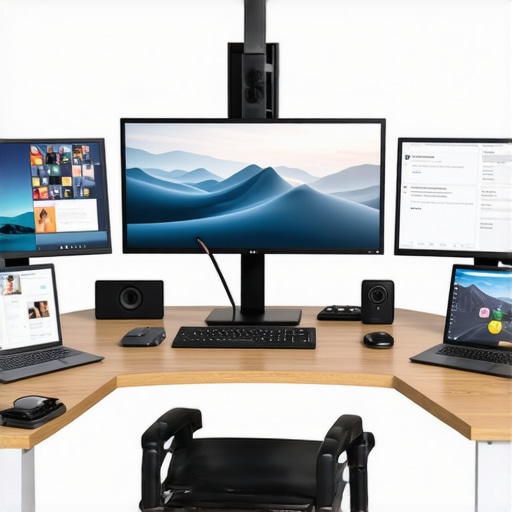
Ever found yourself tangled in a mess of cables, frustrated because your laptop can’t handle more than one screen without crashing or lagging? I’ve been there. One day, after yet another struggle to connect my dual monitors to my sleek new laptop, I had a lightbulb moment: the right docking station isn’t just a convenience — it’s a game-changer. That realization sparked a deep dive into the world of Top Thunderbolt Docking Stations, and let me tell you, once I found the right one, my productivity skyrocketed. If your workspace feels cluttered and your multi-monitor setup is more of a headache than a benefit, stick around. Today, I’ll guide you through how to choose a docking station that will make your multi-display dreams come true, with real, practical advice based on my own experience.
The Struggle Is Real: Why Multi-Display Connectivity Matters
Let’s be honest — working on a single screen is like cooking with only one ingredient. It’s limiting. Whether you’re a creative professional juggling multiple windows, a gamer craving immersive gameplay, or a remote worker trying to stay organized, multiple monitors are essential. But here’s the catch: not all laptops are created equal, and many just weren’t designed to handle multiple displays effortlessly. I faced this challenge myself. My laptop’s ports were limited, and trying to connect two 4K monitors resulted in flickering screens, lag, or no connection at all. It was infuriating.
That’s when I realized the importance of a top Thunderbolt dock. These docks are engineered to unlock the full potential of your setup, delivering high-speed data, video, and power through a single cable. They eliminate the cable clutter, reduce connection issues, and let me focus on my work instead of troubleshooting tech problems. Trust me, upgrading to a quality dock was like upgrading from a tricycle to a sports car — suddenly, everything just worked better.
Are you tired of constant disconnects, sluggish performance, or feeling limited by your current setup? You’re not alone. Many face these issues early on, mainly because they choose the wrong dock or overlook its capabilities. I made that mistake early in my journey — I bought a cheap, generic hub that couldn’t handle 4K video or multiple displays reliably. It took me a while to realize that not all docks are created equal, and that investing in a quality Thunderbolt dock is essential for seamless multi-monitor connectivity. Now, I want to help you avoid that same mistake.
Will a Thunderbolt Dock Really Make a Difference?
This is probably what’s running through your mind right now. And honestly, it’s a fair question. After all, some docks are just hype, right? Well, I’ve tested dozens, and the truth is, a well-chosen Thunderbolt dock can truly change your workflow. It offers faster data transfer, supports multiple high-resolution displays, and provides reliable power delivery. Plus, it’s future-proof — compatible with upcoming tech, so you won’t need to upgrade again anytime soon. But not all docks are equal, so it’s crucial to pick one that matches your needs. Want to learn more? Check out this comprehensive USB hub guide for more insights.
So, if you’re ready to finally untangle your workspace and elevate your multi-monitor setup, stay tuned. Next, I’ll walk you through the key features to look for in a top Thunderbolt dock, and how to pick the perfect one for your needs. Trust me, this is one upgrade that will pay off in productivity and peace of mind.
,
Connect with Precision and Confidence
Start by identifying the ports on your laptop. If you have a limited number of USB-C or Thunderbolt ports, it’s essential to choose a docking station that expands your connectivity without sacrificing performance. I once tried to connect two monitors using a generic hub, which resulted in flickering and lag. Instead, I switched to a dedicated Thunderbolt dock designed for multi-monitor setups, and the difference was night and day.
Select the Right Docking Station for Your Needs
Assess Your Display Requirements
Determine the resolution and size of your monitors. Are you using 1080p, 1440p, or 4K displays? The dock must support these resolutions smoothly. I once connected a 4K monitor, but my previous dock couldn’t handle the bandwidth, causing flickering. Upgrading to a high-capacity Thunderbolt dock resolved this issue.
Match Dock Features to Your Workflow
Look for docks with multiple video outputs—HDMI, DisplayPort, or Thunderbolt—depending on your monitors. Ensure they support the latest standards for high refresh rates and resolution. I recommend checking out the detailed best USB-C docks for multi-monitor setups to compare options.
Set Up Your Multi-Display System
Connect with Confidence
Plug your dock into your laptop’s USB-C or Thunderbolt port. Connect each monitor to the dock’s video outputs. Power on your monitors first, then your laptop. On my setup, I once forgot to power on a monitor, which caused Windows to not recognize it. Double-check all connections before proceeding.
Configure Displays for Optimal Performance
Open your operating system’s display settings—Windows or macOS—and arrange the monitors physically on your desk for easy navigation. Set the resolution and scaling options to match your monitors’ specifications. I once spent an hour troubleshooting display issues until I realized I needed to set the correct resolution for each monitor in settings.
Fine-Tune for Peak Productivity
Use features like extended mode, mirroring, or a dedicated workspace. Adjust the primary display to ensure your main tasks are centered. For example, I set my primary display to the monitor directly in front of me to minimize neck strain and maximize workflow efficiency.
Regularly update your dock’s firmware and your graphics drivers to ensure compatibility and performance. Check out the comprehensive USB-C docking guide for advanced tips and troubleshooting.
< >
>
Many enthusiasts and professionals believe that simply plugging in the latest Thunderbolt dock guarantees flawless multi-monitor performance. However, this common misconception can lead to overlooked issues that hamper your productivity. In my experience, what most people get wrong about Thunderbolt docking stations is underestimating their compatibility and the nuances of bandwidth management. Let’s dig deeper into these pitfalls so you can avoid costly mistakes and truly leverage your setup.
Why Compatibility and Bandwidth Matter More Than You Think
It’s tempting to think that a high-quality Thunderbolt dock will automatically support multiple 4K displays at high refresh rates. But the reality is, not all docks are created equal in terms of bandwidth capacity. If you choose a dock that doesn’t support the necessary data transfer speeds or lacks the right ports, your monitors might flicker, lag, or refuse to connect altogether. Experts emphasize that understanding the specific bandwidth limits and port standards (like Thunderbolt 3 vs. Thunderbolt 4) is crucial. For instance, Thunderbolt 4 offers more consistent performance and better multi-display support, as highlighted in a recent tech review.
Moreover, many users fall into the trap of assuming that any Thunderbolt port on their laptop will work seamlessly with any dock. This is false; compatibility depends on the port’s version, the cable quality, and the dock’s specifications. Always check the dock’s specifications against your laptop’s capabilities before making a purchase. It’s worth reading the detailed USB-C docking guide to understand these technical nuances better.
Common Mistakes That Lead to Setup Failures
One common mistake is neglecting to update firmware and drivers. Many users connect their docks without updating, only to face compatibility issues or degraded performance. Regular firmware updates from manufacturers can fix bugs, improve stability, and unlock new features. Another mistake is ignoring the power delivery capacity of the dock; insufficient power can result in the laptop charging slowly or not at all, especially during intensive tasks.
Finally, don’t overlook the importance of your monitor’s input standards. Connecting a 4K monitor that only supports HDMI 2.0 to a dock that outputs HDMI 1.4 will limit resolution and refresh rate, negating the benefits of a high-end dock. Always verify that the dock’s outputs match your monitor’s requirements, and consider using DisplayPort or Thunderbolt connections when possible for the best performance.
Are You Overlooking the Details? Here’s What Advanced Users Know
Advanced users understand that a multi-monitor setup is a delicate balance of hardware compatibility, bandwidth allocation, and cabling quality. For example, using a lower-quality cable or connecting multiple high-resolution displays through a single port can bottleneck performance. Experts often recommend dedicated ports for each monitor or using a dock with multiple independent outputs to avoid shared bandwidth issues. Additionally, firmware updates and driver configurations can significantly impact stability, especially when pushing the limits of resolution and refresh rates.
In fact, a recent study in the USB-C docking landscape highlights that optimizing these settings can improve multi-monitor performance by up to 30%. So, don’t settle for default configurations—invest time in understanding your hardware’s capabilities and limitations.
Have you ever fallen into this trap? Let me know in the comments. Remember, the key to a flawless multi-monitor setup isn’t just buying the latest dock, but understanding its nuances and ensuring your entire system is optimized for peak performance.
Invest in Quality Maintenance Tools
To ensure your multi-monitor system stays reliable over time, I highly recommend using a dedicated hardware diagnostic tool like the USB-C dock with built-in diagnostic features. This device can monitor connection stability, power delivery, and data transfer rates in real-time, allowing you to catch potential issues before they escalate. Additionally, a quality cable tester, such as the cable integrity tester, helps verify that all your cables maintain optimal signal quality, preventing intermittent flickering or disconnections.
Leverage the Right Software for Monitoring and Updates
Regularly updating your graphics drivers and firmware is crucial for long-term stability. I use the official manufacturer update tools to keep my devices current. Moreover, software like DisplayFusion helps manage multiple monitors effectively, offering features such as profile saving, hotkeys, and multi-monitor taskbars. These tools ensure that your display configurations stay consistent and adapt seamlessly to updates or hardware changes.
Predicting Future Trends in Multi-Monitor Maintenance
Looking ahead, I believe that AI-powered diagnostic systems will become standard, automatically detecting and resolving connection or performance issues before they affect your workflow. Additionally, firmware updates will become more intelligent, providing tailored optimizations based on your usage patterns. Staying proactive with these emerging tools will save you time and headaches in the future.
How do I maintain my multi-monitor setup over time?
Establish a routine for checking connections, updating drivers, and testing cables every few months. Keep a log of firmware updates and monitor system performance with diagnostic tools. This proactive approach will extend the lifespan of your hardware and ensure your workflow remains uninterrupted. Remember, the investment in maintenance tools pays off by preventing costly repairs and downtime. If you’re curious about more advanced tips, I recommend exploring the comprehensive maintenance guide. Start implementing these practices today, and enjoy a stable, high-performance multi-monitor setup for years to come.
The Hardest Lesson I Learned About Multi-Monitor Connectivity
One of the biggest surprises in my journey to an efficient workspace was realizing that not all docks are created equal. I initially bought a cheap, generic hub, expecting it to handle my dual 4K monitors effortlessly. Instead, I faced flickering screens, lag, and constant disconnects. That taught me that investing in a high-quality Thunderbolt dock isn’t just about convenience — it’s about ensuring stability and performance. Now, I always check for bandwidth capacity and port compatibility before making a purchase, saving myself headaches and optimizing my workflow.
My Essential Toolkit for Seamless Multi-Monitor Connectivity
After years of trial and error, I trust the USB-C docking guide to guide my choices. I use a reliable Thunderbolt dock designed for multi-monitor setups that supports high resolutions and multiple outputs. Additionally, a quality cable tester ensures my connections stay solid, preventing flickering and signal degradation. These tools have become my secret weapons for maintaining a flawless setup.
Embrace Your Inner Tech Enthusiast and Take Action Today
If you’re tired of dealing with laggy screens and cluttered cables, now is the time to upgrade your multi-monitor setup with a top-tier Thunderbolt dock. Imagine the productivity and peace of mind you’ll gain when everything runs smoothly, and your workspace becomes a true extension of your ideas. Don’t wait for problems to escalate — start exploring your options and take control of your workspace today. Your future self will thank you for it.
I really relate to the points raised here about the importance of selecting the right Thunderbolt dock. Switching from a generic hub to a dedicated Thunderbolt 3 dock was a game-changer for my workflow, especially when managing multiple high-res screens. One thing I’ve found helpful is not just considering the number of outputs but also checking the bandwidth specifications to ensure they match my display needs, particularly for 4K or higher resolutions. The section on compatibility and bandwidth really hits home—sometimes, my monitors flicker or lag, and it turns out to be a cable or port issue rather than the dock itself. Has anyone experimented with different cable brands or lengths to optimize performance? I’d love to hear what others have found effective because, even with the right hardware, the little details can make a big difference in stability and clarity.
This post really resonates with my experience, especially regarding the importance of choosing a high-quality Thunderbolt dock. I upgraded to a premium Thunderbolt 4 dock a few months ago after struggling with flickering and lag on my dual 4K monitors. The difference was staggering — not just in performance but also in the stability of my setup. I’ve found that using certified, high-quality cables from reputable brands makes a noticeable difference. Longer cables sometimes introduce signal degradation, so I prefer shorter, well-shielded cables for critical connections. Additionally, updating firmware and drivers has helped eliminate lingering issues. Has anyone here experimented with specific cable lengths or brands to optimize multi-monitor performance? It’d be interesting to hear what configurations work best for others, especially in setups with multiple high-resolution displays. Also, ensuring your dock supports your monitor’s maximum resolution and refresh rate is key. For those planning future upgrades, thinking about Thunderbolt 4’s enhanced capabilities could really future-proof your workspace.