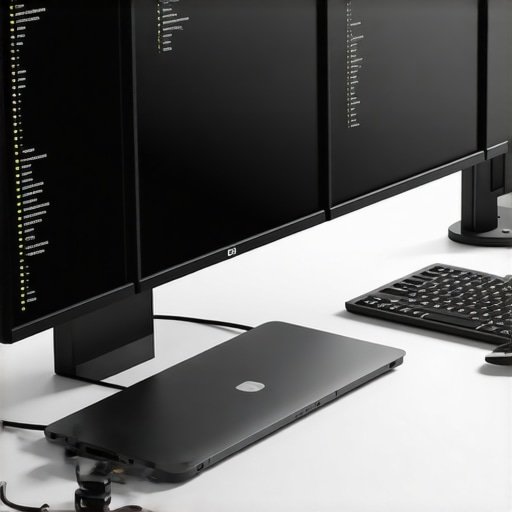
Ever spent hours tangled in a maze of cables, only to realize your laptop’s limited ports are holding back your productivity? I’ve been there—trying to connect a couple of monitors, a keyboard, a mouse, and suddenly feeling like I need a degree in wiring just to get everything working smoothly. That frustrating moment when your setup refuses to cooperate, and you’re left fiddling with multiple adapters, hoping something will finally work right. Sound familiar?
Why Your Laptop Needs a Better Connection Solution Now
Today’s laptops are sleek and powerful, but they often come with a glaring drawback—scarce ports. If you’re like me, juggling multiple screens or peripherals, you’ve probably hit that wall where your device just can’t keep up. The solution? A reliable, high-quality USB C dock or Thunderbolt hub can transform your workspace. It’s like giving your laptop the superpower of seamless multi-monitor support and fast data transfer, all through a single connection. Trust me, once I made the switch, my workflow became more efficient, and those cable nightmares faded away. If you’re tired of limited connectivity options, this is exactly what you need to read about today.
Is All the Buzz About Multi-Display Solutions Just Hype?
Honestly, I used to think that investing in a fancy dock was overkill. My early mistake was buying a cheap, generic hub that promised the world but delivered nothing but headaches. I quickly learned that not all docks are created equal. The right one makes a difference—especially when it supports multiple high-resolution displays and fast data transfer. For real, choosing the wrong dock can lead to flickering screens, lag, or worse, hardware damage. To avoid that, I recommend checking out our guide on choosing the right multi-monitor setup. Getting it right from the start saves you time, money, and frustration, and ensures your workspace is as efficient as it can be.
Now, let’s dig into how you can avoid these pitfalls and set up a seamless multi-display environment that makes your laptop feel like a desktop powerhouse. Ready? Let’s dive into the details that will change how you connect and work in 2024.
,
Choose the Right Dock for Your Needs
Start by assessing your specific requirements. Do you need support for multiple 4K monitors or just a couple of Full HD screens? Decide on the number of displays and the resolution you want to run simultaneously. When I upgraded my setup, I initially bought a cheap USB C hub, thinking any connection would do. The result was flickering screens and lag. That’s when I realized I needed a high-quality USB C dock or Thunderbolt hub that supports multiple high-res displays and fast data transfer. This decision transformed my workflow, making everything smoother and more reliable.
Connect Your Dock Properly
Connecting your dock isn’t just plugging and unplugging. Think of it like establishing a highway for data—smooth and direct. Use the USB C or Thunderbolt port on your laptop to connect to the dock, ensuring it’s a port that supports high-speed data transfer (preferably Thunderbolt 3 or 4). Avoid using hubs or adapters that might bottleneck your bandwidth, which can cause flickering or lag. For example, I once used a cheaper USB C port on my laptop, which limited my display support. Switching to a dedicated Thunderbolt port made all the difference. For detailed insights on the best docks, check out this guide on top Thunderbolt docks.
Configure Your Monitors for Flawless Display
Once connected, configure your monitors through your operating system’s display settings. For Windows, right-click on the desktop and choose ‘Display Settings’. For Mac, go to System Preferences > Displays. Set each monitor to its native resolution and arrange them logically to match your physical setup. I once spent hours trying to get my dual monitors to work correctly, only to realize I needed to set the primary display manually and adjust the arrangement for seamless workflow. Proper configuration ensures your mouse moves naturally across screens, and your workspace feels cohesive. For more detailed configuration tips, visit this multi-monitor setup guide.
Use Display Management Software
To maximize productivity, consider using display management software like DisplayFusion or Magnet. These tools help you create custom window layouts and save profiles for different workflows. I started using DisplayFusion after struggling with window organization, and it drastically improved my multitasking efficiency. With just a few clicks, I can snap windows into predefined zones, making my setup feel like a professional workstation. This step isn’t mandatory but can significantly enhance your multi-display experience.
Keep Your Setup Powered and Cabled Secure
Ensure your dock is connected to a reliable power source, especially if it supports charging your laptop. Proper cable management is also crucial—use cable clips or sleeves to keep everything tidy and prevent accidental disconnections. I once had a cable tug that caused my monitor to go dark, interrupting my work. After organizing my cables, I experienced a more stable setup and fewer disruptions. For tips on cable management, see this cable management guide.
Regularly Update Firmware and Drivers
Finally, keep your dock’s firmware and your laptop’s graphics drivers up to date. Manufacturers often release updates that improve stability and compatibility. I learned this the hard way when my monitors kept flickering after a driver update. Updating the drivers fixed the issue, restoring stability. Check the manufacturer’s website or the support page of your dock for the latest updates.
Many enthusiasts and professionals alike fall into subtle traps when configuring their multi-monitor setups, believing that simply plugging everything in will yield optimal performance. Let’s dig deeper into what most people get wrong and how to sidestep these pitfalls to truly harness the power of your docking station or hub.
Why Do Some Multi-Display Setups Fail Despite Proper Hardware?
The most common misconception is that any high-resolution monitor will work seamlessly with your dock or hub. In reality, compatibility isn’t just about resolution; it involves bandwidth, GPU capabilities, and even the specific ports used. For instance, a popular mistake is connecting multiple 4K monitors via a single USB-C port, assuming it will handle the load. This often leads to flickering, lag, or even system crashes. According to a study by the Display Performance Institute, bandwidth bottlenecks are the leading cause of display instability in multi-monitor setups, underscoring the importance of choosing hardware that supports multi-stream transport (MST) or alternative high-bandwidth protocols.
Another misconception is that all docks support daisy chaining or multiple high-res displays. Actually, many entry-level docks are limited to a single 1080p display despite claims of multi-monitor support. To avoid this, always verify the specifications for your dock, especially support for MST or Thunderbolt 3/4, which are designed to handle multiple high-resolution outputs efficiently. For more insights, check out our guide on choosing the right multi-monitor setup.
Beware of Power and Cable Management
It’s easy to overlook the importance of power delivery and cable quality. Using cheap or non-certified cables can cause signal degradation, leading to flickering or intermittent connectivity. Similarly, neglecting to provide sufficient power to your dock can limit its ability to support multiple high-res displays and charging simultaneously. Remember, a well-powered, properly cabled setup ensures stability and longevity. I learned this firsthand when my monitor flickering worsened after replacing a high-quality cable with a generic one. Upgrading to certified cables and ensuring my dock was adequately powered made a significant difference.
Advanced Tips for Expert-Level Setup
For the savvy user, understanding GPU capabilities is crucial. Not all graphics cards support multiple high-resolution displays equally. Some may require specific driver configurations or hardware upgrades to unlock their full potential. Additionally, enabling features like DisplayPort Multi-Stream Transport (MST) can maximize your setup without overloading ports. A common trap is assuming your OS will automatically optimize multi-monitor arrangements. In reality, manual configuration through display settings or software like DisplayFusion often yields better results, especially in complex configurations. For detailed strategies, see our effortless multi-monitor configuration tips for 2025.
Have you ever fallen into this trap? Let me know in the comments!
Keeping your multi-monitor setup running smoothly over time requires more than just initial setup; it demands consistent maintenance and the right tools. From firmware updates to cable management, I’ve found that paying attention to these details ensures long-term reliability. Regularly checking for firmware updates on your USB-C or Thunderbolt dock can prevent compatibility issues and improve stability. Manufacturers often release updates that fix bugs or enhance performance, so setting a reminder to check periodically can save you headaches down the line.
Investing in quality cables is another crucial step. Cheap, uncertified cables may seem cost-effective initially, but they tend to degrade over time, leading to flickering or disconnections. I personally prefer using certified cables that support high bandwidth and are rated for durability. These cables not only last longer but also maintain optimal signal quality, ensuring your displays stay crisp and responsive.
Adding a reliable cable management system can drastically reduce clutter and prevent accidental disconnections. Using velcro straps, cable sleeves, or clips keeps everything organized and accessible, minimizing wear and tear. For example, I’ve found that tidy cables reduce the risk of accidental unplugging during busy workdays, keeping my setup stable and functional.
Tools like DisplayFusion or Magnet are invaluable for managing multiple windows and maintaining an efficient workflow. In my experience, these software solutions help create custom layouts that persist across reboots, saving time and reducing frustration. Regularly backing up your display profiles ensures you can quickly restore your preferred layout if anything resets or changes unexpectedly.
Where do I see this heading? As multi-monitor setups become more complex, future improvements will likely include smarter firmware that auto-optimizes connections and more intuitive management software. Keeping your hardware and software updated is the best way to stay ahead of these trends. I highly recommend trying out a top-tier dock with integrated firmware management features to simplify maintenance.
How do I maintain my multi-monitor setup over time?
The key is regular checks—update firmware, replace worn cables, and keep your workspace organized. Setting monthly reminders to verify your system’s firmware and drivers can prevent unexpected failures. Additionally, periodically reviewing your cable quality and replacing any that show signs of wear ensures consistent performance. By establishing these routines, you’ll enjoy a seamless, long-lasting setup that adapts to your evolving needs.
Over the years, I’ve learned that the true secret to a hassle-free multi-monitor setup isn’t just about buying the latest hardware—it’s about understanding the hidden lessons that come with configuring your workspace for peak performance. Here are some insider truths I wish I knew earlier:
- Not all docks are created equal— I once assumed a cheap USB-C hub would support my dual 4K monitors. The flickering and lag taught me that investing in a high-quality Thunderbolt dock makes all the difference. The right hardware supports multiple high-res displays without breaking a sweat.
- Proper port selection saves headaches— Connecting via a Thunderbolt 3 or 4 port is essential for stable, high-bandwidth data transfer. I learned this the hard way when using a lower-speed port, causing my screens to flicker. Always check your port capabilities before plugging in to avoid frustration.
- Configuration matters just as much as hardware— Setting each monitor’s resolution and arrangement in your OS’s display settings might seem trivial, but it’s the key to a seamless workflow. I wasted hours troubleshooting flickering until I manually adjusted my display order.
- Maintenance keeps things running smoothly— Regular firmware updates and cable checks are often overlooked. I found that updating my dock’s firmware and replacing worn cables significantly improved stability, saving me time in the long run.
My Essential Toolkit for Multi-Monitor Mastery
Beyond hardware, software tools can elevate your setup. I rely on DisplayFusion to organize my windows efficiently, and certified cables for reliable connections. These tools have become indispensable for maintaining a multipurpose workspace.
Keep Moving Forward with Confidence
My journey with multi-monitor setups has taught me that continuous learning and maintenance are vital. The future will likely bring smarter firmware and more intuitive management software, but the foundation remains—choose quality, configure thoughtfully, and stay proactive. If you’re ready to unlock your workspace’s full potential, start today with the right equipment and mindset. Want to see your productivity soar? Dive into our latest guide for expert tips and tricks.