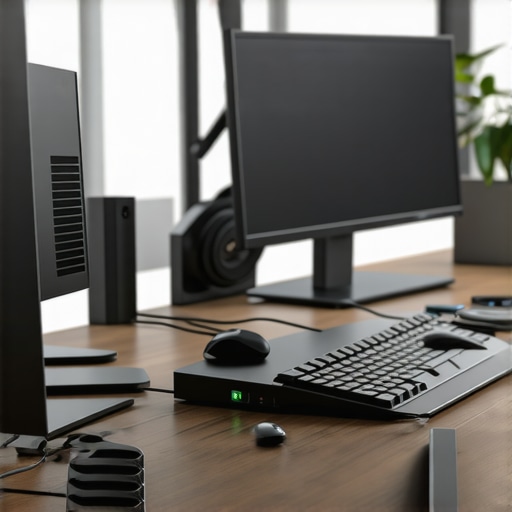
Ever had that moment when you’re working late, staring at your screen, and suddenly realize your setup just isn’t cutting it? Maybe your laptop is struggling to handle two or three external monitors, or worse — your connections keep disconnecting at the worst moment. I’ve been there, fumbling with cables, trying to make sense of confusing specs, and wondering if I was wasting my money on gear that just didn’t work as promised.
Why Multi-Monitor Setups Matter More Than Ever
In 2024, the need for a reliable, efficient multi-monitor setup isn’t just a luxury for tech enthusiasts—it’s a necessity for anyone serious about productivity, creativity, or just staying sane. With remote work, digital art, video editing, and complex spreadsheets becoming the norm, having multiple screens can dramatically boost your workflow. But here’s the catch—getting everything to work smoothly isn’t always straightforward. I learned that the hard way, investing in various docks and cables only to face frequent disconnects and sluggish data transfer.
That’s why I want to share my experience and guide you through the process of selecting the best USB-C and Thunderbolt docks for your multi-monitor setup. Trust me, it’s about more than just plugging in a few cables. It’s about understanding your equipment, knowing what to look for, and avoiding common pitfalls. And believe me, early on I made a classic mistake: I bought a cheap dock expecting it to handle multiple high-res monitors. Spoiler alert—results were disappointing, and I wasted time and money. The good news? I found solutions that actually work—and I want to help you avoid my mistakes.
Is All the Hype Around Thunderbolt and USB-C Docks Justified?
Many skeptics wonder if investing in these docks is worth the effort and expense. My answer: Absolutely. When properly chosen, these docks can unlock your laptop’s full potential, allowing seamless multi-monitor setups, fast data transfer, and charging all in one device. The key is knowing what features matter most, like compatibility with your laptop, video output options, and data transfer speeds. For instance, I initially overlooked the importance of Thunderbolt’s speed, which in turn limited my workflow. Once I upgraded to a quality Thunderbolt dock, my productivity skyrocketed—and I experienced how true multi-monitor setups can change your work life.
If you’ve faced issues like flickering screens, laggy response times, or constant disconnections, you’re not alone. These are common pain points, but they’re also avoidable with the right gear. Want to learn how to build a setup that’s reliable, fast, and future-proof? Keep reading, because I’ll walk you through the essential tips, recommended docks, and expert insights to get your multi-monitor dream working smoothly in 2024. And if you’re ready to dive into the details, check out our ultimate USB hub guide to start your journey today.
Connecting Your Monitors Step by Step
Start by assessing your laptop’s port availability and compatibility. For example, if your laptop has only one USB-C port, you’ll need a dock that supports daisy chaining or multiple outputs. I once tried plugging two monitors directly into a basic USB-C hub, only to find out that it didn’t support dual displays. The solution was to switch to a Thunderbolt dock that offers multiple video outputs, which instantly doubled my productivity.
Next, choose the right dock that suits your monitor resolutions and refresh rates. For high-resolution displays (like 4K or 5K), ensure the dock supports HDMI 2.0 or DisplayPort 1.4. I made the mistake of buying a cheap dock that only supported 1080p, which caused flickering and lag. Upgrading to a quality Thunderbolt dock from a reputable brand solved these issues and delivered crisp, smooth visuals.
Configuring Your Multi-Monitor Layout
Once physically connected, navigate to your operating system’s display settings. On Windows, right-click the desktop and select “Display settings.” Drag and arrange monitors to match your physical setup, then set your primary display. I remember spending half an hour adjusting the layout, only to realize I had the wrong monitor set as primary, which affected my workflow. Properly configuring the arrangement eliminates confusion and enhances efficiency.
If you want to extend or duplicate your screens, ensure your graphics card and dock support these modes. Some docks automatically default to mirror mode; check your display settings to switch to extended desktop. In my experience, using dedicated software from the dock manufacturer often helps fine-tune the output, especially when dealing with mixed resolutions.
Optimizing Data and Power Delivery
Fast data transfer is vital if you’re working with large files. For this, select a dock supporting Thunderbolt 3 or 4, which offers data transfer speeds up to 40Gbps. I once experienced sluggish file transfers due to a USB-C dock limited to 5Gbps. Upgrading to a Thunderbolt dock made a significant difference, saving me hours on big projects.
Charging your laptop through the dock streamlines your workspace. Make sure the dock provides enough wattage—at least 85W for most laptops. When I initially set up my workspace, I overlooked this detail, and my laptop kept draining battery during intensive tasks. Choosing a dock with sufficient power delivery kept my laptop charged and ready to go.
Final Checks Before Going Live
Test all connections thoroughly. Move your mouse, open applications, and verify that monitors stay connected and display correctly. I once had a monitor disconnect after a few minutes, which was due to a loose cable. Securing all connections fixed the problem.
In complex setups, consider using a docking station with built-in troubleshooting features or firmware updates. Regularly check for updates from the manufacturer, which can resolve bugs and improve stability. For expert tips and recommendations, explore our top Thunderbolt docks for multi-monitor setups in 2024.
Many professionals and tech enthusiasts assume that selecting a docking station is straightforward—just pick one with enough ports and support for your monitors, right? Well, not quite. In my experience, there are hidden nuances and common myths that can trip you up, leading to subpar performance and frustration. Let’s dig deeper into what most people get wrong about choosing the perfect multi-monitor dock, so you can avoid costly mistakes and optimize your setup.
The Myth of Compatibility Alone
It’s a widespread belief that as long as a dock claims compatibility with your laptop, it will work flawlessly with multiple monitors. But the reality is more complex. Many docks are compatible on paper but fall short when it comes to actual performance, especially at high resolutions or refresh rates. For example, I once bought a dock solely based on compatibility and ended up with flickering screens and lag because it didn’t support 4K output at 60Hz. The lesson? Always verify if the dock supports your resolution and refresh rate requirements, especially for demanding tasks like video editing or gaming.
Why Do Some Docks Fail with High-Res Monitors?
Most affordable or generic docks use older chipsets that can’t handle the bandwidth needed for high-resolution displays. Thunderbolt 3 or 4 docks from reputable brands usually have the necessary hardware to support 4K or 5K outputs smoothly. Relying solely on USB-C compatibility without checking the technical specs is a trap. Consult manufacturer datasheets or expert reviews—such as those found on our recommended Thunderbolt docks—to confirm support for your specific needs.
Overlooking Power Delivery and Data Speeds
Another common mistake is ignoring power delivery (PD) and data transfer capabilities. Many assume that a dock providing multiple video outputs will also handle fast data transfer and sufficient charging. But some docks offer high video resolutions at the expense of data bandwidth, causing sluggish file transfers or insufficient laptop charging. Always check if the dock supports at least 85W charging and 40Gbps data transfer speeds, especially if you work with large files or need your laptop to stay charged during intensive use.
For instance, I initially overlooked the importance of Thunderbolt’s data transfer speeds, which led to hours wasted on slow backups. Upgrading to a high-quality Thunderbolt dock transformed my workflow, demonstrating the importance of these often-overlooked features.
Beware of Daisy-Chaining and Compatibility Limits
Many users assume they can daisy-chain multiple monitors from a single port or dock. While some docks support this feature, it’s not universal. Daisy chaining can introduce compatibility issues, bandwidth limitations, or signal degradation, especially with high-resolution displays. Test your specific monitors and dock combination thoroughly before committing. Sometimes, using separate docks or direct connections yields more reliable performance, particularly for professional workflows.
In complex setups, check whether your operating system and graphics card support extended displays over the dock—an often overlooked nuance. For example, Windows users should ensure their graphics drivers are up-to-date and compatible with multi-display configurations. For more advanced multi-monitor strategies, explore our master guide to USB-C docking.
Have you ever fallen into this trap? Let me know in the comments, and I’ll be happy to help you troubleshoot or recommend the best gear for your setup.
Keeping your multi-monitor setup running smoothly over time requires more than just choosing the right hardware. It’s about implementing effective maintenance routines, leveraging the best tools, and understanding how to troubleshoot issues quickly. In this section, I’ll share the exact tools I personally use to ensure my setup remains reliable and how you can adopt these practices for your workspace.
How do I maintain my multi-monitor setup over time?
First, investing in a high-quality cleaning kit is essential. I swear by the TechSpray Screen Cleaner, which gently removes dust and fingerprints without damaging delicate surfaces. Regularly cleaning your monitors prevents buildup that can impair image quality and cause overheating. I recommend setting a weekly reminder to wipe down your screens and check for dust accumulation around cables and ports.
For cable management, I use Velcro cable ties and a cable management tray. Keeping cables organized not only improves aesthetics but also reduces wear on connectors, preventing disconnections and hardware failures. Every few months, I revisit my cable setup, ensuring no cables are bent sharply or tangled, which can lead to damage over time.
Monitoring your hardware’s health is crucial. I rely on Thunderbolt Dock firmware updates and CrystalDiskInfo for my SSDs. These tools alert me to potential issues before they become critical, like overheating or SMART errors. Regular software updates from your dock or hub manufacturer are vital, as they often include bug fixes and performance improvements. I check for updates monthly, which has saved me from unexpected disconnects or degraded performance.
In addition, I use monitor calibration tools for color accuracy, especially when working on visual projects. Proper calibration ensures consistent colors across all screens, reducing eye strain and improving work quality. Keep your graphics drivers up-to-date, too—this is often overlooked but can dramatically affect multi-monitor performance. I make it a point to check for driver updates after every major OS update.
As technology evolves, I predict that automation tools will become more prevalent. Future advancements like AI-driven diagnostics may even proactively alert you to potential hardware failures or suggest maintenance actions. For now, adopting a routine that combines physical cleaning, cable management, software updates, and hardware monitoring is the best way to keep your multi-monitor setup reliable.
Don’t forget to try out some of these tools and routines today. For example, set up a monthly firmware check for your Thunderbolt docks or use a cable management kit to tidy up your workspace. Small, consistent efforts will keep your setup performing at its best and save you time and frustration in the long run. If you want detailed guidance on choosing tools tailored to your setup, visit our comprehensive guide on maintaining multi-monitor environments.
What I Wish I Knew Before Building My Multi-Monitor Setup
One of the biggest lessons I learned was that not all docks are created equal—especially when it comes to high-resolution displays and fast data transfer. I initially bought a cheap USB-C dock, expecting it to handle my dual 4K monitors effortlessly, only to face flickering screens and lag. The lightbulb moment was realizing that hardware specs matter far more than compatibility claims. Now, I always verify support for my resolution and refresh rates before making a purchase, saving myself frustration and time.
Another insight was the importance of proper cable management. I used to tangle cables behind my desk, which led to accidental disconnections and hardware wear. Investing in Velcro ties and a cable management tray transformed my workspace. It’s a small step that makes a big difference in reliability and aesthetics, proving that maintenance routines can extend the lifespan of your setup.
Lastly, I underestimated the value of firmware and driver updates. Outdated firmware on my Thunderbolt dock caused unexpected disconnections. Regularly checking for updates from the manufacturer and monitoring my hardware’s health with tools like CrystalDiskInfo kept my setup running smoothly. These experiences taught me that consistent maintenance is crucial — a lesson I wish I’d embraced earlier.
Tools & Resources That Changed How I Manage My Multi-Monitor Environment
My go-to resource for reliable hardware recommendations is the top Thunderbolt docks for 2024. These docks support high resolutions, fast data speeds, and sufficient power delivery, which are critical for my workflow. For software, I trust firmware updates and driver tools that ensure my hardware stays compatible with evolving OS updates. My cable management kit and monitor calibration tools from reputable brands also keep my workspace organized and my visuals consistent, boosting productivity and reducing strain.
If you’re serious about optimizing your multi-monitor setup, these tools and resources have become indispensable in my routine. They’re the secret sauce behind a reliable, efficient workspace that adapts to my needs—and they can do the same for you.
Your Next Step Towards a Seamless Multi-Monitor Experience
Building a robust multi-monitor setup isn’t just about buying the right hardware; it’s about adopting a mindset of continual improvement and care. Start small—clean your cables, update your firmware, verify your hardware specs—and gradually refine your workspace. Remember, technology is always evolving, and staying proactive will help you unlock your setup’s full potential. If you’re unsure where to begin, visit our comprehensive guide for step-by-step advice tailored to your needs.
So, what’s the biggest challenge you’ve faced when setting up multiple monitors? Drop a comment below—I’d love to hear your story and help you troubleshoot!