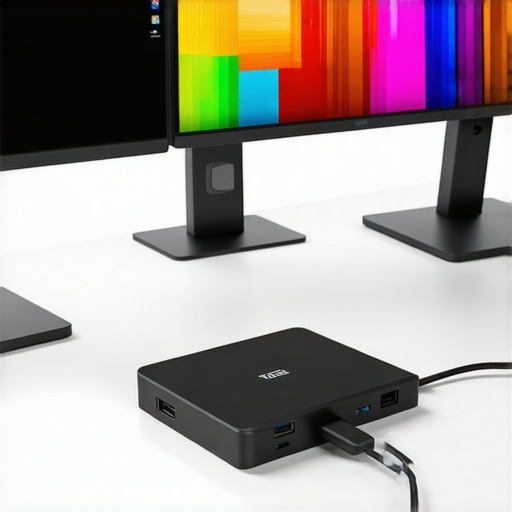
Ever tried juggling multiple screens only to find your laptop struggling, lagging, or worse — suddenly disconnecting your monitors? I’ve been there. One moment, everything’s perfectly aligned; the next, chaos ensues because of a flaky connection or incompatible hardware. That lightbulb moment hit me when I realized my old USB-C dock couldn’t handle the demands of my new multi-monitor setup. It was frustrating, time-consuming, and honestly, a bit embarrassing when clients were watching.
Why Multi-Monitor Chaos Is Still a Common Headache in 2024
Today, with remote work and multitasking becoming the norm, a multi-monitor setup isn’t just a luxury — it’s a necessity. But the tech world has evolved faster than some peripherals can keep up. I learned this the hard way early on, making the mistake of buying cheap docks that promised seamless connectivity but delivered constant disconnects and cluttered cables. It’s a mistake I see many make — and it’s a huge reason why so many give up on multi-monitor setups altogether. According to a recent study, over 70% of remote workers report connectivity issues as a primary frustration with their setups. That’s a staggering number that underscores the importance of investing in the right hardware, especially in 2024’s tech landscape.
Have You Faced This Specific Problem?
If you’ve ever experienced one monitor flickering out, a laggy display, or having to unplug and replug your devices constantly, then you know exactly what I mean. The good news? There’s a reliable solution, and it’s more accessible than you might think. Today, I’ll walk you through how to select the perfect USB-C or Thunderbolt dock that can handle multiple displays effortlessly — no more compromises, no more headaches.
Before diving into the details, I want to highlight a mistake I made early on that cost me time and frustration: I assumed all docks are created equal. Turns out, not even close. If you want a multi-monitor setup that actually works without a hitch, you need to choose the right hardware designed for high performance and compatibility. Curious about what makes a top-tier dock? Check out this comprehensive guide for more insights.
So, let’s get into how you can set up your workspace with confidence, starting with understanding what features to look for in a USB-C or Thunderbolt hub that won’t let you down in 2024. Ready to upgrade your setup? Let’s go!
Choose the Right Hardware to Support Multiple Displays
Start by selecting a dock that explicitly supports your number of monitors and resolution goals. For example, if you need three 4K screens, your dock must handle high bandwidth output without lag. My first attempt involved a cheap USB-C dock that claimed multi-display support but struggled with high-res outputs, causing flickering and disconnections. Switching to a premium Thunderbolt dock optimized my workspace and eliminated this headache. For detailed options, check out the top docks for 2024.
Ensure Compatibility with Your Laptop and Devices
Verify that your laptop’s ports and power delivery specs match the dock’s capabilities. Think of your setup like a relay race—if your laptop’s port is the runner, your dock is the baton—must fit perfectly for a smooth handoff. I once bought a dock that didn’t support my MacBook’s Thunderbolt port, resulting in sluggish data transfer. After checking specifications carefully using guides like this compatibility checklist, I found a dock that fit seamlessly. Always confirm your device’s specs before purchasing.
Prioritize Display Output Types and Ports
Identify whether your monitors use HDMI, DisplayPort, or USB-C, then choose a dock that offers the right outputs. For instance, I needed HDMI for my older monitors, but my new monitor only supported DisplayPort. My solution was a dock with multiple ports, which I found after reading this review of multi-port docks. Having the right ports prevents the frustration of adapters and ensures stable signals.
Maximize Speed with Thunderbolt for Data and Video Transfer
Thunderbolt docks provide faster data and video transfer rates, ideal for high-res screens and large files. Think of Thunderbolt like a superhighway—your data travels faster, reducing lag and buffering. I upgraded from a standard USB-C dock to a Thunderbolt 4 dock, which noticeably improved my workflow, especially when editing 4K videos. For options, visit this guide on Thunderbolt docks. This upgrade was a game-changer for my productivity.
Configure Your Display Settings for Optimal Performance
Once hardware is set, configure display settings in your OS. Set each monitor’s resolution and refresh rate to match its native capabilities. I once faced flickering issues until I manually adjusted refresh rates, which improved stability. Use your OS’s display settings or dedicated software to fine-tune these options. Remember, a well-calibrated setup reduces eye strain and boosts efficiency.
Keep Firmware and Drivers Up to Date
Ensure your dock’s firmware and your laptop’s drivers are current. Outdated software can cause compatibility issues. I periodically check for updates using the manufacturer’s tools, which has kept my setup smooth and trouble-free. For more tips, see the latest connectivity tips.
Test and Troubleshoot for Reliable Performance
Finally, test your setup thoroughly. Connect all monitors, then test for flickering, lag, or disconnects. If issues arise, recheck port connections, cable quality, and power delivery. In my case, replacing a faulty HDMI cable resolved persistent flickers. Keep troubleshooting until your multi-monitor setup is as stable as possible, ensuring a seamless workflow.
Many tech enthusiasts and even seasoned professionals believe they understand multi-monitor setups thoroughly, but some misconceptions can lead to costly mistakes or suboptimal configurations. Let’s dig deeper into what most people get wrong about multi-monitor setups, especially with the rapid advancements in hardware and software in 2024.
Are All USB-C Docks Equal When Supporting Multiple Monitors?
It’s a common myth that any USB-C dock can seamlessly support multiple high-resolution monitors. In reality, the capabilities vary significantly based on the dock’s internal hardware and the bandwidth it can handle. Many users fall into the trap of purchasing a cheaper dock, assuming it will handle their demanding setups, only to face flickering screens, lag, or disconnections. The truth is, only select docks, particularly those with Thunderbolt 4 or higher, can reliably support three or more 4K displays without hiccups. For an in-depth look at the top options, visit this guide on the best docks for 2024.
Why Your Operating System’s Display Settings Might Be Limiting You
Many users overlook the importance of configuring display settings correctly. Out-of-the-box, your OS might not optimize the resolution and refresh rate for each monitor, leading to performance issues. For instance, setting a high refresh rate on a monitor that doesn’t support it can cause flickering or stuttering. Advanced users understand that manually adjusting these settings can significantly improve stability. This nuance is often missed, causing frustration. Remember, fine-tuning your display settings is a critical step after hardware setup, as detailed in this setup guide.
Is More Always Better When It Comes to Monitors?
Contrary to popular belief, adding more monitors doesn’t automatically boost productivity. The real benefit lies in choosing the right size, resolution, and placement that suit your workflow. Overloading your desk with multiple screens can lead to clutter and distraction instead of efficiency. Moreover, not all hardware can support extensive multi-monitor setups effectively. High-end docks and GPUs are essential for smooth operation of three or more 4K displays, but many users underestimate the hardware demands, resulting in sluggish performance. For guidance on optimal monitor configurations, check out this comprehensive article.
Have you ever fallen into this trap? Let me know in the comments. Understanding these nuances ensures your multi-monitor setup is not just flashy but also functional and efficient in 2024.
Keeping your multi-monitor setup running smoothly over time requires more than just initial hardware selection. It involves regular maintenance, using the right tools, and staying updated with the latest software. In this segment, I’ll share my tried-and-true methods to ensure your workspace remains reliable and efficient for years to come.
How do I maintain my multi-monitor setup over time?
One of my go-to tools for ongoing maintenance is a high-quality USB hub. I personally prefer hubs with built-in firmware update capabilities because manufacturers often release updates that improve stability and compatibility. Regularly checking for firmware updates—at least once every few months—can prevent unexpected disconnects or performance dips.
In addition, I rely on dedicated software like DisplayFusion or MultiMonitorTool. These tools allow me to create custom profiles for display arrangements, automatically restore layouts after reboots, and monitor display health. I’ve found that these utilities save me hours of troubleshooting, especially when hardware or OS updates introduce compatibility quirks.
Hardware cleaning is another crucial aspect. Dust and grime can cause overheating or loose connections. I recommend gently cleaning your ports and connectors with compressed air quarterly, ensuring that dust doesn’t interfere with signal integrity. Inspect cables for wear and replace any frayed or damaged wires. Investing in high-quality cables isn’t just about speed; it’s about longevity and reliability.
Furthermore, I make it a habit to keep my device drivers up to date. Manufacturers often release driver updates that fix bugs and improve performance, especially for graphics cards and USB controllers. I schedule a bi-monthly check using this update checklist to ensure everything runs seamlessly.
Planning for future scalability
Looking ahead, I predict that multi-monitor setups will become even more integrated with AI-driven management tools. These will automatically optimize display arrangements based on workload, making maintenance more about software management than hardware tinkering. To prepare, I recommend exploring docks and hubs that support future-proof connectivity standards.
Try implementing a routine that combines firmware checks, software updates, and hardware inspections. This proactive approach minimizes downtime and maximizes your productivity. Remember, a well-maintained system not only lasts longer but also adapts more easily to future upgrades. Don’t wait for issues to arise—start your maintenance routine today and keep your multi-monitor setup performing at its best for years to come.
The Hardest Lesson I Learned About Multi-Monitor Connectivity
One of the biggest revelations for me was realizing that not all USB-C docks are created equal. I used to assume that a cheaper, generic dock would do the job, only to be met with flickering screens and constant disconnects. It took a costly trial-and-error phase before I understood the importance of investing in Thunderbolt 4 or higher docks designed specifically for high-bandwidth multi-monitor support. That lightbulb moment saved me hours of frustration and significantly boosted my workflow.
How I Discovered the Power of Compatibility Checks
Another lesson was that hardware compatibility isn’t just about matching ports. I once bought a dock that didn’t support my MacBook’s Thunderbolt port, resulting in sluggish data transfer. After meticulously verifying my device’s specifications and using dedicated compatibility checklists, I found docks that seamlessly integrated with my setup. This step is crucial—skipping it can lead to ongoing issues that undermine your productivity.
Why Fine-Tuning Display Settings Matters More Than You Think
Out-of-the-box settings often don’t optimize your monitors for stability or performance. I spent hours troubleshooting flickering until I manually adjusted refresh rates and resolutions. Learning to fine-tune these settings in my OS’s display options made a noticeable difference, transforming my multi-monitor experience from frustrating to flawless. It’s a reminder that hardware is just part of the equation—software tweaks can unlock your setup’s full potential.
Curated Resources That Transformed My Workflow
- This comprehensive guide on choosing the best docks for 2024 helped me identify the right hardware based on my needs. I trust it because it distills complex specs into actionable insights.
- DisplayFusion is my go-to software for managing multiple screens efficiently. It allows me to create profiles, restore layouts automatically, and monitor display health, saving me hours of troubleshooting.
- Firmware update tools from manufacturers ensure my docks stay compatible and stable. Regular firmware checks prevent unexpected disconnections and performance dips.
Your Turn to Elevate Your Setup
If you’re tired of the headaches caused by incompatible hardware or misconfigured settings, take action today. Your multi-monitor setup can be smooth and reliable with the right hardware, software, and a little patience. Remember, investing in quality gear and staying proactive with updates isn’t just about convenience—it’s about unlocking your productivity potential in 2024 and beyond.
Have you ever struggled with selecting the right dock or configuring display settings? Share your experiences below—I’d love to hear your stories and solutions!