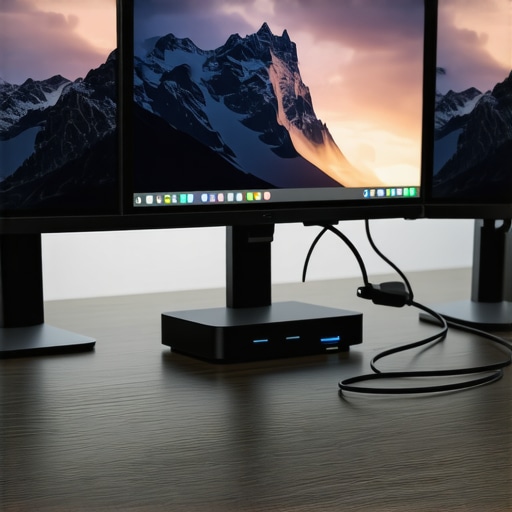
Ever spent hours wrestling with a tangled mess of cables, only to realize your monitors still refuse to work properly? That was me a few months ago, frustrated beyond belief, when I finally understood that the right dock could make or break a multi-monitor setup. It was a lightbulb moment: I’d been trying to connect multiple screens with the wrong gear, wasting time and patience. If you’ve faced a similar struggle, you’re not alone. The good news is, with the right Thunderbolt or USB C dock, you can transform your workspace into a seamless multi-monitor powerhouse. Today, I’ll walk you through everything you need to know to pick the best options for 2024, avoiding common pitfalls and ensuring your setup is smooth, fast, and reliable.
Why Your Dock Choice Matters More Than Ever
When I first started exploring multi-monitor setups, I underestimated how crucial the right dock was. I bought a generic USB hub, thinking it would do the trick. Spoiler: it didn’t. My monitors flickered, the data transfer was sluggish, and I spent more time troubleshooting than working. It took some research and a few costly mistakes to realize that not all docks are created equal. According to industry experts, a quality dock can dramatically improve your productivity, especially in 2024 when remote work and multi-tasking are the norms. A top-tier Thunderbolt dock can handle fast data transfer, multiple high-resolution displays, and even charge your laptop—all at once.
Is All the Hype About Thunderbolt and USB C Docks Justified?
Honestly, I was skeptical at first. I wondered if I was just falling for marketing hype. One mistake I made early on was choosing a dock without checking its bandwidth capabilities. That was a rookie error that led to laggy displays and dropped connections. After learning the difference between Thunderbolt and regular USB C, I found that Thunderbolt docks offer significantly faster data speeds and better support for multiple monitors. So, if you’re serious about a multi-display setup in 2024, investing in a quality dock isn’t just a luxury—it’s a necessity. Want to dive deeper into the technical specs? Check out our Thunderbolt dock essentials guide.
Now, let’s explore how to choose the right dock for your needs, so you won’t waste time or money on the wrong gear. Ready? Let’s go!
Select the Right Dock for Your Needs
Start by assessing your device compatibility and monitor requirements. Check if your laptop supports Thunderbolt or USB C with sufficient bandwidth. I once tried to connect three high-res monitors using a generic USB C hub, which failed miserably—displays flickered and lagged. That experience taught me to prioritize docks that explicitly support multiple 4K displays. For detailed specs, visit our USB C dock guide and ensure it supports your monitor resolutions and connections.
Identify Your Connection Priorities
Determine Your Power and Data Needs
Decide if you need fast data transfer, charging capabilities, or both. I recommend looking for docks with at least 40Gbps bandwidth for smooth 4K video and data sync. When I upgraded to a Thunderbolt dock, my workflow improved dramatically, especially during video editing. Make sure your chosen dock can deliver sufficient power to your laptop—this saves from cluttering your workspace with extra chargers.
Connect Your Devices Step-by-Step
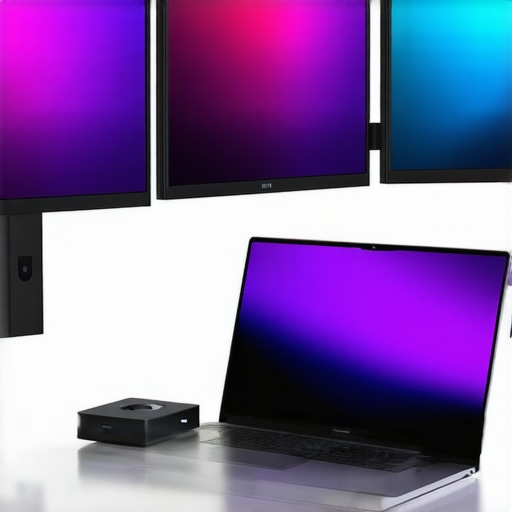
Unbox your dock and connect it to your laptop using the appropriate cable. Plug in your monitors into the dock’s video outputs—HDMI, DisplayPort, or Thunderbolt ports. For my setup, I used a dock with dual HDMI and one DisplayPort, which allowed me to arrange my three screens neatly. Always double-check the supported resolutions; some docks cap at 1080p, which isn’t ideal for modern workflows. For more on monitor selection, see our monitor setup guide.
Configure Display Settings Effectively
Once connected, go to your operating system’s display settings. On Windows, right-click on the desktop and select “Display Settings.” Arrange the monitors to match your physical layout for smooth cursor movement. I had a moment of frustration when my cursor kept jumping because I hadn’t set the primary display correctly. Setting the main monitor and adjusting resolution scaling improved my multi-tasking speed. Remember, some docks may require driver updates—check the manufacturer’s website for the latest firmware to prevent glitches.
Optimize for Performance and Reliability
Keep your dock’s firmware updated and use high-quality cables. Avoid daisy-chaining monitors through multiple adapters, which can cause lag and flickering. I once tried stacking adapters to save space, but it resulted in inconsistent display quality. Instead, connect monitors directly to the dock. For additional tips on boosting your setup’s performance, visit our USB-C docking optimization. Regularly restart your laptop after updates to ensure all hardware components work harmoniously.
< >
>
Many enthusiasts and professionals alike assume that all docks are created equal, but in reality, there are nuanced pitfalls even seasoned users often overlook. Let’s dig deeper into what most people get wrong about selecting the right docking station for a multi-monitor setup, and how to avoid these costly mistakes.
Why Believing All Docks Are the Same Can Backfire
A widespread misconception is that any USB C or Thunderbolt dock will suffice for multiple high-resolution monitors. However, not all docks are built with the same bandwidth or connectivity standards. For instance, some docks advertise support for 4K displays but only offer limited bandwidth that results in flickering, lag, or dropped signals. According to expert insights from our comprehensive guide, investing in a dock with at least 40Gbps of bandwidth ensures smooth performance when running multiple 4K monitors.
Another misconception is that more ports always mean better performance. The reality is, ports must be supported by the dock’s internal architecture. Connecting multiple monitors through a low-quality dock can cause bottlenecks and instability, especially if the dock doesn’t support MST (Multi-Stream Transport) or daisy-chaining properly. This is where understanding the technical specifications becomes crucial. For advanced users, consulting expert resources like our detailed setup guide can prevent these pitfalls.
Beware of the ‘Plug and Play’ Myth
Many believe that once a dock is connected, it will automatically work flawlessly. But in reality, driver compatibility and firmware updates are often overlooked. An outdated firmware might cause connection drops or resolution issues. Regularly check the manufacturer’s website and update your dock’s firmware, which often resolves bugs and improves stability. Remember, a dock that works seamlessly in one setup might require specific driver updates for another. Failing to do so is a common mistake that leads to frustration.
Finally, don’t forget about power delivery. Many users assume that their laptop’s charger suffices, but some docks provide more efficient charging and better power management. Choosing a dock that supports sufficient power delivery not only keeps your laptop charged but also reduces cable clutter. If you want to explore more about how to optimize your multi-monitor setup, visit this in-depth article.
Have you ever fallen into this trap? Let me know in the comments. Avoiding these nuanced mistakes will save you time and money, ensuring your multi-monitor setup in 2024 is efficient and reliable.
Maintaining a multi-monitor setup over time can seem daunting, but with the right tools and a proactive approach, you can ensure everything stays seamless and efficient. From software utilities that monitor your hardware health to hardware upgrades that future-proof your workstation, I’ll share exactly what I use personally to keep my setup in top shape. Plus, I’ll discuss where this trend is heading, so you’re prepared for the future of multi-display productivity.
How do I maintain my multi-monitor setup over time?
First, invest in a reliable hardware monitoring tool. I personally rely on HWMonitor because it provides real-time insights into your CPU, GPU, and power supply temperatures. This is crucial because overheating can cause your monitors to flicker or disconnect unexpectedly. Regularly checking these metrics helps me catch issues early before they escalate. Additionally, I use CrystalDiskInfo for SSD and HDD health checks, ensuring my data storage remains reliable—a key factor when working with large media files or critical projects.
On the software side, keeping your drivers up to date is essential. I set a monthly reminder to visit the manufacturer’s website or use automatic update tools like Driver Booster. This practice minimizes compatibility issues and ensures your monitors, graphics cards, and docking stations operate smoothly. For instance, regularly updating my Thunderbolt dock firmware through the official support page prevented connection drops and improved performance in demanding workflows.
Another tip is cable management. I’ve found that using high-quality, certified cables reduces signal interference and connection issues. I prefer braided HDMI and DisplayPort cables from reputable brands like Cable Matters, which I’ve used for years without problems. Keeping cables tidy also makes troubleshooting easier if a connection falters. For managing multiple cables, I recommend USB-C docks with dedicated ports—they simplify connections and reduce wear on your ports over time.
Long-term performance also benefits from periodic hardware upgrades. I plan to upgrade my GPU and motherboard in the next year to support higher resolutions and faster refresh rates, which will keep my setup relevant. When you’re ready to scale, consider expanding your dock’s capabilities or adding additional hubs. For example, integrating Thunderbolt docks designed for multi-monitor setups can dramatically increase your system’s capacity and speed.
Looking ahead, I believe the trend toward wireless display technology will continue to grow. Devices like Miracast and WiDi are becoming more reliable, reducing the need for physical cables. However, for now, a solid hardware and software maintenance routine remains essential to keep everything working flawlessly.
Ready to take your multi-monitor setup to the next level? Start by implementing a regular hardware health check with tools like HWMonitor and keep your firmware and drivers up to date. This small investment of time will pay off in a more stable, reliable workspace that grows with your needs.
The Hidden Lessons from My Docking Journey
One of the biggest realizations I had was that not all docks are created equal—some are like unreliable friends, promising support but delivering chaos. I learned the hard way that investing in a high-bandwidth Thunderbolt dock transformed my workflow, turning frustrating flickering screens into a seamless multi-monitor experience. The second lesson was that driver updates and firmware checks are often overlooked but can resolve more issues than hardware replacements. Lastly, I discovered that proper cable management isn’t just tidy—it’s crucial for signal integrity and long-term reliability. These insights saved me countless headaches and could do the same for you.
My Top Picks for an Effortless Multi-Monitor Experience
For anyone serious about a multi-monitor setup, I recommend starting with the Ultimate USB-C Dock. It combines high bandwidth support with multiple video outputs, ensuring crisp visuals and stable connections. If you want to dive deeper into technical specs, check out the Thunderbolt dock essentials guide. And for enhancing your workspace, the USB hub guide offers excellent options for expanding connectivity without sacrificing performance.
Embrace the Future of Multi-Monitor Power
Your journey to a sleek, efficient multi-monitor setup begins now. Don’t let technical pitfalls hold you back—equip yourself with the right gear, stay vigilant about updates, and keep cables tidy. Every step you take today will pave the way for a more productive tomorrow. Remember, the best setup is one that works reliably and adapts to your needs—so get started, experiment, and enjoy the enhanced workflow that good hardware can bring. Are you ready to upgrade your workspace and unlock new levels of productivity? Your multi-monitor future awaits!
Have you ever faced a challenge connecting multiple monitors? Share your experience below and let’s learn from each other!
Reading this post really resonated with me because I used to struggle endlessly with connecting multiple monitors, especially dealing with flickering and lag. It’s true—choosing the right dock makes all the difference, yet it’s often overlooked. I recently upgraded to a Thunderbolt dock, and the difference was night and day, particularly for my video editing and design work. The technical details about bandwidth and support for 4K displays were eye-opening; I didn’t realize some docks can advertise support but still fall short under load. I’ve also learned the importance of firmware updates and quality cables from my own experience—those small details can cause big headaches when neglected. One thing I’ve found helpful is regularly checking for driver updates and keeping my firmware current, which ensures stability. How do others here approach troubleshooting display flicker or lag? Do you have specific tools or routines that work well for you? Would love to hear everyone’s tips for maintaining a reliable multi-monitor setup.
I completely agree with the emphasis on choosing the right dock for a multi-monitor setup. When I was initially frustrated with flickering and slow data, I learned the hard way that not all USB-C or Thunderbolt docks are equal. Upgrading to a high-quality Thunderbolt dock, much like what you described, made a huge difference in my workflow, especially for video editing and graphic design tasks. I also found that regular firmware updates and using high-quality, certified cables can prevent many connection issues. One thing that helped me was setting up a routine to check for driver and firmware updates monthly — it’s a small step that pays off by keeping everything running smoothly. Regarding troubleshooting, I use tools like HWMonitor to keep tabs on hardware health and temperature, which helps catch overheating issues before they impact my displays. How do others here manage the long-term reliability of their docks? Do you find certain brands or models consistently more stable? Would love to hear your experiences.
I completely relate to the story about struggling with tangled cables and inconsistent display performance. Switching to a quality Thunderbolt dock truly transformed my setup — I no longer have flickering or lag issues even when running multiple high-res monitors. What I found particularly useful was investing in cables that support the bandwidth needed for smooth 4K output, and regularly checking for firmware updates for my dock. One thing I’ve noticed is that not all docks support the same resolutions or multi-monitor configurations equally, so doing thorough research based on your specific needs is key. For anyone still facing connectivity issues, I recommend using monitoring tools like HWMonitor to keep an eye on temperatures and hardware health, especially if you do intensive tasks like video editing. Has anyone found particular brands or models of docks that stand out for long-term reliability? I’d love to hear what works well for others, especially in a professional environment where stability is critical.
This post hits close to home for me, especially the part about choosing the right dock for a multi-monitor setup. I spent weeks troubleshooting flickering and lag, and it turned out I was using a dock that didn’t support the bandwidth needed for my three 4K monitors. Upgrading to a Thunderbolt 3 dock with at least 40Gbps support really made a difference. I also discovered the importance of high-quality certified cables and regularly updating my firmware and drivers. One tip I’d add is to avoid daisy-chaining monitors through adapters whenever possible—direct connections to the dock give the most stable performance. It’s fascinating how much the internal architecture of the dock influences stability and performance, even more than the number of ports. For anyone considering an upgrade, I recommend focusing on bandwidth and support for the resolutions you need. How do others manage the trade-off between port availability and bandwidth constraints? Are there particular brands or models anyone swears by for consistent long-term performance?
Reading this post really hit home for me, especially the part about upgrading to a quality Thunderbolt dock. I used to think any USB-C hub would suffice, but I kept running into flickering and sluggish responses during my workflow. Switching to a Thunderbolt 3 dock with at least 40Gbps bandwidth changed everything — my displays are now stable even with multiple 4K monitors. I also learned that the quality of cables and keeping firmware updated are often overlooked yet essential steps for avoiding hiccups. One thing I’ve done to enhance stability is setting a monthly reminder to check for driver updates, which has helped prevent many connection issues.
Out of curiosity, how do others here balance the number of ports versus bandwidth limitations? For someone planning a future upgrade, are there certain brands or models that are known for long-term reliability and performance? I’d love to hear your experiences, especially if you’ve faced similar challenges switching from low-quality docks. Thanks for sharing such valuable insights — this really motivated me to invest in better hardware for my setup!