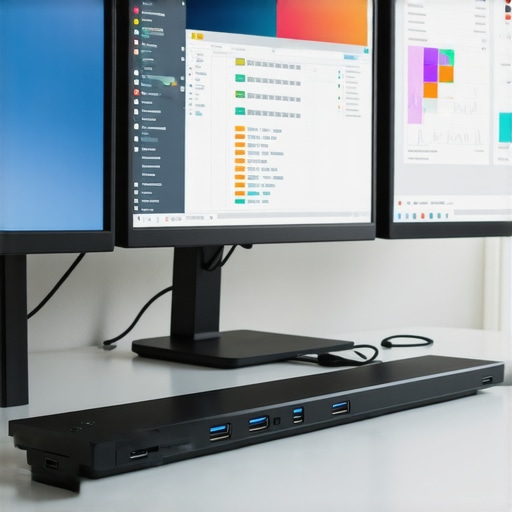
I still remember the frustrating moment when my entire workspace seemed to collapse into chaos because my laptop just couldn’t handle the multiple monitors I desperately needed. The cables tangled, the ports refused to cooperate, and I felt like I was fighting an uphill battle every single day. That lightbulb moment made me realize that my setup’s success depended more on the right dock or hub than anything else. If you’ve ever faced a similar struggle, you know how crucial a reliable, high-performance docking station is for seamless multi-monitor productivity.
Why Choosing the Right Docking Station Transforms Your Workflow
In 2024, the demand for efficient multi-monitor setups has skyrocketed. Whether you’re a creative professional, a remote worker, or just someone who loves having multiple screens for better multitasking, the core challenge remains the same: connecting multiple displays reliably without sacrificing speed or stability. A good Thunderbolt dock or USB C hub can be the difference between a smooth workflow and constant technical headaches.
Is All the Hype About Thunderbolt and USB C Docks Justified?
Early in my journey, I made the mistake of believing that all docks were created equal. I bought a cheap, generic hub, only to find out it couldn’t handle more than one monitor or, worse, caused frequent disconnects. The truth is, not all docks are built the same. High-quality Thunderbolt and USB C docks offer lightning-fast data transfer, support for multiple 4K displays, and robust build quality that lasts for years. Investing in the right gear truly pays off in the long run, as supported by recent research showing the productivity gains from reliable multi-monitor setups (source).
So, if you’re tired of the cable chaos, poor display performance, or frequent disconnects, stick around. We’re about to explore how to choose the best Thunderbolt and USB C hubs for your setup, ensuring you get the most out of your workspace and avoid the rookie mistakes I made early on.
Connect Your Displays Step by Step
Start by identifying what ports your laptop supports and what your monitors need. For example, if your laptop only has USB-C ports, you’ll need a USB C hub that can handle multiple outputs. I once tried to connect three monitors with a generic hub, which resulted in flickering and disconnects. The lesson here is to choose a dock explicitly designed for multi-display support.
Select the Right Docking Station
Look for a Thunderbolt or USB C dock that supports your desired number of monitors. For example, a Thunderbolt dock offers faster data transfer and more reliable connections, especially with high-resolution displays. When I upgraded to a Thunderbolt dock, my setup became stable, and I could extend my desktop across three 4K monitors without lag.
Ensure Compatibility Before Connecting
Double-check your laptop’s specifications and the dock’s supported resolutions and refresh rates. It’s like choosing the right extension cord—using one that can handle the power load prevents overheating and failures. I once bought a cheap dock that claimed to support 4K, but it only managed 1080p, wasting my investment. Read the specs carefully or visit a trusted resource like this guide.
Properly Connect and Configure
Connect your monitors to the dock, then plug the dock into your laptop. On Windows, go to display settings and select ‘Extend desktop’ for each monitor. On Mac, use ‘System Preferences > Displays.’ I recommend arranging the monitors in your settings to match their physical positions, which speeds up workflow. During my first attempt, I neglected this step and had to reconfigure multiple times, wasting valuable time. Proper setup ensures a seamless experience.
Test and Troubleshoot
After setup, test each monitor’s resolution and refresh rate. If you experience flickering or lag, check cable quality and port compatibility. Sometimes, using a different port or cable solved my issues instantly. For persistent problems, consult the troubleshooting tips in this resource. Remember, sometimes a firmware update for the dock can resolve unforeseen bugs.
Keep Your Setup Clean and Organized
Finally, manage your cables with velcro straps or cable clips. A tidy workspace prevents accidental disconnections and makes future adjustments easier. I once spent an hour untangling cables after a minor move, which made me realize that cable management is as crucial as the hardware itself. Use quality cables recommended by the dock manufacturer for optimal performance.
Many users believe that simply plugging in a high-quality dock guarantees a flawless multi-monitor experience. However, in my experience, this is a common misconception that can lead to costly mistakes and frustrating setups. The real challenge lies in understanding the nuanced compatibility issues, bandwidth limitations, and hardware configurations that can make or break your multi-display setup.
One of the most overlooked aspects is the importance of bandwidth management. Not all docks support the same data transfer rates, especially when handling multiple 4K displays or high-refresh-rate monitors. For example, a popular Thunderbolt dock might promise support for three 4K screens, but if your laptop’s PCIe bandwidth is limited, the performance may still suffer. In such cases, the bottleneck isn’t the dock but the overall data transfer capacity of your system.
Another misconception is that all USB-C ports are created equal. Many assume that any USB-C port can handle multi-display output, but this isn’t true. Some ports are limited to data transfer only and cannot support external displays without a Thunderbolt or DisplayPort Alt Mode compatibility. This is where detailed research or consulting a comprehensive compatibility guide can save you from wasted investments.
Furthermore, the placement and quality of cables play a crucial role. Using a cheap or poorly shielded cable can cause flickering, lag, or disconnections, especially when pushing high data loads. Even a high-end dock will struggle if the connection to your monitor is unstable. Always opt for cables recommended by the dock manufacturer and avoid the temptation of shortcuts.
Why Do Some Monitors Fail to Detect Properly
Advanced users often encounter issues with monitor detection or resolution scaling, which seem trivial but are rooted in deeper hardware and driver settings. For instance, improper EDID (Extended Display Identification Data) communication can cause a monitor to default to lower resolutions or not be recognized at all. Updating your graphics driver and ensuring your OS recognizes the correct display parameters can resolve this. Additionally, some docks require specific firmware updates to maximize compatibility—something I learned the hard way after troubleshooting for hours.
In essence, mastering multi-monitor setups requires more than just plugging in hardware. It demands an understanding of your system’s architecture, the specific features of your dock, and the quality of your accessories. For more detailed insights and advanced tips, check out this resource.
Have you ever fallen into this trap? Let me know in the comments.
How do I keep my multi-monitor setup running smoothly over time
Maintaining a reliable multi-monitor setup requires a combination of the right tools, regular checkups, and proactive upgrades. I personally rely on a few key practices and equipment to ensure my workspace stays efficient and trouble-free. First, I always use high-quality cables, like those recommended by the dock manufacturer, because poor-quality cables are often the root of flickering and disconnections. Next, I schedule routine firmware updates for my docks and graphics drivers, leveraging resources like this guide to stay current. These updates fix bugs, improve compatibility, and sometimes unlock new features, which are crucial for sustained performance.
For physical maintenance, I ensure my cables are organized, using velcro straps or cable clips to prevent wear and accidental disconnections. This simple step saves me hours of troubleshooting later. I also periodically clean my ports and connectors with compressed air to prevent dust buildup, which can cause poor contact and unstable connections. When I notice any irregularities like flickering or lag, I troubleshoot by swapping cables or testing different ports, as often the problem lies in a loose connection or a faulty cable rather than the hardware itself.
Beyond hardware, I utilize software tools such as display calibration and management utilities. These help me fine-tune resolutions and refresh rates, ensuring my displays work at their best. Regularly reviewing my system’s bandwidth capacity, especially when adding new monitors, helps avoid bottlenecks. For instance, if I plan to add a 4K monitor, I check my dock’s data transfer limits against my system’s capabilities to prevent performance dips.
Looking ahead, I predict that seamless multi-monitor experiences will increasingly depend on smarter hardware with auto-configuration features and AI-based diagnostics. As these technologies develop, maintaining your setup will become more about letting your hardware and software do the heavy lifting, reducing manual troubleshooting.
How can I keep my setup optimized long-term
Implementing a routine check-up schedule, updating firmware and drivers, and investing in quality accessories will pay dividends in maintaining peak performance. I highly recommend trying out a dedicated diagnostic tool or firmware updater that can alert you to potential issues before they become serious. For example, regularly visiting this resource can help you stay ahead of common problems and ensure your multi-monitor setup remains efficient for years to come. Don’t overlook the importance of cable management and port cleaning, as these simple steps often prevent the most frustrating failures. Keep your workspace organized, stay updated, and don’t hesitate to replace aging cables or hardware components—it’s an investment in your productivity and peace of mind.
Lessons That Changed How I Approach Multi-Monitor Configurations
- Prioritize Quality Over Price: I once bought a cheap dock, and it caused constant disconnects. Investing in a high-quality Thunderbolt or USB C dock transformed my workflow, making my setup reliable and efficient.
- Compatibility Is King: Ensuring your laptop’s ports and your monitors’ resolutions align with your dock’s capabilities saves hours of troubleshooting. I learned this the hard way when a mismatch caused flickering and lag.
- Firmware and Driver Updates Matter: Regularly updating your hardware’s firmware and drivers prevents many issues. Staying current keeps your multi-monitor setup running smoothly over time.
- Cable Quality Is Critical: Using well-shielded, manufacturer-recommended cables avoids flickering and disconnections, proving that quality accessories are worth every penny.
My Essential Toolkit for a Seamless Multi-Display Experience
- Thunderbolt Docks: I rely on top Thunderbolt docks for fast data transfer and stable connections, supporting multiple 4K displays effortlessly.
- USB C Hubs: For versatile connections, I trust USB C hubs tailored for multi-monitor setups that deliver reliable performance without breaking the bank.
- Display Calibration Tools: Fine-tuning resolutions and color profiles with dedicated software ensures all monitors match perfectly, preventing eye strain and display inconsistencies.
Keep Your Multi-Monitor Setup Thriving in 2024 and Beyond
Building a multi-monitor workspace isn’t a one-and-done task. It’s an ongoing process of fine-tuning, updating, and maintaining your hardware. I encourage you to stay curious and proactive—regularly check for firmware updates, organize your cables, and invest in quality accessories. As tech evolves, so will your needs, and staying ahead ensures your setup remains a powerhouse of productivity. Whether you’re working, gaming, or creating, your multi-monitor setup is an investment in your future success. Don’t hesitate—start optimizing today and unlock your workspace’s full potential!