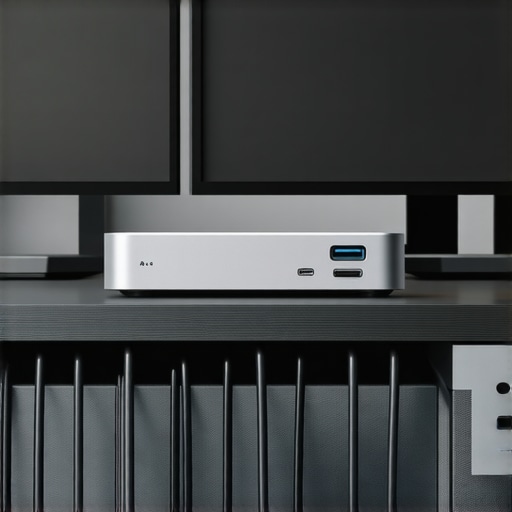
Have you ever been in the middle of a crucial Zoom call or working on a deadline, only to realize your laptop just isn’t cut out for your multitasking needs? The frustration of plugging and unplugging cables, struggling with limited ports, or dealing with flickering screens can turn a productive day into a tech nightmare. I’ve been there myself, and I remember the lightbulb moment when I finally understood that my setup’s limitations weren’t just my fault—they were the result of choosing the wrong docking station or hub. That realization changed everything, and I want to share that journey with you.
Why Your Monitors Deserve Better Connectivity in 2024
In today’s fast-paced digital world, having multiple monitors isn’t just a luxury—it’s a necessity. Whether you’re a creative professional, a developer, or someone juggling spreadsheets and emails, a seamless multi-monitor setup can boost your productivity and comfort. But here’s the catch: your laptop’s built-in ports often can’t handle the demands of multiple high-resolution displays, fast data transfer, and reliable power supply. That’s where the right USB C docks and Thunderbolt hubs come into play.
Are These Docks Worth the Hype or Just Hype?
Early in my journey, I made a rookie mistake—thinking that all docks were created equal. I bought a cheap, generic hub that promised the world but delivered constant screen flickering and slow data transfers. It was frustrating, and I wasted time troubleshooting instead of working. The truth is, not all docks are designed to handle multiple monitors or high-speed data. The key is understanding what features matter most—like power delivery, video output options, and data transfer speeds—and choosing accordingly. For a comprehensive look, I recommend checking out top Thunderbolt docks and USB-C hubs for 2024.
So, if you’ve faced the agony of messy cables, limited ports, or sluggish performance, you’re not alone. And better yet, there’s a solution. In the sections ahead, I’ll guide you through how to pick the perfect docking station that will transform your workspace into a powerhouse of efficiency. Ready to stop battling your setup and start maximizing it? Let’s dive in.
},
Choose the Right Dock for Your Needs
Start by assessing what your setup requires. Do you need high-speed data transfer, multiple video outputs, or reliable power delivery? A good rule of thumb is to identify your primary needs—if you’re editing large files or running multiple high-res monitors, prioritize docks with Thunderbolt 4 or USB-C ports supporting 100W power delivery and 8K video output. For general multitasking, a reliable USB-C dock with multiple HDMI or DisplayPort outputs will suffice. I once bought a cheap, all-in-one dock without checking its specs, which resulted in flickering screens and sluggish data transfers. That experience taught me to always match the dock’s features with my workflow. For detailed guidance, see this comprehensive USB-C dock guide.
Match Your Monitors with Dock Outputs
Next, match your monitor inputs with the dock’s outputs. If your monitors support HDMI, look for a dock with multiple HDMI ports. If they use DisplayPort, ensure the dock provides enough DisplayPort connectors or supports multi-stream transport (MST) for daisy chaining. I once had a setup where I bought a dock with only HDMI outputs, but my monitors only had DisplayPort inputs. It was a quick fix to get adapters, but it added clutter and potential points of failure. Avoid this by verifying your monitors’ input types beforehand. For tips on selecting the right monitor setup, visit this guide.
Ensure Compatibility and Performance
To avoid compatibility issues, check your laptop’s port versions and the dock’s specifications. For example, if your laptop has Thunderbolt 4, choose a dock explicitly supporting Thunderbolt 4 to maximize data speed and power delivery. I once tried connecting a non-Thunderbolt USB-C dock to my Thunderbolt laptop, and it resulted in limited functionality. Make sure the dock supports the latest standards—this ensures seamless operation and future-proofing. For more on mastering USB-C docking, see this article.
Optimize Cable Management
Once everything is connected, organize your cables to reduce clutter and improve airflow. Use cable clips or sleeves to keep things tidy. I once had a tangled mess behind my desk, which made troubleshooting difficult. Proper cable management not only looks professional but also prevents accidental disconnections and damage. Consider using a dock with built-in cable management features for a cleaner workspace. This simple step can significantly improve your multitasking efficiency.
Test and Fine-Tune Your Setup
Finally, test your entire setup. Check each monitor’s resolution and refresh rate, verify data transfer speeds, and ensure your laptop charges properly. If you notice issues, update your dock’s firmware or drivers and revisit your cable connections. I recommend running a quick benchmark using tools like CrystalDiskMark or AIDA64 to confirm speeds align with your expectations. Small tweaks can make a big difference in performance and reliability.
Many tech enthusiasts and professionals believe that selecting a docking station is simply about matching ports to their monitors and ensuring compatibility. However, there are several nuanced pitfalls that can sabotage even the most well-intentioned setups. Let’s dig deeper into what most people get wrong and how to avoid these traps to truly optimize your workspace.
Why Relying on Standard Compatibility Can Backfire
It’s a common misconception that as long as your dock supports your laptop’s port type, everything will work seamlessly. In reality, compatibility isn’t just about ports—it’s about standards and bandwidth. For instance, a dock claiming to support USB-C may not support the full Thunderbolt 3 or 4 standards, which are crucial for high-speed data transfer and multi-monitor configurations. Relying solely on basic compatibility checks can lead to issues like screen flickering, lag, or even no display at all. For advanced users, understanding the difference between USB-C, Thunderbolt, and USB 3.0 standards is essential. Learn more about maximizing data and video transfer.
Beware of Oversimplified Power Delivery Claims
Many docks advertise high wattage power delivery, but the actual amount your laptop receives can be less than promised. This discrepancy often occurs because docks may support 100W charging but only deliver that power under ideal conditions, which are rarely met in real-world setups. Using a dock that doesn’t provide consistent and sufficient power can lead to slower charging or even battery drain during intensive tasks. Advanced users should verify not only the dock’s wattage but also compatibility with your specific laptop model’s charging requirements. For detailed insights, check this guide on choosing the right dock for power needs.
Don’t Fall for the All-in-One Trap Without Verifying Performance
It’s tempting to buy a single dock that promises to handle everything—multiple monitors, data transfer, charging, and more. But this often leads to bottlenecks. An all-in-one dock might support 4K displays but struggle with 8K, or suffer from reduced data speeds when multiple high-bandwidth devices are connected. The key is to assess your actual workflow and choose a dock designed for your specific needs, rather than the most marketed one. For example, if you work with large video files, prioritize docks supporting high-speed data transfer standards that match your hardware.
What Advanced Users Should Know About Daisy Chaining and MST
For multi-monitor enthusiasts, daisy chaining via MST (Multi-Stream Transport) is a game changer. But many overlook whether their monitors and docks truly support MST, leading to unexpected issues like limited resolutions or no display at all. Also, some docks claim MST support but only work with specific monitor brands or require special configurations. As an expert tip, always verify your monitors’ input capabilities and the dock’s MST support before investing. This small nuance can save hours of troubleshooting. For a detailed deep dive, see this comprehensive guide to multi-monitor setups.
Have you ever fallen into this trap? Let me know in the comments. Mastering these advanced nuances will help you avoid costly mistakes and ensure your setup truly enhances your productivity.
Keeping your multi-monitor workspace running smoothly requires more than just choosing the right docks and cables; it involves regular maintenance, using the right tools, and planning for scalability. In this section, I’ll share exactly what I use to ensure my setup stays reliable and efficient over time, along with insights into future trends that could make maintenance even easier.
How do I maintain my multi-monitor setup over time?
Consistent upkeep starts with software tools. I rely heavily on DisplayFusion, a powerful utility that allows me to manage multiple monitors with ease. It helps me set profiles, organize window snapping, and quickly troubleshoot display issues. For example, if a monitor stops responding or flickers, I can reset its profile or update its driver through DisplayFusion without hassle. Additionally, I use USB-C dock management tools to monitor connection statuses and update firmware, which is critical for preventing connectivity hiccups.
Hardware-wise, I recommend regular cleaning of your ports and connectors, especially after heavy use or travel. Dust and debris can lead to poor connections, causing flickering or disconnects. I keep a small can of compressed air handy and gently blow out ports every few months. Also, inspecting cables for wear and tear prevents unexpected failures. A good practice is to replace cables that show signs of damage rather than risking intermittent issues.
For long-term stability, it’s wise to keep your device drivers and firmware updated. I set a quarterly reminder to check for updates from the dock manufacturer, graphics card vendor, and chipset providers. This proactive approach ensures compatibility with new software and reduces bugs. When updates are available, I install them during low-usage hours to avoid disruption.
Future-proofing your setup for long-term success
Looking ahead, I believe that automation and smart diagnostics will make maintenance even simpler. Emerging tools will likely incorporate AI-driven diagnostics that can predict hardware failures before they happen. For instance, some docks are beginning to include built-in health monitoring, alerting you to potential issues via dedicated apps. Staying ahead of problems means investing in docks and monitors that support firmware updates and diagnostic features—something I recommend researching before your next upgrade.
To get the most out of your setup and prevent issues before they occur, I encourage you to adopt a routine of regular software checks, hardware inspections, and staying informed about new tools. Implementing these practices now will save you headaches down the line and keep your workspace running at peak performance. And if you’re ready to take your maintenance routine to the next level, explore tools like USB-C dock management utilities and keep your drivers up-to-date—these small steps make a big difference.
The Hardest Lesson I Learned About Docking Stations for Monitors
- Never assume that all docks support high-resolution displays or fast data transfer; always verify specifications beyond basic compatibility.
- Choosing a dock based solely on port count can backfire—consider bandwidth, power delivery, and standards compliance to avoid bottlenecks.
- Overestimating a single all-in-one dock’s capabilities often leads to frustration. Match your workflow with the dock’s true strengths, like high-speed data or multi-monitor support.
- I learned the importance of firmware and driver updates—neglecting these can cause persistent connectivity issues that are hard to troubleshoot later.
- Understanding MST support and monitor input types saves hours of troubleshooting and prevents sub-optimal configurations.
My Essential Toolkit for Seamless Multi-Monitor Setup
- DisplayFusion—a lifesaver for managing multiple screens, profiles, and troubleshooting display issues effortlessly.
- USB-C dock management tools—help monitor connection health and update firmware, ensuring consistent performance.
- Regular cleaning supplies like compressed air—simple but effective for maintaining port integrity over time.
- Firmware and driver update schedules—set quarterly reminders to keep everything running smoothly and compatible with new software releases.
Your Turn to Try Connecting Confidently
Building a reliable multi-monitor workspace isn’t just about choosing the fanciest dock; it’s about understanding your specific needs, verifying compatibility, and maintaining your setup proactively. With the right tools and knowledge, you can transform your workspace into a powerhouse of productivity and creativity. Don’t wait for issues to arise—start applying these insights today and enjoy a seamless multi-monitor experience in 2024 and beyond.
What has been your biggest challenge when setting up multiple monitors, and how did you overcome it? Share your story below!
,
This post resonates with me, especially the emphasis on choosing the right docking station for specific needs. I used to struggle with flickering screens and sluggish transfers until I realized that not all docks support high-res multi-monitor setups equally. My experience taught me the importance of verifying the specifications, particularly for Thunderbolt compatibility and MST support for daisy chaining monitors. I appreciate the detailed insights on cable management and regular firmware updates — I’ve found that keeping cables organized and drivers current prevents a lot of connectivity headaches. One point I’d love to hear more about from others is how they handle troubleshooting when a monitor suddenly stops displaying correctly. Do you have reliable tools or routines for quick diagnosis? Sharing such tips could help many of us maintain a smooth, productive workspace in the long run.
Your post brought back memories of my earlier struggles with multi-monitor setups. I used to think that simply connecting the monitors via the available ports was enough, but I encountered constant flickering and resolution issues. It wasn’t until I researched and selected a docking station that supported MST and full Thunderbolt 4 standards that my workflow improved significantly. I also learned the importance of keeping firmware and drivers up-to-date; I’ve experienced fewer connectivity problems since adopting this routine. I’m curious—what are others’ go-to tools for quick diagnosis when a monitor or dock acts up unexpectedly? I’ve found that a combination of monitoring software and regular physical checks of cables and ports saves me a lot of troubleshooting time. With so many standards and compatibility points, maintaining a stable workspace can be challenging, but it’s worth the effort for a seamless experience.
I really resonate with this post, especially the part about verifying the specifications of docks before purchasing. I learned this the hard way when I bought a cheap dock that claimed to support 4K displays, only to find out it struggled with high refresh rates and flickered constantly. Since then, I’ve prioritized docks with certified Thunderbolt support and good MST compatibility, which has made my multi-monitor setup much more stable. What I’ve found helpful is using portable hardware testing tools to check real-world performance and compatibility, particularly when troubleshooting unexpected issues. Has anyone here tried this approach or found other effective diagnostic tools? It’s surprising how much smoother workflows become once you ensure your hardware supports the standards you need, rather than just going for port counts or marketing hype. I’d love to hear about others’ experiences with reliable tools or routines for quick troubleshooting—I believe sharing these can save everyone a lot of headaches.
The post resonates with my own experience of dealing with multi-monitor setups. I once invested in a dock that supported high wattage but lacked proper MST support, and that caused all sorts of issues when I tried to daisy-chain multiple displays. It’s crucial not just to focus on port quantity but also on the standards supported and compatibility with your monitors. I agree with the importance of firmware and driver updates—once I made that routine, things became much more reliable. One thing I’ve found helpful for troubleshooting is using monitor-specific tools or even simple hardware checks with a known-good cable and port. Has anyone used software utilities that diagnose display connections effectively? I’d love to hear tips from others who’ve mastered quick diagnostics to save time when issues arise. Also, what’s your advice for maintaining clean cable management when the setup gets complex? I believe small details like that make a big difference in long-term stability.
This article hits close to home for me because I’ve learned the hard way that not all docks can handle the demands of a multi-monitor setup, especially when working with 4K displays. Ensuring compatibility with standards like Thunderbolt 4 and MST support has made a huge difference in avoiding flickering and lag. I’ve also found that investing in quality cables and regularly updating firmware and drivers help maintain stability. One thing I’d add is that it’s worth testing different configurations before settling on a setup—especially if you’re upgrading from basic docks. Have others found any particular tools or routines that help verify dock performance quickly? Sharing practical steps could save a lot of headaches for fellow professionals trying to fine-tune their workspace.