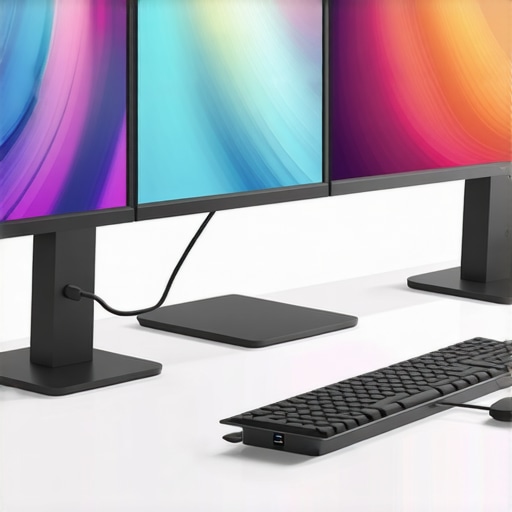
Ever spent hours trying to get multiple monitors to work smoothly with your laptop, only to be met with flickering screens, laggy mouse movements, or just plain confusion? I’ve been there. One day, after a frustrating weekend of unplugging and replugging, I had a lightbulb moment: the right docking station or Thunderbolt hub could actually simplify everything. But choosing the perfect one? That’s where the real challenge begins.
Why the Right Docking Station Can Transform Your Workspace
In 2024, more of us are juggling multiple screens, whether for work, gaming, or creative projects. A quality USB C dock or Thunderbolt hub isn’t just a luxury—it’s a necessity. It consolidates your connections, boosts data transfer speeds, and keeps your workspace tidy. But here’s the thing: not all docks are created equal. Picking the wrong one can lead to headaches, lag, or worse, damaging your gear.
My mistake early on was assuming that all docks could handle multiple monitors seamlessly. I bought a cheap hub, expecting it to support my three screens. Turns out, it couldn’t keep up, and I ended up wasting money and time. That’s why I want to help you avoid my rookie error by sharing what actually works in 2024.
Is a Thunderbolt Hub Really Worth the Hype?
This is the big question I hear all the time. Honestly, I was skeptical at first. I thought, “Do I really need that extra speed or the fancy features?” But once I upgraded to a top-tier Thunderbolt dock, I noticed a huge difference. Transfers were faster, connections more stable, and I could run multiple high-res monitors without a hitch. According to recent reports, Thunderbolt 4 can transfer data at up to 40Gbps—enough to handle 8K video and rapid data transfers simultaneously. Pretty impressive, right?
My advice? Don’t dismiss the power of a good Thunderbolt dock just because it sounds expensive. It might be the game-changer you need for your multi-monitor setup, especially if you work with large files or high-res content. Check out the detailed guide on best USB C docks and Thunderbolt hubs for 2024 for more insights.
If you’re tired of wrestling with your setup or just want a cleaner, more efficient workspace, this is the moment to act. Have you faced these multi-monitor frustrations? If so, you’re not alone—and there’s a solution waiting for you. Let’s dive into how to choose the perfect dock for your needs, so you can finally enjoy a seamless, productive setup.
Connect with Purpose
Start by identifying your monitor and laptop ports. If your laptop has Thunderbolt 4 or USB-C with DisplayPort support, opt for a Thunderbolt dock like the best Thunderbolt docks for 2024. For older or less demanding setups, a high-quality USB C dock suffices. When I upgraded my workspace, I first checked my laptop’s specs, then picked a dock that matched those specs to avoid bottlenecks.
Choose the Right Dock for Your Needs
Think of your dock as the central hub of your workspace—like a power strip but for data. To support three 4K monitors, I needed a dock with multiple video outputs—either HDMI or DisplayPort. I found that docks with dual HDMI ports or DisplayPorts gave me the flexibility I needed. Avoid docks with limited bandwidth or fewer video outputs, which can cause flickering or resolution drops.
Set Up Your Hardware Step-by-Step
Imagine your dock as a multi-lane highway—each lane needs to be clear for smooth traffic. First, connect your dock to your laptop using a certified cable—preferably Thunderbolt 4 or USB-C 3.2 Gen 2×2. Then, connect each monitor to the dock, ensuring you use high-quality cables to support 4K @ 60Hz or higher. I once made the mistake of using a cheap HDMI cable, which caused flickering; switching to a premium cable made all the difference.
Configure Your Displays Properly
Think of your display settings as traffic signals—if misaligned, chaos ensues. On Windows, right-click the desktop and select ‘Display Settings.’ Arrange your monitors according to their physical layout. For macOS, go to System Preferences > Displays. Ensure each monitor is set to its native resolution and refresh rate. I had a frustrating moment when my third monitor kept flickering until I manually adjusted the refresh rate to match the monitor’s specs.
Optimize for Performance and Stability
Picture your setup as a race car—performance depends on tuning. Keep your dock’s firmware updated by visiting the manufacturer’s site regularly. Use dedicated power sources for your dock to prevent voltage drops. If you experience lag or disconnects, try disconnecting one monitor temporarily to see if bandwidth is the issue. Upgrading your graphics drivers can also improve multi-monitor performance. For detailed tips, check the mastering USB-C docking guide.
Test and Troubleshoot
Think of this as test-driving a new car. After setup, test each monitor for flickering, color accuracy, and responsiveness. If a display is slow or flickering, swap cables or ports. Sometimes, simply restarting your laptop with all monitors connected can resolve lingering issues. When I faced persistent flickering, updating my graphics driver and switching to a different port on my dock solved the problem.
Mastering your multi-monitor setup isn’t just about plugging in gear; it’s about understanding each component’s role and optimizing the entire chain. For deeper insights, explore the full guide on multi-monitor laptop connectivity and keep your setup running smoothly in 2024.
Many enthusiasts and even seasoned professionals often believe that selecting a high-quality dock or Thunderbolt hub guarantees flawless multi-monitor setup. However, the reality is more nuanced. One of the most overlooked aspects is the misconception that all docks support the same bandwidth and display capabilities. In truth, subtle differences in hardware design, port configurations, and firmware can significantly impact your setup’s stability and performance.
For example, a popular myth is that a dock with multiple HDMI ports automatically supports 4K @ 60Hz on all monitors. While some models advertise this, many struggle with bandwidth limitations, especially when daisy-chaining high-resolution displays or using multiple high-refresh-rate screens simultaneously. This often leads to flickering, resolution drops, or unresponsive peripherals. To avoid this, you need to pay close attention to the dock’s specifications regarding bandwidth and supported resolutions, which are often understated in product descriptions.
Another common trap is assuming that a dock with Thunderbolt 3 or 4 automatically provides the same performance as a dedicated Thunderbolt station. While Thunderbolt offers impressive data transfer speeds, the actual performance depends heavily on the implementation details, such as the number of PCIe lanes allocated and the firmware optimizations. According to industry experts, some Thunderbolt docks share bandwidth among multiple ports, which can bottleneck your data transfer or video output when overloaded. For advanced users, it’s crucial to verify the dock’s architecture and firmware updates, which can unlock additional performance—details often missed in basic reviews.
What Advanced Users Overlook About Display Signal Integrity
One often unnoticed factor is the quality of cables and connectors used. Cheap or poorly shielded cables can introduce electromagnetic interference, causing flickering, artifacts, or even hardware damage over time. For high-res, high-refresh-rate displays, using certified cables that support the required bandwidth is non-negotiable. Additionally, the physical placement of your dock matters. Placing a dock near sources of electromagnetic interference—like routers or power supplies—can degrade signal quality. This is a subtle nuance that can trip up even experienced users who focus solely on hardware specs but neglect environmental factors.
Furthermore, firmware and driver updates are critical. Many users overlook the importance of keeping their docking station’s firmware current, which can fix bugs related to display compatibility and stability. Regularly checking the manufacturer’s site and applying updates can prevent issues that seem inexplicable, such as monitors disconnecting randomly or resolution inconsistencies.
Lastly, be aware of the limitations of your laptop’s graphics card. Even with a top-tier dock, if your GPU isn’t capable of supporting multiple high-resolution outputs simultaneously, you’ll encounter performance bottlenecks. Consulting detailed guides like laptop docking secrets can help you understand the synergy between your hardware components to optimize your setup.
In summary, the key to a successful multi-monitor setup lies in understanding these hidden nuances—bandwidth sharing, cable quality, environmental factors, and hardware limitations. Don’t fall into the trap of relying solely on marketing claims. Instead, do your homework, verify specifications, and stay updated with firmware. If you want to deepen your knowledge, check out comprehensive guides like expand your laptop’s connectivity and ensure your setup remains robust and future-proof. Have you ever fallen into this trap? Let me know in the comments.
Keeping your multi-monitor workstation running smoothly over time requires more than just initial setup; it demands dedicated tools, regular maintenance, and a proactive approach to hardware and software health. As someone who has navigated the complexities of multi-display configurations, I’ve found that investing in the right tools and adopting consistent practices can significantly extend the lifespan and performance of your setup.
How do I maintain my multi-monitor setup over time?
First off, firmware and driver updates are your best friends. Regularly checking for updates from your dock manufacturer and GPU vendor can resolve bugs, improve stability, and unlock new features. For example, the latest firmware updates on Thunderbolt docks often include enhancements for display compatibility and bandwidth management, which are crucial for multi-monitor setups. You can find these updates on the manufacturer’s official sites or through dedicated utilities provided by brands like Dell or CalDigit.
Next, physical maintenance is equally important. Dust accumulation can cause overheating and hardware degradation. I recommend using compressed air every few months to clean vents, ports, and fans. Additionally, inspecting cables and connectors for wear or damage ensures signal integrity and prevents flickering or disconnects, which are common issues caused by poor connections. High-quality, certified cables—especially for high-res, high-refresh-rate monitors—are non-negotiable. I personally use cables recommended by experts like Thunderbolt dock guides to ensure optimal performance.
Monitoring software can also help diagnose issues before they become critical. Tools like HWMonitor or GPU-Z provide real-time insights into temperature, voltage, and bandwidth usage. By keeping an eye on these metrics, I can preemptively address overheating or bandwidth bottlenecks—especially when I notice my monitors flickering or lagging after long hours of use.
Using a UPS (Uninterruptible Power Supply) is another underrated tip. Power fluctuations and outages can cause unexpected shutdowns or hardware stress. A quality UPS ensures steady power delivery, protecting your expensive equipment and maintaining data integrity during outages. I’ve seen firsthand how a UPS can save hours of work and prevent hardware failures.
What tools do I recommend for ongoing maintenance?
For firmware and driver updates, stick with manufacturer-specific utilities like Dell Command | Update or CalDigit’s Control Center. For hardware cleaning, compressed air cans from brands like Dust-off or Falcon are reliable choices. To monitor system health, I rely on HWMonitor and GPU-Z, which are free and easy to use. Finally, for power management, a UPS from APC or CyberPower offers peace of mind and reliable backup power.
Looking ahead, I predict that future trends will focus on smarter diagnostics integrated directly into docking stations and monitors, allowing users to receive proactive alerts about potential issues. As technology advances, maintaining your setup will become more about software-driven diagnostics and less about manual checks.
Start by scheduling quarterly firmware updates and cleaning routines. Incorporate monitoring software into your daily workflow to catch anomalies early. And if you haven’t already, invest in a quality UPS—your hardware will thank you. For more detailed insights, explore the comprehensive guide on boosting your laptop’s connectivity and keep your multi-monitor setup running at peak performance for years to come.
The Hardest Lessons I Learned About Multi-Monitor Docking
One of my biggest mistakes early on was assuming that any dock could handle multiple high-resolution monitors without issues. I bought a budget model expecting flawless performance, only to face flickering, lag, and constant disconnects. That taught me that not all docks are created equal—especially when it comes to bandwidth management and display outputs. Now I always check the specifications carefully and prioritize docks with dedicated video bandwidth and robust firmware support.
Why I Switched to a Thunderbolt Hub and Never Looked Back
Initially, I was skeptical about investing in a Thunderbolt dock, thinking it was just a luxury. But after upgrading, I realized how much smoother my workflow became. Faster data transfers, stable connections, and the ability to run three 4K displays at 60Hz transformed my workspace. I learned that Thunderbolt 4’s high bandwidth is worth the investment, especially if your work involves high-res content or gaming. For deeper insights, I recommend exploring the guide on best Thunderbolt docks for 2024.
How Environmental Factors Can Sabotage Your Display Performance
One overlooked lesson was the impact of environmental interference. Cheap, poorly shielded cables and placing your dock near routers or power sources can introduce electromagnetic interference, causing flickering or artifacts. I learned that investing in certified, high-quality cables and positioning my dock away from potential sources of interference made a noticeable difference. Regular firmware updates and good cable management have become part of my routine for reliable multi-monitor performance.
Curated Resources for Your Multi-Monitor Journey
- Ultimate USB-C Dock Guide: This comprehensive resource helped me understand how to expand my laptop’s connectivity effectively. The detailed specs and real-world examples are invaluable.
- Thunderbolt Dock Essentials: I trust this because it offers clear, expert advice on maximizing data and video transfer speeds, which is crucial for multi-monitor setups.
- Firmware Update Tips: Regularly updating firmware ensures stability and compatibility. The manufacturer’s official sites and utilities like Dell Command | Update or CalDigit’s Control Center make this easy.
- Monitoring Tools like HWMonitor or GPU-Z: These tools help keep an eye on system health, preventing overheating and bandwidth bottlenecks that can cause flickering or lag.
Your Turn to Try and Elevate Your Workspace
Building a seamless multi-monitor setup with the right docking station is a game-changer for productivity and creativity. It’s not just about plugging in; it’s about understanding your hardware’s nuances, environmental factors, and staying proactive with updates and maintenance. Now’s the time to invest in quality gear, optimize your environment, and enjoy a workspace that truly works for you. Have you ever faced a frustrating multi-monitor issue that you couldn’t solve? Share your story below and let’s troubleshoot together!
I totally relate to the frustration of flickering monitors and laggy mouse movements when trying to set up multiple displays. When I first attempted a multi-monitor setup, I also bought a budget dock expecting it to support all my screens seamlessly. Sadly, that led to frequent disconnects and visual glitches, wasting a lot of my time trying to troubleshoot. From my experience, investing in a quality Thunderbolt dock with dedicated bandwidth for video outputs makes a significant difference. It’s almost like upgrading to a faster, more reliable highway for your data. One thing I’ve learned is that environmental factors matter too—placing the dock away from routers or power sources and using certified high-quality cables can prevent many signal issues. Do others here have tips for environmental adjustments or cable management that helped improve their setup? I’d love to hear what’s worked best for you.
Reading through this post really hits home for me—I’ve faced similar issues with flickering screens and sluggish performance when trying to set up multiple monitors. What I found helpful was investing in a Thunderbolt 4 dock that offers dedicated video bandwidth, which significantly improved stability and display quality. It’s fascinating how environmental factors, like interference from routers or even fluorescent lights, can subtly affect signal integrity. I also make it a point to use high-quality, shielded cables for all my connections, especially for high-res displays. Have others noticed improvements after relocating their docks away from Wi-Fi routers or power supplies? I’ve started doing that, and I think it makes a noticeable difference. Plus, keeping your firmware and graphics drivers up to date is crucial—I’ve experienced fewer glitches since doing regular updates. It’s a testament to how attention to such details can optimize your workspace. What are some other subtle tweaks you all have found that enhance multi-monitor performance? Would love to hear different setups or tips that worked for you.