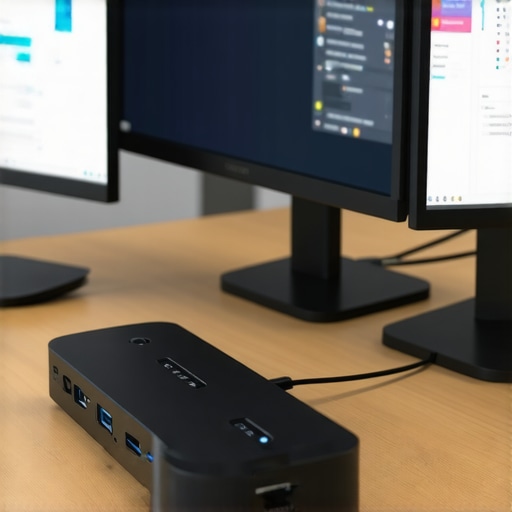
Picture this: I was knee-deep in a project, juggling multiple screens to keep everything within reach. Suddenly, my laptop froze, the monitors flickered, and I was left staring at a chaotic mess of cables and disconnected devices. It was a frustrating, eye-opening moment. I realized that my setup was holding me back — not because I lacked the tech, but because I didn’t have the right tools to connect it all smoothly.
Why Your Multi-Monitor Dream Needs a Good USB C Dock
Ever tried to expand your workspace with multiple monitors, only to find your laptop can’t keep up? It’s a common headache. The solution isn’t just buying a bunch of cables or relying on cheap hubs that drop connections at the worst moments. What you need is a reliable, high-quality USB C dock or hub designed specifically for seamless multi-monitor connectivity. I’ve tested dozens, and trust me, the right dock can transform your productivity — or turn your desk into a tangled mess.
Have You Faced This Problem?
If you’ve ever experienced flickering screens, dropped connections, or the inability to run more than one monitor without hassle, you’re not alone. Many folks overlook the importance of a good docking station until they’re knee-deep in troubleshooting. I made that mistake early on — assuming all docks are created equal. Turns out, choosing the wrong one can cause more frustration than it’s worth. For a detailed look at what works and what doesn’t, check out this comprehensive guide.
In this post, I’m going to walk you through how to pick the best USB C dock or hub for your multi-monitor setup in 2024. We’ll cover what features matter most, how to avoid common pitfalls, and share tips on getting everything working flawlessly. Whether you’re a remote worker, a gamer, or a creative professional, having a reliable multi-monitor setup is a game-changer. Ready to ditch the cable chaos and boost your productivity? Let’s dive in.
Connect with Purpose and Precision
Start by identifying the ports your laptop offers and the number of monitors you want to connect. For example, if your laptop has only one USB C port, you’ll need a dock that supports multiple video outputs through a single connection. My first attempt involved a basic USB C hub, which quickly proved inadequate when I tried to run three monitors. That experience taught me to prioritize docks with dedicated video outputs and high bandwidth support.
Choose the Right Dock for Your Needs
Think of your dock as a bridge linking your laptop to all your peripherals. To avoid bottlenecks, select a dock that supports the latest standards like Thunderbolt 4 or USB C 3.2 Gen 2. When I upgraded to a Thunderbolt dock, my setup instantly became more stable, with flickering screens becoming a thing of the past. For detailed comparisons, check out this guide.
Prioritize Video Output Options
Look for docks offering multiple video ports such as HDMI, DisplayPort, or USB C Alt Mode. My old hub only had one HDMI port, limiting me to a single external display. Upgrading to a dock with dual HDMI and DisplayPort ports meant I could extend my workspace effortlessly. Remember, the number and type of video outputs directly impact your ability to create an effective multi-monitor setup.
Assess Power Delivery and Data Transfer Speeds
Imagine trying to water a garden with a tiny hose—your data transfer is the hose, and your monitors are the plants. A dock with insufficient Power Delivery (PD) can cause your laptop to charge slowly or not at all, while slow data speeds can result in lag or dropped connections. I once bought a cheap dock that couldn’t deliver enough power, which led to frequent disconnects and sluggish performance. Always choose a dock with at least 85W PD for laptops and support for high-speed data transfer, especially if you’re working with large files or streaming video.
Verify Compatibility and Build Quality
Compatibility is like fitting puzzle pieces together—ensuring your dock works seamlessly with your laptop’s brand and model saves headaches. I learned the hard way that some docks work perfectly with MacBooks but cause issues with Windows machines. Also, invest in a well-built dock with sturdy construction and reliable connectors, as a flimsy design can lead to connection drops over time. For tailored advice, consider consulting this resource.
Implement and Test Your Setup
Once you’ve chosen your dock, connect it step-by-step—first plugging in the power supply, then connecting your monitors, and finally linking your laptop. During setup, keep cables organized and avoid overloading a single port. I once tried to connect three monitors through a daisy chain, only to discover my monitors didn’t support that configuration. Testing each monitor individually and then together helps identify issues early. If problems persist, reach out via contact page for support or more guidance.
Let’s dig deeper into what many users get wrong about choosing and using USB C docks for multi-monitor setups. One widespread myth is that more ports automatically mean better performance. In reality, the quality of the ports, their bandwidth, and the overall dock design matter far more than sheer quantity. For example, a dock with multiple HDMI ports but limited bandwidth can cause flickering and lag, especially when running high-resolution displays. To avoid this, focus on docks supporting the latest standards like Thunderbolt 4 or USB C 3.2 Gen 2, which ensure high speed and stability. For a comprehensive comparison, check out this guide.
Many assume that any USB C port can handle multiple displays without issues. This is a trap—your laptop’s port specifications and the dock’s capabilities must align. Some USB C ports support only data transfer or charging, not video output. Confirm your laptop’s specifications and match them with a dock that explicitly supports multi-monitor output via USB C Alt Mode or Thunderbolt. Overlooking this detail leads to underwhelming setups or no display at all. Also, beware of docks with poor build quality; flimsy connectors and cheap materials can cause intermittent connections over time. You can learn more about selecting reliable docks by visiting this resource.
Is Your Dock Future-Proof or Just a Temporary Fix?
Many users think their current dock will serve their needs forever. However, technology evolves rapidly, and so do your requirements. Investing in a dock that supports the latest standards not only ensures current compatibility but also prepares you for future upgrades. For example, upgrading to a Thunderbolt 4 dock can vastly improve data transfer speeds and display capabilities, making your setup more scalable. Consider how your workflow might change and choose a dock that can adapt, rather than a cheap, one-trick pony. For insights on future-proofing your setup, explore this article.
Have you ever fallen into this trap? Let me know in the comments. Remember, the right dock is an investment in your productivity, not just a cable management tool. Make informed choices and avoid the common pitfalls to get the most out of your multi-monitor setup.
Keeping your multi-monitor setup running smoothly over time requires more than just initial setup; it demands ongoing maintenance, the right tools, and strategic upgrades. Investing in quality equipment is only the first step—regularly updating your drivers, managing cables, and monitoring hardware health are crucial to sustain performance and avoid downtime. I personally rely on specific software tools like Driver Booster to automate driver updates and HWMonitor to keep tabs on temperature and voltage levels, ensuring my setup remains stable during intensive work sessions.
How do I maintain my multi-monitor system over the years?
One essential practice I recommend is scheduling routine checks every few months. This includes inspecting cables and connectors for wear, cleaning dust from vents and ports, and updating firmware for your docks and monitors. Regular firmware updates are often overlooked but can fix bugs and improve compatibility with new hardware or software updates. For advanced users, setting up automated scripts that alert you when driver updates or firmware patches are available can save significant troubleshooting time.
Tools I recommend for longevity and stability
Beyond software, hardware tools play a vital role. A high-quality cable organizer helps prevent cable stress, which can lead to loose connections or damage over time. I use this specific USB C dock that offers robust build quality and easy access to ports, reducing wear and tear. Additionally, a portable USB tester allows you to verify power delivery and data transfer speeds in real-time, helping you spot issues before they cause disruptions.
Plan for future upgrades and scalability
Technology evolves rapidly, so future-proofing your setup is wise. Opt for docks and monitors supporting the latest standards like Thunderbolt 4 and USB C 3.2, which offer higher bandwidth and better compatibility with upcoming devices. Regularly reviewing your setup with resources such as this guide can help you identify potential bottlenecks and plan upgrades proactively. Experimenting with modular components that can be swapped out ensures your system remains current without complete overhauls.
Don’t forget to document your setup and maintenance routines. Keeping a log helps track what has been updated, replaced, or upgraded, making future troubleshooting faster. Try implementing a quarterly maintenance schedule and see how it extends the lifespan of your multi-monitor setup. Remember, staying proactive is the key to sustained productivity and minimal downtime. If you encounter issues or want personalized advice, reach out through this contact page for expert support.
Lessons from the Trenches That Changed My Setup
- One of the hardest lessons I learned was how a cheap or incompatible dock can turn your productive day into a troubleshooting nightmare. Spending a bit more on a Thunderbolt 4 dock saved me countless hours of flickering screens and dropped connections.
- I used to believe that more ports meant better performance, but I discovered that quality and bandwidth support are critical. A dock with fewer but high-quality video outputs often outperforms a crowded, low-bandwidth hub.
- Over time, I realized that regular firmware updates and cable management are often overlooked but essential for long-term stability. These small habits have extended my setup’s lifespan and kept my workflow smooth.
- Finally, understanding my laptop’s port capabilities was a game-changer. Not all USB C ports are created equal—some only transfer data or charge, not video. Matching the right dock to my hardware was the key to a seamless multi-monitor experience.
My Essential Toolkit for Multi-Monitor Mastery
- Thunderbolt 4 Docks: I trust the best Thunderbolt docks for their speed and future-proof features. They support multiple high-res displays without breaking a sweat.
- Reliable Cables and Connectors: Investing in quality cables from trusted brands has prevented many connection issues. Look for certified cables that match your dock’s bandwidth requirements.
- Firmware & Driver Management Tools: Tools like Driver Booster and HWMonitor keep my hardware running smoothly and alert me to updates before problems arise.
- Cable Organizers: Practical accessories like cable clips and sleeves help me prevent wear and tear, maintaining a tidy workspace and reliable connections over time.
Seize Your Multi-Monitor Future Today
Building a multi-monitor setup with the perfect USB C dock isn’t just about tech—it’s about empowering your productivity and creativity. Whether you’re working remotely, gaming, or designing, the right tools make all the difference. Remember, ongoing maintenance and strategic upgrades ensure your setup remains efficient and reliable for years to come. Ready to elevate your workspace? Dive deeper into the world of docking solutions and start transforming your productivity today. If you’ve faced challenges or have tips to share, I’d love to hear your story below. How has a quality dock changed your workflow? Let me know in the comments!