I remember the exact moment I hit a wall. My workspace was a chaos of cables, and my laptop just couldn’t keep up with my multiple screens. Every time I tried to extend my display, I faced flickering, lag, or downright disconnection. It was frustrating, especially when deadlines loomed and I needed seamless productivity. That lightbulb moment? Realizing that the root of my problem was my outdated docking setup. I needed a powerful, reliable solution that could handle multiple monitors effortlessly.
Why Multi-Monitor Setups Are Game-Changers in 2024
In today’s fast-paced work environment, a single screen just isn’t enough. Multi-monitor setups boost productivity, enhance focus, and make multitasking smoother. But here’s the catch: to truly unlock these benefits, your connection hardware needs to be up to the task. Enter USB C and Thunderbolt docks—these are the unsung heroes that transform your laptop into a powerhouse capable of handling multiple high-resolution displays without breaking a sweat.
Is a USB C or Thunderbolt Dock Actually Worth the Hype?
Initially, I was skeptical. I bought a cheap USB C hub, thinking it would suffice. Spoiler: it didn’t. The ports were slow, and I faced constant disconnects. The mistake I made early on was underestimating the importance of quality and compatibility. After switching to a high-quality Thunderbolt dock, my workflow became seamless. This taught me that investing in the right dock isn’t just about convenience—it’s about efficiency and peace of mind. For more insights, you can explore the comprehensive USB hub guide.
Choose the Right Dock for Your Needs
Start by selecting a dock that supports your monitor resolution and number of displays. For example, if you plan to run 4K displays, ensure the dock offers HDMI 2.0 or DisplayPort 1.4 ports. When I upgraded my setup, I researched options like the best USB C and Thunderbolt docks for multiple monitors in 2024. This helped me find a model that handled my dual 4K monitors seamlessly.
Connect Your Monitors Step-by-Step
1. Power Down and Prepare Your Equipment
Before connecting, shut down your laptop and turn off your monitors. Unplug any existing hubs or docks to prevent conflicts. I learned this the hard way when I tried hot-plugging and caused my system to freeze. Always power off to ensure a smooth connection process.
2. Connect the Dock to Your Laptop
Use a high-quality USB C or Thunderbolt cable to connect the dock to your laptop. Make sure the cable supports data and video transfer—cheap cables might cause flickering or lag. I replaced my old cable with a certified Thunderbolt 4 cable and immediately noticed better stability.
3. Connect Monitors to the Dock
Plug each monitor into the appropriate port on the dock—HDMI, DisplayPort, or USB C. For my setup, I used a combination of HDMI and DisplayPort, which required adjusting display settings later. Remember, some docks may have limitations on max resolution or refresh rate, so check your dock’s specs.
Configure Your Display Settings
Power on your monitors and laptop. On your computer, navigate to display settings and arrange the monitors physically to match their placement on your desk. For Windows, right-click the desktop and select “Display settings.” For macOS, go to System Preferences > Displays. I once struggled with the wrong orientation, but reordering the monitors in settings resolved the issue.
Optimize for Performance
Adjust resolution and refresh rate for each monitor to match their native specs. Disable any unnecessary display options to improve performance. If you experience lag, ensure your dock’s drivers are up-to-date—most manufacturers provide updates via their support websites or included software.
Test and Troubleshoot
Verify that all monitors display correctly and that the mouse moves smoothly across screens. If a monitor isn’t detected, try reconnecting the cable or restarting your laptop. Sometimes, updating your graphics driver can fix detection issues. For persistent problems, consult the support team.
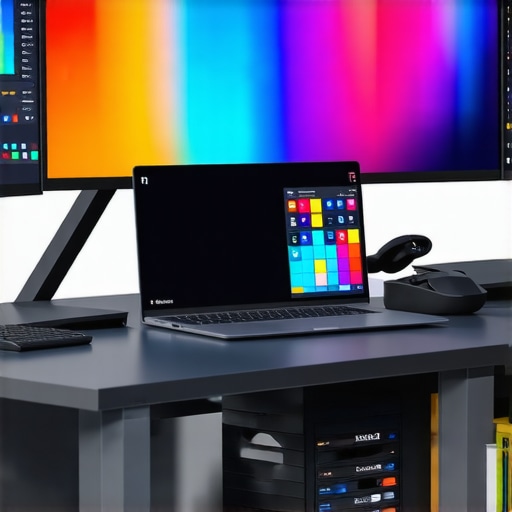
Illustration of a multi-monitor setup connected via a Thunderbolt dock, showing multiple screens and cables.
Many users assume that simply plugging in multiple monitors will instantly boost productivity. While this is partially true, the reality is more nuanced. One of the most pervasive myths is that all docking stations or hubs are created equal. In fact, choosing a low-quality or incompatible dock can lead to flickering screens, resolution issues, and even hardware damage. This misconception often results in wasted investment and frustration.
Another common mistake is underestimating the importance of proper cable quality and data bandwidth. For example, using a cheap USB C cable might seem convenient, but it can limit data transfer rates and cause instability, especially with high-resolution displays. Experts recommend investing in certified cables, such as Thunderbolt 4 cables, to ensure consistent performance. You can explore detailed guidelines on USB-C docking for optimal performance.
From an advanced perspective, a frequent oversight involves neglecting the maximum supported resolution and refresh rate of your dock and monitors. Many users believe that any dock with multiple ports can handle their high-end 4K or 5K displays. However, docks have specific limitations. For example, HDMI 2.0 ports support 4K at 60Hz, but older DisplayPort versions might only support lower refresh rates. Before purchasing, verify that your dock supports your desired resolution and refresh rate—this can prevent issues like flickering or lag. For deep dives, see best docks for multiple monitors.
What Advanced Users Often Overlook About Signal Interference and Compatibility
Let’s dig even deeper. A subtle but critical factor is electromagnetic interference (EMI), which can cause signal degradation in multi-monitor setups. High-quality docks often include shielding to prevent EMI, but cheaper models do not. If your setup experiences flickering or ghosting, consider this hidden nuance. Additionally, compatibility issues between your laptop’s graphics card and the dock can limit performance. For instance, some integrated GPUs struggle with multiple high-res displays, regardless of dock quality. Consulting manufacturer specifications and user reviews can save you from these pitfalls.
Finally, many assume software configuration is straightforward. In reality, advanced users sometimes overlook the need for custom display profiles or driver updates. Outdated graphics drivers can cause detection and performance issues. Regularly updating your GPU drivers ensures your system fully utilizes the dock’s capabilities. For comprehensive setup tips, visit ultimate multi-monitor setup guide.
Have you ever fallen into this trap? Let me know in the comments!
Keeping your multi-monitor setup running smoothly over time requires more than just initial setup; it involves regular maintenance, choosing the right tools, and staying updated with the latest technology trends. As someone who relies heavily on multiple displays for productivity, I’ve refined my routine to ensure everything stays performant and reliable.
How do I maintain my multi-monitor setup over time?
First, investing in quality cables and connectors is crucial. I personally use certified Thunderbolt 4 cables because they provide stable data and video transfer, reducing flickering and lag. Regularly inspecting these cables for wear and tear prevents unexpected disconnections. Also, I keep a stock of spare adapters and connectors compatible with my monitors and dock to quickly replace any faulty parts without disrupting my workflow.
Second, software maintenance plays a vital role. I recommend routinely updating your graphics drivers, as they are often optimized for multi-display configurations. I set reminders to check for driver updates from NVIDIA or AMD, depending on your GPU, or directly via your laptop manufacturer’s support site. This ensures compatibility with new monitors and prevents detection issues or resolution problems.
Third, monitoring tools can help you diagnose and troubleshoot performance issues proactively. I rely on tools like HWMonitor and MSI Afterburner to keep an eye on GPU temperature, usage, and clock speeds. These tools help identify bottlenecks or overheating that might degrade display performance. For managing display configurations, I prefer professional docking solutions that come with dedicated software to save and switch between display profiles seamlessly.
Finally, to future-proof your setup, consider integrating firmware updates provided by your dock or monitor manufacturer. These updates often improve compatibility, fix bugs, and enhance performance. I recommend subscribing to notifications from your hardware vendors or regularly checking their support pages.
Looking ahead, I predict that automation and AI-driven diagnostics will become more integrated into multi-monitor management, allowing for even easier maintenance and troubleshooting. For now, a combination of quality hardware, diligent software updates, and proactive monitoring keeps my setup running flawlessly.
If you want to delve deeper into optimizing your setup, I highly recommend exploring this comprehensive guide on USB-C docking. Give these tips a try, and you’ll notice your multi-monitor system remains reliable and efficient for years to come.
The Hardest Lessons I Learned About Multi-Monitor Docking
One of my most surprising realizations was that not all docks are created equal. I used to believe that a simple, inexpensive hub could handle my dual 4K displays, but I quickly learned that compatibility issues and bandwidth limitations cause flickering and lag. Investing in a high-quality Thunderbolt dock made a world of difference, teaching me that quality hardware is essential for a seamless multi-monitor experience.
3 Myths About Multi-Monitor Setups That Held Me Back
Myth 1: All cables are equally reliable. I found out that certified Thunderbolt 4 cables provide stability, while cheap cables often lead to disconnections. Myth 2: All docks support high-resolution displays. Verifying the dock’s specs saved me from resolution and refresh rate problems. Myth 3: Software updates are optional. Regular driver updates improved detection and performance significantly.
What Experts Won’t Tell You About Multi-Monitor Connectivity
Many overlook electromagnetic interference (EMI) and hardware compatibility. Shielded docks prevent signal degradation, and checking your GPU’s support for multiple high-res displays can save you hours of troubleshooting. Deep compatibility checks and quality cables are the secret weapons for a reliable setup.
Curated Recommendations for a Future-Ready Setup
My essential toolkit includes the Ultimate USB-C Dock Guide for insights on selecting the right hardware. I trust top-rated docks because they combine performance with longevity. For troubleshooting tips, support resources are invaluable.
Your Turn to Try
Setting up a reliable multi-monitor system might seem daunting, but with the right knowledge and tools, it’s entirely achievable. Embrace the learning curve, invest in quality, and enjoy the productivity boost that comes with a well-optimized setup. Remember, technology is meant to serve you—make it work for your unique needs.
Have you ever struggled with configuring your multi-monitor setup? Share your experience below, and let’s learn together!
Reading through this comprehensive guide really resonated with my own experiences setting up multi-monitor environments. I used to underestimate the importance of high-quality cables and proper docking hardware, which led to flickering screens and unstable connections. Since upgrading to a premium Thunderbolt dock and certified cables, my workflow has become much more reliable, especially with my dual 4K displays. One thing I’ve found particularly useful is regularly updating drivers and firmware to prevent unexpected detection issues.
Interestingly, I also learned about electromagnetic interference (EMI) last year, which caused ghosting in my monitors. Shielded docks or properly routed cables significantly improved my setup. Do others here have tips for reducing EMI or managing cable clutter when running multiple high-res displays? I’ve been thinking of adding some cable management solutions to keep everything tidy and optimize signal integrity.
This post resonated with me because I’ve struggled with similar issues in setting up my multi-monitor workspace. Like the author, I started with a cheap USB C hub, which resulted in flickering and intermittent disconnections. Upgrading to a high-quality Thunderbolt dock was a game-changer—my dual 4K monitors now run smoothly at 60Hz without any lag or glitches. I also found that cable quality plays a vital role; using certified Thunderbolt 4 cables made a noticeable difference in stability.
Regarding EMI, I’ve noticed that my setup became much more reliable after rerouting cables away from power sources and electronics that generate interference. Shielded cables and neatly organized wiring really help maintain signal integrity, especially with high-resolution displays. Do others have preferred cable management strategies or shielding techniques to minimize interference? Also, have you found any specific docks or cables that work particularly well with demanding multi-monitor setups? I’d love to hear more about what has worked best for others in overcoming these common issues.
I really relate to this discussion about the importance of quality hardware in multi-monitor setups. When I first set up my workspace, I underestimated the impact of using affordable cables and a basic docking station. The flickering and lag were frustrating, especially during tight deadlines. Since I upgraded to a certified Thunderbolt 4 cable and a high-end dock, the stability has improved tremendously. One thing I’ve learned is that cable routing and shielding play a crucial role in minimizing electromagnetic interference, which can be a silent culprit behind ghosting and flickering. I’ve started organizing my cables with dedicated sleeves and routing them away from power sources, which noticeably improves picture quality. For those facing persistent signal issues, do you think investing in EMI shielding or cable management tools makes a real difference? Also, how often do you all perform firmware updates on your docks? I’ve found that keeping everything current is vital for maintaining peak performance and compatibility with new hardware. Would love to hear your insights on balancing hardware upgrades with ongoing maintenance.